Ambient Gain Formula
This function converts energy values to ambient gain values, and is invoked twice per emitter:
- once with low-frequency energy values
- once with high-frequency energy values
The default formula specifies that 10% of ambient occlusion energy, or 10% of ambient permeation energy is required for ambient sounds to be at max volume:
emitter.AmbientGainFormula = (
    bool lowFrequency,
    int ambientOcclusionRayCount,
    int ambientPermeationRayCount,
    int ambientPermeationBounceCount,
    float ambientOcclusionEnergy,
    float ambientPermeationEnergy)
{
    float gain = 0.0f;

    if (ambientOcclusionRayCount > 0)
    {
        // 10% of ambient occlusion energy is required for ambient sounds to be at max volume
        float energyThreshold = 0.1f * ambientOcclusionRayCount;
        gain += ambientOcclusionEnergy / energyThreshold;
    }

    if (ambientPermeationRayCount > 0 && ambientPermeationBounceCount > 0)
    {
        // 10% of ambient permeation energy is required for ambient sounds to be at max volume
        float energyThreshold = 0.1f * (ambientPermeationRayCount * ambientPermeationBounceCount);
        gain += ambientPermeationEnergy / energyThreshold;
    }

    return MathF.Min(1, gain);
}
In JS, the ambient gain formula is not configurable. Instead, set the energy cap properties on the emitter to define how much energy is required for ambient sounds to be at full volume:
// 10% of ambient occlusion energy required for ambient sounds to be at max volume
emitter.ambientOcclusionEnergyCap = 0.1;

// 10% of ambient permeation energy required for ambient sounds to be at max volume
emitter.ambientPermeationEnergyCap = 0.1;
float MyAmbientGainFormula(
    bool lowFrequency,
    int occlusionRayCount,
    int permeationRayCount,
    int permeationBounceCount,
    float occlusionEnergy,
    float permeationEnergy)
{
    float gain = 0.0f;

    if (occlusionRayCount > 0)
    {
        // 10% of ambient occlusion energy is required for ambient sounds to be at max volume
        float energyThreshold = 0.1f * occlusionRayCount;
        gain += occlusionEnergy / energyThreshold;
    }

    if (permeationRayCount > 0 && permeationBounceCount > 0)
    {
        // 10% of ambient permeation energy is required for ambient sounds to be at max volume
        float energyThreshold = 0.1f * (permeationRayCount * permeationBounceCount);
        gain += permeationEnergy / energyThreshold;
    }

    return gain < 1.0f ? gain : 1.0f;
}

void Initialise()
{
    VAEmitter* emitter = vaEmitterCreate();
    vaEmitterSetAmbientGainFormula(emitter, MyAmbientGainFormula);
}
For example if there's 5% energy in all ambient occlusion rays, and 5% energy in all ambient permeation rays, they will accumulate to the 10% energy threshold, and ambience will be at maximum volume.
Parameters:
lowFrequency- indicates whether this formula is invoked with low-frequency energy values or high-frequency energy values (this formula is invoked twice)ambientOcclusionRayCountis the number of ambient occlusion rays that were cast by the source emitterambientPermeationRayCountis the number of ambient permeation rays that were cast by the source emitterambientPermeationBounceCountis the number of bounces per ambient permeation rayambientOcclusionEnergyis in the range 0.0 to 1.0, where 1.0 means all ambient occlusion rays reached the world edge with maximum energy remaining (i.e. no occlusion)ambientPermeationEnergyis in the range 0.0 to 1.0, where 1.0 means all ambient permeation rays reached the world edge with maximum energy remaining (i.e. all rays passed through air)
The results of these functions are stored on the Emitter.AmbientFilterEmitter.ambientFiltervaEmitterGetAmbientFilter() low pass filter, which is null until raytracing has completed at least once:
if (emitter.AmbientFilter != null)
{
    var gainLF = emitter.AmbientFilter.GainLF;
    var gainHF = emitter.AmbientFilter.GainHF;
}
if (emitter.ambientFilter != null)
{
    var gainLF = emitter.ambientFilter.gainLF;
    var gainHF = emitter.ambientFilter.gainHF;
}
VALowPassFilter* ambientFilter = vaEmitterGetAmbientFilter(emitter);

if (ambientFilter != NULL)
{
    float gainLF = ambientFilter->gainLF;
    float gainHF = ambientFilter->gainHF;
}
Custom EAX Formulas
EAX reverb variables are currently calculated using generic formulas that provide a decent starting point for most environments. But you may want to adjust these formulas to suit the environment in your game.
These formula are not customisable in JS.
These overridden functions will run on background threads. Do not attempt to access data from the main thread here.
To use custom formulas, create a class that overrides CustomEAXFormulas.
public class MyEAXFormulas : CustomEAXFormulas
{
    // This function will run on a background thread
    public override float CalculateDiffusion()
    {
        return 0.5f;
    }
}
Then set it on the raytracing world:
var world = new World();
world.CustomEAXFormulas = new MyEAXFormulas();
To use custom formulas, create an instance of CustomEAXFormulas and override its functions:
float MyCalculateDiffusion(VACustomEAXFormulas* formulas)
{
    return 0.5f;
}

VACustomEAXFormulas* formulas = vaCustomEAXFormulasCreate();
formulas->calculateDiffusion = MyCalculateDiffusion;

vaWorldSetCustomEAXFormulas(ctx, formulas);
Reference
View the CustomEAXFormulas.cs file in the SDK > References folder to see how each reverb property is currently calculated.
EAX Presets
The below tables contain all values for every EAX reverb preset. Use these as a reference if you're calculating reverb settings yourself.
See Custom EAX Formulas for more details.
Density
                   Preset  Density
                psychotic  0.0625
      driving_incar_racer  0.0832
     driving_incar_sports  0.0832
            pipe_resonant  0.1373
               paddedcell  0.1715
                 bathroom  0.1715
    spacestation_cupboard  0.1715
   spacestation_smallroom  0.2109
spacestation_shortpassage  0.2109
  spacestation_mediumroom  0.2109
      spacestation_alcove  0.2109
            pipe_longthin  0.256
     driving_incar_luxury  0.256
                sewerpipe  0.3071
         factory_cupboard  0.3071
        factory_courtyard  0.3071
                  hallway  0.3645
               underwater  0.3645
                    dizzy  0.3645
        factory_smallroom  0.3645
     factory_shortpassage  0.3645
      factory_longpassage  0.3645
           factory_alcove  0.3645
   spacestation_largeroom  0.3645
                dustyroom  0.3645
      prefab_practiseroom  0.4022
                     room  0.4287
          carpetedhallway  0.4287
                  drugged  0.4287
       factory_mediumroom  0.4287
        factory_largeroom  0.4287
             factory_hall  0.4287
 spacestation_longpassage  0.4287
        spacestation_hall  0.4287
          prefab_workshop  0.4287
        driving_pitgarage  0.4287
               livingroom  0.9766
                     none  1
                  generic  1
                stoneroom  1
               auditorium  1
              concerthall  1
                     cave  1
                    arena  1
                   hangar  1
            stonecorridor  1
         castle_smallroom  1
      castle_shortpassage  1
        castle_mediumroom  1
         castle_largeroom  1
       castle_longpassage  1
              castle_hall  1
          castle_cupboard  1
         castle_courtyard  1
            castle_alcove  1
      icepalace_smallroom  1
   icepalace_shortpassage  1
     icepalace_mediumroom  1
      icepalace_largeroom  1
    icepalace_longpassage  1
           icepalace_hall  1
       icepalace_cupboard  1
      icepalace_courtyard  1
         icepalace_alcove  1
         wooden_smallroom  1
      wooden_shortpassage  1
        wooden_mediumroom  1
         wooden_largeroom  1
       wooden_longpassage  1
              wooden_hall  1
          wooden_cupboard  1
         wooden_courtyard  1
            wooden_alcove  1
       sport_emptystadium  1
        sport_squashcourt  1
  sport_smallswimmingpool  1
  sport_largeswimmingpool  1
          sport_gymnasium  1
        sport_fullstadium  1
      sport_stadiumtannoy  1
          prefab_outhouse  1
           prefab_caravan  1
                dome_tomb  1
               pipe_small  1
          dome_saintpauls  1
               pipe_large  1
                 backyard  1
            rollingplains  1
               deepcanyon  1
                    creek  1
                   valley  1
                    alley  1
                   forest  1
                     city  1
                mountains  1
                   quarry  1
                    plain  1
               parkinglot  1
              mood_heaven  1
                mood_hell  1
              mood_memory  1
      driving_commentator  1
   driving_fullgrandstand  1
  driving_emptygrandstand  1
           driving_tunnel  1
             city_streets  1
              city_subway  1
              city_museum  1
             city_library  1
           city_underpass  1
           city_abandoned  1
                   chapel  1
           smallwaterroom  1
Diffusion
                   Preset  Diffusion
            rollingplains  0
      driving_commentator  0
                    plain  0.21
                mountains  0.27
                   valley  0.28
                    alley  0.3
                   forest  0.3
                    creek  0.35
         castle_courtyard  0.42
                 backyard  0.45
                  drugged  0.5
                psychotic  0.5
                     city  0.5
    spacestation_cupboard  0.56
                dustyroom  0.56
        factory_courtyard  0.57
                mood_hell  0.57
           factory_alcove  0.59
      icepalace_courtyard  0.59
        driving_pitgarage  0.59
                    dizzy  0.6
         factory_cupboard  0.63
     factory_shortpassage  0.64
      factory_longpassage  0.64
         wooden_courtyard  0.65
           city_abandoned  0.69
   spacestation_smallroom  0.7
  sport_smallswimmingpool  0.7
           smallwaterroom  0.7
               deepcanyon  0.74
              city_subway  0.74
        factory_largeroom  0.75
             factory_hall  0.75
   icepalace_shortpassage  0.75
  spacestation_mediumroom  0.75
        sport_squashcourt  0.75
           icepalace_hall  0.76
    icepalace_longpassage  0.77
      spacestation_alcove  0.78
      sport_stadiumtannoy  0.78
             city_streets  0.78
                dome_tomb  0.79
                sewerpipe  0.8
      driving_incar_racer  0.8
     driving_incar_sports  0.8
              castle_hall  0.81
      icepalace_largeroom  0.81
   spacestation_largeroom  0.81
          sport_gymnasium  0.81
           driving_tunnel  0.81
         castle_largeroom  0.82
        factory_smallroom  0.82
       factory_mediumroom  0.82
 spacestation_longpassage  0.82
  sport_largeswimmingpool  0.82
          prefab_outhouse  0.82
              city_museum  0.82
             city_library  0.82
           city_underpass  0.82
       icepalace_cupboard  0.83
      icepalace_smallroom  0.84
         icepalace_alcove  0.84
                   chapel  0.84
              mood_memory  0.85
     icepalace_mediumroom  0.87
spacestation_shortpassage  0.87
        spacestation_hall  0.87
      prefab_practiseroom  0.87
          dome_saintpauls  0.87
         castle_smallroom  0.89
      castle_shortpassage  0.89
       castle_longpassage  0.89
          castle_cupboard  0.89
            castle_alcove  0.89
            pipe_longthin  0.91
            pipe_resonant  0.91
        castle_mediumroom  0.93
              mood_heaven  0.94
                     none  1
                  generic  1
               paddedcell  1
                     room  1
                 bathroom  1
               livingroom  1
                stoneroom  1
               auditorium  1
              concerthall  1
                     cave  1
                    arena  1
                   hangar  1
          carpetedhallway  1
                  hallway  1
            stonecorridor  1
               underwater  1
         wooden_smallroom  1
      wooden_shortpassage  1
        wooden_mediumroom  1
         wooden_largeroom  1
       wooden_longpassage  1
              wooden_hall  1
          wooden_cupboard  1
            wooden_alcove  1
       sport_emptystadium  1
        sport_fullstadium  1
          prefab_workshop  1
           prefab_caravan  1
               pipe_small  1
               pipe_large  1
                   quarry  1
               parkinglot  1
     driving_incar_luxury  1
   driving_fullgrandstand  1
  driving_emptygrandstand  1
Gain
                   Preset  Gain
                     none  0
                factory_*  0.2512
                    other  0.3162
      driving_commentator  3.1623
GainLF
                   Preset  GainLF
             city_library  0.0891
         castle_smallroom  0.1
      castle_shortpassage  0.1
        castle_mediumroom  0.1
       castle_longpassage  0.1
          castle_cupboard  0.1
            castle_alcove  0.1
         castle_largeroom  0.1259
           prefab_caravan  0.1259
          prefab_outhouse  0.1585
                   valley  0.1585
              castle_hall  0.1778
              city_museum  0.1778
         castle_courtyard  0.1995
       icepalace_cupboard  0.2239
                dome_tomb  0.2239
               pipe_small  0.2239
          dome_saintpauls  0.2239
               pipe_large  0.2239
      icepalace_smallroom  0.2818
   icepalace_shortpassage  0.2818
         icepalace_alcove  0.2818
        wooden_mediumroom  0.2818
         wooden_largeroom  0.2818
              wooden_hall  0.2818
            pipe_longthin  0.2818
            pipe_resonant  0.2818
      icepalace_courtyard  0.3162
         wooden_smallroom  0.3162
      wooden_shortpassage  0.3162
       wooden_longpassage  0.3162
          wooden_cupboard  0.3162
         wooden_courtyard  0.3162
            wooden_alcove  0.3162
              mood_memory  0.3548
    icepalace_longpassage  0.3981
          prefab_workshop  0.3981
     icepalace_mediumroom  0.4467
      icepalace_largeroom  0.4467
              mood_heaven  0.4467
                mood_hell  0.4467
        factory_smallroom  0.5012
     factory_shortpassage  0.5012
       factory_mediumroom  0.5012
      factory_longpassage  0.5012
         factory_cupboard  0.5012
           factory_alcove  0.5012
      sport_stadiumtannoy  0.5012
      prefab_practiseroom  0.5012
                 backyard  0.5012
                    creek  0.5012
      driving_commentator  0.5012
     driving_incar_luxury  0.5012
           icepalace_hall  0.5623
        driving_pitgarage  0.5623
        factory_largeroom  0.631
             factory_hall  0.631
        factory_courtyard  0.631
            rollingplains  0.631
               deepcanyon  0.631
   driving_fullgrandstand  0.631
                dustyroom  0.7079
       sport_emptystadium  0.7943
        sport_squashcourt  0.7943
        sport_fullstadium  0.7943
      driving_incar_racer  0.7943
  driving_emptygrandstand  0.7943
   spacestation_smallroom  0.8913
spacestation_shortpassage  0.8913
  spacestation_mediumroom  0.8913
   spacestation_largeroom  0.8913
 spacestation_longpassage  0.8913
        spacestation_hall  0.8913
    spacestation_cupboard  0.8913
      spacestation_alcove  0.8913
  sport_smallswimmingpool  0.8913
          sport_gymnasium  0.8913
           driving_tunnel  0.8913
             city_streets  0.8913
              city_subway  0.8913
           city_underpass  0.8913
           city_abandoned  0.8913
                     none  1
                  generic  1
               paddedcell  1
                     room  1
                 bathroom  1
               livingroom  1
                stoneroom  1
               auditorium  1
              concerthall  1
                     cave  1
                    arena  1
                   hangar  1
          carpetedhallway  1
                  hallway  1
            stonecorridor  1
                sewerpipe  1
               underwater  1
                  drugged  1
                    dizzy  1
                psychotic  1
  sport_largeswimmingpool  1
                    alley  1
                   forest  1
                     city  1
                mountains  1
                   quarry  1
                    plain  1
               parkinglot  1
     driving_incar_sports  1
                   chapel  1
           smallwaterroom  1
GainHF
                   Preset  GainHF
                     none  0
               paddedcell  0.001
               livingroom  0.001
          carpetedhallway  0.01
               underwater  0.01
            rollingplains  0.0112
                   forest  0.0224
                   valley  0.0282
                mountains  0.0562
        sport_fullstadium  0.0708
              wooden_hall  0.0794
         wooden_courtyard  0.0794
         wooden_largeroom  0.0891
           prefab_caravan  0.0891
        wooden_mediumroom  0.1
       wooden_longpassage  0.1
                    plain  0.1
     driving_incar_luxury  0.1
         wooden_smallroom  0.1122
          prefab_outhouse  0.1122
      wooden_shortpassage  0.1259
            wooden_alcove  0.1259
          wooden_cupboard  0.1413
          prefab_workshop  0.1413
               deepcanyon  0.1778
                    creek  0.1778
              city_museum  0.1778
                 bathroom  0.2512
                 backyard  0.2512
        castle_mediumroom  0.2818
         castle_largeroom  0.2818
              castle_hall  0.2818
          castle_cupboard  0.2818
      icepalace_courtyard  0.2818
   driving_fullgrandstand  0.2818
             city_library  0.2818
                   hangar  0.3162
                sewerpipe  0.3162
      castle_shortpassage  0.3162
        factory_courtyard  0.3162
        sport_squashcourt  0.3162
                   quarry  0.3162
                dome_tomb  0.3548
               pipe_small  0.3548
          dome_saintpauls  0.3548
               pipe_large  0.3548
                mood_hell  0.3548
         castle_smallroom  0.3981
       castle_longpassage  0.3981
      prefab_practiseroom  0.3981
                     city  0.3981
           driving_tunnel  0.3981
         castle_courtyard  0.4467
           icepalace_hall  0.4467
       sport_emptystadium  0.4467
          sport_gymnasium  0.4467
            pipe_longthin  0.4467
            pipe_resonant  0.4467
           city_underpass  0.4467
                    arena  0.4477
           smallwaterroom  0.4477
            castle_alcove  0.5012
       icepalace_cupboard  0.5012
              concerthall  0.5623
      icepalace_smallroom  0.5623
   icepalace_shortpassage  0.5623
     icepalace_mediumroom  0.5623
      icepalace_largeroom  0.5623
    icepalace_longpassage  0.5623
         icepalace_alcove  0.5623
      sport_stadiumtannoy  0.5623
      driving_commentator  0.5623
                   chapel  0.5623
               auditorium  0.5781
                     room  0.5929
                    dizzy  0.631
spacestation_shortpassage  0.631
  spacestation_mediumroom  0.631
   spacestation_largeroom  0.631
 spacestation_longpassage  0.631
        spacestation_hall  0.631
              mood_memory  0.631
     driving_incar_sports  0.631
                stoneroom  0.7079
                  hallway  0.7079
        factory_largeroom  0.7079
             factory_hall  0.7079
   spacestation_smallroom  0.7079
    spacestation_cupboard  0.7079
      spacestation_alcove  0.7079
        driving_pitgarage  0.7079
             city_streets  0.7079
              city_subway  0.7079
                    alley  0.7328
            stonecorridor  0.7612
        factory_smallroom  0.7943
     factory_shortpassage  0.7943
       factory_mediumroom  0.7943
      factory_longpassage  0.7943
         factory_cupboard  0.7943
           factory_alcove  0.7943
  sport_smallswimmingpool  0.7943
  sport_largeswimmingpool  0.7943
              mood_heaven  0.7943
           city_abandoned  0.7943
                dustyroom  0.7943
                psychotic  0.8404
                  generic  0.8913
                     cave  1
                  drugged  1
               parkinglot  1
      driving_incar_racer  1
  driving_emptygrandstand  1
DecayTime
                   Preset  DecayTime
     driving_incar_luxury  0.13
               paddedcell  0.17
      driving_incar_racer  0.17
     driving_incar_sports  0.17
          carpetedhallway  0.3
                     room  0.4
           prefab_caravan  0.43
         factory_cupboard  0.49
               livingroom  0.5
          wooden_cupboard  0.56
          castle_cupboard  0.67
       icepalace_cupboard  0.76
          prefab_workshop  0.76
    spacestation_cupboard  0.79
         wooden_smallroom  0.79
      prefab_practiseroom  1.12
                 backyard  1.12
      spacestation_alcove  1.16
         castle_smallroom  1.22
            wooden_alcove  1.22
          prefab_outhouse  1.38
        wooden_mediumroom  1.47
                     none  1.49
                  generic  1.49
                 bathroom  1.49
                  hallway  1.49
               underwater  1.49
                    alley  1.49
                   forest  1.49
                     city  1.49
                mountains  1.49
                   quarry  1.49
                    plain  1.49
      icepalace_smallroom  1.51
           smallwaterroom  1.51
            castle_alcove  1.64
               parkinglot  1.65
        factory_smallroom  1.72
   spacestation_smallroom  1.72
        driving_pitgarage  1.72
      wooden_shortpassage  1.75
   icepalace_shortpassage  1.79
         wooden_courtyard  1.79
             city_streets  1.79
                dustyroom  1.79
       wooden_longpassage  1.99
        castle_mediumroom  2.04
      icepalace_courtyard  2.04
         castle_courtyard  2.13
            rollingplains  2.13
                    creek  2.13
     icepalace_mediumroom  2.22
        sport_squashcourt  2.22
                stoneroom  2.31
      castle_shortpassage  2.32
        factory_courtyard  2.32
      driving_commentator  2.42
         castle_largeroom  2.53
     factory_shortpassage  2.53
      sport_stadiumtannoy  2.53
         wooden_largeroom  2.65
            stonecorridor  2.7
       factory_mediumroom  2.76
         icepalace_alcove  2.76
  sport_smallswimmingpool  2.76
             city_library  2.76
                sewerpipe  2.81
                   valley  2.88
                     cave  2.91
    icepalace_longpassage  3.01
  spacestation_mediumroom  3.01
   driving_fullgrandstand  3.01
              city_subway  3.01
              castle_hall  3.14
           factory_alcove  3.14
      icepalace_largeroom  3.14
          sport_gymnasium  3.14
              city_museum  3.28
           city_abandoned  3.28
       castle_longpassage  3.42
           driving_tunnel  3.42
              wooden_hall  3.45
spacestation_shortpassage  3.57
                mood_hell  3.57
           city_underpass  3.57
   spacestation_largeroom  3.89
               deepcanyon  3.89
              concerthall  3.92
      factory_longpassage  4.06
              mood_memory  4.06
                dome_tomb  4.18
        factory_largeroom  4.24
               auditorium  4.32
 spacestation_longpassage  4.62
  driving_emptygrandstand  4.62
                   chapel  4.62
               pipe_small  5.04
              mood_heaven  5.04
        sport_fullstadium  5.25
           icepalace_hall  5.49
  sport_largeswimmingpool  5.49
       sport_emptystadium  6.26
            pipe_resonant  6.81
        spacestation_hall  7.11
                    arena  7.24
             factory_hall  7.43
                psychotic  7.56
                  drugged  8.39
               pipe_large  8.45
            pipe_longthin  9.21
                   hangar  10.05
          dome_saintpauls  10.48
                    dizzy  17.23
DecayLFRatio
                   Preset  DecayLFRatio
                dome_tomb  0.1
               pipe_small  0.1
          dome_saintpauls  0.1
            pipe_longthin  0.1
               pipe_large  0.1
            pipe_resonant  0.1
      prefab_practiseroom  0.18
                dustyroom  0.21
         castle_courtyard  0.23
       icepalace_cupboard  0.26
      icepalace_smallroom  0.27
   icepalace_shortpassage  0.28
    icepalace_longpassage  0.28
         icepalace_alcove  0.28
         castle_smallroom  0.31
      castle_shortpassage  0.31
       castle_longpassage  0.31
          castle_cupboard  0.31
            castle_alcove  0.31
     icepalace_mediumroom  0.32
      icepalace_largeroom  0.32
          prefab_outhouse  0.35
                   valley  0.35
           icepalace_hall  0.38
      icepalace_courtyard  0.38
      driving_incar_racer  0.41
     driving_incar_sports  0.41
             city_library  0.41
        castle_mediumroom  0.46
                 backyard  0.46
            rollingplains  0.46
               deepcanyon  0.46
                    creek  0.46
     driving_incar_luxury  0.46
         castle_largeroom  0.5
   spacestation_smallroom  0.55
spacestation_shortpassage  0.55
  spacestation_mediumroom  0.55
 spacestation_longpassage  0.55
    spacestation_cupboard  0.55
      spacestation_alcove  0.55
        factory_courtyard  0.56
              mood_heaven  0.56
              mood_memory  0.56
              city_museum  0.57
   spacestation_largeroom  0.61
        spacestation_hall  0.61
              castle_hall  0.62
      sport_stadiumtannoy  0.68
      driving_commentator  0.68
       wooden_longpassage  0.79
         wooden_courtyard  0.79
        sport_fullstadium  0.8
        wooden_mediumroom  0.82
         wooden_largeroom  0.82
              wooden_hall  0.82
         wooden_smallroom  0.87
      wooden_shortpassage  0.87
        driving_pitgarage  0.87
          wooden_cupboard  0.91
            wooden_alcove  0.91
             city_streets  0.91
              city_subway  0.91
           city_underpass  0.91
           city_abandoned  0.91
                     none  1
                  generic  1
               paddedcell  1
                     room  1
                 bathroom  1
               livingroom  1
                stoneroom  1
               auditorium  1
              concerthall  1
                     cave  1
                    arena  1
                   hangar  1
          carpetedhallway  1
                  hallway  1
            stonecorridor  1
                sewerpipe  1
               underwater  1
                  drugged  1
                    dizzy  1
                psychotic  1
          prefab_workshop  1
           prefab_caravan  1
                    alley  1
                   forest  1
                     city  1
                mountains  1
                   quarry  1
                    plain  1
               parkinglot  1
       sport_emptystadium  1.1
  sport_smallswimmingpool  1.14
  sport_largeswimmingpool  1.14
           smallwaterroom  1.14
        sport_squashcourt  1.16
                   chapel  1.23
   driving_fullgrandstand  1.28
        factory_smallroom  1.31
     factory_shortpassage  1.31
       factory_mediumroom  1.31
        factory_largeroom  1.31
      factory_longpassage  1.31
             factory_hall  1.31
         factory_cupboard  1.31
           factory_alcove  1.31
           driving_tunnel  1.31
          sport_gymnasium  1.35
  driving_emptygrandstand  1.4
                mood_hell  2
DecayHFRatio
                   Preset  DecayHFRatio
               paddedcell  0.1
               livingroom  0.1
          carpetedhallway  0.1
               underwater  0.1
               pipe_small  0.1
               pipe_large  0.1
                sewerpipe  0.14
        sport_fullstadium  0.17
            pipe_longthin  0.18
            pipe_resonant  0.18
          dome_saintpauls  0.19
                dome_tomb  0.21
            rollingplains  0.21
               deepcanyon  0.21
                    creek  0.21
                mountains  0.21
                   hangar  0.23
                   valley  0.26
        factory_courtyard  0.29
              wooden_hall  0.3
         wooden_smallroom  0.32
                    arena  0.33
         wooden_largeroom  0.33
                 backyard  0.34
         wooden_courtyard  0.35
   spacestation_largeroom  0.38
        spacestation_hall  0.38
          prefab_outhouse  0.38
                dustyroom  0.38
       wooden_longpassage  0.4
     driving_incar_luxury  0.41
        wooden_mediumroom  0.42
          wooden_cupboard  0.46
                mood_hell  0.49
spacestation_shortpassage  0.5
  spacestation_mediumroom  0.5
      wooden_shortpassage  0.5
                    plain  0.5
        factory_largeroom  0.51
             factory_hall  0.51
       sport_emptystadium  0.51
                 bathroom  0.54
                   forest  0.54
                    dizzy  0.56
      prefab_practiseroom  0.56
               auditorium  0.59
                  hallway  0.59
         castle_courtyard  0.61
 spacestation_longpassage  0.62
            wooden_alcove  0.62
                stoneroom  0.64
                   chapel  0.64
        factory_smallroom  0.65
     factory_shortpassage  0.65
       factory_mediumroom  0.65
      factory_longpassage  0.65
         factory_cupboard  0.65
           factory_alcove  0.65
                     city  0.67
              concerthall  0.7
     driving_incar_sports  0.75
            stonecorridor  0.79
              castle_hall  0.79
    spacestation_cupboard  0.81
      spacestation_alcove  0.81
   spacestation_smallroom  0.82
              mood_memory  0.82
                     none  0.83
                  generic  0.83
                     room  0.83
         castle_smallroom  0.83
      castle_shortpassage  0.83
        castle_mediumroom  0.83
         castle_largeroom  0.83
       castle_longpassage  0.83
                   quarry  0.83
                    alley  0.86
          castle_cupboard  0.87
            castle_alcove  0.87
      sport_stadiumtannoy  0.88
      driving_commentator  0.88
             city_library  0.89
                psychotic  0.91
        sport_squashcourt  0.91
        driving_pitgarage  0.93
           driving_tunnel  0.94
          prefab_workshop  1
          sport_gymnasium  1.06
              mood_heaven  1.12
             city_streets  1.12
           city_underpass  1.12
           city_abandoned  1.17
      icepalace_courtyard  1.2
              city_subway  1.23
  sport_smallswimmingpool  1.25
           smallwaterroom  1.25
                     cave  1.3
  sport_largeswimmingpool  1.31
   driving_fullgrandstand  1.37
                  drugged  1.39
              city_museum  1.4
   icepalace_shortpassage  1.46
    icepalace_longpassage  1.46
         icepalace_alcove  1.46
           prefab_caravan  1.5
               parkinglot  1.5
      icepalace_smallroom  1.53
     icepalace_mediumroom  1.53
      icepalace_largeroom  1.53
           icepalace_hall  1.53
       icepalace_cupboard  1.53
  driving_emptygrandstand  1.75
      driving_incar_racer  2
ReflectionsGain
                   Preset  ReflectionsGain
                   quarry  0
                mood_hell  0
              mood_memory  0.0398
                mountains  0.0407
                  generic  0.05
                   forest  0.0525
                    plain  0.0585
             factory_hall  0.0631
       sport_emptystadium  0.0631
                     city  0.073
        sport_fullstadium  0.1
           icepalace_hall  0.1122
          carpetedhallway  0.1215
                    dizzy  0.1392
                   valley  0.1413
                     room  0.1503
              castle_hall  0.1778
        factory_largeroom  0.1778
        spacestation_hall  0.1778
          dome_saintpauls  0.1778
            rollingplains  0.1778
      driving_commentator  0.1995
               livingroom  0.2051
               parkinglot  0.2082
  driving_emptygrandstand  0.2082
         castle_courtyard  0.2239
        factory_courtyard  0.2239
              concerthall  0.2427
              mood_heaven  0.2427
                  hallway  0.2458
            stonecorridor  0.2472
               paddedcell  0.25
                    alley  0.25
      icepalace_largeroom  0.2512
              city_museum  0.2512
                    arena  0.2612
       factory_mediumroom  0.2818
      sport_stadiumtannoy  0.2818
             city_streets  0.2818
      icepalace_courtyard  0.3162
   spacestation_largeroom  0.3162
               deepcanyon  0.3162
   driving_fullgrandstand  0.3548
             city_library  0.3548
                dome_tomb  0.3868
     icepalace_mediumroom  0.3981
  spacestation_mediumroom  0.3981
          sport_gymnasium  0.3981
               pipe_large  0.3981
                    creek  0.3981
           city_underpass  0.3981
               auditorium  0.4032
                stoneroom  0.4411
         castle_largeroom  0.4467
        sport_squashcourt  0.4467
  sport_largeswimmingpool  0.4467
                 backyard  0.4467
           city_abandoned  0.4467
                   chapel  0.4467
                psychotic  0.4864
                     cave  0.5
                   hangar  0.5
   icepalace_shortpassage  0.5012
               pipe_small  0.5012
                dustyroom  0.5012
         wooden_courtyard  0.5623
        driving_pitgarage  0.5623
               underwater  0.5963
        castle_mediumroom  0.631
  sport_smallswimmingpool  0.631
                 bathroom  0.6531
        factory_smallroom  0.7079
            pipe_longthin  0.7079
            pipe_resonant  0.7079
           driving_tunnel  0.7079
              city_subway  0.7079
    icepalace_longpassage  0.7943
   spacestation_smallroom  0.7943
     driving_incar_luxury  0.7943
                  drugged  0.876
         castle_smallroom  0.8913
      castle_shortpassage  0.8913
       castle_longpassage  0.8913
      icepalace_smallroom  0.8913
      wooden_shortpassage  0.8913
        wooden_mediumroom  0.8913
         wooden_largeroom  0.8913
              wooden_hall  0.8913
          prefab_outhouse  0.8913
           smallwaterroom  0.8913
                     none  1
            castle_alcove  1
     factory_shortpassage  1
      factory_longpassage  1
spacestation_shortpassage  1
 spacestation_longpassage  1
         wooden_smallroom  1
       wooden_longpassage  1
          prefab_workshop  1
           prefab_caravan  1
     driving_incar_sports  1
       icepalace_cupboard  1.122
         icepalace_alcove  1.122
          wooden_cupboard  1.122
            wooden_alcove  1.122
         factory_cupboard  1.2589
      prefab_practiseroom  1.2589
          castle_cupboard  1.4125
           factory_alcove  1.4125
    spacestation_cupboard  1.4125
      spacestation_alcove  1.4125
                sewerpipe  1.6387
      driving_incar_racer  1.7783
LateReverbGain
                   Preset  LateReverbGain
                     none  0
         wooden_courtyard  0.1
                    plain  0.1089
                     city  0.1427
          carpetedhallway  0.1531
   driving_fullgrandstand  0.1778
                mountains  0.1919
                    creek  0.1995
             city_streets  0.1995
      driving_commentator  0.2512
  driving_emptygrandstand  0.2512
               parkinglot  0.2652
               livingroom  0.2805
        sport_fullstadium  0.2818
           city_abandoned  0.2818
      icepalace_courtyard  0.3162
               deepcanyon  0.3548
        factory_courtyard  0.3981
       sport_emptystadium  0.3981
                   valley  0.3981
       wooden_longpassage  0.4467
            rollingplains  0.4467
                    dizzy  0.4937
  sport_largeswimmingpool  0.5012
      sport_stadiumtannoy  0.5012
          sport_gymnasium  0.5623
     driving_incar_sports  0.5623
           icepalace_hall  0.631
        spacestation_hall  0.631
      wooden_shortpassage  0.631
          prefab_outhouse  0.631
                     cave  0.7063
         castle_courtyard  0.7079
            wooden_alcove  0.7079
            pipe_longthin  0.7079
                 backyard  0.7079
      driving_incar_racer  0.7079
           driving_tunnel  0.7079
               auditorium  0.717
                   forest  0.7682
         wooden_largeroom  0.7943
              wooden_hall  0.7943
        sport_squashcourt  0.7943
  sport_smallswimmingpool  0.7943
                   chapel  0.7943
             factory_hall  0.8913
         icepalace_alcove  0.8913
   spacestation_largeroom  0.8913
         wooden_smallroom  0.8913
        wooden_mediumroom  0.8913
              city_museum  0.8913
             city_library  0.8913
           city_underpass  0.8913
                    alley  0.9954
              concerthall  0.9977
           factory_alcove  1
      icepalace_largeroom  1
      spacestation_alcove  1
            pipe_resonant  1
                    arena  1.0186
                     room  1.0629
                stoneroom  1.1003
              castle_hall  1.122
        factory_largeroom  1.122
   icepalace_shortpassage  1.122
     icepalace_mediumroom  1.122
spacestation_shortpassage  1.122
  spacestation_mediumroom  1.122
          wooden_cupboard  1.122
          prefab_workshop  1.122
              mood_memory  1.122
                   hangar  1.256
                  generic  1.2589
      castle_shortpassage  1.2589
         castle_largeroom  1.2589
     factory_shortpassage  1.2589
      factory_longpassage  1.2589
    icepalace_longpassage  1.2589
 spacestation_longpassage  1.2589
          dome_saintpauls  1.2589
              mood_heaven  1.2589
        driving_pitgarage  1.2589
              city_subway  1.2589
                dustyroom  1.2589
               paddedcell  1.2691
       castle_longpassage  1.4125
            castle_alcove  1.4125
       factory_mediumroom  1.4125
      icepalace_smallroom  1.4125
   spacestation_smallroom  1.4125
      prefab_practiseroom  1.4125
                mood_hell  1.4125
           smallwaterroom  1.4125
            stonecorridor  1.5758
        castle_mediumroom  1.5849
               pipe_large  1.5849
     driving_incar_luxury  1.5849
                  hallway  1.6615
                dome_tomb  1.6788
        factory_smallroom  1.7783
    spacestation_cupboard  1.7783
                   quarry  1.7783
         castle_smallroom  1.9953
         factory_cupboard  1.9953
       icepalace_cupboard  1.9953
           prefab_caravan  1.9953
                psychotic  2.4378
               pipe_small  2.5119
                  drugged  3.1081
                sewerpipe  3.2471
                 bathroom  3.2734
          castle_cupboard  3.5481
               underwater  7.0795
LateReverbDelay
                   Preset  LateReverbDelay
              mood_memory  0
     driving_incar_sports  0
               paddedcell  0.002
                     room  0.003
               livingroom  0.004
                dustyroom  0.006
          castle_cupboard  0.007
     driving_incar_luxury  0.01
                     none  0.011
                  generic  0.011
                 bathroom  0.011
                  hallway  0.011
               underwater  0.011
         castle_smallroom  0.011
        castle_mediumroom  0.011
      icepalace_smallroom  0.011
        sport_squashcourt  0.011
      prefab_practiseroom  0.011
                    alley  0.011
                     city  0.011
          prefab_workshop  0.012
           prefab_caravan  0.012
               parkinglot  0.012
   spacestation_smallroom  0.013
               pipe_small  0.015
      driving_incar_racer  0.015
         castle_largeroom  0.016
       icepalace_cupboard  0.016
spacestation_shortpassage  0.016
        driving_pitgarage  0.016
                stoneroom  0.017
      driving_commentator  0.017
    spacestation_cupboard  0.018
      spacestation_alcove  0.018
   icepalace_shortpassage  0.019
            rollingplains  0.019
               deepcanyon  0.019
            stonecorridor  0.02
             city_library  0.02
                sewerpipe  0.021
                     cave  0.022
                dome_tomb  0.022
            pipe_longthin  0.022
            pipe_resonant  0.022
      castle_shortpassage  0.023
       castle_longpassage  0.023
       factory_mediumroom  0.023
        factory_largeroom  0.023
                 backyard  0.023
              castle_hall  0.024
        factory_smallroom  0.024
      wooden_shortpassage  0.024
            wooden_alcove  0.024
           city_abandoned  0.024
    icepalace_longpassage  0.025
                   quarry  0.025
             factory_hall  0.027
     icepalace_mediumroom  0.027
      icepalace_largeroom  0.027
          wooden_cupboard  0.028
             city_streets  0.028
              city_subway  0.028
              concerthall  0.029
         wooden_smallroom  0.029
        wooden_mediumroom  0.029
              mood_heaven  0.029
               auditorium  0.03
                    arena  0.03
                   hangar  0.03
          carpetedhallway  0.03
                  drugged  0.03
                    dizzy  0.03
                psychotic  0.03
         icepalace_alcove  0.03
  sport_smallswimmingpool  0.03
                mood_hell  0.03
           smallwaterroom  0.03
 spacestation_longpassage  0.031
                    creek  0.031
         factory_cupboard  0.032
         wooden_courtyard  0.032
               pipe_large  0.032
            castle_alcove  0.034
              city_museum  0.034
  spacestation_mediumroom  0.035
   spacestation_largeroom  0.035
         castle_courtyard  0.036
       wooden_longpassage  0.036
      factory_longpassage  0.037
           city_underpass  0.037
     factory_shortpassage  0.038
           factory_alcove  0.038
       sport_emptystadium  0.038
        sport_fullstadium  0.038
        factory_courtyard  0.039
          dome_saintpauls  0.042
      icepalace_courtyard  0.043
          prefab_outhouse  0.044
          sport_gymnasium  0.045
        spacestation_hall  0.047
           driving_tunnel  0.047
         wooden_largeroom  0.049
  sport_largeswimmingpool  0.049
   driving_fullgrandstand  0.049
  driving_emptygrandstand  0.049
                   chapel  0.049
           icepalace_hall  0.052
              wooden_hall  0.063
      sport_stadiumtannoy  0.063
                   forest  0.088
                   valley  0.1
                mountains  0.1
                    plain  0.1
EchoTime
                   Preset  EchoTime
      prefab_practiseroom  0.095
         factory_cupboard  0.107
                mood_hell  0.11
           factory_alcove  0.114
        factory_smallroom  0.119
          prefab_outhouse  0.121
                    alley  0.125
                   forest  0.125
                   quarry  0.125
              city_subway  0.125
        sport_squashcourt  0.126
              city_museum  0.13
             city_library  0.13
     factory_shortpassage  0.135
      factory_longpassage  0.135
         castle_smallroom  0.138
      castle_shortpassage  0.138
       castle_longpassage  0.138
          castle_cupboard  0.138
            castle_alcove  0.138
       icepalace_cupboard  0.143
          sport_gymnasium  0.146
        castle_mediumroom  0.155
         icepalace_alcove  0.161
      icepalace_smallroom  0.164
spacestation_shortpassage  0.172
       factory_mediumroom  0.174
   icepalace_shortpassage  0.177
                dome_tomb  0.177
  sport_smallswimmingpool  0.179
           smallwaterroom  0.179
    spacestation_cupboard  0.181
         castle_largeroom  0.185
     icepalace_mediumroom  0.186
    icepalace_longpassage  0.186
   spacestation_smallroom  0.188
      spacestation_alcove  0.192
                dustyroom  0.202
  spacestation_mediumroom  0.209
      icepalace_largeroom  0.214
           driving_tunnel  0.214
                 backyard  0.218
                    creek  0.218
  sport_largeswimmingpool  0.222
           icepalace_hall  0.226
        factory_largeroom  0.231
   spacestation_largeroom  0.233
      icepalace_courtyard  0.235
                     none  0.25
                  generic  0.25
               paddedcell  0.25
                     room  0.25
                 bathroom  0.25
               livingroom  0.25
                stoneroom  0.25
               auditorium  0.25
              concerthall  0.25
                     cave  0.25
                    arena  0.25
                   hangar  0.25
          carpetedhallway  0.25
                  hallway  0.25
            stonecorridor  0.25
                sewerpipe  0.25
               underwater  0.25
                  drugged  0.25
                    dizzy  0.25
                psychotic  0.25
              castle_hall  0.25
         castle_courtyard  0.25
             factory_hall  0.25
        factory_courtyard  0.25
 spacestation_longpassage  0.25
        spacestation_hall  0.25
         wooden_smallroom  0.25
      wooden_shortpassage  0.25
        wooden_mediumroom  0.25
         wooden_largeroom  0.25
       wooden_longpassage  0.25
              wooden_hall  0.25
          wooden_cupboard  0.25
         wooden_courtyard  0.25
            wooden_alcove  0.25
       sport_emptystadium  0.25
        sport_fullstadium  0.25
      sport_stadiumtannoy  0.25
          prefab_workshop  0.25
           prefab_caravan  0.25
               pipe_small  0.25
          dome_saintpauls  0.25
            pipe_longthin  0.25
               pipe_large  0.25
            pipe_resonant  0.25
            rollingplains  0.25
               deepcanyon  0.25
                   valley  0.25
                     city  0.25
                mountains  0.25
                    plain  0.25
               parkinglot  0.25
              mood_heaven  0.25
              mood_memory  0.25
      driving_commentator  0.25
        driving_pitgarage  0.25
      driving_incar_racer  0.25
     driving_incar_sports  0.25
     driving_incar_luxury  0.25
   driving_fullgrandstand  0.25
  driving_emptygrandstand  0.25
             city_streets  0.25
           city_underpass  0.25
           city_abandoned  0.25
                   chapel  0.25
EchoDepth
                   Preset  EchoDepth
                     none  0
                  generic  0
               paddedcell  0
                     room  0
                 bathroom  0
               livingroom  0
                stoneroom  0
               auditorium  0
              concerthall  0
                     cave  0
                    arena  0
                   hangar  0
          carpetedhallway  0
                  hallway  0
            stonecorridor  0
                sewerpipe  0
               underwater  0
                  drugged  0
                psychotic  0
              castle_hall  0
         wooden_smallroom  0
      wooden_shortpassage  0
        wooden_mediumroom  0
         wooden_largeroom  0
       wooden_longpassage  0
              wooden_hall  0
          wooden_cupboard  0
         wooden_courtyard  0
            wooden_alcove  0
       sport_emptystadium  0
        sport_fullstadium  0
          prefab_workshop  0
           prefab_caravan  0
               pipe_small  0
            pipe_longthin  0
               pipe_large  0
            pipe_resonant  0
                     city  0
               parkinglot  0
              mood_memory  0
      driving_incar_racer  0
     driving_incar_sports  0
     driving_incar_luxury  0
   driving_fullgrandstand  0
  driving_emptygrandstand  0
                   chapel  0
        castle_mediumroom  0.03
    icepalace_longpassage  0.04
                mood_hell  0.04
           driving_tunnel  0.05
                dustyroom  0.05
         castle_largeroom  0.07
        factory_smallroom  0.07
       factory_mediumroom  0.07
        factory_largeroom  0.07
             factory_hall  0.07
         factory_cupboard  0.07
         castle_smallroom  0.08
      castle_shortpassage  0.08
       castle_longpassage  0.08
          castle_cupboard  0.08
            castle_alcove  0.08
       icepalace_cupboard  0.08
              mood_heaven  0.08
   icepalace_shortpassage  0.09
         icepalace_alcove  0.09
           factory_alcove  0.1
      icepalace_largeroom  0.11
           icepalace_hall  0.11
        driving_pitgarage  0.11
     icepalace_mediumroom  0.12
          dome_saintpauls  0.12
      icepalace_smallroom  0.14
          sport_gymnasium  0.14
      prefab_practiseroom  0.14
           city_underpass  0.14
  sport_smallswimmingpool  0.15
           smallwaterroom  0.15
          prefab_outhouse  0.17
              city_museum  0.17
             city_library  0.17
        sport_squashcourt  0.19
                dome_tomb  0.19
spacestation_shortpassage  0.2
      sport_stadiumtannoy  0.2
             city_streets  0.2
           city_abandoned  0.2
      spacestation_alcove  0.21
              city_subway  0.21
     factory_shortpassage  0.23
      factory_longpassage  0.23
 spacestation_longpassage  0.23
        spacestation_hall  0.25
   spacestation_smallroom  0.26
   spacestation_largeroom  0.28
        factory_courtyard  0.29
  spacestation_mediumroom  0.31
    spacestation_cupboard  0.31
                 backyard  0.34
                    creek  0.34
                   valley  0.34
         castle_courtyard  0.37
      icepalace_courtyard  0.48
  sport_largeswimmingpool  0.55
                   quarry  0.7
                    alley  0.95
                    dizzy  1
            rollingplains  1
               deepcanyon  1
                   forest  1
                mountains  1
                    plain  1
      driving_commentator  1
ModulationTime
                   Preset  ModulationTime
                     none  0.25
                  generic  0.25
               paddedcell  0.25
                     room  0.25
                 bathroom  0.25
               livingroom  0.25
                stoneroom  0.25
               auditorium  0.25
              concerthall  0.25
                     cave  0.25
                    arena  0.25
                   hangar  0.25
          carpetedhallway  0.25
                  hallway  0.25
            stonecorridor  0.25
                sewerpipe  0.25
                  drugged  0.25
         castle_smallroom  0.25
      castle_shortpassage  0.25
        castle_mediumroom  0.25
         castle_largeroom  0.25
       castle_longpassage  0.25
              castle_hall  0.25
          castle_cupboard  0.25
         castle_courtyard  0.25
            castle_alcove  0.25
        factory_smallroom  0.25
     factory_shortpassage  0.25
       factory_mediumroom  0.25
        factory_largeroom  0.25
      factory_longpassage  0.25
             factory_hall  0.25
         factory_cupboard  0.25
        factory_courtyard  0.25
           factory_alcove  0.25
      icepalace_smallroom  0.25
   icepalace_shortpassage  0.25
     icepalace_mediumroom  0.25
      icepalace_largeroom  0.25
    icepalace_longpassage  0.25
           icepalace_hall  0.25
       icepalace_cupboard  0.25
      icepalace_courtyard  0.25
         icepalace_alcove  0.25
   spacestation_smallroom  0.25
spacestation_shortpassage  0.25
  spacestation_mediumroom  0.25
   spacestation_largeroom  0.25
 spacestation_longpassage  0.25
        spacestation_hall  0.25
    spacestation_cupboard  0.25
      spacestation_alcove  0.25
         wooden_smallroom  0.25
      wooden_shortpassage  0.25
        wooden_mediumroom  0.25
         wooden_largeroom  0.25
       wooden_longpassage  0.25
              wooden_hall  0.25
          wooden_cupboard  0.25
         wooden_courtyard  0.25
            wooden_alcove  0.25
       sport_emptystadium  0.25
        sport_squashcourt  0.25
          sport_gymnasium  0.25
        sport_fullstadium  0.25
      sport_stadiumtannoy  0.25
          prefab_workshop  0.25
      prefab_practiseroom  0.25
          prefab_outhouse  0.25
           prefab_caravan  0.25
                dome_tomb  0.25
               pipe_small  0.25
          dome_saintpauls  0.25
            pipe_longthin  0.25
               pipe_large  0.25
            pipe_resonant  0.25
                 backyard  0.25
            rollingplains  0.25
               deepcanyon  0.25
                    creek  0.25
                   valley  0.25
                    alley  0.25
                   forest  0.25
                     city  0.25
                mountains  0.25
                   quarry  0.25
                    plain  0.25
               parkinglot  0.25
      driving_commentator  0.25
        driving_pitgarage  0.25
      driving_incar_racer  0.25
     driving_incar_sports  0.25
     driving_incar_luxury  0.25
   driving_fullgrandstand  0.25
  driving_emptygrandstand  0.25
           driving_tunnel  0.25
             city_streets  0.25
              city_subway  0.25
              city_museum  0.25
             city_library  0.25
           city_underpass  0.25
           city_abandoned  0.25
                dustyroom  0.25
                   chapel  0.25
              mood_memory  0.474
                    dizzy  0.81
  sport_smallswimmingpool  0.895
           smallwaterroom  0.895
  sport_largeswimmingpool  1.159
               underwater  1.18
                mood_hell  2.109
              mood_heaven  2.742
                psychotic  4
ModulationDepth
                   Preset  ModulationDepth
                     none  0
                  generic  0
               paddedcell  0
                     room  0
                 bathroom  0
               livingroom  0
                stoneroom  0
               auditorium  0
              concerthall  0
                     cave  0
                    arena  0
                   hangar  0
          carpetedhallway  0
                  hallway  0
            stonecorridor  0
                sewerpipe  0
         castle_smallroom  0
      castle_shortpassage  0
        castle_mediumroom  0
         castle_largeroom  0
       castle_longpassage  0
              castle_hall  0
          castle_cupboard  0
         castle_courtyard  0
            castle_alcove  0
        factory_smallroom  0
     factory_shortpassage  0
       factory_mediumroom  0
        factory_largeroom  0
      factory_longpassage  0
             factory_hall  0
         factory_cupboard  0
        factory_courtyard  0
           factory_alcove  0
      icepalace_smallroom  0
   icepalace_shortpassage  0
     icepalace_mediumroom  0
      icepalace_largeroom  0
    icepalace_longpassage  0
           icepalace_hall  0
       icepalace_cupboard  0
      icepalace_courtyard  0
         icepalace_alcove  0
   spacestation_smallroom  0
spacestation_shortpassage  0
  spacestation_mediumroom  0
   spacestation_largeroom  0
 spacestation_longpassage  0
        spacestation_hall  0
    spacestation_cupboard  0
      spacestation_alcove  0
         wooden_smallroom  0
      wooden_shortpassage  0
        wooden_mediumroom  0
         wooden_largeroom  0
       wooden_longpassage  0
              wooden_hall  0
          wooden_cupboard  0
         wooden_courtyard  0
            wooden_alcove  0
       sport_emptystadium  0
        sport_squashcourt  0
          sport_gymnasium  0
        sport_fullstadium  0
      sport_stadiumtannoy  0
          prefab_workshop  0
      prefab_practiseroom  0
          prefab_outhouse  0
           prefab_caravan  0
                dome_tomb  0
               pipe_small  0
          dome_saintpauls  0
            pipe_longthin  0
               pipe_large  0
            pipe_resonant  0
                 backyard  0
            rollingplains  0
               deepcanyon  0
                    creek  0
                   valley  0
                    alley  0
                   forest  0
                     city  0
                mountains  0
                   quarry  0
                    plain  0
               parkinglot  0
      driving_commentator  0
        driving_pitgarage  0
      driving_incar_racer  0
     driving_incar_sports  0
     driving_incar_luxury  0
   driving_fullgrandstand  0
  driving_emptygrandstand  0
           driving_tunnel  0
             city_streets  0
              city_subway  0
              city_museum  0
             city_library  0
           city_underpass  0
           city_abandoned  0
                dustyroom  0
              mood_heaven  0.05
                   chapel  0.11
  sport_smallswimmingpool  0.19
           smallwaterroom  0.19
  sport_largeswimmingpool  0.21
                    dizzy  0.31
               underwater  0.348
              mood_memory  0.45
                mood_hell  0.52
                  drugged  1
                psychotic  1
AirAbsorptionGainHF
                  Preset  AirAbsorptionGainHF
              mood_memory  0.9886
      driving_commentator  0.9886
                dustyroom  0.9886
           city_underpass  0.992
           smallwaterroom  0.992
                     none  0.9943
                  generic  0.9943
               paddedcell  0.9943
                     room  0.9943
                 bathroom  0.9943
               livingroom  0.9943
                stoneroom  0.9943
               auditorium  0.9943
              concerthall  0.9943
                     cave  0.9943
                    arena  0.9943
                   hangar  0.9943
          carpetedhallway  0.9943
                  hallway  0.9943
            stonecorridor  0.9943
                sewerpipe  0.9943
               underwater  0.9943
                  drugged  0.9943
                    dizzy  0.9943
                psychotic  0.9943
         castle_smallroom  0.9943
      castle_shortpassage  0.9943
        castle_mediumroom  0.9943
         castle_largeroom  0.9943
       castle_longpassage  0.9943
              castle_hall  0.9943
          castle_cupboard  0.9943
         castle_courtyard  0.9943
            castle_alcove  0.9943
        factory_smallroom  0.9943
     factory_shortpassage  0.9943
       factory_mediumroom  0.9943
        factory_largeroom  0.9943
      factory_longpassage  0.9943
             factory_hall  0.9943
         factory_cupboard  0.9943
        factory_courtyard  0.9943
           factory_alcove  0.9943
      icepalace_smallroom  0.9943
   icepalace_shortpassage  0.9943
     icepalace_mediumroom  0.9943
      icepalace_largeroom  0.9943
    icepalace_longpassage  0.9943
           icepalace_hall  0.9943
       icepalace_cupboard  0.9943
      icepalace_courtyard  0.9943
         icepalace_alcove  0.9943
   spacestation_smallroom  0.9943
spacestation_shortpassage  0.9943
  spacestation_mediumroom  0.9943
   spacestation_largeroom  0.9943
 spacestation_longpassage  0.9943
        spacestation_hall  0.9943
    spacestation_cupboard  0.9943
      spacestation_alcove  0.9943
         wooden_smallroom  0.9943
      wooden_shortpassage  0.9943
        wooden_mediumroom  0.9943
         wooden_largeroom  0.9943
       wooden_longpassage  0.9943
              wooden_hall  0.9943
          wooden_cupboard  0.9943
         wooden_courtyard  0.9943
            wooden_alcove  0.9943
       sport_emptystadium  0.9943
        sport_squashcourt  0.9943
  sport_smallswimmingpool  0.9943
  sport_largeswimmingpool  0.9943
          sport_gymnasium  0.9943
        sport_fullstadium  0.9943
      sport_stadiumtannoy  0.9943
          prefab_workshop  0.9943
      prefab_practiseroom  0.9943
          prefab_outhouse  0.9943
           prefab_caravan  0.9943
                dome_tomb  0.9943
               pipe_small  0.9943
          dome_saintpauls  0.9943
            pipe_longthin  0.9943
               pipe_large  0.9943
            pipe_resonant  0.9943
                 backyard  0.9943
            rollingplains  0.9943
               deepcanyon  0.9943
                    creek  0.9943
                   valley  0.9943
                    alley  0.9943
                   forest  0.9943
                     city  0.9943
                mountains  0.9943
                   quarry  0.9943
                    plain  0.9943
               parkinglot  0.9943
                mood_hell  0.9943
        driving_pitgarage  0.9943
      driving_incar_racer  0.9943
     driving_incar_sports  0.9943
     driving_incar_luxury  0.9943
   driving_fullgrandstand  0.9943
  driving_emptygrandstand  0.9943
           driving_tunnel  0.9943
             city_streets  0.9943
              city_subway  0.9943
              city_museum  0.9943
             city_library  0.9943
                   chapel  0.9943
           city_abandoned  0.9966
              mood_heaven  0.9977
LFReference
                   Preset  LFReference
                dome_tomb  20
               pipe_small  20
          dome_saintpauls  20
            pipe_longthin  20
               pipe_large  20
            pipe_resonant  20
      icepalace_smallroom  99.6
   icepalace_shortpassage  99.6
     icepalace_mediumroom  99.6
      icepalace_largeroom  99.6
    icepalace_longpassage  99.6
           icepalace_hall  99.6
       icepalace_cupboard  99.6
      icepalace_courtyard  99.6
         icepalace_alcove  99.6
         wooden_smallroom  99.6
      wooden_shortpassage  99.6
        wooden_mediumroom  99.6
         wooden_largeroom  99.6
       wooden_longpassage  99.6
              wooden_hall  99.6
          wooden_cupboard  99.6
         wooden_courtyard  99.6
            wooden_alcove  99.6
          prefab_outhouse  107.5
                   valley  107.5
              city_museum  107.5
             city_library  107.5
         castle_smallroom  139.5
      castle_shortpassage  139.5
        castle_mediumroom  139.5
         castle_largeroom  139.5
       castle_longpassage  139.5
              castle_hall  139.5
          castle_cupboard  139.5
            castle_alcove  139.5
                mood_hell  139.5
           driving_tunnel  155.3
                dustyroom  163.3
        sport_squashcourt  211.2
          sport_gymnasium  211.2
      prefab_practiseroom  211.2
                 backyard  242.9
            rollingplains  242.9
               deepcanyon  242.9
                    creek  242.9
                     none  250
                  generic  250
               paddedcell  250
                     room  250
                 bathroom  250
               livingroom  250
                stoneroom  250
               auditorium  250
              concerthall  250
                     cave  250
                    arena  250
                   hangar  250
          carpetedhallway  250
                  hallway  250
            stonecorridor  250
                sewerpipe  250
               underwater  250
                  drugged  250
                    dizzy  250
                psychotic  250
         castle_courtyard  250
       sport_emptystadium  250
  sport_smallswimmingpool  250
  sport_largeswimmingpool  250
        sport_fullstadium  250
      sport_stadiumtannoy  250
          prefab_workshop  250
           prefab_caravan  250
                    alley  250
                   forest  250
                     city  250
                mountains  250
                   quarry  250
                    plain  250
               parkinglot  250
              mood_heaven  250
              mood_memory  250
      driving_commentator  250
        driving_pitgarage  250
   driving_fullgrandstand  250
  driving_emptygrandstand  250
             city_streets  250
              city_subway  250
           city_underpass  250
           city_abandoned  250
                   chapel  250
           smallwaterroom  250
      driving_incar_racer  251
     driving_incar_sports  251
     driving_incar_luxury  251
        factory_smallroom  362.5
     factory_shortpassage  362.5
       factory_mediumroom  362.5
        factory_largeroom  362.5
      factory_longpassage  362.5
             factory_hall  362.5
         factory_cupboard  362.5
        factory_courtyard  362.5
           factory_alcove  362.5
   spacestation_smallroom  458.2
spacestation_shortpassage  458.2
  spacestation_mediumroom  458.2
   spacestation_largeroom  458.2
 spacestation_longpassage  458.2
        spacestation_hall  458.2
    spacestation_cupboard  458.2
      spacestation_alcove  458.2
HFReference
                   Preset  HFReference
          prefab_outhouse  2854.4
                dome_tomb  2854.4
               pipe_small  2854.4
          dome_saintpauls  2854.4
            pipe_longthin  2854.4
               pipe_large  2854.4
            pipe_resonant  2854.4
                   valley  2854.4
              city_museum  2854.4
             city_library  2854.4
   spacestation_smallroom  3316.1
spacestation_shortpassage  3316.1
  spacestation_mediumroom  3316.1
   spacestation_largeroom  3316.1
 spacestation_longpassage  3316.1
        spacestation_hall  3316.1
    spacestation_cupboard  3316.1
      spacestation_alcove  3316.1
        factory_smallroom  3762.6
     factory_shortpassage  3762.6
       factory_mediumroom  3762.6
        factory_largeroom  3762.6
      factory_longpassage  3762.6
             factory_hall  3762.6
         factory_cupboard  3762.6
        factory_courtyard  3762.6
           factory_alcove  3762.6
                 backyard  4399.1
            rollingplains  4399.1
               deepcanyon  4399.1
                    creek  4399.1
         wooden_smallroom  4705
      wooden_shortpassage  4705
        wooden_mediumroom  4705
         wooden_largeroom  4705
       wooden_longpassage  4705
              wooden_hall  4705
          wooden_cupboard  4705
         wooden_courtyard  4705
            wooden_alcove  4705
                     none  5000
                  generic  5000
               paddedcell  5000
                     room  5000
                 bathroom  5000
               livingroom  5000
                stoneroom  5000
               auditorium  5000
              concerthall  5000
                     cave  5000
                    arena  5000
                   hangar  5000
          carpetedhallway  5000
                  hallway  5000
            stonecorridor  5000
                sewerpipe  5000
               underwater  5000
                  drugged  5000
                    dizzy  5000
                psychotic  5000
         castle_courtyard  5000
       sport_emptystadium  5000
  sport_smallswimmingpool  5000
  sport_largeswimmingpool  5000
        sport_fullstadium  5000
      sport_stadiumtannoy  5000
          prefab_workshop  5000
           prefab_caravan  5000
                    alley  5000
                   forest  5000
                     city  5000
                mountains  5000
                   quarry  5000
                    plain  5000
               parkinglot  5000
              mood_heaven  5000
                mood_hell  5000
              mood_memory  5000
      driving_commentator  5000
        driving_pitgarage  5000
           driving_tunnel  5000
             city_streets  5000
              city_subway  5000
           city_underpass  5000
           city_abandoned  5000
                   chapel  5000
           smallwaterroom  5000
         castle_smallroom  5168.6
      castle_shortpassage  5168.6
        castle_mediumroom  5168.6
         castle_largeroom  5168.6
       castle_longpassage  5168.6
              castle_hall  5168.6
          castle_cupboard  5168.6
            castle_alcove  5168.6
        sport_squashcourt  7176.9
          sport_gymnasium  7176.9
      prefab_practiseroom  7176.9
      driving_incar_racer  10268.2
     driving_incar_sports  10268.2
     driving_incar_luxury  10268.2
   driving_fullgrandstand  10420.2
  driving_emptygrandstand  10420.2
      icepalace_smallroom  12428.5
   icepalace_shortpassage  12428.5
     icepalace_mediumroom  12428.5
      icepalace_largeroom  12428.5
    icepalace_longpassage  12428.5
           icepalace_hall  12428.5
       icepalace_cupboard  12428.5
      icepalace_courtyard  12428.5
         icepalace_alcove  12428.5
                dustyroom  13046
RoomRolloffFactor
                   Preset  RoomRolloffFactor
                      all  0
DecayHFLimit
                   Preset  DecayHFLimit
                     cave  0
                  drugged  0
                    dizzy  0
                psychotic  0
         castle_courtyard  0
  sport_smallswimmingpool  0
  sport_largeswimmingpool  0
          prefab_workshop  0
          prefab_outhouse  0
           prefab_caravan  0
                dome_tomb  0
            pipe_longthin  0
            pipe_resonant  0
                 backyard  0
            rollingplains  0
               deepcanyon  0
                    creek  0
                   valley  0
                mountains  0
               parkinglot  0
                mood_hell  0
              mood_memory  0
        driving_pitgarage  0
   driving_fullgrandstand  0
  driving_emptygrandstand  0
              city_museum  0
             city_library  0
           smallwaterroom  0
                     none  1
                  generic  1
               paddedcell  1
                     room  1
                 bathroom  1
               livingroom  1
                stoneroom  1
               auditorium  1
              concerthall  1
                    arena  1
                   hangar  1
          carpetedhallway  1
                  hallway  1
            stonecorridor  1
                sewerpipe  1
               underwater  1
         castle_smallroom  1
      castle_shortpassage  1
        castle_mediumroom  1
         castle_largeroom  1
       castle_longpassage  1
              castle_hall  1
          castle_cupboard  1
            castle_alcove  1
        factory_smallroom  1
     factory_shortpassage  1
       factory_mediumroom  1
        factory_largeroom  1
      factory_longpassage  1
             factory_hall  1
         factory_cupboard  1
        factory_courtyard  1
           factory_alcove  1
      icepalace_smallroom  1
   icepalace_shortpassage  1
     icepalace_mediumroom  1
      icepalace_largeroom  1
    icepalace_longpassage  1
           icepalace_hall  1
       icepalace_cupboard  1
      icepalace_courtyard  1
         icepalace_alcove  1
   spacestation_smallroom  1
spacestation_shortpassage  1
  spacestation_mediumroom  1
   spacestation_largeroom  1
 spacestation_longpassage  1
        spacestation_hall  1
    spacestation_cupboard  1
      spacestation_alcove  1
         wooden_smallroom  1
      wooden_shortpassage  1
        wooden_mediumroom  1
         wooden_largeroom  1
       wooden_longpassage  1
              wooden_hall  1
          wooden_cupboard  1
         wooden_courtyard  1
            wooden_alcove  1
       sport_emptystadium  1
        sport_squashcourt  1
          sport_gymnasium  1
        sport_fullstadium  1
      sport_stadiumtannoy  1
      prefab_practiseroom  1
               pipe_small  1
          dome_saintpauls  1
               pipe_large  1
                    alley  1
                   forest  1
                     city  1
                   quarry  1
                    plain  1
              mood_heaven  1
      driving_commentator  1
      driving_incar_racer  1
     driving_incar_sports  1
     driving_incar_luxury  1
           driving_tunnel  1
             city_streets  1
              city_subway  1
           city_underpass  1
           city_abandoned  1
                dustyroom  1
                   chapel  1
Emitter Gain Formula
This function converts energy values to gain values, and is invoked twice per emitter:
- once with low-frequency energy values
- once with high-frequency energy values
The default formula specifies that 10% of occlusion energy, or 10% of permeation energy is required for this emitter to be at max volume:
emitter.GainFormula = (
    bool lowFrequency,
    int occlusionRayCount,
    int permeationRayCount,
    int permeationBounceCount,
    float occlusionEnergy,
    float permeationEnergy)
{
    float gain = 0.0f;

    if (occlusionRayCount > 0)
    {
        // 10% of occlusion energy is required for this emitter to be at max volume
        float energyThreshold = 0.1f * occlusionRayCount;
        gain += occlusionEnergy / energyThreshold;
    }

    if (permeationRayCount > 0 && permeationBounceCount > 0)
    {
        // 10% of permeation energy is required for this emitter to be at max volume
        float energyThreshold = 0.1f * (permeationRayCount * permeationBounceCount);
        gain += permeationEnergy / energyThreshold;
    }

    return MathF.Min(1, gain);
}
In JS, the gain formula is not configurable. Instead, set the energy cap properties on the emitter to define how much energy is required for it to be at full volume:
// 10% of occlusion energy is required for this emitter to be at max volume
emitter.occlusionEnergyCap = 0.1;

// 10% of permeation energy is required for this emitter to be at max volume
emitter.permeationEnergyCap = 0.1;
float GainFormula(
    bool lowFrequency,
    int occlusionRayCount,
    int permeationRayCount,
    int permeationBounceCount,
    float occlusionEnergy,
    float permeationEnergy)
{
    float gain = 0.0f;

    if (occlusionRayCount > 0)
    {
        // 10% of occlusion energy is required for this emitter to be at max volume
        float energyThreshold = 0.1f * occlusionRayCount;
        gain += occlusionEnergy / energyThreshold;
    }

    if (permeationRayCount > 0 && permeationBounceCount > 0)
    {
        // 10% of permeation energy is required for this emitter to be at max volume
        float energyThreshold = 0.1f * (permeationRayCount * permeationBounceCount);
        gain += permeationEnergy / energyThreshold;
    }

    return gain < 1.0f ? gain : 1.0f;
}

vaEmitterSetGainFormula(emitter, GainFormula);
This function determines the volume of this emitter when it is discovered by other emitters. The ray/bounce parameters match the number of rays/bounces cast by the other emitter
These settings determine the volume of this emitter when it is discovered by other emitters
For example if there's 5% energy in all occlusion rays, and 5% energy in all permeation rays, they will accumulate to the 10% energy threshold, and the target will be at maximum volume.
Parameters:
lowFrequency- indicates whether this formula is invoked with low-frequency energy values or high-frequency energy values (this formula is invoked twice)occlusionRayCountis the number of occlusion rays that were cast by the other emitterpermeationRayCountis the number of permeation rays that were cast by the other emitterpermeationBounceCountis the number of bounces per permeation rayocclusionEnergyis in the range 0.0 to 1.0, where 1.0 means all occlusion rays reached the target with maximum energy remaining (i.e. no occlusion)permeationEnergyis in the range 0.0 to 1.0, where 1.0 means all permeation rays reached the target with maximum energy remaining (i.e. all rays passed through air)
The results of these functions are stored directly on the emitter that cast occlusion/permeation rays, can can be accessed via listener.GetTargetFilter(target)).
Debug Window
There is currently no debug window for the JavaScript SDK. Rendering the scene to a canvas is a planned feature on our roadmap
this feature is only available in dev builds. It is excluded from production builds
When RenderingEnabled is set to true, a separate debug window will appear that renders the raytracing scene (primitives, rays, emitters, echograms, performance stats, etc).
Window controls:
- move the camera by right-click-dragging
- rotate the scene by holding shift and right-click-dragging
- reset the scene rotation by double right clicking while holding shift
- zoom with the mouse wheel
Window controls:
- move the camera with WASD
- move the camera up/down with Q, E and Space
- move the camera faster by holding Shift or Control
- rotate the camera using your mouse (press escape to capture the cursor)
You can also control the camera via code:
var world = new World()
{
    RenderingEnabled = true,
};

// Update the camera
world.CameraPosition = new Vector(10);
world.CameraRotation = MathF.PI / 2;
world.CameraZoom = 2.0f;
var world = new World()
{
    RenderingEnabled = true,
};

// Update the camera
world.CameraPosition = new Vector(10);
world.CameraPitch = 0.0f;
world.CameraYaw = MathF.PI / 2;
world.FieldOfView = float.DegreesToRadians(50);
VAWorld world = vaWorldCreate();
vaWorldSetRenderingEnabled(world, true);

// Set camera position and orientation
vaWorldSetCameraPosition(world, vaVectorCreateUniform(10));
vaWorldSetCameraRotation(world, 0.7f);
vaWorldSetCameraZoom(world, 2.0f);
VAWorld world = vaWorldCreate();
vaWorldSetRenderingEnabled(world, true);

// Set camera position and orientation
vaWorldSetCameraPosition(world, vaVectorCreateUniform(10));
vaWorldSetCameraPitch(world, -0.5f);
vaWorldSetCameraYaw(world, 0.7f);
vaWorldSetFieldOfView(world, M_PI / 4.0f);
Full Code Example
using vaudio;

public class Demo
{
    World world;
    BoxPrimitive box;
    Emitter listener;
    Emitter enemy;

    public Demo()
    {
        // Create a raytracing world
        world = new World()
        {
            Size = new Vector(100),
            RenderingEnabled = true,
            OnReverbUpdated = OnReverbUpdated,
        };

        // Create a box
        box = new BoxPrimitive()
        {
            // Set its material
            material = MaterialType.Concrete,

            // Set its position, size and rotation
            position = new Vector(50, 50),
            size = new Vector(20, 120),
            rotation = MathF.PI / 4
        };

        world.AddPrimitive(box);

        // Create a listener emitter with all ray types enabled
        listener = new Emitter()
        {
            Name = "Listener",
            Position = new Vector(10, 10),

            ReverbRayCount = 128,
            ReverbBounceCount = 64,
            ReverbEnergyCap = 0.2f,
            MaxEchogramTime = 5000,
            EchogramGranularity = 50,

            OcclusionRayCount = 512,
            OcclusionBounceCount = 8,
            PermeationRayCount = 128,
            PermeationBounceCount = 3,

            AmbientOcclusionRayCount = 512,
            AmbientOcclusionBounceCount = 8,
            AmbientPermeationRayCount = 128,
            AmbientPermeationBounceCount = 4
        };

        world.AddEmitter(listener);

        // Create an enemy emitter
        enemy = new Emitter()
        {
            Name = "Enemy",
            Position = new Vector(90, 10)
        };

        enemy.OnRaytracedByAnotherEmitter = (Emitter other) =>
        {
            var filter = other.GetTargetFilter(enemy);

            // PSEUDOCODE
            // Godot.PlaySound(SoundType.EnemySpawn, enemy.position, filter);
        }

        world.AddEmitter(enemy);

        // Tell the listener to cast occlusion and permeation rays towards the enemy
        listener.AddTarget(enemy);
    }

    void OnReverbUpdated()
    {
        // Access the listener's reverb stats
        var returnedPercent = listener.ProcessedReverb.ReturningPercent;
        var decayTime = listener.EAX.DecayTime;

        // Access ambient stats
        var outsidePercent = listener.OutsidePercent;
        var ambientGainLF = listener.AmbientFilter.GainLF;

    }

    Stopwatch watch = Stopwatch.StartNew();

    public void Update()
    {
        // Rotate the primitive in real time
        var rotation = watch.ElapsedMilliseconds / 1000.0f;

        box.rotation = rotation;

        // Perform raytracing on background threads
        world.Update();
    }
}
using vaudio;

public class Demo
{
    World world;
    PrismPrimitive prism;
    Emitter listener;
    Emitter enemy;

    public Demo()
    {
        // Create a raytracing world
        world = new World()
        {
            Size = new Vector(100),
            RenderingEnabled = true,
            OnReverbUpdated = OnReverbUpdated,
        };

        // Create a rectangular prism
        prism = new PrismPrimitive()
        {
            // Set its material
            material = MaterialType.Concrete,

            // Set its size
            size = new Vector(20, 120, 20),

            // Rotate and position it
            transform = Matrix.CreateRotationY(MathF.PI / 4) *
                        Matrix.CreateTranslation(50, 50, 50)
        };

        world.AddPrimitive(prism);

        // Create a listener emitter with all ray types enabled
        listener = new Emitter()
        {
            Name = "Listener",
            Position = new Vector(10, 50, 10),

            ReverbRayCount = 128,
            ReverbBounceCount = 64,
            ReverbEnergyCap = 0.2f,
            MaxEchogramTime = 5000,
            EchogramGranularity = 50,

            OcclusionRayCount = 512,
            OcclusionBounceCount = 8,
            PermeationRayCount = 128,
            PermeationBounceCount = 3,

            AmbientOcclusionRayCount = 512,
            AmbientOcclusionBounceCount = 8,
            AmbientPermeationRayCount = 128,
            AmbientPermeationBounceCount = 4
        };

        world.AddEmitter(listener);

        // Create an enemy emitter
        enemy = new Emitter()
        {
            Name = "Enemy",
            Position = new Vector(90, 50, 10)
        };

        enemy.OnRaytracedByAnotherEmitter = (Emitter other) =>
        {
            var filter = other.GetTargetFilter(enemy);

            // PSEUDOCODE
            // Godot.PlaySound(SoundType.EnemySpawn, enemy.position, filter);
        }

        world.AddEmitter(enemy);

        // Tell the listener to cast occlusion and permeation rays towards the enemy
        listener.AddTarget(enemy);
    }

    void OnReverbUpdated()
    {
        // Access the listener's reverb stats
        var returnedPercent = listener.ProcessedReverb.ReturningPercent;
        var decayTime = listener.EAX.DecayTime;

        // Access ambient stats
        var outsidePercent = listener.OutsidePercent;
        var ambientGainLF = listener.AmbientFilter.GainLF;

    }

    Stopwatch watch = Stopwatch.StartNew();

    public void Update()
    {
        // Rotate the primitive in real time
        var rotation = watch.ElapsedMilliseconds / 1000.0f;

        prism.transform = Matrix.CreateRotationY(rotation) *
                          Matrix.CreateTranslation(50, 50, 50);

        // Perform raytracing on background threads
        world.Update();
    }
}
import { dotnet } from './_framework/dotnet.js';
import { initVA, MaterialType } from './vaudio-wrapper.js';

// Set this to the maximum number of threads you'll use
const YOUR_THREAD_COUNT = 4;

// Initialise the .NET runtime and wrap Web Assembly calls into JS objects with get/setters
const va = await initVA(dotnet, YOUR_THREAD_COUNT);

// Create a raytracing world
const world = va.World_Create();
world.size = { x: 100, y: 100 };
world.maximumConcurrencyLevel = YOUR_THREAD_COUNT;

world.onReverbUpdated = () =>
{
    // Access the listener's reverb stats
    const returnedPercent = listener.processedReverb.returningPercent;
    const decayTime = listener.eax.decayTime;

    // Access ambient stats
    const outsidePercent = listener.outsidePercent;
    const ambientGainLF = listener.ambientFilter.gainLF;
};

// Create a box
const box = va.BoxPrimitive_Create();

box.material = MaterialType.Concrete;
box.position = { x: 50, y: 50 };
box.size = { x: 20, y: 120 };
box.rotation = Math.PI / 4;

world.addPrimitive(box);

// Create a listener emitter with all ray types enabled
const listener = va.Emitter_Create();
listener.name = "Listener";
listener.setPosition(10, 10);

listener.reverbRayCount = 128;
listener.reverbBounceCount = 64;
listener.reverbEnergyCap = 0.2;
listener.maxEchogramTime = 5000;
listener.echogramGranularity = 50;

listener.occlusionRayCount = 512;
listener.occlusionBounceCount = 8;
listener.permeationRayCount = 128;
listener.permeationBounceCount = 3;

listener.ambientOcclusionRayCount = 512;
listener.ambientOcclusionBounceCount = 8;
listener.ambientPermeationRayCount = 128;
listener.ambientPermeationBounceCount = 4;

world.addEmitter(listener);

// Create an enemy emitter
const enemy = va.Emitter_Create();
enemy.name = "Enemy";
enemy.setPosition(90, 10);

enemy.onRaytracedByAnotherEmitter = (other) => {
    const filter = other.getTargetFilter(enemy);

    // PSEUDOCODE
    // Godot.PlaySound(SoundType.EnemySpawn, enemy.position, filter);
}

world.addEmitter(enemy);

// Tell the listener to cast occlusion and permeation rays towards the enemy
listener.addTarget(enemy);

// Update loop
const start = performance.now();

function update()
{
    const elapsed = performance.now() - start;

    // Rotate the primitive in real time
    var rotation = elapsed / 1000.0;

    box.rotation = rotation;

    // Perform raytracing on background threads
    world.update();

    requestAnimationFrame(update);
}

requestAnimationFrame(update);
import { dotnet } from './_framework/dotnet.js';
import { initVA, MaterialType } from './vaudio-wrapper.js';

// Set this to the maximum number of threads you'll use
const YOUR_THREAD_COUNT = 4;

// Initialise the .NET runtime and wrap Web Assembly calls into JS objects with get/setters
const va = await initVA(dotnet, YOUR_THREAD_COUNT);

// Create a raytracing world
const world = va.World_Create();
world.size = { x: 100, y: 100, z: 100 };
world.maximumConcurrencyLevel = YOUR_THREAD_COUNT;

world.onReverbUpdated = () =>
{
    // Access the listener's reverb stats
    const returnedPercent = listener.processedReverb.returningPercent;
    const decayTime = listener.eax.decayTime;

    // Access ambient stats
    const outsidePercent = listener.outsidePercent;
    const ambientGainLF = listener.ambientFilter.gainLF;
};

// Create a rectangular prism
const prism = va.PrismPrimitive_Create();

prism.material = MaterialType.Concrete;
prism.size = { x: 20, y: 120, z: 20 };
prism.transform = va.Matrix.Multiply(
    va.Matrix.CreateRotationY(Math.PI / 4),
    va.Matrix.CreateTranslation(50, 50, 50)
);

world.addPrimitive(prism);

// Create a listener emitter with all ray types enabled
const listener = va.Emitter_Create();
listener.name = "Listener";
listener.setPosition(10, 50, 10);

listener.reverbRayCount = 128;
listener.reverbBounceCount = 64;
listener.reverbEnergyCap = 0.2;
listener.maxEchogramTime = 5000;
listener.echogramGranularity = 50;

listener.occlusionRayCount = 512;
listener.occlusionBounceCount = 8;
listener.permeationRayCount = 128;
listener.permeationBounceCount = 3;

listener.ambientOcclusionRayCount = 512;
listener.ambientOcclusionBounceCount = 8;
listener.ambientPermeationRayCount = 128;
listener.ambientPermeationBounceCount = 4;

world.addEmitter(listener);

// Create an enemy emitter
const enemy = va.Emitter_Create();
enemy.name = "Enemy";
enemy.setPosition(90, 50, 10);

enemy.onRaytracedByAnotherEmitter = (other) => {
    const filter = other.getTargetFilter(enemy);

    // PSEUDOCODE
    // Godot.PlaySound(SoundType.EnemySpawn, enemy.position, filter);
}

world.addEmitter(enemy);

// Tell the listener to cast occlusion and permeation rays towards the enemy
listener.addTarget(enemy);

// Update loop
const start = performance.now();

function update()
{
    const elapsed = performance.now() - start;

    // Rotate the primitive in real time
    var rotation = elapsed / 1000.0;

    prism.transform = va.Matrix.Multiply(
        va.Matrix.CreateRotationY(rotation),
        va.Matrix.CreateTranslation(50, 50, 50)
    );

    // Perform raytracing on background threads
    world.update();

    requestAnimationFrame(update);
}

requestAnimationFrame(update);
#include <stdio.h>
#include <math.h>
#include "vaudio.h"
#ifdef _WIN32
#include <windows.h>
#define sleep_ms(ms) Sleep(ms)
#else
#include <time.h>
#define sleep_ms(ms) do { struct timespec ts = { (ms)/1000, ((ms)%1000)*1000000 }; nanosleep(&ts, NULL); } while(0)
#endif
VAEmitter* listener;
void on_reverb_updated(void)
{
// Access processed properties
VAProcessedReverb* processed = vaEmitterGetProcessedReverb(listener);
float returningPercent = processed->returningPercent;
// Access precalculated EAX properties
VAEAXReverb* eax = vaEmitterGetEAX(listener);
float decayTime = eax->decayTime;
// Access ambient stats
float outsidePercent = vaEmitterGetOutsidePercent(listener);
VALowPassFilter* ambientFilter = vaEmitterGetAmbientFilter(listener);
float ambientGainLF = ambientFilter->gainLF;
float ambientGainHF = ambientFilter->gainHF;
}
void on_raytraced_by_another_emitter(VAEmitter* source, VAEmitter* target)
{
VALowPassFilter* filter = vaEmitterGetTargetFilter(source, target);
printf("Emitter raytraced by another. GainLF: %f. GainHF: %f\n", filter->gainLF, filter->gainHF);
// PSEUDOCODE
// UE.PlaySound(soundType, position, filter);
}
int main(void)
{
// Create a raytracing world
VAWorld* world = vaWorldCreate();
vaWorldSetSize(world, vaVectorCreateUniform(100));
// Create a box
VABoxPrimitive* box = vaBoxPrimitiveCreate();
vaPrimitiveSetMaterial(box, VAMaterialConcrete);
Infinity (dev builds only)VA_UNCHANGED if set to the same value ">vaBoxPrimitiveSetPosition(box, vaVectorCreate(50, 50));
Infinity (dev builds only)VA_UNCHANGED if set to the same value ">vaBoxPrimitiveSetSize(box, vaVectorCreate(15, 120));
Infinity (dev builds only)VA_UNCHANGED if set to the same value ">vaBoxPrimitiveSetRotation(box, M_PI / 4);
vaWorldAddPrimitive(world, box);
// Create a listener emitter with all ray types enabled
VAEmitter* listener = vaEmitterCreate();
vaEmitterSetName(listener, "Listener");
vaEmitterSetPosition(listener, vaVectorCreate(10.0f, 10.0f));
vaEmitterSetReverbRayCount(listener, 128);
vaEmitterSetReverbBounceCount(listener, 64);
vaEmitterSetReverbEnergyCap(listener, 0.2f);
vaEmitterSetOcclusionRayCount(listener, 512);
vaEmitterSetOcclusionBounceCount(listener, 8);
vaEmitterSetPermeationRayCount(listener, 128);
vaEmitterSetPermeationBounceCount(listener, 3);
vaEmitterSetAmbientOcclusionRayCount(listener, 512);
vaEmitterSetAmbientOcclusionBounceCount(listener, 8);
vaEmitterSetAmbientPermeationRayCount(listener, 128);
vaEmitterSetAmbientPermeationBounceCount(listener, 3);
VAResult result = vaWorldAddEmitter(world, listener);
assert(result == VA_SUCCESS);
// Create an enemy emitter
VAEmitter* source = vaEmitterCreate();
vaEmitterSetName(source, "Enemy");
vaEmitterSetPosition(source, vaVectorCreate(90.0f, 10.0f));
vaEmitterSetOnRaytracedByAnotherEmitterCallback(source, on_raytraced_by_another_emitter);
result = vaWorldAddEmitter(world, source);
assert(result == VA_SUCCESS);
// Tell the listener to cast occlusion and permeation rays towards the enemy
vaEmitterAddTarget(listener, source);
float elapsed = 0.0f;
while (true)
{
// Rotate the primitive in real time
float angle = elapsed / 1000.0f;
vaBoxSetRotation(box, angle);
// Perform raytracing on background threads
vaWorldUpdate(world);
sleep_ms(16);
elapsed += 16.0f;
}
return 0;
}
#include <stdio.h>
#include <math.h>
#include "vaudio.h"
#ifdef _WIN32
#include <windows.h>
#define sleep_ms(ms) Sleep(ms)
#else
#include <time.h>
#define sleep_ms(ms) do { struct timespec ts = { (ms)/1000, ((ms)%1000)*1000000 }; nanosleep(&ts, NULL); } while(0)
#endif
VAEmitter* listener;
void on_reverb_updated(void)
{
// Access processed properties
VAProcessedReverb* processed = vaEmitterGetProcessedReverb(listener);
float returningPercent = processed->returningPercent;
// Access precalculated EAX properties
VAEAXReverb* eax = vaEmitterGetEAX(listener);
float decayTime = eax->decayTime;
// Access ambient stats
float outsidePercent = vaEmitterGetOutsidePercent(listener);
VALowPassFilter* ambientFilter = vaEmitterGetAmbientFilter(listener);
float ambientGainLF = ambientFilter->gainLF;
float ambientGainHF = ambientFilter->gainHF;
}
void on_raytraced_by_another_emitter(VAEmitter* source, VAEmitter* target)
{
VALowPassFilter* filter = vaEmitterGetTargetFilter(source, target);
printf("Emitter raytraced by another. GainLF: %f. GainHF: %f\n", filter->gainLF, filter->gainHF);
// PSEUDOCODE
// UE.PlaySound(soundType, position, filter);
}
int main(void)
{
// Create a raytracing world
VAWorld* world = vaWorldCreate();
vaWorldSetSize(world, vaVectorCreateUniform(100));
// Create a rectangular prism
VAPrismPrimitive* prism = vaPrismPrimitiveCreate();
vaPrismPrimitiveSetMaterial(prism, VAMaterialConcrete);
negative (dev builds only)VA_UNCHANGED if set to the same value ">vaPrismPrimitiveSetSize(prism, vaVectorCreate(15.0f, 15.0f, 15.0f));
VAMatrix rotation = vaMatrixCreateRotationY(M_PI / 4);
VAMatrix translate = vaMatrixCreateTranslation(50, 50, 50);
VAMatrix transform = vaMatrixMultiply(&rotation, &translate);
component (dev builds only)VA_UNCHANGED if set to the same value ">vaPrismPrimitiveSetTransform(prism, &transform);
vaWorldAddPrimitive(world, prism);
// Create a listener emitter with all ray types enabled
VAEmitter* listener = vaEmitterCreate();
vaEmitterSetName(listener, "Listener");
vaEmitterSetPosition(listener, vaVectorCreate(10.0f, 50.0f, 10.0f));
vaEmitterSetReverbRayCount(listener, 128);
vaEmitterSetReverbBounceCount(listener, 64);
vaEmitterSetReverbEnergyCap(listener, 0.2f);
vaEmitterSetOcclusionRayCount(listener, 512);
vaEmitterSetOcclusionBounceCount(listener, 8);
vaEmitterSetPermeationRayCount(listener, 128);
vaEmitterSetPermeationBounceCount(listener, 3);
vaEmitterSetAmbientOcclusionRayCount(listener, 512);
vaEmitterSetAmbientOcclusionBounceCount(listener, 8);
vaEmitterSetAmbientPermeationRayCount(listener, 128);
vaEmitterSetAmbientPermeationBounceCount(listener, 3);
VAResult result = vaWorldAddEmitter(world, listener);
assert(result == VA_SUCCESS);
// Create an enemy emitter
VAEmitter* source = vaEmitterCreate();
vaEmitterSetName(source, "Enemy");
vaEmitterSetPosition(source, vaVectorCreate(90.0f, 50.0f, 10.0f));
vaEmitterSetOnRaytracedByAnotherEmitterCallback(source, on_raytraced_by_another_emitter);
result = vaWorldAddEmitter(world, source);
assert(result == VA_SUCCESS);
// Tell the listener to cast occlusion and permeation rays towards the enemy
vaEmitterAddTarget(listener, source);
float elapsed = 0.0f;
while (true)
{
// Rotate the primitive in real time
float angle = elapsed / 1000.0f;
VAMatrix rotation = vaMatrixCreateRotationY(angle);
translate = vaMatrixCreateTranslation(50, 50, 50);
transform = vaMatrixMultiply(&rotation, &translate);
component (dev builds only)VA_UNCHANGED if set to the same value ">vaPrismPrimitiveSetTransform(prism, &transform);
// Perform raytracing on background threads
vaWorldUpdate(world);
sleep_ms(16);
elapsed += 16.0f;
}
return 0;
}
SDK Changelog
Version 1.9.0 - Released 21st September 2026
Breaking changes:
- Moved the debug window to a separate process. The old window conflicted with Godot's windowing system as it ran in the same process - this change allows it to run on Mac and with the
gl_compatibilityrenderer in Godot. Can be connected to via TCP or WebSocket (e.g. to visualise a WASM scene) - Renamed
RefreshRayCounttoTrailRefreshCountto indicate it is not a ray type, but rather the number of trails that are refreshed each update - Removed
Typeinteger field fromEmitterin the C# SDK - Renamed
HalfSpherePrimitivetoHemispherePrimitive
Godot:
- New
Rolloff Factorsetting on spatialised source nodes that controls how quickly their volume falls off over distance - The debug window now works on Mac and with the
GL Compatibilityrenderer - The
AudioStreamPlayer3D.MaxDistancefield now copies across correctly when converting nodes toVASourcenodes - Tooltips now display correctly on VA nodes in the native GDExtension
- Errors are no longer spammed when OpenAL binaries aren't present
- The 2D C# plugin now works on Mac and Linux
Additions:
- New
vaWorldCreateWithNetworkingfunction in the C SDK to create a world and have it connect to a debug window via TCP - New
object UserDatafield onEmitterin the C# SDK - New
World.VisualisationScalesetting that controls the size of visualisation dots in the debug window - New
MajorVersion,MinorVersionandPatchVersionconstants in theVercidiumAudiostatic class in the C# SDK - New dev and production WASM builds
- New
Emitter.MinimumReverbEnergyfield - reverb rays will stop bouncing when they drop below this energy threshold - All float/vector fields on all primitives will now throw an
ArgumentExceptionif a NaN or infinite value is provided - Documentation tooltips now display thrown exceptions and VAResult return codes
- The debug window now displays the VA logo in the task bar
Changes:
- C#
World()constructor takes an optional host and port fields, for connecting to a debug window via TCP - JavaScript and TypeScript files are no longer minified and contain full JSDoc documentation
- The debug window now shows the time spent rendering in the performance UI
GridPrimitiveconstructor now throws an exception if width or height are <= 0AmbientGainFormulais now validated when assigned to anEmitterin the C# SDK- Clarified XML docs around
Emitterfields - Primitive field setters (e.g. position, radius) now throw exceptions if the values are NaN or infinity
- Custom materials can now be added to multiple worlds in the C# SDK
- Air material absorption now defaults to 1.0f, not 0.0f
- In dev builds the debug window is always spawned, and
World.RenderingEnabled/worldSetRenderinEnabledtoggles whether the window is visible - Mac and Linux C# debug windows now use a monospace font
Fixes:
- Fixed a crash in the C SDK when adding primitives to a world over time
- Fixed issues with file read locks when invoking
World.Importin the C# SDK - The orange permeation bar in the Emitter UI now renders at the correct width
overrideRayDirectionsandoverridePositionsare now correctly set on emitters in the C SDK- Fixed a ray cache bug - when the scene is static (no moving emitters, no settings/primitives changed), emitters don't cast any rays. However, this meant it didn't fully refresh all of its trails (see
Emitter.TrailRefreshCount). Now threads will continue to run until all trails have been refreshed - Added missing
CoordinateSystemto WASM build - Fixed materials initialising with invalid transmission values
- Fixed NaN raytracing issues when using
overrideRayDirectionson emitters in the C SDK - Fixed rendering issues on cylinders in the debug window
- Exceptions / VA error codes are now thrown when setting NaN / infinity / out-of-range values on
World.CameraSpeed,World.CameraPosition,World.WindowSize, etc - Debug window camera position/angle can no longer be changed while
World.ManualCamerais enabled World.CoordinateSystemnow correctly applies in production C# builds- Fixed function signature changes between C# dev and production builds that could cause compilation issues
- Added missing
setDataDirtyfunction on voxel primitives in WASM - Added missing
World.Latencyfield tovaudio-swapper - Added missing
World.HasMaterial()function tovaudio-swapper
Optimisations:
- Reduced the size of the dev SDK from 30MB down to 18MB
- Slightly faster MeshPrimitive constructor in the C# SDK
- Faster primitive rendering in the debug window
- Faster ray rendering in the debug window
- Faster echogram rendering in the C debug window
Version 1.8.1 - Released 4th September 2026
Fixes:
- Fixed inverted WASD camera movement in the 2D render window
- Q/E keys in the 2D render window now zoom at a slower pace
- Double shift-right-clicking in the C 2D render window now resets the world rotation
- Fixed a crash when opening the echogram panel before raytracing has completed at least once
- Fixed a memory leak when closing and re-opening the debug window in the C# SDK
Changes:
- The debug window title now matches the SDK language (C# / C) and dimension (2D / 3D)
- Can now click the UI panels in the C debug window to open/close them
- Primitive brightness is no longer randomised in the 2D debug window
Additions:
- New dev build for native Linux and Mac that renders the debug window
- New
VercidiumAudio.IsProductionstatic constant in the .NET SDK
Godot:
- New
Render LayersandCollision Layerssetting onVAWorldnodes, which controls which nodes are added to the raytracing simulation - New
Propagate Tosetting on 2D/3D nodes, which controls which child nodes to cascade materials to - Potential fix for node initialisation order
- Improved warning message for when the
VAListenercasts occlusion and permeation rays - The
Manual Camerasetting is no longer force disabled whenVAWorld > Sync Viewportis enabled - Warnings are logged if
VADefaultMaterialorVACustomMaterialnodes are not direct children of aVAWorldnode - Fixed an error when assigning a stream to a
VASourceat runtime
Standard Godot:
- Now runs on Linux and Mac
Version 1.8.0 - Released 31st August 2026
Merged godot-mono-openal into the vaudio-godot-mono-openal-3d plugin. Simpler setup for the C# Godot plugin, and less maintenance.
New C# Godot OpenAL 2D plugin: vaudio-godot-mono-openal-2d
New vaudio-swapper repository that wraps both Vercidium Audio C# and C SDKs under a common C# API.
Breaking changes:
- Changed the
PolygonPrimitiveandPathPrimitivescalefields fromfloattoVector
Fixes:
- Fixed a crash in the C SDK when an emitter moved outside the world bounds, and is the target of another emitter that does not cast occlusion or permeation rays
- Fixed a threading crash in the C SDK when multiple worlds ran in parallel
- Fixed a threading issue (.NET and C) when creating meshes in different worlds in parallel
- Fixed a memory leak when removing and adding targets to an emitter
- Fixed EAX decay time calculation with high echogram granularity (200ms plus)
- Invoking
vaEmitterDestroyaftervaWorldDestroyno longer returnsVA_ERROR_IN_USE - Invoking
va*PrimitiveDestroyaftervaWorldDestroyno longer returnsVA_ERROR_IN_USE - The echogram UI scale now remains consistent when adjusting reverb ray and bounce counts
- Fixed lighting on meshes in the .NET debug window
- Emitters/primitives that are removed from a world, can now be added to another world
World.CoordinateSystemcan now correctly be set before enabling rendering- Raytracing now correctly updates when editing
World.MetersPerUnitandWorld.InverseSpeedOfSoundat runtime - Fixed a memory leak in C# when opening and closing the debug window
Changes:
vaWorldGetMaximumGroupedEAXCountnow defaults to 3 instead of 2vaEmitterGetClampPositionnow defaults to true instead of false- Echogram UI now shows decay time and gain
- Emitter UI now contains green and orange bars for occlusion and permeation energy
Emitter.ReverbEnergyCapno longer affects decay time - only volume
Additions:
- New performance indicators:
SubmitToWakeTime,WakeToFanoutTime,FanoutToLastWakeTime,LastWakeToWorkTimeandCompletionWorkTimeto help diagnose threading bottlenecks. Access via the World class /vaWorld*functions vaWorldSetMetersPerUnitandvaWorldSetInverseSpeedOfSoundnow returnVA_UNCHANGEDif set to the same value
.NET Optimisations:
- Casting visualisation rays no longer allocates memory at runtime
- Faster bounding box intersections
- Slightly reduced memory usage when rendering the debug window
Mono Godot:
- Every property now has a description in the editor
- New
VAInputStreamSourceandVANetworkedStreamSourcenodes - Split
VAMaterialintoVADefaultMaterialandVACustomMaterialnodes - Device name dropdowns now have 'System Default' options
- Removed the
ALManagerautoload. Settings now live inProject Settings > Audio > vaudio, and onVAWorldnodes - A
VAListenernode is no longer required forVAWorldto work - Can now assign materials to nodes at runtime, to add them to the raytracing simulation
- Deprecated the
godot-mono-openalplugin. OpenAL logic now lives in this plugin - Added alias fields to
ALSourceso existing.gdscripts work with bothAudioStreamPlayernodes andVA*nodes - Fixed an issue where sounds wouldn't play shortly after the game starts up
- The
VAWorldIs Indoorssetting is now false by default - The
VASourceRaytraceOncesetting is now false by default VADefaultMaterialandVACustomMaterialnodes can now be created at runtime- Default echogram granularity changed from 200 to 100ms
- New
Sync Viewportoption onVAWorldto keep the debug window in sync with the editor viewport - Removed the
Play When Raytracing Completessetting - use theAutoplaysetting instead
Standard Godot:
- New
VAInputStreamSourceandVANetworkedStreamSourcenodes - Device name dropdowns now display 'System Default' instead of an empty string
- Cleaned up node structure
ConcavePolygonShape3D,ConvexPolygonShape3DandHeightMapShape3Dcollision shapes are now supported- The
VAWorldRendering Enabledsetting is now true by default - The
VAWorldIs Indoorssetting is now false by default - The
VASourceRaytraceOncesetting is now false by default VADefaultMaterialandVACustomMaterialnodes can now be created at runtime- Default echogram granularity changed from 200 to 100ms
- New
Sync Viewportoption onVAWorldto keep the debug window in sync with the editor viewport - Removed the
Play When Raytracing Completessetting - use theAutoplaysetting instead
Unreal Engine:
- Default materials now show the correct values when cycling between material types
- Default echogram granularity changed from 200 to 100ms
Version 1.7.0 - Released 19th August 2026
New 2D raytracing SDK:
- .NET, C and WASM binaries
- Uses 2D vectors instead of 3D
- Different primitive set: Line, Circle, Oval, Box, Polygon (list of points), Path (SVG path) and grid (2D cells)
- Supports Y+ up and Y+ down coordinate systems
Renamed repositories:
- vaudio-native-wrapper -> vaudio-native-wrapper-3d
- vaudio-godot-openal -> vaudio-godot-mono-openal-3d
- vaudio-godot-native-source -> vaudio-godot-native-openal-3d-source
- vaudio-godot-native-release -> vaudio-godot-native-openal-3d-release
- godot-openal -> godot-mono-openal
New repositories:
- vaudio-native-wrapper-2d is a .NET Standard 2.1 wrapper for the 2D native SDK
- vaudio-native-wrapper-common contains common code that is shared between vaudio-native-wrapper-2d and vaudio-native-wrapper-3d
Breaking changes:
- Renamed
Vector2DtoUIVector - Renamed
PlaneTransmissionLF/HFtoFlatTransmissionLF/HFto better indicate its a flat percentage loss when a ray travels through that primitive - Renamed
Supports3DPermeation(true by default) toUseFlatTransmission(false by default), and it can now be set on any primitive, not just meshes
Fixes:
- Fixed front face winding when rendering primitives in the debug window with some coordinate systems
- Fixed an issue where line-of-sight rays could pass through voxel primitives
- Fixed an issue where returning reverb rays were not correctly re-evaluated when the emitter moved in the C SDK
Additions:
- New
vaVoxelPrimitiveGetVoxelDataandvaGridPrimitiveGetCellDatafunctions for accessing raw voxel/grid data - New
VA_WRONG_DIMENSIONstatus code in the C SDK, returned in the 3D SDK when invokingvaWorldImporton a file exported by the 2D SDK (and vice versa)
Optimisations:
- Removed unused dependencies from the .NET Dev DLL (~4mb smaller now)
- Reduced memory usage for mesh primitives
Godot
- Assigning materials to a
Node3Dat runtime will now add it to the raytracing simulation
Version 1.6.3 - Released 10th August 2026
Fixes:
- Fixed an issue where visualisation rays were sometimes not cast in a random direction
Changes:
- The debug window UI now scales to match the operating system UI scale
VAEmitterVisualisationCallbackin the C SDK now includes aVAEmitter*parameter
Mono Godot:
- New
VAVisualisationnode
Standard Godot:
- Added descriptions for all fields, visible when hovering over fields in the Inspector
- New
VAVisualisationnode - World bounds can now be viewed + moved in the Godot editor
- Materials on
Node3Dnodes can now be set via a dropdown, rather than a string metadata field - Added HRTF, sample rate, meters per unit, speed of sound, distance model and reverb-only settings to the
VAOpenALSettingsnode - Field aliases for
ALSourceNodeforgain_scale,pitch_scaleandstream, so that scripts forAudioStreamPlayernodes that have been converted to VA nodes will not break - Fixed a memory leak (AL sources were never disposed once created)
- New
Use Listener Reverbsetting for Emitters that don't cast their own reverb rays - Thread count now defaults to the number of threads minus 1
Unreal Engine:
- New
VAudioVisualisationComponentcomponent
Version 1.6.2 - Released 6th August 2026
Fixes:
vaIsProductionnow returns true in production C builds
Changes:
- The .NET dev SDK is now a single
vaudio.dllfile - all dependencies are embedded
Standard Godot:
- New right click option to convert an
AudioStreamPlayerto aVASourceAmbient
Optimisations:
- Less stuttering in the C# debug window when updating voxel primitive data
Version 1.6.1 - Released 5th August 2026
Fixes:
- Fixed a crash in the C SDK when changing ray counts at runtime
- Fixed cut-off text in the echogram UI in the C# debug window
Standard Godot:
- Many fixes and usability improvements
- New
ALManagersingleton node for setting global OpenAL settings (device selection, volume, etc) - New
VAListenernode for the main listener - Renamed
VAMaterialtoVACustomMaterialfor clarity - Fixed edge cases where emitters and primitives were not automatically added to a
VAWorld - GDScript support for all properties and methods
- Removed irrelevant fields from
VAAmbientSourceandVADefaultMaterial - New
ALSourceNodeRelativesound for relative sounds - Collision shapes with non-uniform scales are now correctly added to the world
- Ability to right click
AudioStreamPlayerandAudioStreamPlayer3Dto convert them toVASourcenodes - Audio streams are now decoded on background threads, preventing stutters on main threads
- User friendly warnings and error messages when nodes are configured incorrectly
- New
VASourceLeechnode that uses its parents raytracing stats (filter, reverb, etc), rather than casting its own rays - Primitives now correctly update when nodes are added and removed
- Ability to customise each Emitter's ray colours
- AL source nodes support multiple streams and pitch and gain variation
VADefaultMaterialnodes now show the in-built absorption/scattering/etc properties for each material- The debug window no longer appears when
gl_compatibilityis the Godot renderer, to prevent crashes. godotengine GitHub issue - Fixed issues with editing
VAWorldproperties at runtime
Changes:
- Debug windows will no longer steal focus when they first appear
- Reduced default
Emitter.ReverbEnergyCapfrom0.2fto0.15fto match other energy caps - Primitive field setter functions in C - e.g.
vaConePrimitiveSetRadius- now return VA_UNCHANGED if set to the same value - Primitive field setter functions in C - e.g.
vaConePrimitiveSetRadius- now perform validation in dev builds only, and return VA_INVALID_VALUE if validation fails (e.g. NaN or Infinite value)
Additions:
- New
vaGetVersionandvaIsProductionfunctions in the C SDK
New functions for ray colours in the C SDK:
vaEmitterSetRandomTrailColorvaEmitterGetRandomTrailColorvaEmitterSetTrailColorvaEmitterGetTrailColorvaEmitterSetReverbColorvaEmitterGetReverbColorvaEmitterSetOcclusionColorvaEmitterGetOcclusionColorvaEmitterSetPermeationColorvaEmitterGetPermeationColorvaEmitterSetAmbientPermeationColorvaEmitterGetAmbientPermeationColor
Version 1.6.0 - Released 3rd August 2026
New plugin for Standard Godot (not mono/C#):
- Source: vaudio-godot-native-source
- Release: vaudio-godot-native-release
Breaking Changes:
World.ImportandWorld.Exportare no longer available in production builds. This provides a significant memory usage reduction for mesh primitives in production builds, as we don't need to keep an extra copy of their vertex data
Fixes:
World.CameraPitchandWorld.CameraYawnow rotate the camera correctly in the debug window with all coordinate systems- The EAX UI in the debug window now renders directional reverb in the correct coordinate space
- The Normal UI in the top-right of the debug window now renders in the correct coordinate space
- Fixed NaN issues when moving an emitter to the edge of the world, with
Emitter.ClampPositionset to false - Echograms and ray energy are now correctly recalculated when toggling
World.WorldIsIndoorsin the C SDK - Fixed a rare crash when adding a mesh primitive to a world while raytracing
- Fixed a rare case where a ray could phase through a mesh primitive after hitting another mesh primitive
- Mac .NET dev builds now contain all dependencies that are required to render the debug window
Changes:
- Debug window now uses the Consolas font instead of Arial, for clearer text
- Clearer layout in the debug window performance window
- Can now invoke
vaWorldRemoveEmitterfrom within callbacks - it will returnVA_PENDING_REMOVALand remove the emitter when it is safe to do so. Use theemitterOnRemovedcallback orvaWorldHasEmitterto check if it has been removed - Improved primitive model quality in the debug window
Additions:
- The C SDK can now render the raytraced world to a separate debug window. Dev build only. Windows only
- Separate dev and production C builds is now included in the SDK download
- Separate AnyCPU and x64 .NET production builds are now included in the SDK download
- New
vaWorldHasEmitterfunction for checking if an emitter has been added to a world - New
vaWorldSetRenderingEnabledfunction for enabling the debug window - New
vaWorldSetCameraPositionfunction for setting the camera position in the debug window - New
vaWorldSetCameraPitchfunction for setting the camera pitch in the debug window - New
vaWorldSetCameraYawfunction for setting the camera yaw in the debug window - New
vaWorldSetFieldOfViewfunction for setting the field of view in the debug window - New
vaWorldSetCameraSpeedfunction for setting the camera movement speed in the debug window - New
vaWorldSetManualCamerafunction for allowing free camera movement in the debug window - New
vaWorldSetShouldRenderPrimitivesfunction for toggling primitive rendering in the debug window - New
vaWorldSetShouldRenderRaysfunction for toggling ray rendering in the debug window - New
vaWorldSetWindowPositionfunction for setting the debug window position - New
vaWorldSetWindowSizefunction for setting the debug window size - New
vaWorldGetRenderTimefunction for getting the time (in milliseconds) taken to render the debug window - New
VAColorstruct for setting material and ray colours in the debug window - vaudio-native-wrapper now has XML documentation on all classes and fields
- Custom material colours are now included in the world import / export
Optimisations:
- Slightly faster line-of-sight checks for occlusion rays
- Slightly faster mesh creation on the main thread
- Reduced memory usage of mesh primitives in dev builds
- Significantly reduced memory usage of mesh primitives in production builds
Version 1.5.0 - Released 29th July 2026
Breaking Changes:
Emitter.AffectsGroupeddEAXnow defaults to false instead of truevaEmitterSetOnRaytracingCompleteCallbackcallback now has aEmitter*parametervaEmitterSetOnRemovedCallbackcallback now has aEmitter*parametervaWorldSetOnRaytracingCompletedCallbackcallback now has aWorld*parametervaWorldSetOnReverbUpdatedCallbackcallback now has aWorld*parametervaWorldSetOnRaytracingResultsHandledCallbackcallback now has aWorld*parameter- Can no longer set both
Emitter.HasRelativeReverbandEmitter.AffectsGroupedEAXto true on the same emitter
Fixes:
- Added missing
vaWorldGetAirAbsorptionHumidity,vaWorldGetAirAbsorptionTemperatureandvaWorldGetAirAbsorptionPressurefunctions - Fixed various crashes in the C SDK when destroying emitters from within emitter/world callbacks
World.CustomEAXFormulas,Emitter.HasRelativeReverb,Emitter.MaxEchogramTime,Emitter.EchogramGranularityand many other Emitter settings are now correctly applied at runtime, when the emitter is stationary and primitives have not moved- Fixed a rare crash when changing
vaWorldSetMaximumConcurrencyLevelwith reverb rays enabled and visualisation rays disabled - Fixed a rare crash in the C SDK when every emitter has
affectsGroupedEAX=false - Fixed a rare crash in the C SDK when removing a target from an emitter
Changes:
- All C functions that return a
VAResultwill returnVA_INVALID_POINTERif the emitter, world, primitive, etc is null - Many C functions that previously returned
voidnow returnVAResult
Additions:
- New
VA_NOT_FOUNDstatus code, returned byvaEmitterRemoveTargetiftargetwas never a target of the emitter, andvaWorldRemoveEmitterif the emitter was never added to the world - New
VA_CONFIG_ERRORstatus code returned byvaEmitterSetAffectsGroupedEAXandvaEmitterSetHasRelativeReverbwhen attempting to set both to true - New
VA_PENDING_REMOVALstatus code returned byvaWorldRemoveEmitterwhen removing an emitter that affects grouped EAX and casts reverb rays (emitter removal is pending as it needs to wait for the reverb tail to fully play out) - New
VA_STILL_RUNNINGstatus code returned byvaWorldUpdate, that indicates background threads are still running - New
void* userDatafield onVAEmitter- get and set viavaEmitterSetUserDataandvaEmitterGetUserData - New
void* userDatafield onVAWorld- get and set viavaWorldSetUserDataandvaWorldGetUserData - New
managed.ProcessedReverbclass in vaudio-native-wrapper - New
vaWorldImportFreeEmittersfunction for freeing the emitters array returned byvaWorldImport
Unreal Engine:
- Support for directional reverb using a custom submix
- Blueprint support - functions for accessing reverb, ambient and muffling data
- New
VAudioListenerComponentfor accessing the listener actor from within blueprints - Fixed issues with actor initialisation order
- Stale debug messages are now cleared when restarting the game
Version 1.4.1 - Released 24th July 2026
Fixes:
- Fixed a crash in the C SDK when moving a reverb-casting emitter outside the world bounds
- Fixed a crash when invoking
Emitter.AddTarget/vaEmitterAddTarget()with a target emitter that was not first added to the same world viaWorld.AddEmitter()vaWorldAddEmitter()
Changes:
vaWorldAddEmitternow returnsVA_ALREADY_EXISTSinstead ofVA_INVALID_VALUEwhen the emitter was already added to this world
Unreal Plugin:
- Moving primitives are now supported and will automatically sync with the raytraced world
- Custom materials can now be configured correctly
- More on-screen warnings for various configuration issues
- Fixed issues with actor initialisation order
- World bounds are now visualised in the editor
- Low pass filters now affect LF and HF sound correctly
- Reverb volume is now set correctly
Version 1.4.0 - Released 23th July 2026
Breaking changes:
vaMeshCreate,vaMeshPrimitiveCreate, andvaMeshPrimitiveCreateFromMeshfunctions now return aVAResultcode, with aT** outDataparameter for the mesh/meshPrimitive
Fixes:
- Fixed a crash when removing a
VoxelPrimitivefrom a world - Fixed EAX decay time and density calculation when
Emitter.EchogramGranularityis 100ms or higher - Fixed an access violation in the C SDK when setting air absorption humidity / temperature / pressure, after disabling air absorption
- Fixed a null reference exception when rendering occlusion rays in the debug window
- Fixed a crash when adjusting ray counts while the debug window is open
- Fixed a crash in C# that occurred in worlds with many moving primitives
- Fixed an issue that reverted
World.GroupedEAXto default values when changingWorld.MaximumGroupedEAXCountat runtime - Fixed relative reverb direction calculation in the C SDK
Changes:
- World import and export now supports instanced meshes
- Default
Emitter.EchogramGranularityvalue reduced from 200 to 100ms
Additions:
- New
VAResultcodes when creatingVAMeshandVAMeshPrimitiveinstances in C:VA_INSUFFICIENT_VERTICES,VA_INVALID_VERTEX_COUNT,VA_INVALID_ARRAYandVA_INVALID_POINTER - New
VA_UNCHANGEDcode is returned performing a redundant material update viavaWorldSetMaterialAbsorptionLF,vaWorldSetMaterialScattering, etc.
Optimisations:
- Permeation rays are now cached, meaning only a small subset of permeation rays are re-cast when primitives are added, modified and removed, and when emitters move positions. Raytracing time should be 2x to 10x faster depending on the type of scene (indoor / outdoor / etc)
- No runtime memory allocations when calculating EAX parameters
Unreal Plugin
Emitter.MinimumPermeationEnergynow correctly defaults to0.01f- Fixed stale on-screen debug messages
- Debug messages are now coloured green/orange colour to indicate success/error
- More detailed on-screen debug messages when emitters, worlds, or materials are incorrectly configured
- Materials are now data assets on the
VAWorld, rather than actors. Can create Default or Custom material data assets - New Emitter actors for Listener, Source, Continuous, Relative and Ambient emitters
Version 1.3.1 - Released 17th July 2026
Fixes:
- Default material transmission values now use the new system, rather than the old dB/m units
- The EAX UI in the debug panel no longer crashes when there are no emitters with relative reverb
Version 1.3.0 - Released 17th July 2026
New: Unreal Plugin
Breaking changes:
- Material
TransmissionLFandTransmissionHFproperties now control how many meters a ray must pass through a primitive before it loses all energy. For example,material.TransmissionLF = 20;means a ray must travel 20 meters before losing all its low-frequency energy. Previously these properties were in decibels per meter (dB/m). Use the newTransmissionToMetershelper function to convert between units. - Renamed
TransmissionForThicknesstoMetersToTransmissionin all SDKs - Renamed
vaEmitterSetAffectsGroupedEaxtovaEmitterSetAffectsGroupedEAX - Renamed
vaEmitterGetAffectsGroupedEaxtovaEmitterGetAffectsGroupedEAX - Renamed
vaEmitterGetGroupedEaxIndextovaEmitterGetGroupedEAXIndex - Renamed
vaEaxReverbGetRelativeDirectiontovaEAXReverbGetRelativeDirection - Renamed
vaEaxReverbGetRelativeGaintovaEAXReverbGetRelativeGain - Renamed
vaCustomEaxFormulasCreatetovaCustomEAXFormulasCreate - Renamed
vaCustomEaxFormulasDestroytovaCustomEAXFormulasDestroy - Renamed
vaEaxUtilsFindBestMatchtovaEAXUtilsFindBestMatch - Renamed
vaEaxUtilsGetSimilaritytovaEAXUtilsGetSimilarity - Renamed
vaEmitterReverbEnabledtovaEmitterGetReverbEnabled - Renamed
vaEmitterOcclusionEnabledtovaEmitterGetOcclusionEnabled - Renamed
vaEmitterPermeationEnabledtovaEmitterGetPermeationEnabled - Renamed
vaEmitterAmbientOcclusionEnabledtovaEmitterGetAmbientOcclusionEnabled - Renamed
vaEmitterAmbientPermeationEnabledtovaEmitterGetAmbientPermeationEnabled - Renamed
vaEmitterVisualisationRaysEnabledtovaEmitterGetVisualisationRaysEnabled - Renamed
vaEmitterCastsRaystovaEmitterGetCastsAnyRays - Renamed
vaWorldGetMaxBoundstovaWorldGetMaximumBounds - Renamed
vaWorldSetMaxBoundstovaWorldSetMaximumBounds - Renamed
vaWorldGetReverbCalculatedtovaWorldGetInitialising, which is true until raytracing completes for the first time - Renamed
World.ReverbCalculatedtoWorld.Initialising, which is true until raytracing completes for the first time - Removed
World.TotalPossibleRayCountorWorld.RayCachePercent- the old values were incorrect, and predicting them correctly at runtime is inefficient WorldfieldsMainThreadTime,PreparationTime,RaytracingTime,AnalysisTimeandLatencychanged from float to double- The static
CalculateListenerRelativePan()function is now an instance method on theWorldclass, and takes its coordinate system into account when calculating the result - Removed
Emitter.ReservedEmitterTargetsandvaEmitterSetReservedEmitterTargets- it is not feasible to know the maximum number of targets for an emitter ahead of time, due to the new reverb tail system
Fixes:
- Fixed a crash when reducing
World.MaximumConcurrencyLevelat runtime in all SDKs - Added missing documentation for
vaWorldGetEpsilonandMeshPrimitive vaEaxReverbGetRelativeGainnow returns the correct value in the C SDKWorld.RaysCastThisFramenow returns the correct value in all SDKs- Fixed a crash when primitives move into the world bounds, from outside the world bounds
- Fixed ray rendering when reducing
OcclusionBounceCountorPermeationBounceCountat runtime - Setting
OverridePositionsorOverrideRayDirectionsto null no longer unnecessarily invalidates the ray cache vaMaterialConvertMetersToTransmissionandvaMaterialConvertTransmissionToMetersfunctions are now correctly exported in the C SDK- Fixed a crash when rendering ambient permeation rays in the debug window
World.Epsilonis now correctly used in all primitive intersection logic- Fixed an issue where rays could pass through mesh primitives
- Fixed an issue where trails were incorrectly trimmed when the world contains mesh primitives
- Material
TransmissionHFcan now be updated correctly in the C SDK - Fixed an issue where some primitives were not raytraced against in complex scenes in the C SDK
- Permeation ray energy is now tracked correctly when intersecting with mesh primitives that do not support 3D permeation in the C SDK
- Fixed echogram rendering position in the debug window
- Fixed an issue where reverb rays would not be re-cast when the emitter moves
- Godot - geometry with scale matrices are now correctly added to the world
- Fixed
EAXReverb.DensityreturningNaNwhenEmitter.EchogramGranularityis higher than 150 - Fixed a rare crash when an Emitter only casts visualisation rays
- Fixed incomplete visualisation data in the visualisation callback in the C SDK - the full array will now be populated with position and normal data
- Emitters in the C# SDK now correctly have the default
GroupedEAXIndexvalue of -1 (was previously incorrectly set to 0) - Fixed a crash in the C SDK when creating a
VAMeshwhile background threads are running - Fixed an issue where the C SDK could invoke
OnRaytracedByAnotherEmittercallbacks for targets that were not raytraced yet - Fixed an issue where rays could reflect inside primitives when the ray hits the intersection between the world bounds and the primitive
- Fixed a threading freeze on Mac in the C# SDK
Changes:
- Echogram UI only renders when the world has emitters that cast reverb rays
vaWorldSetMaximumGroupedEAXCountnow accepts1as a value (previously had to be 2 or greater)- Emitters that cast reverb rays and have
RaytraceOnce=trueandAffectsGroupedEAX=truewill no longer be removed instantly from the scene. Instead, they will remain until their reverb tail is no longer audible, to prevent reverb from cutting off - Default
Emitter.EchogramGranularityvalue increased from 50 to 200ms
Additions:
- New
VoxelPrimitivethat represents a 3D grid of voxels - New
MeshandVAMeshclass for sharing a mesh across multiple mesh primitives - Created a new vaudio-unreal repo (experimental Unreal Engine 5.7 plugin)
- New debug window controls and settings
- New EAX view in the debug window
- New
World.CameraSpeedvariable for adjusting the camera speed in the debug window - New
World.ShouldRenderRaysandWorld.ShouldRenderPrimitivesvariables for customising rendering in the debug window - New
World.CoordinateSystemfield that affects how the debug window renders the world, and how listener-relative reverb directions are calculated for OpenAL - New
Emitter.OnRemovedcallback that is invoked when the emitter is actually removed (e.g. once its reverb tail finishes playing) - New error codes for the C SDK:
VA_INVALID_COUNT, VA_WORLD_CONFLICT, VA_ERROR_FILE_OPEN, VA_ERROR_FILE_WRITE, VA_ERROR_FILE_VERSION, VA_ERROR_FILE_CORRUPT, VA_INVALID_MATERIAL, VA_MATERIAL_DOES_NOT_EXIST, VA_NOT_ADDED_TO_WORLD - New
vaWorldHasMaterialfunction in the C SDK vaWorldAddPrimitiveandvaWorldRemovePrimitivenow return VAResult error codes- Brand new EAX reverb grouping/priority system
- Support for multiple coordinate systems (Y-up, Z-up, Unreal ,Godot, Unity, Blender)
Optimisations:
- 2-5% faster ray intersections with primitives with
transformmatrices (prism, cylinder, etc), that only contain translation components (no rotation) - Calling
vaWorldSetMaximumConcurrencyLevelat runtime no longer stalls the main thread when next performing raytracing in the C SDK - Large refactor and clean up of all ray intersection logic - more stable with nearby/overlapping primitives
- Faster preparation thread time when there are many moving primitives (C# and C SDK)
- Creating
Meshinstances no longer causes CPU spikes on the main thread (all heavy logic moved to background threads)
Version 1.2.2 - Released 3rd July 2026
Fixes:
- Processed and EAX reverb data is now available in
Emitter.OnRaytracingCompletecallbacks (fixes #22)
Changes:
vaWorldSetPendingShutdownnow takes abool valueparameter
Additions:
- New
vaWorldGetPendingShutdownfunction - Created a new vaudio-dotnet-examples repo
- Created a new vaudio-native-wrapper repo
Optimisations:
- 5-10% faster ray intersections with primitives with
transformmatrices (prism, cylinder, etc)
Version 1.2.1 - Released 2nd July 2026
Fixes:
Additions:
- New
World.WindowSizeandWorld.WindowPositionfields for adjusting the debug window size/position
Version 1.2.0 - Released 1st July 2026
Fixes:
- Fixed a crash when reducing
world.MaximumConcurrencyLeveldown to1at runtime - Fixed an issue where meshes would incorrectly block permeation rays
- Fixed a crash when disabling occlusion/permeation on an Emitter that has targets
- Fixed an issue where trails wouldn't be trimmed when line-of-sight is lost
- Fixed reverb ray rendering in the debug window
- Trails are now correctly regenerated when an emitter passes through geometry
- Fixed a crash when running multiple worlds in parallel
- Rays now correctly bounce off the edge/rim of cylinders, half spheres, rectangular cones, triangular cones and triangular prisms
- Fixed an issue where line-of-sight was incorrectly achieved on an earlier bounce when a later bounce becomes occluded by a primitive
- Fixed an issue where rays could pass through nearby primitives with high scattering values
- Improved scattering distribution
- Permeation energy is now correctly lost when primitives overlap emitters
- Fixed an issue where rays could be incorrectly reflected back inside a prism or sphere that it just bounced off, near where two prisms/spheres intersect
- Fixed an issue where rays could pass through primitives that intersected with the world bounds
World.RayCachePercentno longer returns infinity when there are no emitters- Rays are now correctly re-cast when a primitive's material changes
Changes:
- Many methods and classes renamed and cleaned up.
RaytracingContextrenamed toWorld- Improved debug window UI and shading
Additions:
- Added support for Web Assembly
- Ambient volume now use the same system as emitter volume (both occlusion and permeation energy contribute to volume and can be customised via an
AmbientGainFormula) - New
AmbienceOcclusionRayCountandAmbienceOcclusionBounceCountemitter settings. Ambience occlusion was previously tied to reverb (for calculating outside percentage) - New
RefreshDistanceThresholdemitter setting that controls how far a ray must deviate from its old position before the trail is refreshed - New
Emitter.ResetTrails()function that clears the ray trail cache, cleans up memory and re-casts all rays - New
World.Epsilonvalue for adjusting the epsilon value used for ray offsets, world bounds clamping and line-of-sight tests - New
Emitter.ScatteringSeedsetting for deterministic scattering - New
Emitter.OcclusionEnergyPercentandEmitter.PermeationEnergyPercentfields. It's not possible to use the customGainFormulain the JavaScript API, so these fields can be customised to control the percentage of energy required for the emitter to be at max volume, when discovered by another emitter - Added support for instanced meshes - create a
Meshonce, and use it to create multipleMeshPrimitiveinstances
Improvements:
- Materials and air absorption settings can now be changed at any time, and all updates will be synced automatically to the background threads.
Removed:
- Room volume calculation (expensive and unnecessary)
- Reverb wetness (use emitter gain instead)
- Removed the
World.MaterialsDirtyproperty. All material updates are now detected automatically
Optimisations:
- Overall 60% faster raytracing
- Expensive collation work from the single analysis thread is now spread across multiple raytracing threads
- Reduced the amount of rays that are cast when emitters have different ray/bounce counts for occlusion/permeation/reverb/ambience
- Some trails are no longer unnecessarily re-generated when an emitter moves
- Prevented memory allocation on background threads when tracking reverb bounce positions
- Prevented memory allocation on background threads when calculating directional EAX
- Primitive updates no longer cause memory allocations on background threads
- Improved thread scheduling for reduced latency (40ms down to 20ms on Windows)
- Removed memory allocations when changing material/air absorption/echogram settings
- Main thread no longer burns CPU when calling
World.Wait() - Faster ray traversal through the world (surface area heuristic for BVH rather than longest axis split)
- Faster traversal through
MeshPrimitivewith custom BVH and testing multiple triangles at once - Faster bounding box intersections
- Improved memory layout and less cache misses
- Faster material lookups
Version 1.1.1
Fixes:
- Rays now collide with cones, cylinders, disks and half-spheres correctly
- Fixed
RaytracingContext.TotalPossibleRayCountresult - now includes refresh rays and trail verification rays - Meshes now render correctly in the debug window when disabling and enabling rendering
- Fixed EAX decay time calculation - previously it would produce large values when the echogram contained a tiny amount of data much later on. Now it stops checking for data after the first empty bin. If your echogram has gaps (red lines in the debug window), increase the new
Emitter.MaxEchogramTimesetting from 10ms (default) to 50ms or 100ms.
Additions:
- New
RaytracingContext.WorldIsIndoorssetting that controls whether the entire world is considered indoors or outdoors. When false, reverb rays stop checking for line-of-sight after hitting the world edge. Defaults to false - The length and granularity of each Emitter's echogram can now be adjusted via the new
Emitter.MaxEchogramTimeandEmitter.EchogramGranularitysettings - Emitters can now cast rays from multiple positions via the new
Emitter.OverridePositionssetting. Rays are cast round-robin style, e.g. with 128 rays and 2 vectors inEmitter.OverridePositions, even rays will be cast from the 1st vector and odd rays will be cast from the 2nd vector. - Emitters can now cast rays in custom directions via the new
Emitter.OverrideRayDirectionssetting. Same round-robin style as above
Changes:
- Capitalised the ray colour fields in Emitter:
TrailColor,ReverbColor,OcclusionColor,PermeationColor,AmbientPermeationColor - The debug window now renders each Emitter's echogram
Optimisations:
- Faster permeation intersection for meshes
Version 1.1.0
Fixes:
- Voice reverb ray lengths now account for
metersPerUnitcorrectly - Listener and Voice UI in the debug window now matches the 3D position of the emitter correctly
- Fixed stale data when disabling permeation at runtime
- Fixed NaN gain values from the default
voiceEnergyFormulawhen occlusion or permeation is disabled - The order of groupedEAX indices is now stable
- Fixed an edge case were occlusion/LOS rays were not re-cast when primitives moved
- Fixed an exception when reducing
MaximumGroupedEAXCount - Removed hardcoded SIMD code for bounding box checks (broken on Mac Parallels)
- All rays are now correctly re-cast when materials are updated
- Fixed ray reflections off world bounds edges
- Fixed an issue where reverb line-of-sight was incorrectly blocked by the same surface the ray just bounced off
- Fixed an issue where rays that collided with meshes were re-cast every frame, rather than being cached
- Fixed reverb bounds and center calculation when
MetersPerUnitis a value other than1.0f - Rays now correctly bounce within concave meshes
Changes:
- All settings can be changed at runtime with no stutters on the main thread
- More accurate reverb pan/directionality calculation, with new
Emitter.EAXPanInnerThresholdandEmitter.EAXPanOuterThresholdsettings
Additions:
- New
Emittersystem - support for multiple listeners, customisable ray counts and customisable bounce counts - Two new ray types: Ambient Permeation and Visualisation
- The debug rendering window can now render occlusion and permeation rays. Set the
emitter.occlusionColorandemitter.permeationColorvariables to render them. - New
PlaneTransmissionLFandPlaneTransmissionHFmaterial settings that control how much energy is lost when rays pass through flat planes
Optimisations:
- Slightly less memory usage
- Heavy memory allocations moved to background threads
- Post-raytracing analysis logic moved to background threads
- No more stutters when changing ray counts, bounce counts, or maximum concurrency level on the main thread at runtime
- Slightly faster primitive-ray intersections
Version 1.0.6
Fixes:
- More robust world bounds checks - rays should never leave the world bounds
Changes:
- Removed some debug logging
- Logs are now prefixed with
[vaudio]
Optimisations:
- Raytracing should be slightly faster as the world bounds is no longer included in the BVH
Version 1.0.5
Fixes:
- EAX
DecayTimeno longer flickers with sparse echograms - Fixed a
NullReferenceExceptionwhen creating aWorldwith bothocclusionRayCountandpermeationRayCountset to 0 - Fixed an edge case where rays could leave the world when colliding with a primitive exactly on the world edge
- Rays will now bounce correctly within a concave
MeshPrimitive - Fixed an edge case where voices wouldn't render in the debug window
- EAX gainLF and gainHF are now calculated correctly when
occlusionRayCountorpermeationRayCountare higher thanreverbRayCount - Shader errors use the custom logging callback rather than
Console.WriteLine
Changes:
- Removed all
outsideEAXfunctionality - usegroupedEAXinstread
Additions:
- Added a new
supportsPemeationfield onMeshPrimitive, for meshes that are watertight. Currently only supports permeation between the first 2 intersections (complex concave shapes are not supported yet) - New
EAXReverbResults.ALEffectSlotGainparameter that is automatically calculated for grouped EAX effects for voices - New
EAXReverbResults.BoundsMinandEAXReverbResults.BoundsMaxproperties for the min and max 3D bounds of the reverb space
Version 1.0.4
Changes:
Voice.filteris now initiallynull, to prevent accidentally accessing it before raytracing completes
Additions:
- New
RaytracingContext.OnReverbUpdatedcallback, which fires after reverb is updated and beforeVoice.OnRaytracingCompletefires. This gives you a chance to update your EAX reverb effects, beforeVoice.OnRaytracingCompletetries to access them.
Version 1.0.3
Fixes:
- Fixed a crash when creating a
WorldwithWorldSettings.airAbsorptionset to null - Fixed an edge case where occlusion energy did not reset to 0 when no occlusion rays could reach a voice
Changes:
- Renamed
RaytracingContext.ListenerEAXReverbtoRaytracingContext.ListenerEAX - Renamed
RaytracingContext.OutsideEAXReverbtoRaytracingContext.OutsideEAX - Renamed
RaytracingContext.BlendedEAXReverbtoRaytracingContext.GroupedEAX - Renamed
settings.blendedReverbPresetAmounttosettings.maximumGroupedEAXCount - Renamed
voice.blendedEAXIndextovoice.groupedEAXIndex - Renamed
ProcessedReverbResults.ReturningPercenttoProcessedReverbResults.ReturnedPercent - Removed Sabine / Eyring / Theoretical RT60 properties from
ProcessedReverbResults. UseMeasuredDecayTimeLFandMeasuredDecayTimeHFinstead
Additions:
- Added XML documentation to
WorldSettings - Added XML documentation to
World - Added XML documentation to all primitives
- Added XML documentation to
MaterialProperties - Added XML documentation to
RawReverbResults
Optimisations:
- Line-of-sight rays for reverb are no longer cast back to the listener after the ray escapes outside (hits the world bounds)
Version 1.0.2
Fixes:
- Rays now properly lose energy when bouncing off primitives when
reverbRayCountis 0 - Fixed voice energy calculation when occlusion and permeation rays are different
- Rays will no longer incorrectly travel through the primitive they just bounced off, when their next hit was trimmed
- Rays will no longer have LOS blocked by the primitive they just bounced off
- More accurate reflection positions when rays bounce off primitives
- The rendering window now shows the correct ray counts
Changes:
- Warnings are now logged when creating voices when
occlusionRayCountandpermeationRayCountare zero (as no rays will be cast against voices) - Renamed
RaytracingContext.trailColourtoRaytracingContext.trailColor - Renamed
RaytracingContext.reverbColourtoRaytracingContext.reverbColor - Renamed
MaterialSettings.colourstoMaterialSettings.colors - Occlusion rays are no longer fired directly from the listener to each voice (only on each bounce)
Optimisations:
- Slightly faster bounding box intersection tests
- Slightly less memory usage
- Slightly faster primitive updates
- Slightly less CPU usage on the main thread
- Removed a decent amount of unused code
Version 1.0.1
Fixes:
- Fixed air absorption - it was not applied at all
Worldcan now be initialised with 0reverbRayCount- Occlusion now works correctly when
reverbRayCountis 0
Changes:
- Air absorption now uses Celsius instead of Farenheit
- Occlusion energy is now accumulated even after rays bounce off the edge of the map. Might make this a setting
Threading Architecture
To reduce the performance impact on your application, all heavy lifting and raytracing is performed on background threads. The main thread does a small amount of work when World.Update()World.update()raytracing_world_update() is invoked, but you shouldn't notice any stutters or FPS drops.
The heavy work that runs on background threads includes:
- Preparation - calculating a bounding volume hierarchy (BVH) for faster raytracing, allocating memory, preparing new primitives/emitters and applying new settings
- Raytracing - trimming and building trails, casting rays (see Trail-Based Raytracing)
- Analysis - calculating reverb and muffling properties
The flow is:
- 1 background thread runs the Preparation task
- Then, N threads run all Raytracing tasks
- Then 1 background thread runs the Analysis task
Trail-Based Raytracing
When a ray is cast from an emitter, it bounces multiple times around the environment. Data about each bounce is stored and persists across updates.
The number of trails is equal to the largest ray count among:
OcclusionRayCountocclusionRayCountvaEmitterGetOcclusionRayCount()PermeationRayCountpermeationRayCountvaEmitterGetPermeationRayCount()ReverbRayCountreverbRayCountvaEmitterGetReverbRayCount()AmbientOcclusionRayCountambientOcclusionRayCountvaEmitterGetAmbientOcclusionRayCount()AmbientPermeationRayCountambientPermeationRayCountvaEmitterGetAmbientPermeationRayCount()
The amount of bounces in a trail is equal to the largest bounce count among:
OcclusionBounceCountocclusionBounceCountvaEmitterGetOcclusionBounceCount()PermeationBounceCountpermeationBounceCountvaEmitterGetPermeationBounceCount()ReverbBounceCountreverbBounceCountvaEmitterGetReverbBounceCount()AmbientOcclusionBounceCountambientOcclusionBounceCountvaEmitterGetAmbientOcclusionBounceCount()AmbientPermeationBounceCountambientPermeationBounceCountvaEmitterGetAmbientPermeationBounceCount()
For example with ReverbBounceCountreverbBounceCountvaEmitterSetReverbBounceCount() set to 8 and OcclusionBounceCountocclusionBounceCountvaEmitterSetOcclusionBounceCount() set to 4, the trail will consist of 8 bounces. Reverb rays will fire back towards the emitter on every bounce, but occlusion line-of-sight rays will only fire on the first 4 bounces.
Trails are cached and only updated when primitives or emitters move. This cache is an important optimisation that enables raytracing to run in real time in complex scenes.
There are a few scenarios to be aware of that will clear this cache for all emitters:
- changing
World.PositionWorld.positionvaWorldSetPosition()orWorld.SizeWorld.sizevaWorldSetSize() - updating existing materials
- updating, enabling or disabling air absorption
An emitter's cache can also be cleared if:
- it is teleported a large distance
- its ray or bounce counts are changed
- its
Emitter.MaxEchogramTimeEmitter.maxEchogramTimevaEmitterSetMaxEchogramTime()orEmitter.EchogramGranularityEmitter.echogramGranularityvaEmitterSetEchogramGranularity()or changed
For best performance, avoid changing material / air absorption / echogram / ray count / bounce count settings at runtime.
Visualisation Rays
Visualisation rays are separate from the above trails - they are cast in random directions every frame and do not benefit from caching.
BoxPrimitive
A solid rectangle.
class BoxPrimitive : Primitive
{
    // Center of the box in world space
    // Throws ArgumentException if NaN or infinite
    Vector position;

    // Rotation of the box in radians
    // Throws ArgumentException if NaN or infinite
    float rotation;

    // Size of the box
    // Throws ArgumentException if NaN or infinite
    Vector size;
}
interface BoxPrimitive
{
    // Created via: va.BoxPrimitive_Create()

    // Controls the amount of energy lost when rays bounce off this primitive and pass through it
    get material(); set material(v);

    // Center of the box in world space
    // Throws ArgumentException if NaN or infinite
    get position(); set position(v);

    // Rotation of the box in radians
    // Throws ArgumentException if NaN or infinite
    get rotation(); set rotation(v);

    // Size of the box
    // Throws ArgumentException if NaN or infinite
    get size(); set size(v);
}
// Create a new BoxPrimitive with default values.
VABoxPrimitive* vaBoxPrimitiveCreate(void);

// Free all resources owned by this primitive.
// Returns VA_INVALID_POINTER if box is NULL, VA_ERROR_IN_USE if the primitive is still added to a world
VAResult vaBoxPrimitiveDestroy(VABoxPrimitive* box);

// Set the material for this box.
// Returns VA_INVALID_POINTER if box is NULL, VA_INVALID_MATERIAL if material is VAMaterialAir, VA_MATERIAL_DOES_NOT_EXIST if the material does not exist in the primitive's world, VA_UNCHANGED if set to the same value
VAResult vaBoxPrimitiveSetMaterial(VABoxPrimitive* box, VAMaterialType material);

// Get the material for this box.
// Returns VAMaterialAir if box is NULL
VAMaterialType vaBoxPrimitiveGetMaterial(const VABoxPrimitive* box);

// Set the position of the box.
// Returns VA_INVALID_POINTER if box is NULL, VA_INVALID_VALUE if position is NaN or Infinity (dev builds only), VA_UNCHANGED if set to the same value
VAResult vaBoxPrimitiveSetPosition(VABoxPrimitive* box, VAVector position);

// Get the position of the box.
// Returns VECTOR_ZERO if box is NULL
VAVector vaBoxPrimitiveGetPosition(const VABoxPrimitive* box);

// Set the size of the box.
// Returns VA_INVALID_POINTER if box is NULL, VA_INVALID_VALUE if size is NaN or Infinity (dev builds only), VA_UNCHANGED if set to the same value
VAResult vaBoxPrimitiveSetSize(VABoxPrimitive* box, VAVector size);

// Get the size of the box.
// Returns VECTOR_ZERO if box is NULL
VAVector vaBoxPrimitiveGetSize(const VABoxPrimitive* box);

// Set the rotation of the box, in radians.
// Returns VA_INVALID_POINTER if box is NULL, VA_INVALID_VALUE if rotation is NaN or Infinity (dev builds only), VA_UNCHANGED if set to the same value
VAResult vaBoxPrimitiveSetRotation(VABoxPrimitive* box, float rotation);

// Get the rotation of the box, in radians.
// Returns 0 if box is NULL
float vaBoxPrimitiveGetRotation(const VABoxPrimitive* box);

// Set whether rays lose a flat percentage of energy the moment they touch this box, instead of calculating how long the ray spent inside it. Defaults to false (depth-based transmission).
// Returns VA_INVALID_POINTER if box is NULL, VA_UNCHANGED if set to the same value
VAResult vaBoxPrimitiveSetUseFlatTransmission(VABoxPrimitive* box, bool useFlatTransmission);

// Get whether this box uses flat percentage transmission loss instead of depth-based transmission.
// Returns false if box is NULL
bool vaBoxPrimitiveGetUseFlatTransmission(const VABoxPrimitive* box);
CapsulePrimitive
A circular capsule with rounded ends.
class CapsulePrimitive : Primitive
{
    // Length of the body between the spherical caps
    // Throws ArgumentException if NaN or infinite
    float length;

    // Radius of the capsule
    // Throws ArgumentException if NaN or infinite
    float radius;

    // Must only contain rotation and translation components, not scale
    // Throws ArgumentException if NaN or infinite, InvalidOperationException if it contains scale components
    Matrix transform;
}
interface CapsulePrimitive
{
    // Created via: va.CapsulePrimitive_Create()

    // Length of the body between the spherical caps
    // Throws ArgumentException if NaN or infinite
    get length(); set length(v);

    // Controls the amount of energy lost when rays bounce off this primitive and pass through it
    get material(); set material(v);

    // Radius of the capsule
    // Throws ArgumentException if NaN or infinite
    get radius(); set radius(v);

    // Must only contain rotation and translation components, not scale
    // Throws ArgumentException if NaN or infinite, InvalidOperationException if it contains scale components
    get transform(); set transform(v);
}
// Create a new CapsulePrimitive with default values.
VACapsulePrimitive* vaCapsulePrimitiveCreate(void);

// Free all resources owned by this primitive.
// Returns VA_INVALID_POINTER if capsule is NULL, VA_ERROR_IN_USE if the primitive is still added to a world
VAResult vaCapsulePrimitiveDestroy(VACapsulePrimitive* capsule);

// Set the material for this capsule.
// Returns VA_INVALID_POINTER if capsule is NULL, VA_INVALID_MATERIAL if material is VAMaterialAir, VA_MATERIAL_DOES_NOT_EXIST if the material does not exist in the primitive's world, VA_UNCHANGED if set to the same value
VAResult vaCapsulePrimitiveSetMaterial(VACapsulePrimitive* capsule, VAMaterialType material);

// Get the material for this capsule.
// Returns VAMaterialAir if capsule is NULL
VAMaterialType vaCapsulePrimitiveGetMaterial(const VACapsulePrimitive* capsule);

// Set the radius of the cylinder and end caps.
// Returns VA_INVALID_POINTER if capsule is NULL, VA_INVALID_VALUE if radius is NaN, infinity or negative (dev builds only), VA_UNCHANGED if set to the same value
VAResult vaCapsulePrimitiveSetRadius(VACapsulePrimitive* capsule, float radius);

// Get the radius of the cylinder and end caps.
// Returns 0 if capsule is NULL
float vaCapsulePrimitiveGetRadius(const VACapsulePrimitive* capsule);

// Set the length of the capsule cylinder, excluding end caps.
// Returns VA_INVALID_POINTER if capsule is NULL, VA_INVALID_VALUE if length is NaN, infinity or negative (dev builds only), VA_UNCHANGED if set to the same value
VAResult vaCapsulePrimitiveSetLength(VACapsulePrimitive* capsule, float length);

// Get the length of the capsule cylinder, excluding end caps.
// Returns 0 if capsule is NULL
float vaCapsulePrimitiveGetLength(const VACapsulePrimitive* capsule);

// Set the world-space transform. Must not contain scale components.
// Returns VA_INVALID_POINTER if capsule or transform is NULL, VA_INVALID_VALUE if transform is NaN/Infinity or contains a scale component (dev builds only), VA_UNCHANGED if set to the same value
VAResult vaCapsulePrimitiveSetTransform(VACapsulePrimitive* capsule, const VAMatrix* transform);

// Get the world-space transform of this capsule.
// Returns NULL if capsule is NULL
const VAMatrix* vaCapsulePrimitiveGetTransform(const VACapsulePrimitive* capsule);

// Set whether rays lose a flat percentage of energy the moment they touch this capsule, instead of calculating how long the ray spent inside it. Defaults to false (depth-based transmission). Returns VA_INVALID_POINTER if capsule is NULL, VA_UNCHANGED if set to the same value
VAResult vaCapsulePrimitiveSetUseFlatTransmission(VACapsulePrimitive* capsule, bool useFlatTransmission);

// Get whether this capsule uses flat percentage transmission loss instead of depth-based transmission.
// Returns false if capsule is NULL
bool vaCapsulePrimitiveGetUseFlatTransmission(const VACapsulePrimitive* capsule);
This is the same as CylinderPrimitive but with rounded caps on either end that extend outside the ends of the cylinder, i.e. the real length of this primitive is length + radius * 2.
CirclePrimitive
A solid circle.
class CirclePrimitive : Primitive
{
    // Center of the circle in world space
    // Throws ArgumentException if NaN or infinite
    Vector center;

    // Radius of the circle
    // Throws ArgumentException if NaN or infinite
    float radius;
}
interface CirclePrimitive
{
    // Created via: va.CirclePrimitive_Create()

    // Center of the circle in world space
    // Throws ArgumentException if NaN or infinite
    get center(); set center(v);

    // Controls the amount of energy lost when rays bounce off this primitive and pass through it
    get material(); set material(v);

    // Radius of the circle
    // Throws ArgumentException if NaN or infinite
    get radius(); set radius(v);
}
// Create a new CirclePrimitive with default values.
VACirclePrimitive* vaCirclePrimitiveCreate(void);

// Free all resources owned by this primitive.
// Returns VA_INVALID_POINTER if circle is NULL, VA_ERROR_IN_USE if the primitive is still added to a world
VAResult vaCirclePrimitiveDestroy(VACirclePrimitive* circle);

// Set the material for this circle.
// Returns VA_INVALID_POINTER if circle is NULL, VA_INVALID_MATERIAL if material is VAMaterialAir, VA_MATERIAL_DOES_NOT_EXIST if the material does not exist in the primitive's world, VA_UNCHANGED if set to the same value
VAResult vaCirclePrimitiveSetMaterial(VACirclePrimitive* circle, VAMaterialType material);

// Get the material for this circle.
// Returns VAMaterialAir if circle is NULL
VAMaterialType vaCirclePrimitiveGetMaterial(const VACirclePrimitive* circle);

// Set the center of the circle.
// Returns VA_INVALID_POINTER if circle is NULL, VA_INVALID_VALUE if center is NaN or Infinity (dev builds only), VA_UNCHANGED if set to the same value
VAResult vaCirclePrimitiveSetCenter(VACirclePrimitive* circle, VAVector center);

// Get the center of the circle.
// Returns VECTOR_ZERO if circle is NULL
VAVector vaCirclePrimitiveGetCenter(const VACirclePrimitive* circle);

// Set the radius of the circle.
// Returns VA_INVALID_POINTER if circle is NULL, VA_INVALID_VALUE if radius is NaN, infinity or negative (dev builds only), VA_UNCHANGED if set to the same value
VAResult vaCirclePrimitiveSetRadius(VACirclePrimitive* circle, float radius);

// Get the radius of the circle.
// Returns 0 if circle is NULL
float vaCirclePrimitiveGetRadius(const VACirclePrimitive* circle);

// Set whether rays lose a flat percentage of energy the moment they touch this circle, instead of calculating how long the ray spent inside it. Defaults to false (depth-based transmission).
// Returns VA_INVALID_POINTER if circle is NULL, VA_UNCHANGED if set to the same value
VAResult vaCirclePrimitiveSetUseFlatTransmission(VACirclePrimitive* circle, bool useFlatTransmission);

// Get whether this circle uses flat percentage transmission loss instead of depth-based transmission.
// Returns false if circle is NULL
bool vaCirclePrimitiveGetUseFlatTransmission(const VACirclePrimitive* circle);
ConePrimitive
A cone with a circular base.
class ConePrimitive : Primitive
{
    // Height of the cone
    // Throws ArgumentException if NaN or infinite
    float height;

    // Radius of the cone base
    // Throws ArgumentException if NaN or infinite
    float radius;

    // Must only contain rotation and translation components, not scale
    // Throws ArgumentException if NaN or infinite, InvalidOperationException if it contains scale components
    Matrix transform;
}
interface ConePrimitive
{
    // Created via: va.ConePrimitive_Create()

    // Height of the cone
    // Throws ArgumentException if NaN or infinite
    get height(); set height(v);

    // Controls the amount of energy lost when rays bounce off this primitive and pass through it
    get material(); set material(v);

    // Radius of the cone base
    // Throws ArgumentException if NaN or infinite
    get radius(); set radius(v);

    // Must only contain rotation and translation components, not scale
    // Throws ArgumentException if NaN or infinite, InvalidOperationException if it contains scale components
    get transform(); set transform(v);
}
// Create a new ConePrimitive with default values.
VAConePrimitive* vaConePrimitiveCreate(void);

// Free all resources owned by this primitive.
// Returns VA_INVALID_POINTER if cone is NULL, VA_ERROR_IN_USE if the primitive is still added to a world
VAResult vaConePrimitiveDestroy(VAConePrimitive* cone);

// Set the material for this cone.
// Returns VA_INVALID_POINTER if cone is NULL, VA_INVALID_MATERIAL if material is VAMaterialAir, VA_MATERIAL_DOES_NOT_EXIST if the material does not exist in the primitive's world, VA_UNCHANGED if set to the same value
VAResult vaConePrimitiveSetMaterial(VAConePrimitive* cone, VAMaterialType material);

// Get the material for this cone.
// Returns VAMaterialAir if cone is NULL
VAMaterialType vaConePrimitiveGetMaterial(const VAConePrimitive* cone);

// Set the radius of the cone base.
// Returns VA_INVALID_POINTER if cone is NULL, VA_INVALID_VALUE if radius is NaN, infinity or negative (dev builds only), VA_UNCHANGED if set to the same value
VAResult vaConePrimitiveSetRadius(VAConePrimitive* cone, float radius);

// Get the radius of the cone base.
// Returns 0 if cone is NULL
float vaConePrimitiveGetRadius(const VAConePrimitive* cone);

// Set the height of the cone.
// Returns VA_INVALID_POINTER if cone is NULL, VA_INVALID_VALUE if height is NaN, infinity or negative (dev builds only), VA_UNCHANGED if set to the same value
VAResult vaConePrimitiveSetHeight(VAConePrimitive* cone, float height);

// Get the height of the cone.
// Returns 0 if cone is NULL
float vaConePrimitiveGetHeight(const VAConePrimitive* cone);

// Set the world-space transform. Must not contain scale components.
// Returns VA_INVALID_POINTER if cone or transform is NULL, VA_INVALID_VALUE if transform is NaN/Infinity or contains a scale component (dev builds only), VA_UNCHANGED if set to the same value
VAResult vaConePrimitiveSetTransform(VAConePrimitive* cone, const VAMatrix* transform);

// Get the world-space transform of this cone.
// Returns NULL if cone is NULL
const VAMatrix* vaConePrimitiveGetTransform(const VAConePrimitive* cone);

// Set whether rays lose a flat percentage of energy the moment they touch this cone, instead of calculating how long the ray spent inside it. Defaults to false (depth-based transmission). Returns VA_INVALID_POINTER if cone is NULL, VA_UNCHANGED if set to the same value
VAResult vaConePrimitiveSetUseFlatTransmission(VAConePrimitive* cone, bool useFlatTransmission);

// Get whether this cone uses flat percentage transmission loss instead of depth-based transmission.
// Returns false if cone is NULL
bool vaConePrimitiveGetUseFlatTransmission(const VAConePrimitive* cone);
The base of the cone is centered at (0, 0, 0), and the tip extends upwards to (0, height, 0)
CylinderPrimitive
A cylinder.
class CylinderPrimitive : Primitive
{
    // Length of the cylinder body
    // Throws ArgumentException if NaN or infinite
    float length;

    // Radius of the cylinder
    // Throws ArgumentException if NaN or infinite
    float radius;

    // Must only contain rotation and translation components, not scale
    // Throws ArgumentException if NaN or infinite, InvalidOperationException if it contains scale components
    Matrix transform;
}
interface CylinderPrimitive
{
    // Created via: va.CylinderPrimitive_Create()

    // Length of the cylinder body
    // Throws ArgumentException if NaN or infinite
    get length(); set length(v);

    // Controls the amount of energy lost when rays bounce off this primitive and pass through it
    get material(); set material(v);

    // Radius of the cylinder
    // Throws ArgumentException if NaN or infinite
    get radius(); set radius(v);

    // Must only contain rotation and translation components, not scale
    // Throws ArgumentException if NaN or infinite, InvalidOperationException if it contains scale components
    get transform(); set transform(v);
}
// Create a new CylinderPrimitive with default values.
VACylinderPrimitive* vaCylinderPrimitiveCreate(void);

// Free all resources owned by this primitive.
// Returns VA_INVALID_POINTER if cylinder is NULL, VA_ERROR_IN_USE if the primitive is still added to a world
VAResult vaCylinderPrimitiveDestroy(VACylinderPrimitive* cylinder);

// Set the material for this cylinder.
// Returns VA_INVALID_POINTER if cylinder is NULL, VA_INVALID_MATERIAL if material is VAMaterialAir, VA_MATERIAL_DOES_NOT_EXIST if the material does not exist in the primitive's world, VA_UNCHANGED if set to the same value
VAResult vaCylinderPrimitiveSetMaterial(VACylinderPrimitive* cylinder, VAMaterialType material);

// Get the material for this cylinder.
// Returns VAMaterialAir if cylinder is NULL
VAMaterialType vaCylinderPrimitiveGetMaterial(const VACylinderPrimitive* cylinder);

// Set the radius of the cylinder.
// Returns VA_INVALID_POINTER if cylinder is NULL, VA_INVALID_VALUE if radius is NaN, infinity or negative (dev builds only), VA_UNCHANGED if set to the same value
VAResult vaCylinderPrimitiveSetRadius(VACylinderPrimitive* cylinder, float radius);

// Get the radius of the cylinder.
// Returns 0 if cylinder is NULL
float vaCylinderPrimitiveGetRadius(const VACylinderPrimitive* cylinder);

// Set the length of the cylinder body.
// Returns VA_INVALID_POINTER if cylinder is NULL, VA_INVALID_VALUE if length is NaN, infinity or negative (dev builds only), VA_UNCHANGED if set to the same value
VAResult vaCylinderPrimitiveSetLength(VACylinderPrimitive* cylinder, float length);

// Get the length of the cylinder body.
// Returns 0 if cylinder is NULL
float vaCylinderPrimitiveGetLength(const VACylinderPrimitive* cylinder);

// Set the world-space transform. Must not contain scale components.
// Returns VA_INVALID_POINTER if cylinder or transform is NULL, VA_INVALID_VALUE if transform is NaN/Infinity or contains a scale component (dev builds only), VA_UNCHANGED if set to the same value
VAResult vaCylinderPrimitiveSetTransform(VACylinderPrimitive* cylinder, const VAMatrix* transform);

// Get the world-space transform of this cylinder.
// Returns NULL if cylinder is NULL
const VAMatrix* vaCylinderPrimitiveGetTransform(const VACylinderPrimitive* cylinder);

// Set whether rays lose a flat percentage of energy the moment they touch this cylinder, instead of calculating how long the ray spent inside it. Defaults to false (depth-based transmission). Returns VA_INVALID_POINTER if cylinder is NULL, VA_UNCHANGED if set to the same value
VAResult vaCylinderPrimitiveSetUseFlatTransmission(VACylinderPrimitive* cylinder, bool useFlatTransmission);

// Get whether this cylinder uses flat percentage transmission loss instead of depth-based transmission.
// Returns false if cylinder is NULL
bool vaCylinderPrimitiveGetUseFlatTransmission(const VACylinderPrimitive* cylinder);
DiskPrimitive
A flat circular disk.
class DiskPrimitive : Primitive
{
    // Radius of the disk
    // Throws ArgumentException if NaN or infinite
    float radius;

    // Must only contain rotation and translation components, not scale
    // Throws ArgumentException if NaN or infinite, InvalidOperationException if it contains scale components
    Matrix transform;

    // Always true for Disk primitives. Do not set to false
    // Throws InvalidOperationException if false
    override bool UseFlatTransmission;

    // Create a disk primitive
    DiskPrimitive();
}
interface DiskPrimitive
{
    // Created via: va.DiskPrimitive_Create()

    // Controls the amount of energy lost when rays bounce off this primitive and pass through it
    get material(); set material(v);

    // Radius of the disk
    // Throws ArgumentException if NaN or infinite
    get radius(); set radius(v);

    // Must only contain rotation and translation components, not scale
    // Throws ArgumentException if NaN or infinite, InvalidOperationException if it contains scale components
    get transform(); set transform(v);
}
// Create a new DiskPrimitive with default values.
VADiskPrimitive* vaDiskPrimitiveCreate(void);

// Free all resources owned by this primitive.
// Returns VA_INVALID_POINTER if disk is NULL, VA_ERROR_IN_USE if the primitive is still added to a world
VAResult vaDiskPrimitiveDestroy(VADiskPrimitive* disk);

// Set the material for this disk.
// Returns VA_INVALID_POINTER if disk is NULL, VA_INVALID_MATERIAL if material is VAMaterialAir, VA_MATERIAL_DOES_NOT_EXIST if the material does not exist in the primitive's world, VA_UNCHANGED if set to the same value
VAResult vaDiskPrimitiveSetMaterial(VADiskPrimitive* disk, VAMaterialType material);

// Get the material for this disk.
// Returns VAMaterialAir if disk is NULL
VAMaterialType vaDiskPrimitiveGetMaterial(const VADiskPrimitive* disk);

// Set the radius of the disk.
// Returns VA_INVALID_POINTER if disk is NULL, VA_INVALID_VALUE if radius is NaN, infinity or negative (dev builds only), VA_UNCHANGED if set to the same value
VAResult vaDiskPrimitiveSetRadius(VADiskPrimitive* disk, float radius);

// Get the radius of the disk.
// Returns 0 if disk is NULL
float vaDiskPrimitiveGetRadius(const VADiskPrimitive* disk);

// Set the world-space transform. Must not contain scale components.
// Returns VA_INVALID_POINTER if disk or transform is NULL, VA_INVALID_VALUE if transform is NaN/Infinity or contains a scale component (dev builds only), VA_UNCHANGED if set to the same value
VAResult vaDiskPrimitiveSetTransform(VADiskPrimitive* disk, const VAMatrix* transform);

// Get the world-space transform of this disk.
// Returns NULL if disk is NULL
const VAMatrix* vaDiskPrimitiveGetTransform(const VADiskPrimitive* disk);

// Always true - a disk has zero thickness, so there is no interior for a ray to travel through.
// Returns false if disk is NULL
bool vaDiskPrimitiveGetUseFlatTransmission(const VADiskPrimitive* disk);

// Always true for a disk. Set to false to get VA_INVALID_VALUE - a disk has zero thickness and must always use flat transmission.
// Returns VA_INVALID_POINTER if disk is NULL, VA_INVALID_VALUE if useFlatTransmission is false, VA_UNCHANGED if set to true
VAResult vaDiskPrimitiveSetUseFlatTransmission(VADiskPrimitive* disk, bool useFlatTransmission);
GridPrimitive
A 2D grid of cells, each with its own material.
class GridPrimitive : Primitive
{
    // Grid data
    readonly MaterialType[,] data;

    // Helper overload for accessing and editing grid data
    MaterialType this[int x, int y];

    // Position of the grid in world space
    // Throws ArgumentException if NaN or infinite
    Vector position;

    // Rotation of the grid in radians
    // Throws ArgumentException if NaN or infinite
    float rotation;

    // Scale of the cells
    // Throws ArgumentException if NaN or infinite
    float scale;

    // Create a new grid primitive with the specified size
    // Throws ArgumentException if width or height are <= 0
    GridPrimitive(int width, int height);

    // Call this after editing grid data
    void SetDataDirty();
}
interface GridPrimitive
{
    // Created via: va.GridPrimitive_Create(width, height)

    // Controls the amount of energy lost when rays bounce off this primitive and pass through it
    get material(); set material(v);

    // Position of the grid in world space
    // Throws ArgumentException if NaN or infinite
    get position(); set position(v);

    // Rotation of the grid in radians
    // Throws ArgumentException if NaN or infinite
    get rotation(); set rotation(v);

    // Scale of the cells
    // Throws ArgumentException if NaN or infinite
    get scale(); set scale(v);

    // Get the material at the given cell coordinate
    getCell(x, y);

    // Set the material at the given cell coordinate
    setCell(x, y, value);

    // Call this after editing grid data
    setDataDirty();
}
// Create a new GridPrimitive with the specified grid size. All cells default to VAMaterialAir.
// Returns NULL if width or height is not positive
VAGridPrimitive* vaGridPrimitiveCreate(int width, int height);

// Free all resources owned by this primitive.
// Returns VA_INVALID_POINTER if grid is NULL, VA_ERROR_IN_USE if the primitive is still added to a world
VAResult vaGridPrimitiveDestroy(VAGridPrimitive* grid);

// Get the grid's width and height.
// Returns VA_INVALID_POINTER if grid, outWidth or outHeight is NULL
VAResult vaGridPrimitiveGetSize(const VAGridPrimitive* grid, int* outWidth, int* outHeight);

// Get the material of the cell at (x, y).
// Returns VAMaterialAir if grid is NULL or x/y is out of range
VAMaterialType vaGridPrimitiveGetCell(const VAGridPrimitive* grid, int x, int y);

// Set the material of the cell at (x, y). Call vaGridPrimitiveSetDataDirty after editing cells directly is not required when using this function - it marks the grid dirty automatically.
// Returns VA_INVALID_POINTER if grid is NULL, VA_OUT_OF_RANGE if x/y is out of range, VA_UNCHANGED if set to the same value
VAResult vaGridPrimitiveSetCell(VAGridPrimitive* grid, int x, int y, VAMaterialType material);

// Get a direct pointer to the underlying cell data, row-major indexed as x * gridHeight + y. For bulk edits, faster than repeated vaGridPrimitiveSetCell calls - call vaGridPrimitiveSetDataDirty after editing.
// Returns NULL if grid is NULL
VAMaterialType* vaGridPrimitiveGetCellData(VAGridPrimitive* grid);

// Marks the grid's cell data as dirty, forcing a rebuild of its raytracing representation. Only needed if cell data was mutated through a means other than vaGridPrimitiveSetCell.
// Returns VA_INVALID_POINTER if grid is NULL
VAResult vaGridPrimitiveSetDataDirty(VAGridPrimitive* grid);

// Get the position of the grid in world space.
// Returns VECTOR_ZERO if grid is NULL
VAVector vaGridPrimitiveGetPosition(const VAGridPrimitive* grid);

// Set the position of the grid in world space.
// Returns VA_INVALID_POINTER if grid is NULL, VA_INVALID_VALUE if position is NaN or Infinity (dev builds only), VA_UNCHANGED if set to the same value
VAResult vaGridPrimitiveSetPosition(VAGridPrimitive* grid, VAVector position);

// Get the rotation of the grid, in radians, applied around its position.
// Returns 0 if grid is NULL
float vaGridPrimitiveGetRotation(const VAGridPrimitive* grid);

// Set the rotation of the grid, in radians.
// Returns VA_INVALID_POINTER if grid is NULL, VA_INVALID_VALUE if rotation is NaN or Infinity (dev builds only), VA_UNCHANGED if set to the same value
VAResult vaGridPrimitiveSetRotation(VAGridPrimitive* grid, float rotation);

// Get the scale of the grid's cells.
// Returns 0 if grid is NULL
float vaGridPrimitiveGetScale(const VAGridPrimitive* grid);

// Set the scale of the grid's cells.
// Returns VA_INVALID_POINTER if grid is NULL, VA_INVALID_VALUE if scale is NaN, infinity or negative (dev builds only), VA_UNCHANGED if set to the same value
VAResult vaGridPrimitiveSetScale(VAGridPrimitive* grid, float scale);

// Get the material for this grid primitive (used as the default surface material for cell boundaries).
// Returns VAMaterialAir if grid is NULL
VAMaterialType vaGridPrimitiveGetMaterial(const VAGridPrimitive* grid);

// Set the material for this grid primitive.
// Returns VA_INVALID_POINTER if grid is NULL, VA_INVALID_MATERIAL if material is VAMaterialAir, VA_MATERIAL_DOES_NOT_EXIST if the material does not exist in the primitive's world, VA_UNCHANGED if set to the same value
VAResult vaGridPrimitiveSetMaterial(VAGridPrimitive* grid, VAMaterialType material);
HemispherePrimitive
Half of a sphere.
class HemispherePrimitive : Primitive
{
    // Radius of the hemisphere
    // Throws ArgumentException if NaN or infinite
    float radius;

    // Must only contain rotation and translation components, not scale
    // Throws ArgumentException if NaN or infinite, InvalidOperationException if it contains scale components
    Matrix transform;
}
interface HemispherePrimitive
{
    // Created via: va.HemispherePrimitive_Create()

    // Controls the amount of energy lost when rays bounce off this primitive and pass through it
    get material(); set material(v);

    // Radius of the hemisphere
    // Throws ArgumentException if NaN or infinite
    get radius(); set radius(v);

    // Must only contain rotation and translation components, not scale
    // Throws ArgumentException if NaN or infinite, InvalidOperationException if it contains scale components
    get transform(); set transform(v);
}
// Create a new HemispherePrimitive with default values.
VAHemispherePrimitive* vaHemispherePrimitiveCreate(void);

// Free all resources owned by this primitive.
// Returns VA_INVALID_POINTER if hemisphere is NULL, VA_ERROR_IN_USE if the primitive is still added to a world
VAResult vaHemispherePrimitiveDestroy(VAHemispherePrimitive* hemisphere);

// Set the material for this hemisphere.
// Returns VA_INVALID_POINTER if hemisphere is NULL, VA_INVALID_MATERIAL if material is VAMaterialAir, VA_MATERIAL_DOES_NOT_EXIST if the material does not exist in the primitive's world, VA_UNCHANGED if set to the same value
VAResult vaHemispherePrimitiveSetMaterial(VAHemispherePrimitive* hemisphere, VAMaterialType material);

// Get the material for this hemisphere.
// Returns VAMaterialAir if hemisphere is NULL
VAMaterialType vaHemispherePrimitiveGetMaterial(const VAHemispherePrimitive* hemisphere);

// Set the radius of the hemisphere.
// Returns VA_INVALID_POINTER if hemisphere is NULL, VA_INVALID_VALUE if radius is NaN, infinity or negative (dev builds only), VA_UNCHANGED if set to the same value
VAResult vaHemispherePrimitiveSetRadius(VAHemispherePrimitive* hemisphere, float radius);

// Get the radius of the hemisphere.
// Returns 0 if hemisphere is NULL
float vaHemispherePrimitiveGetRadius(const VAHemispherePrimitive* hemisphere);

// Set the world-space transform. Must not contain scale components.
// Returns VA_INVALID_POINTER if hemisphere or transform is NULL, VA_INVALID_VALUE if transform is NaN/Infinity or contains a scale component (dev builds only), VA_UNCHANGED if set to the same value
VAResult vaHemispherePrimitiveSetTransform(VAHemispherePrimitive* hemisphere, const VAMatrix* transform);

// Get the world-space transform of this hemisphere.
// Returns NULL if hemisphere is NULL
const VAMatrix* vaHemispherePrimitiveGetTransform(const VAHemispherePrimitive* hemisphere);

// Set whether rays lose a flat percentage of energy the moment they touch this hemisphere, instead of calculating how long the ray spent inside it. Defaults to false (depth-based transmission). Returns VA_INVALID_POINTER if hemisphere is NULL, VA_UNCHANGED if set to the same value
VAResult vaHemispherePrimitiveSetUseFlatTransmission(VAHemispherePrimitive* hemisphere, bool useFlatTransmission);

// Get whether this hemisphere uses flat percentage transmission loss instead of depth-based transmission.
// Returns false if hemisphere is NULL
bool vaHemispherePrimitiveGetUseFlatTransmission(const VAHemispherePrimitive* hemisphere);
LinePrimitive
A straight line with zero thickness.
class LinePrimitive : Primitive
{
    // End position of the line in world space
    // Throws ArgumentException if NaN or infinite
    Vector end;

    // Start position of the line in world space
    // Throws ArgumentException if NaN or infinite
    Vector start;

    // Always true for Line primitives. Do not set to false
    // Throws InvalidOperationException if false
    override bool UseFlatTransmission;

    // Create a line primitive
    LinePrimitive();
}
interface LinePrimitive
{
    // Created via: va.LinePrimitive_Create()

    // End position of the line in world space
    // Throws ArgumentException if NaN or infinite
    get end(); set end(v);

    // Controls the amount of energy lost when rays bounce off this primitive and pass through it
    get material(); set material(v);

    // Start position of the line in world space
    // Throws ArgumentException if NaN or infinite
    get start(); set start(v);
}
// Create a new LinePrimitive with default values.
VALinePrimitive* vaLinePrimitiveCreate(void);

// Free all resources owned by this primitive.
// Returns VA_INVALID_POINTER if line is NULL, VA_ERROR_IN_USE if the primitive is still added to a world
VAResult vaLinePrimitiveDestroy(VALinePrimitive* line);

// Set the material for this line.
// Returns VA_INVALID_POINTER if line is NULL, VA_INVALID_MATERIAL if material is VAMaterialAir, VA_MATERIAL_DOES_NOT_EXIST if the material does not exist in the primitive's world, VA_UNCHANGED if set to the same value
VAResult vaLinePrimitiveSetMaterial(VALinePrimitive* line, VAMaterialType material);

// Get the material for this line.
// Returns VAMaterialAir if line is NULL
VAMaterialType vaLinePrimitiveGetMaterial(const VALinePrimitive* line);

// Set the start point of the line.
// Returns VA_INVALID_POINTER if line is NULL, VA_INVALID_VALUE if start is NaN or Infinity (dev builds only), VA_UNCHANGED if set to the same value
VAResult vaLinePrimitiveSetStart(VALinePrimitive* line, VAVector start);

// Get the start point of the line.
// Returns VECTOR_ZERO if line is NULL
VAVector vaLinePrimitiveGetStart(const VALinePrimitive* line);

// Set the end point of the line.
// Returns VA_INVALID_POINTER if line is NULL, VA_INVALID_VALUE if end is NaN or Infinity (dev builds only), VA_UNCHANGED if set to the same value
VAResult vaLinePrimitiveSetEnd(VALinePrimitive* line, VAVector end);

// Get the end point of the line.
// Returns VECTOR_ZERO if line is NULL
VAVector vaLinePrimitiveGetEnd(const VALinePrimitive* line);

// Always true - a line has zero thickness, so there is no interior for a ray to travel through.
// Returns false if line is NULL
bool vaLinePrimitiveGetUseFlatTransmission(const VALinePrimitive* line);

// Always true for a line. Set to false to get VA_INVALID_VALUE - a line has zero thickness and must always use flat transmission.
// Returns VA_INVALID_POINTER if line is NULL, VA_INVALID_VALUE if useFlatTransmission is false, VA_UNCHANGED if set to true
VAResult vaLinePrimitiveSetUseFlatTransmission(VALinePrimitive* line, bool useFlatTransmission);
MeshPrimitive
A triangulated mesh.
class MeshPrimitive : Primitive
{
    // Can contain scale, rotation and translation components
    // Throws ArgumentException if NaN or infinite
    Matrix transform;

    // Create a mesh primitive from a list of vertices
    MeshPrimitive(MaterialType material, List<Vector> vertices, Vector minBounds, Vector maxBounds, Matrix transform);

    // Create a mesh primitive that shares geometry with a Mesh. The BVH is built once in the Mesh and reused by every instance.
    MeshPrimitive(MaterialType material, Mesh mesh, Matrix transform);

    // Create a mesh primitive from an unmanaged array of vertices
    MeshPrimitive(MaterialType material, Vector* vertices, int verticesCount, Vector minBounds, Vector maxBounds, Matrix transform);

    // Create a mesh primitive from an array of vertices
    MeshPrimitive(MaterialType material, Vector[] vertices, Vector minBounds, Vector maxBounds, Matrix transform);

    // Dispose the OpenGL vertex buffer. No-op under the out-of-process renderer - the debug window owns all GL buffers now.
    void DisposeBuffer();
}
interface MeshPrimitive
{
    // Created via: va.MeshPrimitive_Create(material, vertices, minX, minY, minZ, maxX, maxY, maxZ, transform)
    // Also: va.MeshPrimitive_CreateFromMesh(material, mesh, transform)

    // Controls the amount of energy lost when rays bounce off this primitive and pass through it
    get material(); set material(v);

    // Can contain scale, rotation and translation components
    // Throws ArgumentException if NaN or infinite
    get transform(); set transform(v);

    // Whether this mesh uses flat percentage transmission loss instead of depth-based transmission
    get useFlatTransmission(); set useFlatTransmission(v);
}
// Create a new MeshPrimitive. vertices is the vertex buffer (3 per triangle), vertexCount is total vertex count, minBounds/maxBounds are the pre-computed AABB, transform is the initial world-space transform. Returns VA_INVALID_POINTER if outPrimitive or transform is NULL, VA_INSUFFICIENT_VERTICES if vertexCount is less than 3, VA_INVALID_VERTEX_COUNT if vertexCount is not a multiple of 3, VA_INVALID_ARRAY if vertices is NULL
VAResult vaMeshPrimitiveCreate(VAMaterialType material, const VAVector* vertices, int vertexCount, VAVector minBounds, VAVector maxBounds, const VAMatrix* transform, VAMeshPrimitive** outPrimitive);

// Create a new MeshPrimitive that shares geometry from a VAMesh.
// Returns VA_INVALID_POINTER if outPrimitive or transform is NULL, VA_INVALID_VALUE if mesh is NULL
VAResult vaMeshPrimitiveCreateFromMesh(VAMaterialType material, VAMesh* mesh, const VAMatrix* transform, VAMeshPrimitive** outPrimitive);

// Free all resources owned by this primitive.
// Returns VA_INVALID_POINTER if primitive is NULL, VA_ERROR_IN_USE if the primitive is still added to a world
VAResult vaMeshPrimitiveDestroy(VAMeshPrimitive* primitive);

// Set the world-space transform matrix. Updates all triangle bounds.
// Returns VA_INVALID_POINTER if primitive or transform is NULL, VA_INVALID_VALUE if transform is NaN/Infinity (dev builds only), VA_UNCHANGED if set to the same value
VAResult vaMeshPrimitiveSetTransform(VAMeshPrimitive* primitive, const VAMatrix* transform);

// Get the world-space transform matrix for this mesh.
// Returns NULL if primitive is NULL
const VAMatrix* vaMeshPrimitiveGetTransform(const VAMeshPrimitive* primitive);

// Set the material for this mesh primitive.
// Returns VA_INVALID_POINTER if primitive is NULL, VA_INVALID_MATERIAL if material is VAMaterialAir, VA_MATERIAL_DOES_NOT_EXIST if the material does not exist in the primitive's world, VA_UNCHANGED if set to the same value
VAResult vaMeshPrimitiveSetMaterial(VAMeshPrimitive* primitive, VAMaterialType material);

// Get the material for this mesh primitive.
// Returns VAMaterialAir if primitive is NULL
VAMaterialType vaMeshPrimitiveGetMaterial(const VAMeshPrimitive* primitive);

// Set whether rays lose a flat percentage of energy the moment they touch this mesh, instead of calculating how long the ray spent inside it. Only meaningful to disable for a watertight mesh - a non-watertight mesh has no well-defined interior. Returns VA_INVALID_POINTER if primitive is NULL, VA_UNCHANGED if set to the same value
VAResult vaMeshPrimitiveSetUseFlatTransmission(VAMeshPrimitive* primitive, bool useFlatTransmission);

// Get whether this mesh uses flat percentage transmission loss instead of depth-based transmission.
// Returns false if primitive is NULL
bool vaMeshPrimitiveGetUseFlatTransmission(const VAMeshPrimitive* primitive);
Unlike other primitives, a MeshPrimitive must be initialised by its constructor, with all data already available.
Once created, only transform and material can be updated. The vertices will be processed into a BVH and cannot be updated.
After creation, the vertices list can be safely cleared/disposed, or used to create another MeshPrimitive.
minBounds and maxBounds must be the minimum and maximum bounds of the 3D model when at rest, i.e. Matrix.Identity.
If the mesh is not enclosed, e.g. a heightmap, set {C#:UseFlatTransmission|JS:useFlatTransmission|C:vaPrimitiveSetUseFlatTransmission() to true. This will cause rays to lose a flat percentage of energy when touching the mesh, rather than calculating the distance spent inside the mesh. See the FlatTransmission fields in Materials.
for meshes with useFlatTransmission set to false (the default), only 1 entry and 1 exit point are used to determine the permeation depth. This may not produce accurate results for complex concave meshes.
OvalPrimitive
A solid ellipse.
class OvalPrimitive : Primitive
{
    // Center of the oval in world space
    // Throws ArgumentException if NaN or infinite
    Vector center;

    // Radius of the oval along its local X axis
    // Throws ArgumentException if NaN or infinite
    float radiusX;

    // Radius of the oval along its local Y axis
    // Throws ArgumentException if NaN or infinite
    float radiusY;

    // Rotation of the oval in radians
    // Throws ArgumentException if NaN or infinite
    float rotation;
}
interface OvalPrimitive
{
    // Created via: va.OvalPrimitive_Create()

    // Center of the oval in world space
    // Throws ArgumentException if NaN or infinite
    get center(); set center(v);

    // Controls the amount of energy lost when rays bounce off this primitive and pass through it
    get material(); set material(v);

    // Radius of the oval along its local X axis
    // Throws ArgumentException if NaN or infinite
    get radiusX(); set radiusX(v);

    // Radius of the oval along its local Y axis
    // Throws ArgumentException if NaN or infinite
    get radiusY(); set radiusY(v);

    // Rotation of the oval in radians
    // Throws ArgumentException if NaN or infinite
    get rotation(); set rotation(v);
}
// Create a new OvalPrimitive with default values.
VAOvalPrimitive* vaOvalPrimitiveCreate(void);

// Free all resources owned by this primitive.
// Returns VA_INVALID_POINTER if oval is NULL, VA_ERROR_IN_USE if the primitive is still added to a world
VAResult vaOvalPrimitiveDestroy(VAOvalPrimitive* oval);

// Set the material for this oval.
// Returns VA_INVALID_POINTER if oval is NULL, VA_INVALID_MATERIAL if material is VAMaterialAir, VA_MATERIAL_DOES_NOT_EXIST if the material does not exist in the primitive's world, VA_UNCHANGED if set to the same value
VAResult vaOvalPrimitiveSetMaterial(VAOvalPrimitive* oval, VAMaterialType material);

// Get the material for this oval.
// Returns VAMaterialAir if oval is NULL
VAMaterialType vaOvalPrimitiveGetMaterial(const VAOvalPrimitive* oval);

// Set the center of the oval.
// Returns VA_INVALID_POINTER if oval is NULL, VA_INVALID_VALUE if center is NaN or Infinity (dev builds only), VA_UNCHANGED if set to the same value
VAResult vaOvalPrimitiveSetCenter(VAOvalPrimitive* oval, VAVector center);

// Get the center of the oval.
// Returns VECTOR_ZERO if oval is NULL
VAVector vaOvalPrimitiveGetCenter(const VAOvalPrimitive* oval);

// Set the X radius of the oval.
// Returns VA_INVALID_POINTER if oval is NULL, VA_INVALID_VALUE if radiusX is NaN, infinity or negative (dev builds only), VA_UNCHANGED if set to the same value
VAResult vaOvalPrimitiveSetRadiusX(VAOvalPrimitive* oval, float radiusX);

// Get the X radius of the oval.
// Returns 0 if oval is NULL
float vaOvalPrimitiveGetRadiusX(const VAOvalPrimitive* oval);

// Set the Y radius of the oval.
// Returns VA_INVALID_POINTER if oval is NULL, VA_INVALID_VALUE if radiusY is NaN, infinity or negative (dev builds only), VA_UNCHANGED if set to the same value
VAResult vaOvalPrimitiveSetRadiusY(VAOvalPrimitive* oval, float radiusY);

// Get the Y radius of the oval.
// Returns 0 if oval is NULL
float vaOvalPrimitiveGetRadiusY(const VAOvalPrimitive* oval);

// Set the rotation of the oval, in radians.
// Returns VA_INVALID_POINTER if oval is NULL, VA_INVALID_VALUE if rotation is NaN or Infinity (dev builds only), VA_UNCHANGED if set to the same value
VAResult vaOvalPrimitiveSetRotation(VAOvalPrimitive* oval, float rotation);

// Get the rotation of the oval, in radians.
// Returns 0 if oval is NULL
float vaOvalPrimitiveGetRotation(const VAOvalPrimitive* oval);

// Set whether rays lose a flat percentage of energy the moment they touch this oval, instead of calculating how long the ray spent inside it. Defaults to false (depth-based transmission).
// Returns VA_INVALID_POINTER if oval is NULL, VA_UNCHANGED if set to the same value
VAResult vaOvalPrimitiveSetUseFlatTransmission(VAOvalPrimitive* oval, bool useFlatTransmission);

// Get whether this oval uses flat percentage transmission loss instead of depth-based transmission.
// Returns false if oval is NULL
bool vaOvalPrimitiveGetUseFlatTransmission(const VAOvalPrimitive* oval);
PathPrimitive
A flat primitive with zero thickness, defined by an SVG path string. Supports line segments and quadratic/cubic bezier curves.
class PathPrimitive : Primitive
{
    // Position of the path in world space
    // Throws ArgumentException if NaN or infinite
    Vector position;

    // Rotation of the path in radians
    // Throws ArgumentException if NaN or infinite
    float rotation;

    // Scale applied to the local-space path, before rotation and position
    // Throws ArgumentException if NaN or infinite
    Vector scale;

    // The local-space SVG path data (the contents of an SVG "d" attribute), before rotation, scale and position are applied.
    // Supported commands: M/m, L/l, H/h, V/v, C/c, Q/q, A/a, Z/z (absolute and relative forms).
    // Elliptical arcs (A/a) are converted to cubic bezier curves when parsed. Smooth-curve shorthand (S/s, T/t) is not supported.
    // If the path ends with Z/z it is treated as closed.
    // Throws FormatException if the path contains syntax errors or unsupported commands, ArgumentException if the path is null or has no segments
    string svgPath;

    // Whether rays lose a flat percentage of energy the moment they touch this path, instead of calculating how long the ray spent inside it.
    // Only meaningful to disable for closed paths (svgPath ends with Z/z) as an open path has no interior.
    override bool UseFlatTransmission;

    // Create a path primitive
    PathPrimitive();
}
interface PathPrimitive
{
    // Created via: va.PathPrimitive_Create()

    // Controls the amount of energy lost when rays bounce off this primitive and pass through it
    get material(); set material(v);

    // Position of the path in world space
    // Throws ArgumentException if NaN or infinite
    get position(); set position(v);

    // Rotation of the path in radians
    // Throws ArgumentException if NaN or infinite
    get rotation(); set rotation(v);

    // Scale applied to the local-space path, before rotation and position
    // Throws ArgumentException if NaN or infinite
    get scale(); set scale(v);

    // The local-space SVG path data (the contents of an SVG "d" attribute), before rotation, scale and position are applied.
    // Supported commands: M/m, L/l, H/h, V/v, C/c, Q/q, A/a, Z/z (absolute and relative forms).
    // Elliptical arcs (A/a) are converted to cubic bezier curves when parsed. Smooth-curve shorthand (S/s, T/t) is not supported.
    // If the path ends with Z/z it is treated as closed.
    // Throws FormatException if the path contains syntax errors or unsupported commands, ArgumentException if the path is null or has no segments
    get svgPath(); set svgPath(v);

    // Whether rays lose a flat percentage of energy the moment they touch this path, instead of calculating how long the ray spent inside it.
    // Only meaningful to disable for closed paths (svgPath ends with Z/z) as an open path has no interior.
    get useFlatTransmission(); set useFlatTransmission(v);
}
// Create a new PathPrimitive from an SVG path "d" attribute string.
// Returns VA_INVALID_POINTER if svgPath or outPrimitive is NULL, VA_INVALID_VALUE if svgPath is malformed
VAResult VA_INVALID_POINTER if svgPath or outPrimitive is NULL VA_INVALID_VALUE if svgPath is malformed ">vaPathPrimitiveCreate(const char* svgPath, VAPathPrimitive** outPrimitive);
// Free all resources owned by this primitive.
// Returns VA_INVALID_POINTER if path is NULL, VA_ERROR_IN_USE if the primitive is still added to a world
VAResult vaPathPrimitiveDestroy(VAPathPrimitive* path);
// Replace the SVG path "d" attribute string.
// Returns VA_INVALID_POINTER if path or svgPath is NULL, VA_INVALID_VALUE if svgPath is malformed
VAResult VA_INVALID_POINTER if path or svgPath is NULL VA_INVALID_VALUE if svgPath is malformed ">vaPathPrimitiveSetSvgPath(VAPathPrimitive* path, const char* svgPath);
// Get the SVG path "d" attribute string.
// Returns NULL if path is NULL
const char* NULL if path is NULL ">vaPathPrimitiveGetSvgPath(const VAPathPrimitive* path);
// Set the world-space position that local-space path points are offset by.
// Returns VA_INVALID_POINTER if path is NULL, VA_INVALID_VALUE if position is NaN or Infinity (dev builds only), VA_UNCHANGED if set to the same value
VAResult vaPathPrimitiveSetPosition(VAPathPrimitive* path, VAVector position);
// Get the world-space position that local-space path points are offset by.
// Returns VECTOR_ZERO if path is NULL
VAVector vaPathPrimitiveGetPosition(const VAPathPrimitive* path);
// Set the rotation of the path, in radians, applied around its position.
// Returns VA_INVALID_POINTER if path is NULL, VA_INVALID_VALUE if rotation is NaN or Infinity (dev builds only), VA_UNCHANGED if set to the same value
VAResult vaPathPrimitiveSetRotation(VAPathPrimitive* path, float rotation);
// Get the rotation of the path, in radians.
// Returns 0 if path is NULL
float vaPathPrimitiveGetRotation(const VAPathPrimitive* path);
// Set the per-axis scale applied to the local-space path points, before rotation and position.
// Returns VA_INVALID_POINTER if path is NULL, VA_INVALID_VALUE if scale is NaN or Infinity (dev builds only), VA_UNCHANGED if set to the same value
VAResult vaPathPrimitiveSetScale(VAPathPrimitive* path, VAVector scale);
// Get the per-axis scale applied to the local-space path points.
// Returns VECTOR_ZERO if path is NULL
VAVector vaPathPrimitiveGetScale(const VAPathPrimitive* path);
// Set whether rays lose a flat percentage of energy the moment they touch this path, instead of calculating how long the ray spent inside it. Only meaningful to disable for closed paths (svgPath ends with Z/z) - an open path has no interior. Defaults to true.
// Returns VA_INVALID_POINTER if path is NULL, VA_UNCHANGED if set to the same value
VAResult vaPathPrimitiveSetUseFlatTransmission(VAPathPrimitive* path, bool useFlatTransmission);
// Get whether this path uses flat percentage transmission loss instead of depth-based transmission.
// Returns false if path is NULL
bool vaPathPrimitiveGetUseFlatTransmission(const VAPathPrimitive* path);
// Set the material for this path.
// Returns VA_INVALID_POINTER if path is NULL, VA_INVALID_MATERIAL if material is VAMaterialAir, VA_MATERIAL_DOES_NOT_EXIST if the material does not exist in the primitive's world, VA_UNCHANGED if set to the same value
VAResult vaPathPrimitiveSetMaterial(VAPathPrimitive* path, VAMaterialType material);
// Get the material for this path.
// Returns VAMaterialAir if path is NULL
VAMaterialType vaPathPrimitiveGetMaterial(const VAPathPrimitive* path);
PlanePrimitive
A flat rectangular plane.
class PlanePrimitive : Primitive
{
    // Height of the plane
    // Throws ArgumentException if NaN or infinite
    float height;

    // Must only contain rotation and translation components, not scale
    // Throws ArgumentException if NaN or infinite, InvalidOperationException if it contains scale components
    Matrix transform;

    // Always true for Plane primitives. Do not set to false
    // Throws InvalidOperationException if false
    override bool UseFlatTransmission;

    // Width of the plane
    // Throws ArgumentException if NaN or infinite
    float width;

    // Create a plane primitive
    PlanePrimitive();
}
interface PlanePrimitive
{
    // Created via: va.PlanePrimitive_Create()

    // Height of the plane
    // Throws ArgumentException if NaN or infinite
    get height(); set height(v);

    // Controls the amount of energy lost when rays bounce off this primitive and pass through it
    get material(); set material(v);

    // Must only contain rotation and translation components, not scale
    // Throws ArgumentException if NaN or infinite, InvalidOperationException if it contains scale components
    get transform(); set transform(v);

    // Width of the plane
    // Throws ArgumentException if NaN or infinite
    get width(); set width(v);
}
// Create a new PlanePrimitive with default values.
VAPlanePrimitive* vaPlanePrimitiveCreate(void);

// Free all resources owned by this primitive.
// Returns VA_INVALID_POINTER if plane is NULL, VA_ERROR_IN_USE if the primitive is still added to a world
VAResult vaPlanePrimitiveDestroy(VAPlanePrimitive* plane);

// Set the material for this plane.
// Returns VA_INVALID_POINTER if plane is NULL, VA_INVALID_MATERIAL if material is VAMaterialAir, VA_MATERIAL_DOES_NOT_EXIST if the material does not exist in the primitive's world, VA_UNCHANGED if set to the same value
VAResult vaPlanePrimitiveSetMaterial(VAPlanePrimitive* plane, VAMaterialType material);

// Get the material for this plane.
// Returns VAMaterialAir if plane is NULL
VAMaterialType vaPlanePrimitiveGetMaterial(const VAPlanePrimitive* plane);

// Set the width of the plane.
// Returns VA_INVALID_POINTER if plane is NULL, VA_INVALID_VALUE if width is NaN, infinity or negative (dev builds only), VA_UNCHANGED if set to the same value
VAResult vaPlanePrimitiveSetWidth(VAPlanePrimitive* plane, float width);

// Get the width of the plane.
// Returns 0 if plane is NULL
float vaPlanePrimitiveGetWidth(const VAPlanePrimitive* plane);

// Set the height of the plane.
// Returns VA_INVALID_POINTER if plane is NULL, VA_INVALID_VALUE if height is NaN, infinity or negative (dev builds only), VA_UNCHANGED if set to the same value
VAResult vaPlanePrimitiveSetHeight(VAPlanePrimitive* plane, float height);

// Get the height of the plane.
// Returns 0 if plane is NULL
float vaPlanePrimitiveGetHeight(const VAPlanePrimitive* plane);

// Set the world-space transform. Must not contain scale components.
// Returns VA_INVALID_POINTER if plane or transform is NULL, VA_INVALID_VALUE if transform is NaN/Infinity or contains a scale component (dev builds only), VA_UNCHANGED if set to the same value
VAResult vaPlanePrimitiveSetTransform(VAPlanePrimitive* plane, const VAMatrix* transform);

// Get the world-space transform of this plane.
// Returns NULL if plane is NULL
const VAMatrix* vaPlanePrimitiveGetTransform(const VAPlanePrimitive* plane);

// Always true - a plane has zero thickness, so there is no interior for a ray to travel through.
// Returns false if plane is NULL
bool vaPlanePrimitiveGetUseFlatTransmission(const VAPlanePrimitive* plane);

// Always true for a plane. Set to false to get VA_INVALID_VALUE - a plane has zero thickness and must always use flat transmission.
// Returns VA_INVALID_POINTER if plane is NULL, VA_INVALID_VALUE if useFlatTransmission is false, VA_UNCHANGED if set to true
VAResult vaPlanePrimitiveSetUseFlatTransmission(VAPlanePrimitive* plane, bool useFlatTransmission);
PolygonPrimitive
A flat polygon with zero thickness, defined by a list of local-space points. Supports concave and convex shapes.
class PolygonPrimitive : Primitive
{
    // Whether the last point should connect back to the first
    bool enclosed;

    // Local-space points, before rotation, scale and position are applied. Must contain at least 3 points
    // Throws ArgumentException if < 3 vectors are provided, ArgumentException if any vector contains NaN or infinity values
    List<Vector> points;

    // Position of the polygon in world space
    // Throws ArgumentException if NaN or infinite
    Vector position;

    // Rotation of the polygon in radians
    // Throws ArgumentException if NaN or infinite
    float rotation;

    // Scale applied to the local-space points, before rotation and position
    // Throws ArgumentException if NaN or infinite
    Vector scale;

    // Create a polygon primitive
    PolygonPrimitive();
}
interface PolygonPrimitive
{
    // Created via: va.PolygonPrimitive_Create()

    // Whether the last point should connect back to the first
    get enclosed(); set enclosed(v);

    // Controls the amount of energy lost when rays bounce off this primitive and pass through it
    get material(); set material(v);

    // Local-space points, before rotation, scale and position are applied. Must contain at least 3 points
    // Throws ArgumentException if < 3 vectors are provided, ArgumentException if any vector contains NaN or infinity values
    get points(); set points(v);

    // Position of the polygon in world space
    // Throws ArgumentException if NaN or infinite
    get position(); set position(v);

    // Rotation of the polygon in radians
    // Throws ArgumentException if NaN or infinite
    get rotation(); set rotation(v);

    // Scale applied to the local-space points, before rotation and position
    // Throws ArgumentException if NaN or infinite
    get scale(); set scale(v);

    // Whether rays lose a flat percentage of energy the moment they touch this primitive, instead of calculating how long the ray spent inside it. Flat primitives (e.g. Disk, Plane, Triangle, Line) force this to true and throw if set to false
    get useFlatTransmission(); set useFlatTransmission(v);
}
// Create a new PolygonPrimitive from at least 3 local-space points.
// Returns VA_INVALID_POINTER if points or outPrimitive is NULL, VA_INSUFFICIENT_VERTICES if pointCount < 3
VAResult vaPolygonPrimitiveCreate(const VAVector* points, int pointCount, VAPolygonPrimitive** outPrimitive);

// Free all resources owned by this primitive.
// Returns VA_INVALID_POINTER if polygon is NULL, VA_ERROR_IN_USE if the primitive is still added to a world
VAResult vaPolygonPrimitiveDestroy(VAPolygonPrimitive* polygon);

// Replace the local-space points of the polygon. Must contain at least 3 points.
// Returns VA_INVALID_POINTER if polygon or points is NULL, VA_INSUFFICIENT_VERTICES if pointCount < 3
VAResult vaPolygonPrimitiveSetPoints(VAPolygonPrimitive* polygon, const VAVector* points, int pointCount);

// Get the number of local-space points in the polygon.
// Returns 0 if polygon is NULL
int vaPolygonPrimitiveGetPointCount(const VAPolygonPrimitive* polygon);

// Get a local-space point by index.
// Returns VECTOR_ZERO if polygon is NULL or index is out of range
VAVector vaPolygonPrimitiveGetPoint(const VAPolygonPrimitive* polygon, int index);

// Set the world-space position that local-space points are offset by.
// Returns VA_INVALID_POINTER if polygon is NULL, VA_INVALID_VALUE if position is NaN or Infinity (dev builds only), VA_UNCHANGED if set to the same value
VAResult vaPolygonPrimitiveSetPosition(VAPolygonPrimitive* polygon, VAVector position);

// Get the world-space position that local-space points are offset by.
// Returns VECTOR_ZERO if polygon is NULL
VAVector vaPolygonPrimitiveGetPosition(const VAPolygonPrimitive* polygon);

// Set the rotation of the polygon, in radians, applied around its position.
// Returns VA_INVALID_POINTER if polygon is NULL, VA_INVALID_VALUE if rotation is NaN or Infinity (dev builds only), VA_UNCHANGED if set to the same value
VAResult vaPolygonPrimitiveSetRotation(VAPolygonPrimitive* polygon, float rotation);

// Get the rotation of the polygon, in radians.
// Returns 0 if polygon is NULL
float vaPolygonPrimitiveGetRotation(const VAPolygonPrimitive* polygon);

// Set the per-axis scale applied to the local-space points, before rotation and position.
// Returns VA_INVALID_POINTER if polygon is NULL, VA_INVALID_VALUE if scale is NaN or Infinity (dev builds only), VA_UNCHANGED if set to the same value
VAResult vaPolygonPrimitiveSetScale(VAPolygonPrimitive* polygon, VAVector scale);

// Get the per-axis scale applied to the local-space points.
// Returns VECTOR_ZERO if polygon is NULL
VAVector vaPolygonPrimitiveGetScale(const VAPolygonPrimitive* polygon);

// Set whether rays lose a flat percentage of energy the moment they touch this polygon, instead of calculating how long the ray spent inside it. Only meaningful to disable for enclosed polygons - an open sequence of lines has no interior. Defaults to true (concave polygons can be crossed more than twice, so there is no single lengthInside through the shape in general - only set to false for polygons you know are convex, or where an approximate entry/exit span is acceptable).
// Returns VA_INVALID_POINTER if polygon is NULL, VA_UNCHANGED if set to the same value
VAResult vaPolygonPrimitiveSetUseFlatTransmission(VAPolygonPrimitive* polygon, bool useFlatTransmission);

// Get whether this polygon uses flat percentage transmission loss instead of depth-based transmission.
// Returns false if polygon is NULL
bool vaPolygonPrimitiveGetUseFlatTransmission(const VAPolygonPrimitive* polygon);

// Set whether this polygon is a closed loop (an edge connects the last point back to the first) or just an open sequence of line segments. Defaults to true.
// Returns VA_INVALID_POINTER if polygon is NULL, VA_UNCHANGED if set to the same value
VAResult vaPolygonPrimitiveSetEnclosed(VAPolygonPrimitive* polygon, bool enclosed);

// Get whether this polygon is a closed loop.
// Returns true if polygon is NULL
bool vaPolygonPrimitiveGetEnclosed(const VAPolygonPrimitive* polygon);

// Set the material for this polygon.
// Returns VA_INVALID_POINTER if polygon is NULL, VA_INVALID_MATERIAL if material is VAMaterialAir, VA_MATERIAL_DOES_NOT_EXIST if the material does not exist in the primitive's world, VA_UNCHANGED if set to the same value
VAResult vaPolygonPrimitiveSetMaterial(VAPolygonPrimitive* polygon, VAMaterialType material);

// Get the material for this polygon.
// Returns VAMaterialAir if polygon is NULL
VAMaterialType vaPolygonPrimitiveGetMaterial(const VAPolygonPrimitive* polygon);
Primitive
Base primitive class with a common material field.
abstract class Primitive
{
    // Controls the amount of energy lost when rays bounce off this primitive and pass through it
    // Throws InvalidOperationException if this is set to MaterialType.Air
    MaterialType material;

    // Whether rays lose a flat percentage of energy the moment they touch this primitive, instead of calculating how long the ray spent inside it.
    // Flat primitives (e.g. Disk, Plane, Triangle, Line) force this to true and throw if set to false.
    // Throws InvalidOperationException if false on a flat primitive
    virtual bool UseFlatTransmission;
}
Base primitive class with a common material field.
interface Primitive
{
    // Controls the amount of energy lost when rays bounce off this primitive and pass through it
    get material(); set material(v);
}
Common functions that can be invoked with any primitive.
// Set the material for any primitive type (Box, Prism, Mesh, etc). Prefer this over the per-type vaXPrimitiveSetMaterial functions when writing dimension-agnostic or generic code.
// Returns VA_INVALID_POINTER if primitive is NULL, VA_INVALID_MATERIAL if material is VAMaterialAir, VA_MATERIAL_DOES_NOT_EXIST if the material does not exist in the primitive's world, VA_UNCHANGED if set to the same value
VAResult vaPrimitiveSetMaterial(void* primitive, VAMaterialType material);

// Get the material for any primitive type (Box, Prism, Mesh, etc). Prefer this over the per-type vaXPrimitiveGetMaterial functions when writing dimension-agnostic or generic code.
// Returns VAMaterialAir if primitive is NULL
VAMaterialType vaPrimitiveGetMaterial(const void* primitive);

// Set useFlatTransmission for any primitive type (Box, Prism, Mesh, etc). Prefer this over the per-type vaXPrimitiveSetUseFlatTransmission functions when writing dimension-agnostic or generic code.
// Some primitive types are always flat (3D's Disk/Plane/Triangle, 2D's Line) and reject being set to false
// Returns VA_INVALID_POINTER if primitive is NULL, VA_INVALID_VALUE if the primitive is always-flat and useFlatTransmission is false, VA_UNCHANGED if set to the same value
VAResult vaPrimitiveSetUseFlatTransmission(void* primitive, bool useFlatTransmission);

// Get useFlatTransmission for any primitive type (Box, Prism, Mesh, etc). Prefer this over the per-type vaXPrimitiveGetUseFlatTransmission functions when writing dimension-agnostic or generic code.
// Returns false if primitive is NULL
bool vaPrimitiveGetUseFlatTransmission(const void* primitive);
PrismPrimitive
A rectangular prism.
class PrismPrimitive : Primitive
{
    // Size of the prism
    // Throws ArgumentException if NaN or infinite
    Vector size;

    // Must only contain rotation and translation components, not scale
    // Throws ArgumentException if NaN or infinite, InvalidOperationException if it contains scale components
    Matrix transform;
}
interface PrismPrimitive
{
    // Created via: va.PrismPrimitive_Create()

    // Controls the amount of energy lost when rays bounce off this primitive and pass through it
    get material(); set material(v);

    // Size of the prism
    // Throws ArgumentException if NaN or infinite
    get size(); set size(v);

    // Must only contain rotation and translation components, not scale
    // Throws ArgumentException if NaN or infinite, InvalidOperationException if it contains scale components
    get transform(); set transform(v);
}
// Create a new PrismPrimitive with default values.
VAPrismPrimitive* vaPrismPrimitiveCreate(void);

// Free all resources owned by this primitive.
// Returns VA_INVALID_POINTER if prism is NULL, VA_ERROR_IN_USE if the primitive is still added to a world
VAResult vaPrismPrimitiveDestroy(VAPrismPrimitive* prism);

// Set the material for this prism.
// Returns VA_INVALID_POINTER if prism is NULL, VA_INVALID_MATERIAL if material is VAMaterialAir, VA_MATERIAL_DOES_NOT_EXIST if the material does not exist in the primitive's world, VA_UNCHANGED if set to the same value
VAResult vaPrismPrimitiveSetMaterial(VAPrismPrimitive* prism, VAMaterialType material);

// Get the material for this prism.
// Returns VAMaterialAir if prism is NULL
VAMaterialType vaPrismPrimitiveGetMaterial(const VAPrismPrimitive* prism);

// Set the width, height, and depth of the prism.
// Returns VA_INVALID_POINTER if prism is NULL, VA_INVALID_VALUE if any component of size is NaN, infinity or negative (dev builds only), VA_UNCHANGED if set to the same value
VAResult vaPrismPrimitiveSetSize(VAPrismPrimitive* prism, VAVector size);

// Get the width, height, and depth of the prism.
// Returns VECTOR_ZERO if prism is NULL
VAVector vaPrismPrimitiveGetSize(const VAPrismPrimitive* prism);

// Set the world-space transform. Must not contain scale components.
// Returns VA_INVALID_POINTER if prism or transform is NULL, VA_INVALID_VALUE if transform is NaN/Infinity or contains a scale component (dev builds only), VA_UNCHANGED if set to the same value
VAResult vaPrismPrimitiveSetTransform(VAPrismPrimitive* prism, const VAMatrix* transform);

// Get the world-space transform of this prism.
// Returns NULL if prism is NULL
const VAMatrix* vaPrismPrimitiveGetTransform(const VAPrismPrimitive* prism);

// Set whether rays lose a flat percentage of energy the moment they touch this prism, instead of calculating how long the ray spent inside it. Defaults to false (depth-based transmission). Returns VA_INVALID_POINTER if prism is NULL, VA_UNCHANGED if set to the same value
VAResult vaPrismPrimitiveSetUseFlatTransmission(VAPrismPrimitive* prism, bool useFlatTransmission);

// Get whether this prism uses flat percentage transmission loss instead of depth-based transmission.
// Returns false if prism is NULL
bool vaPrismPrimitiveGetUseFlatTransmission(const VAPrismPrimitive* prism);
RectangularConePrimitive
A cone with a rectangle base.
class RectangularConePrimitive : Primitive
{
    // Height of the cone
    // Throws ArgumentException if NaN or infinite
    float height;

    // Length of the rectangular base
    // Throws ArgumentException if NaN or infinite
    float length;

    // Must only contain rotation and translation components, not scale
    // Throws ArgumentException if NaN or infinite, InvalidOperationException if it contains scale components
    Matrix transform;

    // Width of the rectangular base
    // Throws ArgumentException if NaN or infinite
    float width;
}
interface RectangularConePrimitive
{
    // Created via: va.RectangularConePrimitive_Create()

    // Height of the cone
    // Throws ArgumentException if NaN or infinite
    get height(); set height(v);

    // Length of the rectangular base
    // Throws ArgumentException if NaN or infinite
    get length(); set length(v);

    // Controls the amount of energy lost when rays bounce off this primitive and pass through it
    get material(); set material(v);

    // Must only contain rotation and translation components, not scale
    // Throws ArgumentException if NaN or infinite, InvalidOperationException if it contains scale components
    get transform(); set transform(v);

    // Width of the rectangular base
    // Throws ArgumentException if NaN or infinite
    get width(); set width(v);
}
// Create a new RectangularConePrimitive with default values.
VARectangularConePrimitive* vaRectangularConePrimitiveCreate(void);

// Free all resources owned by this primitive.
// Returns VA_INVALID_POINTER if rectCone is NULL, VA_ERROR_IN_USE if the primitive is still added to a world
VAResult vaRectangularConePrimitiveDestroy(VARectangularConePrimitive* rectCone);

// Set the material for this rectangular cone.
// Returns VA_INVALID_POINTER if rectCone is NULL, VA_INVALID_MATERIAL if material is VAMaterialAir, VA_MATERIAL_DOES_NOT_EXIST if the material does not exist in the primitive's world, VA_UNCHANGED if set to the same value
VAResult vaRectangularConePrimitiveSetMaterial(VARectangularConePrimitive* rectCone, VAMaterialType material);

// Get the material for this rectangular cone.
// Returns VAMaterialAir if rectCone is NULL
VAMaterialType vaRectangularConePrimitiveGetMaterial(const VARectangularConePrimitive* rectCone);

// Set the width of the rectangular cone base.
// Returns VA_INVALID_POINTER if rectCone is NULL, VA_INVALID_VALUE if width is NaN, infinity or negative (dev builds only), VA_UNCHANGED if set to the same value
VAResult vaRectangularConePrimitiveSetWidth(VARectangularConePrimitive* rectCone, float width);

// Get the width of the rectangular cone base.
// Returns 0 if rectCone is NULL
float vaRectangularConePrimitiveGetWidth(const VARectangularConePrimitive* rectCone);

// Set the length of the rectangular cone base.
// Returns VA_INVALID_POINTER if rectCone is NULL, VA_INVALID_VALUE if length is NaN, infinity or negative (dev builds only), VA_UNCHANGED if set to the same value
VAResult vaRectangularConePrimitiveSetLength(VARectangularConePrimitive* rectCone, float length);

// Get the length of the rectangular cone base.
// Returns 0 if rectCone is NULL
float vaRectangularConePrimitiveGetLength(const VARectangularConePrimitive* rectCone);

// Set the height of the rectangular cone.
// Returns VA_INVALID_POINTER if rectCone is NULL, VA_INVALID_VALUE if height is NaN, infinity or negative (dev builds only), VA_UNCHANGED if set to the same value
VAResult vaRectangularConePrimitiveSetHeight(VARectangularConePrimitive* rectCone, float height);

// Get the height of the rectangular cone.
// Returns 0 if rectCone is NULL
float vaRectangularConePrimitiveGetHeight(const VARectangularConePrimitive* rectCone);

// Set the world-space transform. Must not contain scale components.
// Returns VA_INVALID_POINTER if rectCone or transform is NULL, VA_INVALID_VALUE if transform is NaN/Infinity or contains a scale component (dev builds only), VA_UNCHANGED if set to the same value
VAResult vaRectangularConePrimitiveSetTransform(VARectangularConePrimitive* rectCone, const VAMatrix* transform);

// Get the world-space transform of this rectangular cone.
// Returns NULL if rectCone is NULL
const VAMatrix* vaRectangularConePrimitiveGetTransform(const VARectangularConePrimitive* rectCone);

// Set whether rays lose a flat percentage of energy the moment they touch this rectangular cone, instead of calculating how long the ray spent inside it. Defaults to false (depth-based transmission). Returns VA_INVALID_POINTER if rectCone is NULL, VA_UNCHANGED if set to the same value
VAResult vaRectangularConePrimitiveSetUseFlatTransmission(VARectangularConePrimitive* rectCone, bool useFlatTransmission);

// Get whether this rectangular cone uses flat percentage transmission loss instead of depth-based transmission.
// Returns false if rectCone is NULL
bool vaRectangularConePrimitiveGetUseFlatTransmission(const VARectangularConePrimitive* rectCone);
The base of the cone is centered at (0, 0, 0), and the tip extends upwards to (0, height, 0).
SpherePrimitive
A sphere.
class SpherePrimitive : Primitive
{
    // Center of the sphere in world space
    // Throws ArgumentException if NaN or infinite
    Vector center;

    // Radius of the sphere
    // Throws ArgumentException if NaN or infinite
    float radius;
}
interface SpherePrimitive
{
    // Created via: va.SpherePrimitive_Create()

    // Center of the sphere in world space
    // Throws ArgumentException if NaN or infinite
    get center(); set center(v);

    // Controls the amount of energy lost when rays bounce off this primitive and pass through it
    get material(); set material(v);

    // Radius of the sphere
    // Throws ArgumentException if NaN or infinite
    get radius(); set radius(v);
}
// Create a new SpherePrimitive with default values.
VASpherePrimitive* vaSpherePrimitiveCreate(void);

// Free all resources owned by this primitive.
// Returns VA_INVALID_POINTER if sphere is NULL, VA_ERROR_IN_USE if the primitive is still added to a world
VAResult vaSpherePrimitiveDestroy(VASpherePrimitive* sphere);

// Set the material for this sphere.
// Returns VA_INVALID_POINTER if sphere is NULL, VA_INVALID_MATERIAL if material is VAMaterialAir, VA_MATERIAL_DOES_NOT_EXIST if the material does not exist in the primitive's world, VA_UNCHANGED if set to the same value
VAResult vaSpherePrimitiveSetMaterial(VASpherePrimitive* sphere, VAMaterialType material);

// Get the material for this sphere.
// Returns VAMaterialAir if sphere is NULL
VAMaterialType vaSpherePrimitiveGetMaterial(const VASpherePrimitive* sphere);

// Set the center of the sphere.
// Returns VA_INVALID_POINTER if sphere is NULL, VA_INVALID_VALUE if center is NaN or Infinity (dev builds only), VA_UNCHANGED if set to the same value
VAResult vaSpherePrimitiveSetCenter(VASpherePrimitive* sphere, VAVector center);

// Get the center of the sphere.
// Returns VECTOR_ZERO if sphere is NULL
VAVector vaSpherePrimitiveGetCenter(const VASpherePrimitive* sphere);

// Set the radius of the sphere.
// Returns VA_INVALID_POINTER if sphere is NULL, VA_INVALID_VALUE if radius is NaN, infinity or negative (dev builds only), VA_UNCHANGED if set to the same value
VAResult vaSpherePrimitiveSetRadius(VASpherePrimitive* sphere, float radius);

// Get the radius of the sphere.
// Returns 0 if sphere is NULL
float vaSpherePrimitiveGetRadius(const VASpherePrimitive* sphere);

// Set whether rays lose a flat percentage of energy the moment they touch this sphere, instead of calculating how long the ray spent inside it. Defaults to false (depth-based transmission). Returns VA_INVALID_POINTER if sphere is NULL, VA_UNCHANGED if set to the same value
VAResult vaSpherePrimitiveSetUseFlatTransmission(VASpherePrimitive* sphere, bool useFlatTransmission);

// Get whether this sphere uses flat percentage transmission loss instead of depth-based transmission.
// Returns false if sphere is NULL
bool vaSpherePrimitiveGetUseFlatTransmission(const VASpherePrimitive* sphere);
TrianglePrimitive
A triangle.
class TrianglePrimitive : Primitive
{
    // First vertex of the triangle in world space
    // Throws ArgumentException if NaN or infinite
    Vector position0;

    // Second vertex of the triangle in world space
    // Throws ArgumentException if NaN or infinite
    Vector position1;

    // Third vertex of the triangle in world space
    // Throws ArgumentException if NaN or infinite
    Vector position2;

    // Always true for Triangle primitives. Do not set to false
    // Throws InvalidOperationException if false
    override bool UseFlatTransmission;

    // Create a triangle primitive
    TrianglePrimitive();
}
interface TrianglePrimitive
{
    // Created via: va.TrianglePrimitive_Create()

    // Controls the amount of energy lost when rays bounce off this primitive and pass through it
    get material(); set material(v);

    // First vertex of the triangle in world space
    // Throws ArgumentException if NaN or infinite
    get position0(); set position0(v);

    // Second vertex of the triangle in world space
    // Throws ArgumentException if NaN or infinite
    get position1(); set position1(v);

    // Third vertex of the triangle in world space
    // Throws ArgumentException if NaN or infinite
    get position2(); set position2(v);
}
// Create a new TrianglePrimitive with default values.
VATrianglePrimitive* vaTrianglePrimitiveCreate(void);

// Free all resources owned by this primitive.
// Returns VA_INVALID_POINTER if triangle is NULL, VA_ERROR_IN_USE if the primitive is still added to a world
VAResult vaTrianglePrimitiveDestroy(VATrianglePrimitive* triangle);

// Set the material for this triangle.
// Returns VA_INVALID_POINTER if triangle is NULL, VA_INVALID_MATERIAL if material is VAMaterialAir, VA_MATERIAL_DOES_NOT_EXIST if the material does not exist in the primitive's world, VA_UNCHANGED if set to the same value
VAResult vaTrianglePrimitiveSetMaterial(VATrianglePrimitive* triangle, VAMaterialType material);

// Get the material for this triangle.
// Returns VAMaterialAir if triangle is NULL
VAMaterialType vaTrianglePrimitiveGetMaterial(const VATrianglePrimitive* triangle);

// Set the first vertex position.
// Returns VA_INVALID_POINTER if triangle is NULL, VA_INVALID_VALUE if position is NaN or Infinity (dev builds only), VA_UNCHANGED if set to the same value
VAResult vaTrianglePrimitiveSetPosition0(VATrianglePrimitive* triangle, VAVector position);

// Get the first vertex position.
// Returns VECTOR_ZERO if triangle is NULL
VAVector vaTrianglePrimitiveGetPosition0(const VATrianglePrimitive* triangle);

// Set the second vertex position.
// Returns VA_INVALID_POINTER if triangle is NULL, VA_INVALID_VALUE if position is NaN or Infinity (dev builds only), VA_UNCHANGED if set to the same value
VAResult vaTrianglePrimitiveSetPosition1(VATrianglePrimitive* triangle, VAVector position);

// Get the second vertex position.
// Returns VECTOR_ZERO if triangle is NULL
VAVector vaTrianglePrimitiveGetPosition1(const VATrianglePrimitive* triangle);

// Set the third vertex position.
// Returns VA_INVALID_POINTER if triangle is NULL, VA_INVALID_VALUE if position is NaN or Infinity (dev builds only), VA_UNCHANGED if set to the same value
VAResult vaTrianglePrimitiveSetPosition2(VATrianglePrimitive* triangle, VAVector position);

// Get the third vertex position.
// Returns VECTOR_ZERO if triangle is NULL
VAVector vaTrianglePrimitiveGetPosition2(const VATrianglePrimitive* triangle);

// Always true - a triangle has zero thickness, so there is no interior for a ray to travel through.
// Returns false if triangle is NULL
bool vaTrianglePrimitiveGetUseFlatTransmission(const VATrianglePrimitive* triangle);

// Always true for a triangle. Set to false to get VA_INVALID_VALUE - a triangle has zero thickness and must always use flat transmission.
// Returns VA_INVALID_POINTER if triangle is NULL, VA_INVALID_VALUE if useFlatTransmission is false, VA_UNCHANGED if set to true
VAResult vaTrianglePrimitiveSetUseFlatTransmission(VATrianglePrimitive* triangle, bool useFlatTransmission);
TriangularConePrimitive
A cone with a triangle base.
class TriangularConePrimitive : Primitive
{
    // The height of the cone
    // Throws ArgumentException if NaN or infinite
    float height;

    // The radius of the triangular base
    // Throws ArgumentException if NaN or infinite
    float radius;

    // Must only contain rotation and translation components, not scale
    // Throws ArgumentException if NaN or infinite, InvalidOperationException if it contains scale components
    Matrix transform;
}
interface TriangularConePrimitive
{
    // Created via: va.TriangularConePrimitive_Create()

    // The height of the cone
    // Throws ArgumentException if NaN or infinite
    get height(); set height(v);

    // Controls the amount of energy lost when rays bounce off this primitive and pass through it
    get material(); set material(v);

    // The radius of the triangular base
    // Throws ArgumentException if NaN or infinite
    get radius(); set radius(v);

    // Must only contain rotation and translation components, not scale
    // Throws ArgumentException if NaN or infinite, InvalidOperationException if it contains scale components
    get transform(); set transform(v);
}
// Create a new TriangularConePrimitive with default values.
VATriangularConePrimitive* vaTriangularConePrimitiveCreate(void);

// Free all resources owned by this primitive.
// Returns VA_INVALID_POINTER if cone is NULL, VA_ERROR_IN_USE if the primitive is still added to a world
VAResult vaTriangularConePrimitiveDestroy(VATriangularConePrimitive* cone);

// Set the material for this triangular cone.
// Returns VA_INVALID_POINTER if cone is NULL, VA_INVALID_MATERIAL if material is VAMaterialAir, VA_MATERIAL_DOES_NOT_EXIST if the material does not exist in the primitive's world, VA_UNCHANGED if set to the same value
VAResult vaTriangularConePrimitiveSetMaterial(VATriangularConePrimitive* cone, VAMaterialType material);

// Get the material for this triangular cone.
// Returns VAMaterialAir if cone is NULL
VAMaterialType vaTriangularConePrimitiveGetMaterial(const VATriangularConePrimitive* cone);

// Set the radius of the triangular cone base.
// Returns VA_INVALID_POINTER if cone is NULL, VA_INVALID_VALUE if radius is NaN, infinity or negative (dev builds only), VA_UNCHANGED if set to the same value
VAResult vaTriangularConePrimitiveSetRadius(VATriangularConePrimitive* cone, float radius);

// Get the radius of the triangular cone base.
// Returns 0 if cone is NULL
float vaTriangularConePrimitiveGetRadius(const VATriangularConePrimitive* cone);

// Set the height of the triangular cone.
// Returns VA_INVALID_POINTER if cone is NULL, VA_INVALID_VALUE if height is NaN, infinity or negative (dev builds only), VA_UNCHANGED if set to the same value
VAResult vaTriangularConePrimitiveSetHeight(VATriangularConePrimitive* cone, float height);

// Get the height of the triangular cone.
// Returns 0 if cone is NULL
float vaTriangularConePrimitiveGetHeight(const VATriangularConePrimitive* cone);

// Set the world-space transform. Must not contain scale components.
// Returns VA_INVALID_POINTER if cone or transform is NULL, VA_INVALID_VALUE if transform is NaN/Infinity or contains a scale component (dev builds only), VA_UNCHANGED if set to the same value
VAResult vaTriangularConePrimitiveSetTransform(VATriangularConePrimitive* cone, const VAMatrix* transform);

// Get the world-space transform of this triangular cone.
// Returns NULL if cone is NULL
const VAMatrix* vaTriangularConePrimitiveGetTransform(const VATriangularConePrimitive* cone);

// Set whether rays lose a flat percentage of energy the moment they touch this triangular cone, instead of calculating how long the ray spent inside it. Defaults to false (depth-based transmission). Returns VA_INVALID_POINTER if cone is NULL, VA_UNCHANGED if set to the same value
VAResult vaTriangularConePrimitiveSetUseFlatTransmission(VATriangularConePrimitive* cone, bool useFlatTransmission);

// Get whether this triangular cone uses flat percentage transmission loss instead of depth-based transmission.
// Returns false if cone is NULL
bool vaTriangularConePrimitiveGetUseFlatTransmission(const VATriangularConePrimitive* cone);
The base of the cone is centered at (0, 0, 0), and the tip extends upwards to (0, height, 0).
TriangularPrismPrimitive
A prism with a triangle base.
class TriangularPrismPrimitive : Primitive
{
    // Length of the prism along its body
    // Throws ArgumentException if NaN or infinite
    float length;

    // Radius of the triangle face
    // Throws ArgumentException if NaN or infinite
    float radius;

    // Must only contain rotation and translation components, not scale
    // Throws ArgumentException if NaN or infinite, InvalidOperationException if it contains scale components
    Matrix transform;
}
interface TriangularPrismPrimitive
{
    // Created via: va.TriangularPrismPrimitive_Create()

    // Length of the prism along its body
    // Throws ArgumentException if NaN or infinite
    get length(); set length(v);

    // Controls the amount of energy lost when rays bounce off this primitive and pass through it
    get material(); set material(v);

    // Radius of the triangle face
    // Throws ArgumentException if NaN or infinite
    get radius(); set radius(v);

    // Must only contain rotation and translation components, not scale
    // Throws ArgumentException if NaN or infinite, InvalidOperationException if it contains scale components
    get transform(); set transform(v);
}
// Create a new TriangularPrismPrimitive with default values.
VATriangularPrismPrimitive* vaTriangularPrismPrimitiveCreate(void);

// Free all resources owned by this primitive.
// Returns VA_INVALID_POINTER if prism is NULL, VA_ERROR_IN_USE if the primitive is still added to a world
VAResult vaTriangularPrismPrimitiveDestroy(VATriangularPrismPrimitive* prism);

// Set the material for this triangular prism.
// Returns VA_INVALID_POINTER if prism is NULL, VA_INVALID_MATERIAL if material is VAMaterialAir, VA_MATERIAL_DOES_NOT_EXIST if the material does not exist in the primitive's world, VA_UNCHANGED if set to the same value
VAResult vaTriangularPrismPrimitiveSetMaterial(VATriangularPrismPrimitive* prism, VAMaterialType material);

// Get the material for this triangular prism.
// Returns VAMaterialAir if prism is NULL
VAMaterialType vaTriangularPrismPrimitiveGetMaterial(const VATriangularPrismPrimitive* prism);

// Set the radius of the triangular prism cross-section.
// Returns VA_INVALID_POINTER if prism is NULL, VA_INVALID_VALUE if radius is NaN, infinity or negative (dev builds only), VA_UNCHANGED if set to the same value
VAResult vaTriangularPrismPrimitiveSetRadius(VATriangularPrismPrimitive* prism, float radius);

// Get the radius of the triangular prism cross-section.
// Returns 0 if prism is NULL
float vaTriangularPrismPrimitiveGetRadius(const VATriangularPrismPrimitive* prism);

// Set the length of the triangular prism along its axis.
// Returns VA_INVALID_POINTER if prism is NULL, VA_INVALID_VALUE if length is NaN, infinity or negative (dev builds only), VA_UNCHANGED if set to the same value
VAResult vaTriangularPrismPrimitiveSetLength(VATriangularPrismPrimitive* prism, float length);

// Get the length of the triangular prism along its axis.
// Returns 0 if prism is NULL
float vaTriangularPrismPrimitiveGetLength(const VATriangularPrismPrimitive* prism);

// Set the world-space transform. Must not contain scale components.
// Returns VA_INVALID_POINTER if prism or transform is NULL, VA_INVALID_VALUE if transform is NaN/Infinity or contains a scale component (dev builds only), VA_UNCHANGED if set to the same value
VAResult vaTriangularPrismPrimitiveSetTransform(VATriangularPrismPrimitive* prism, const VAMatrix* transform);

// Get the world-space transform of this triangular prism.
// Returns NULL if prism is NULL
const VAMatrix* vaTriangularPrismPrimitiveGetTransform(const VATriangularPrismPrimitive* prism);

// Set whether rays lose a flat percentage of energy the moment they touch this triangular prism, instead of calculating how long the ray spent inside it. Defaults to false (depth-based transmission). Returns VA_INVALID_POINTER if prism is NULL, VA_UNCHANGED if set to the same value
VAResult vaTriangularPrismPrimitiveSetUseFlatTransmission(VATriangularPrismPrimitive* prism, bool useFlatTransmission);

// Get whether this triangular prism uses flat percentage transmission loss instead of depth-based transmission.
// Returns false if prism is NULL
bool vaTriangularPrismPrimitiveGetUseFlatTransmission(const VATriangularPrismPrimitive* prism);
VoxelPrimitive
A 3D grid of voxels.
class VoxelPrimitive : Primitive
{
    // Voxel data
    readonly MaterialType[,,] data;

    // Helper overload for accessing and editing voxel data
    MaterialType this[int x, int y, int z];

    // Scale of the voxels
    // Throws ArgumentException if NaN or infinite
    float scale;

    // Must only contain rotation and translation components, not scale
    // Throws ArgumentException if NaN or infinite, InvalidOperationException if it contains scale components
    Matrix transform;

    // Create a new voxel primitive with the specified grid size
    // Throws ArgumentException if width, height or depth are <= 0
    VoxelPrimitive(int width, int height, int depth);

    // Call this after editing voxel data
    void SetDataDirty();
}
interface VoxelPrimitive
{
    // Created via: va.VoxelPrimitive_Create(width, height, depth)

    // Controls the amount of energy lost when rays bounce off this primitive and pass through it
    get material(); set material(v);

    // Scale of the voxels
    // Throws ArgumentException if NaN or infinite
    get scale(); set scale(v);

    // Must only contain rotation and translation components, not scale
    // Throws ArgumentException if NaN or infinite, InvalidOperationException if it contains scale components
    get transform(); set transform(v);

    // Voxel data
    get depth();

    // Voxel data
    get height();

    // Voxel data
    get width();

    // Voxel data
    getData();

    // Voxel data
    getVoxel(x, y, z);

    // Set the voxel data from a flat array, indexed as x + y * width + z * width * height. Equivalent to editing `data` in place and calling SetDataDirty()
    setData(data);

    // Call this after editing voxel data
    setDataDirty();

    // Set the material at the given voxel coordinate
    setVoxel(x, y, z, value);
}
// Create a new VoxelPrimitive with the specified grid size. All voxels default to VAMaterialAir.
VAVoxelPrimitive* vaVoxelPrimitiveCreate(int width, int height, int depth);

// Free all resources owned by this primitive.
// Returns VA_INVALID_POINTER if voxel is NULL, VA_ERROR_IN_USE if the primitive is still added to a world
VAResult vaVoxelPrimitiveDestroy(VAVoxelPrimitive* voxel);

// Set the material for this voxel primitive.
// Returns VA_INVALID_POINTER if voxel is NULL, VA_INVALID_MATERIAL if material is VAMaterialAir, VA_MATERIAL_DOES_NOT_EXIST if the material does not exist in the primitive's world, VA_UNCHANGED if set to the same value
VAResult vaVoxelPrimitiveSetMaterial(VAVoxelPrimitive* voxel, VAMaterialType material);

// Get the material for this voxel primitive.
// Returns VAMaterialAir if voxel is NULL
VAMaterialType vaVoxelPrimitiveGetMaterial(const VAVoxelPrimitive* voxel);

// Set the scale of the voxels.
// Returns VA_INVALID_POINTER if voxel is NULL, VA_INVALID_VALUE if scale is NaN, infinity or negative (dev builds only), VA_UNCHANGED if set to the same value
VAResult vaVoxelPrimitiveSetScale(VAVoxelPrimitive* voxel, float scale);

// Get the scale of the voxels.
// Returns 0 if voxel is NULL
float vaVoxelPrimitiveGetScale(const VAVoxelPrimitive* voxel);

// Set the world-space transform. Must only contain rotation and translation components, not scale.
// Returns VA_INVALID_POINTER if voxel or transform is NULL, VA_INVALID_VALUE if transform is NaN/Infinity or contains a scale component (dev builds only), VA_UNCHANGED if set to the same value
VAResult vaVoxelPrimitiveSetTransform(VAVoxelPrimitive* voxel, const VAMatrix* transform);

// Get the world-space transform of this voxel primitive.
// Returns NULL if voxel is NULL
const VAMatrix* vaVoxelPrimitiveGetTransform(const VAVoxelPrimitive* voxel);

// Get the grid dimensions, set at creation time.
// Returns VA_INVALID_POINTER if voxel, width, height or depth is NULL
VAResult vaVoxelPrimitiveGetSize(const VAVoxelPrimitive* voxel, int* width, int* height, int* depth);

// Set the material of the voxel at the given grid cell. Call vaVoxelPrimitiveSetDataDirty after editing.
// Returns VA_INVALID_POINTER if voxel is NULL, VA_OUT_OF_RANGE if x, y or z is outside the grid bounds
VAResult vaVoxelPrimitiveSetVoxel(VAVoxelPrimitive* voxel, int x, int y, int z, VAMaterialType material);

// Get the material of the voxel at the given grid cell.
// Returns VAMaterialAir if voxel is NULL or x, y or z is outside the grid bounds
VAMaterialType vaVoxelPrimitiveGetVoxel(const VAVoxelPrimitive* voxel, int x, int y, int z);

// Get a direct pointer to the underlying voxel data, row-major indexed as (x * gridHeight + y) * gridDepth + z. For bulk edits, faster than repeated vaVoxelPrimitiveSetVoxel calls - call vaVoxelPrimitiveSetDataDirty after editing. Returns NULL if voxel is NULL
VAMaterialType* vaVoxelPrimitiveGetVoxelData(VAVoxelPrimitive* voxel);

// Call this after editing voxel data.
// Returns VA_INVALID_POINTER if voxel is NULL, VA_UNCHANGED if already dirty
VAResult vaVoxelPrimitiveSetDataDirty(VAVoxelPrimitive* voxel);
CustomEAXFormulas
Virtual class that can be overridden with custom formulas.
class CustomEAXFormulas
{
    // Calculates the EAX density parameter based on the number of energy peaks in the early echogram
    virtual float CalculateDensity();

    // Calculates the EAX diffusion parameter based on how smoothly energy accumulates over time
    virtual float CalculateDiffusion();

    // Calculates the low and high frequency gain values relative to a reference energy level
    virtual void CalculateFrequencyGains(float referenceEnergy, out float lfGain, out float hfGain);

    // Calculates the delay in seconds before late reverb begins, based on the 25% energy accumulation point
    virtual float CalculateLateReverbDelay();

    // Calculates the gain for early reflections and late reverb by splitting the echogram at a transition point
    virtual void CalculateReflectionsAndLateReverbGain(float earlyLateTransitionMs, float referenceEnergy, out float reflectionsGain, out float lateReverbGain);

    // Calculates the delay in seconds before the first significant reflection is detected
    virtual float CalculateReflectionsDelay(float energyThreshold);

    // Calculates the RT60 reverberation time in seconds for a given echogram using linear regression on the decay slope
    virtual float CalculateRT60(float[] echogram);

    // Initialises the formula calculator with echogram data from a processed reverb result
    virtual void Initialise(ProcessedReverb processed, float totalReturnedEnergyLF, float totalReturnedEnergyHF, float echogramGranularity, float[] echogramLF, float[] echogramHF, float[] echogramAverage);
}
struct VACustomEAXFormulas
{
    // Virtual function pointers
    CustomEAXFormulas_InitialiseFunc initialise;
    CustomEAXFormulas_CalculateDiffusionFunc calculateDiffusion;
    CustomEAXFormulas_CalculateDensityFunc calculateDensity;
    CustomEAXFormulas_CalculateReflectionsDelayFunc calculateReflectionsDelay;
    CustomEAXFormulas_CalculateLateReverbDelayFunc calculateLateReverbDelay;
    CustomEAXFormulas_CalculateFrequencyGainsFunc calculateFrequencyGains;
    CustomEAXFormulas_CalculateReflectionsAndLateReverbGainFunc calculateReflectionsAndLateReverbGain;
    CustomEAXFormulas_CalculateRT60Func calculateRt60;
    CustomEAXFormulas_TryCalculateDecayTimeFunc tryCalculateDecayTime;

    // Data members
    float* tempDiffusionCumulative;
    int tempDiffusionCumulativeLength;

    float* echogramDb;
    int echogramDbLength;

    float binDurationMs;

    VAProcessedReverb* processed;
    float totalReturnedEnergyLF;
    float totalReturnedEnergyHF;
    float totalReturnedEnergyAverage;
    float totalReturnedEnergy;
    float* echogramLF;
    float* echogramHF;
    float* echogramAverage;
    int echogramLength;

    float maxEnergy;

    VAWorld* world;
};

// Create a new CustomEAXFormulas with default values.
VACustomEAXFormulas* vaCustomEAXFormulasCreate(void);

// Free all resources owned by these formulas.
// Returns VA_INVALID_POINTER if formulas is NULL, VA_ERROR_IN_USE if the formulas are still assigned to a world
VAResult vaCustomEAXFormulasDestroy(VACustomEAXFormulas* formulas);
EAXConstants
EAX reverb constants from OpenAL.
class EAXConstants
{
    const float AIR_ABSORPTION_GAIN_HF_MAX = 1.0f;
    const float AIR_ABSORPTION_GAIN_HF_MIN = 0.892f;
    const int DECAY_HF_LIMIT_MAX = 1;
    const int DECAY_HF_LIMIT_MIN = 0;
    const float DECAY_HF_RATIO_MAX = 2.0f;
    const float DECAY_HF_RATIO_MIN = 0.1f;
    const float DECAY_LF_RATIO_MAX = 2.0f;
    const float DECAY_LF_RATIO_MIN = 0.1f;
    const float DECAY_TIME_MAX = 20.0f;
    const float DECAY_TIME_MIN = 0.1f;
    const float DENSITY_MAX = 1.0f;
    const float DENSITY_MIN = 0.0f;
    const float DIFFUSION_MAX = 1.0f;
    const float DIFFUSION_MIN = 0.0f;
    const float ECHO_DEPTH_MAX = 1.0f;
    const float ECHO_DEPTH_MIN = 0.0f;
    const float ECHO_TIME_MAX = 0.25f;
    const float ECHO_TIME_MIN = 0.075f;
    const float GAIN_HF_MAX = 1.0f;
    const float GAIN_HF_MIN = 0.0f;
    const float GAIN_LF_MAX = 1.0f;
    const float GAIN_LF_MIN = 0.0f;
    const float GAIN_MAX = 1.0f;
    const float GAIN_MIN = 0.0f;
    const float HF_REFERENCE_MAX = 20000f;
    const float HF_REFERENCE_MIN = 1000f;
    const float LATE_REVERB_DELAY_MAX = 0.1f;
    const float LATE_REVERB_DELAY_MIN = 0.0f;
    const float LATE_REVERB_GAIN_MAX = 10.0f;
    const float LATE_REVERB_GAIN_MIN = 0.0f;
    const float LF_REFERENCE_MAX = 1000f;
    const float LF_REFERENCE_MIN = 20f;
    const float MODULATION_DEPTH_MAX = 1.0f;
    const float MODULATION_DEPTH_MIN = 0.0f;
    const float MODULATION_TIME_MAX = 4.0f;
    const float MODULATION_TIME_MIN = 0.04f;
    const float REFLECTIONS_DELAY_MAX = 0.3f;
    const float REFLECTIONS_DELAY_MIN = 0.0f;
    const float REFLECTIONS_GAIN_MAX = 3.16f;
    const float REFLECTIONS_GAIN_MIN = 0.0f;
    const float ROOM_ROLLOFF_FACTOR_MAX = 10.0f;
    const float ROOM_ROLLOFF_FACTOR_MIN = 0.0f;

    static Vector LATE_REVERB_PAN_MAX = new(1);
    static Vector LATE_REVERB_PAN_MIN = new(-1);
    static Vector REFLECTIONS_PAN_MAX = new(1);
    static Vector REFLECTIONS_PAN_MIN = new(-1);
}
const EAXConstants = va.EAXConstants;

class EAXConstants
{
    // All values are read-only
    get AIR_ABSORPTION_GAIN_HF_MAX();
    get AIR_ABSORPTION_GAIN_HF_MIN();
    get DECAY_HF_LIMIT_MAX();
    get DECAY_HF_LIMIT_MIN();
    get DECAY_HF_RATIO_MAX();
    get DECAY_HF_RATIO_MIN();
    get DECAY_LF_RATIO_MAX();
    get DECAY_LF_RATIO_MIN();
    get DECAY_TIME_MAX();
    get DECAY_TIME_MIN();
    get DENSITY_MAX();
    get DENSITY_MIN();
    get DIFFUSION_MAX();
    get DIFFUSION_MIN();
    get ECHO_DEPTH_MAX();
    get ECHO_DEPTH_MIN();
    get ECHO_TIME_MAX();
    get ECHO_TIME_MIN();
    get GAIN_HF_MAX();
    get GAIN_HF_MIN();
    get GAIN_LF_MAX();
    get GAIN_LF_MIN();
    get GAIN_MAX();
    get GAIN_MIN();
    get HF_REFERENCE_MAX();
    get HF_REFERENCE_MIN();
    get LATE_REVERB_DELAY_MAX();
    get LATE_REVERB_DELAY_MIN();
    get LATE_REVERB_GAIN_MAX();
    get LATE_REVERB_GAIN_MIN();
    get LATE_REVERB_PAN_MAX();
    get LATE_REVERB_PAN_MIN();
    get LF_REFERENCE_MAX();
    get LF_REFERENCE_MIN();
    get MODULATION_DEPTH_MAX();
    get MODULATION_DEPTH_MIN();
    get MODULATION_TIME_MAX();
    get MODULATION_TIME_MIN();
    get REFLECTIONS_DELAY_MAX();
    get REFLECTIONS_DELAY_MIN();
    get REFLECTIONS_GAIN_MAX();
    get REFLECTIONS_GAIN_MIN();
    get REFLECTIONS_PAN_MAX();
    get REFLECTIONS_PAN_MIN();
    get ROOM_ROLLOFF_FACTOR_MAX();
    get ROOM_ROLLOFF_FACTOR_MIN();
}
#define EAX_DENSITY_MIN                0.0f
#define EAX_DENSITY_MAX                1.0f
#define EAX_DIFFUSION_MIN              0.0f
#define EAX_DIFFUSION_MAX              1.0f
#define EAX_GAIN_MIN                   0.0f
#define EAX_GAIN_MAX                   1.0f
#define EAX_GAIN_LF_MIN                0.0f
#define EAX_GAIN_LF_MAX                1.0f
#define EAX_GAIN_HF_MIN                0.0f
#define EAX_GAIN_HF_MAX                1.0f
#define EAX_DECAY_TIME_MIN             0.1f
#define EAX_DECAY_TIME_MAX             20.0f
#define EAX_DECAY_LF_RATIO_MIN         0.1f
#define EAX_DECAY_LF_RATIO_MAX         2.0f
#define EAX_DECAY_HF_RATIO_MIN         0.1f
#define EAX_DECAY_HF_RATIO_MAX         2.0f
#define EAX_REFLECTIONS_GAIN_MIN       0.0f
#define EAX_REFLECTIONS_GAIN_MAX       3.16f
#define EAX_REFLECTIONS_DELAY_MIN      0.0f
#define EAX_REFLECTIONS_DELAY_MAX      0.3f
#define EAX_LATE_REVERB_GAIN_MIN       0.0f
#define EAX_LATE_REVERB_GAIN_MAX       10.0f
#define EAX_LATE_REVERB_DELAY_MIN      0.0f
#define EAX_LATE_REVERB_DELAY_MAX      0.1f
#define EAX_ECHO_TIME_MIN              0.075f
#define EAX_ECHO_TIME_MAX              0.25f
#define EAX_ECHO_DEPTH_MIN             0.0f
#define EAX_ECHO_DEPTH_MAX             1.0f
#define EAX_MODULATION_TIME_MIN        0.04f
#define EAX_MODULATION_TIME_MAX        4.0f
#define EAX_MODULATION_DEPTH_MIN       0.0f
#define EAX_MODULATION_DEPTH_MAX       1.0f
#define EAX_AIR_ABSORPTION_GAIN_HF_MIN 0.892f
#define EAX_AIR_ABSORPTION_GAIN_HF_MAX 1.0f
#define EAX_LF_REFERENCE_MIN           20.0f
#define EAX_LF_REFERENCE_MAX           1000.0f
#define EAX_HF_REFERENCE_MIN           1000.0f
#define EAX_HF_REFERENCE_MAX           20000.0f
#define EAX_ROOM_ROLLOFF_FACTOR_MIN    0.0f
#define EAX_ROOM_ROLLOFF_FACTOR_MAX    10.0f
#define EAX_DECAY_HF_LIMIT_MIN         0
#define EAX_DECAY_HF_LIMIT_MAX         1

#define REFLECTIONS_PAN_MIN            { -1.0f, -1.0f, -1.0f }
#define REFLECTIONS_PAN_MAX            { 1.0f, 1.0f, 1.0f }
#define LATE_REVERB_PAN_MIN            { -1.0f, -1.0f, -1.0f }
#define LATE_REVERB_PAN_MAX            { 1.0f, 1.0f, 1.0f }
EAXReverb
Contains EAX properties and per-emitter gain and pan.
class EAXReverb
{
    // Linear gain applied per meter of distance for high-frequency air absorption (0.892–1)
    float AirAbsorptionGainHF;

    // Whether to limit high-frequency decay time to the air absorption limit (0 or 1)
    int DecayHFLimit;

    // Ratio of high-frequency decay time to mid-frequency decay time (0.1–2)
    float DecayHFRatio;

    // Ratio of low-frequency decay time to mid-frequency decay time (0.1–2)
    float DecayLFRatio;

    // Reverberation decay time at mid frequencies, in seconds (0.1–20)
    float DecayTime;

    // Modal density of the late reverberation (0–1)
    float Density;

    // Echo diffusion of the late reverberation (0–1)
    float Diffusion;

    // Amplitude of the echo effect (0–1)
    float EchoDepth;

    // Cycling time of the echo effect, in seconds (0.075–0.25)
    float EchoTime;

    // Overall linear gain of the reverb (0–1)
    float Gain;

    // High-frequency gain of the reverb (0–1)
    float GainHF;

    // Low-frequency gain of the reverb (0–1)
    float GainLF;

    // Reference frequency for high-frequency decay ratio, in Hz (1000–20000)
    float HFReference;

    // Delay of late reverberation relative to early reflections, in seconds (0–0.1)
    float LateReverbDelay;

    // Linear gain of late reverberation (0–10)
    float LateReverbGain;

    // Reference frequency for low-frequency decay ratio, in Hz (20–1000)
    float LFReference;

    // Amplitude of the modulation effect (0–1)
    float ModulationDepth;

    // Cycling time of the modulation effect, in seconds (0.04–4)
    float ModulationTime;

    // Delay before early reflections are heard, in seconds (0–0.3)
    float ReflectionsDelay;

    // Linear gain of early reflections (0–3.16)
    float ReflectionsGain;

    // The direction that both early reflections and late reverb should be heard from, relative to each emitters with HasRelativeReverb set to true
    Dictionary<Emitter, Vector> RelativeDirections;

    // The gain for this reverb effect, relative to each emitter with HasRelativeReverb set to true
    Dictionary<Emitter, float> RelativeGains;

    // Rolloff factor for reflected sound sources (0–10)
    float RoomRolloffFactor;
}
interface EAXReverb
{
    // Linear gain applied per meter of distance for high-frequency air absorption (0.892–1)
    get airAbsorptionGainHF();

    // Whether to limit high-frequency decay time to the air absorption limit (0 or 1)
    get decayHFLimit();

    // Ratio of high-frequency decay time to mid-frequency decay time (0.1–2)
    get decayHFRatio();

    // Ratio of low-frequency decay time to mid-frequency decay time (0.1–2)
    get decayLFRatio();

    // Reverberation decay time at mid frequencies, in seconds (0.1–20)
    get decayTime();

    // Modal density of the late reverberation (0–1)
    get density();

    // Echo diffusion of the late reverberation (0–1)
    get diffusion();

    // Amplitude of the echo effect (0–1)
    get echoDepth();

    // Cycling time of the echo effect, in seconds (0.075–0.25)
    get echoTime();

    // Overall linear gain of the reverb (0–1)
    get gain();

    // High-frequency gain of the reverb (0–1)
    get gainHF();

    // Low-frequency gain of the reverb (0–1)
    get gainLF();

    // Reference frequency for high-frequency decay ratio, in Hz (1000–20000)
    get hfReference();

    // Delay of late reverberation relative to early reflections, in seconds (0–0.1)
    get lateReverbDelay();

    // Linear gain of late reverberation (0–10)
    get lateReverbGain();

    // Reference frequency for low-frequency decay ratio, in Hz (20–1000)
    get lfReference();

    // Amplitude of the modulation effect (0–1)
    get modulationDepth();

    // Cycling time of the modulation effect, in seconds (0.04–4)
    get modulationTime();

    // Delay before early reflections are heard, in seconds (0–0.3)
    get reflectionsDelay();

    // Linear gain of early reflections (0–3.16)
    get reflectionsGain();

    // Rolloff factor for reflected sound sources (0–10)
    get roomRolloffFactor();

    // Returns the reverb direction for the given emitter. Returns null if the emitter does not have hasRelativeReverb set to true
    relativeDirections(emitter);

    // Returns the effect slot gain for the given emitter. Returns -1 if the emitter does not have hasRelativeReverb set to true
    relativeGains(emitter);
}
typedef struct VAEAXReverb
{
    float outsidePercent;
    float returnedPercent;
    float materialAbsorptionLF;
    float materialAbsorptionHF;
    float materialRoughness;

    VAEmitter** relativeEmitters;   /* Emitter keys for relativeDirections/relativeGains */
    VAVector* relativeDirections;   /* Direction that reverb should be heard from, relative to each emitter with hasRelativeReverb=true. Access via vaEAXReverbGetRelativeDirection */
    float* relativeGains;           /* Gain for this reverb effect, relative to each emitter with hasRelativeReverb=true. Access via vaEAXReverbGetRelativeGain */
    int relativeCount;
    int relativeCapacity;

    float reflectionsDelay;         /* Delay before early reflections are heard, in seconds (0–0.3) */
    float density;                  /* Modal density of the late reverberation (0–1) */
    float diffusion;                /* Echo diffusion of the late reverberation (0–1) */
    float gainLF;                   /* Low-frequency gain of the reverb (0–1) */
    float gainHF;                   /* High-frequency gain of the reverb (0–1) */
    float gain;                     /* Overall linear gain of the reverb (0–1) */
    float decayTime;                /* Reverberation decay time at mid frequencies, in seconds (0.1–20) */
    float decayLFRatio;             /* Ratio of low-frequency decay time to mid-frequency decay time (0.1–2) */
    float decayHFRatio;             /* Ratio of high-frequency decay time to mid-frequency decay time (0.1–2) */
    float reflectionsGain;          /* Linear gain of early reflections (0–3.16) */
    float lateReverbGain;           /* Linear gain of late reverberation (0–10) */
    float lateReverbDelay;          /* Delay of late reverberation relative to early reflections, in seconds (0–0.1) */
    float echoTime;                 /* Cycling time of the echo effect, in seconds (0.075–0.25) */
    float echoDepth;                /* Amplitude of the echo effect (0–1) */
    float modulationTime;           /* Cycling time of the modulation effect, in seconds (0.04–4) */
    float modulationDepth;          /* Amplitude of the modulation effect (0–1) */
    float airAbsorptionGainHF;      /* Linear gain applied per meter of distance for high-frequency air absorption (0.892–1) */
    float hfReference;              /* Reference frequency for high-frequency decay ratio, in Hz (1000–20000) */
    float lfReference;              /* Reference frequency for low-frequency decay ratio, in Hz (20–1000) */
    float roomRolloffFactor;        /* Rolloff factor for reflected sound sources (0–10) */
    int decayHFLimit;               /* Whether to limit high-frequency decay time to the air absorption limit (0 or 1) */
} VAEAXReverb;

// Get the direction that reverb should be heard from for the provided emitter. The emitter must have hasRelativeReverb=true.
// Returns NULL if eax or emitter is NULL, or no entry exists for this emitter
VAVector* vaEAXReverbGetRelativeDirection(const VAEAXReverb* eax, const VAEmitter* emitter);

// Get the volume of this reverb preset, relative to the provided emitter. The emitter must have hasRelativeReverb=true.
// Returns NULL if eax or emitter is NULL, or no entry exists for this emitter
float* vaEAXReverbGetRelativeGain(const VAEAXReverb* eax, const VAEmitter* emitter);
EAXUtils
Helper functions for comparing EAX objects.
static class EAXUtils
{
    // Finds the candidate reverb preset most similar to the target
    static EAXReverb FindBestMatch(EAXReverb target, List<EAXReverb> candidates, out int index);

    // Computes how long a removed-but-tailing emitter should be kept alive and raytraced, using the slower of the low/high frequency decay ratios
    static float GetEffectiveTailSeconds(EAXReverb eax, float maxVolume = 1.0f);

    // Computes a similarity score between two reverb presets
    static float GetSimilarity(EAXReverb a, EAXReverb b);
}
const EAXUtils = va.EAXUtils;

class EAXUtils
{
    // Returns a similarity score between two EAX reverb result objects
    static getSimilarity(a, b);

    // Returns { result, index } — result is the best-matching candidate or null
    static findBestMatch(target, candidates);
}
ProcessedReverb
Contains reverb data that has been processed into a more dev-friendly format.
class ProcessedReverb
{
    // The average absorption of all surfaces that all rays hit.
    float MaterialAbsorption;

    // The average high-frequency absorption of all surfaces that all rays hit.
    float MaterialAbsorptionHF;

    // The average low-frequency absorption of all surfaces that all rays hit.
    float MaterialAbsorptionLF;

    // The average roughness/scattering of all surfaces that all rays hit.
    float MaterialRoughness;

    // Inverse of MaterialRoughness.
    float MaterialSmoothness;

    // The high-frequency reverberation decay time measured from the echogram.
    // Calculated using RT20, RT30, or RT60 method depending on echogram length and room size.
    // Used to calculate EAX DecayTime and DecayHFRatio.
    float MeasuredDecayTimeHF;

    // The low-frequency reverberation decay time measured from the echogram.
    // Calculated using RT20, RT30, or RT60 method depending on echogram length and room size.
    // Used to calculate EAX DecayTime and DecayLFRatio.
    float MeasuredDecayTimeLF;

    // The percentage of energy that escaped outside (hit the world edge).
    // Calculated as raw.OutsideTotal / (ReverbRayCount * ReverbBounceCount)
    float OutsidePercent;

    // The percentage of energy that returned back to the emitter.
    // Calculated as raw.ReturnedTotal / (ReverbRayCount * ReverbBounceCount)
    float ReturnedPercent;
}
interface ProcessedReverb
{
    // Average absorption of all surfaces that all rays hit
    get materialAbsorption();

    // Average high-frequency absorption of all surfaces that all rays hit
    get materialAbsorptionHF();

    // Average low-frequency absorption of all surfaces that all rays hit
    get materialAbsorptionLF();

    // Average roughness/scattering of all surfaces that all rays hit
    get materialRoughness();

    // Inverse of materialRoughness
    get materialSmoothness();

    // High-frequency reverberation decay time measured from the echogram, in seconds
    get measuredDecayTimeHF();

    // Low-frequency reverberation decay time measured from the echogram, in seconds
    get measuredDecayTimeLF();

    // Percentage of energy that escaped outside the world edge
    get outsidePercent();

    // Percentage of energy that returned back to the emitter
    get returnedPercent();
}
typedef struct VAProcessedReverb
{
    float returnedPercent;      // Percentage of energy that returned to the emitter. Calculated as raw.returned_total / (reverb_ray_count * reverb_bounce_count)
    float outsidePercent;       // Percentage of energy that escaped outside. Calculated as raw.outside_total / (reverb_ray_count * reverb_bounce_count)

    float measuredDecayTimeLF;  // Low-frequency reverberation decay time from the echogram, in seconds. Calculated using RT20/RT30/RT60 method
    float measuredDecayTimeHF;  // High-frequency reverberation decay time from the echogram, in seconds. Calculated using RT20/RT30/RT60 method

    float materialRoughness;    // Average roughness/scattering of all surfaces hit by rays

    float materialAbsorptionLF; // Average low-frequency absorption of all surfaces hit by rays
    float materialAbsorptionHF; // Average high-frequency absorption of all surfaces hit by rays
} VAProcessedReverb;

// Get the average of materialAbsorptionLF and materialAbsorptionHF.
// Returns 0 if data is NULL
float vaProcessedReverbGetMaterialAbsorption(const VAProcessedReverb* data);
AirAbsorptionSettings
Controls how rays lose energy when travelling through air.
class AirAbsorptionSettings
{
    // Custom air absorption formula for high frequencies. Takes distance (meters) and returns energy loss as a percentage
    Func<float, float> CustomFormulaHF;

    // Custom formula for low frequency sound. Takes distance (meters) and returns energy loss as a percentage
    Func<float, float> CustomFormulaLF;

    // Relative humidity as a percentage
    // Throws ArgumentException if NaN, infinity, < 0 or > 1
    float Humidity;

    // Atmospheric pressure in Pascals
    // Throws ArgumentException if NaN, infinity or <= 0
    float Pressure;

    // Air temperature in degrees Celsius
    // Throws ArgumentException if NaN, infinity or < -273.15
    float Temperature;

    // Create a new AirAbsorptionSettings with default settings
    AirAbsorptionSettings();
}
interface AirAbsorptionSettings
{
    // Created via: va.AirAbsorptionSettings_Create()

    // Relative humidity as a percentage
    // Throws ArgumentException if NaN, infinity, < 0 or > 1
    get humidity(); set humidity(v);

    // Atmospheric pressure in Pascals
    // Throws ArgumentException if NaN, infinity or <= 0
    get pressure(); set pressure(v);

    // Air temperature in degrees Celsius
    // Throws ArgumentException if NaN, infinity or < -273.15
    get temperature(); set temperature(v);
}
// Create a new AirAbsorptionSettings with default values.
VAAirAbsorptionSettings* vaAirAbsorptionCreate();

// Check if all settings values are within valid ranges.
// Returns VA_INVALID_POINTER if settings is NULL, VA_INVALID_VALUE if any value is NaN or infinity, or VA_OUT_OF_RANGE if any value is out of range
VAResult vaAirAbsorptionValidate(const VAAirAbsorptionSettings* settings);

// Free all resources owned by this settings object.
// Returns VA_INVALID_POINTER if settings is NULL
VAResult vaAirAbsorptionDestroy(VAAirAbsorptionSettings* settings);

// Set the world humidity as a percentage.
// Returns VA_INVALID_POINTER if settings is NULL, VA_INVALID_VALUE if value is NaN or infinity, VA_OUT_OF_RANGE if < 0 or > 1, VA_UNCHANGED if set to the same value
VAResult vaAirAbsorptionSetHumidity(VAAirAbsorptionSettings* settings, float value);

// Get the world humidity as a percentage.
// Returns 0 if settings is NULL
float vaAirAbsorptionGetHumidity(const VAAirAbsorptionSettings* settings);

// Set the world temperature in degrees Celsius (must be > -273.15).
// Returns VA_INVALID_POINTER if settings is NULL, VA_INVALID_VALUE if value is NaN or infinity, VA_OUT_OF_RANGE if <= -273.15, VA_UNCHANGED if set to the same value
VAResult vaAirAbsorptionSetTemperature(VAAirAbsorptionSettings* settings, float value);

// Get the world temperature in degrees Celsius.
// Returns 0 if settings is NULL
float vaAirAbsorptionGetTemperature(const VAAirAbsorptionSettings* settings);

// Set the atmospheric pressure in Pascals.
// Returns VA_INVALID_POINTER if settings is NULL, VA_INVALID_VALUE if value is NaN or infinity, VA_OUT_OF_RANGE if <= 0, VA_UNCHANGED if set to the same value
VAResult vaAirAbsorptionSetPressure(VAAirAbsorptionSettings* settings, float value);

// Get the atmospheric pressure in Pascals.
// Returns 0 if settings is NULL
float vaAirAbsorptionGetPressure(const VAAirAbsorptionSettings* settings);

// Set a custom air absorption formula for low frequencies. Takes distance (meters) and returns energy loss as a percentage. Pass NULL to use the default formula
// Returns VA_INVALID_POINTER if settings is NULL, VA_UNCHANGED if set to the same value
VAResult vaAirAbsorptionSetCustomFormulaLF(VAAirAbsorptionSettings* settings, VAAirAbsorptionCustomFormula value);

// Get the custom air absorption formula for low frequencies.
// Returns NULL if settings is NULL, or no custom formula was set
VAAirAbsorptionCustomFormula vaAirAbsorptionGetCustomFormulaLF(const VAAirAbsorptionSettings* settings);

// Set a custom air absorption formula for high frequencies. Takes distance (meters) and returns energy loss as a percentage. Pass NULL to use the default formula
// Returns VA_INVALID_POINTER if settings is NULL, VA_UNCHANGED if set to the same value
VAResult vaAirAbsorptionSetCustomFormulaHF(VAAirAbsorptionSettings* settings, VAAirAbsorptionCustomFormula value);

// Get the custom air absorption formula for high frequencies.
// Returns NULL if settings is NULL, or no custom formula was set
VAAirAbsorptionCustomFormula vaAirAbsorptionGetCustomFormulaHF(const VAAirAbsorptionSettings* settings);
Color
Determines the color of trails and primitives in the debug window. Used in the dev build only.
struct Color
{
    // Alpha value
    byte A;

    // Blue value
    byte B;

    // Green value
    byte G;

    // Red value
    byte R;

    // Packed 32-bit ABGR value
    uint Value;

    // Creates a color from byte components
    Color(byte red, byte green, byte blue, byte alpha = 255);

    // Create a color from another color and an alpha value
    // Throws ArgumentException if alpha is < 0 or > 1
    Color(Color other, float alpha);

    // Create a color from a packed ABGR value
    Color(uint abgr);

    override bool Equals(object obj);

    override int GetHashCode();

    override string ToString();

    // Return a copy of this color with the provided alpha value
    // Throws ArgumentException if alpha is < 0 or > 1
    Color WithAlpha(float alpha);

    // Returns true if two colors are not identical
    static bool operator !=(Color a, Color b);

    // Returns true if two colors are identical
    static bool operator ==(Color a, Color b);

    // Interpolate between two colors
    static Color Interpolate(Color A, Color B, double lerp);
}
interface Color
{
    get r(); set r(v);
}
typedef struct VAColor
{
    unsigned char r, g, b, a;
} VAColor;

VAColor vaColorCreate(unsigned char r, unsigned char g, unsigned char b, unsigned char a);
Emitter
Emitters cast rays and can be discovered by other emitters.
Read more: Emitters.
class Emitter
{
    // Whether this emitter's EAX is blended into the GroupedEAX list. Set this to false for listener emitters
    bool AffectsGroupedEAX = false;

    // Contains the low- and high-frequency volume of ambient sounds. This object is null until raytracing completes at least once - see Initialising and OnRaytracingComplete
    LowPassFilter AmbientFilter;

    // A custom formula that calculates how muffled ambience is relative to this emitter.
    // This is invoked for both low-frequency and high-frequency energy and the values it returns are stored in this emitter's AmbientFilter.
    // Set to null to use the default formula.
    // This formula is invoked on the main thread.
    // Parameters: (bool lowFrequency, int ambientOcclusionRayCount, int ambientPermeationRayCount, int ambientPermeationBounceCount, float ambientOcclusionEnergy, float ambientPermeationEnergy)
    // Returns: float between 0.0f and 1.0f (inclusive)
    // Throws ArgumentException if the formula throws an exception during validation
    Func<bool, int, int, int, float, float, float> AmbientGainFormula;

    // Number of bounces per ambient occlusion ray
    int AmbientOcclusionBounceCount;

    // True if both AmbientOcclusionRayCount and AmbientOcclusionBounceCount are greater than zero
    bool AmbientOcclusionEnabled;

    // The percentage of occlusion energy required for ambience to be at full volume. Defaults to 15% of this emitter's AmbientOcclusionRayCount.
    // Throws ArgumentException if NaN, infinity or < 0
    float AmbientOcclusionEnergyCap = 0.15f;

    // Number of ambient occlusion rays cast
    int AmbientOcclusionRayCount;

    // Number of bounces per ambient permeation ray
    int AmbientPermeationBounceCount;

    // The color of ambient permeation rays in the debug window (dev build only)
    Color AmbientPermeationColor = Color.Yellow.WithAlpha(0.2f);

    // True if both AmbientPermeationRayCount and AmbientPermeationBounceCount are greater than zero
    bool AmbientPermeationEnabled;

    // The percentage of permeation energy required for ambience to be at full volume. Defaults to 15% of this emitter's AmbientPermeationRayCount * AmbientPermeationBounceCount.
    // Throws ArgumentException if NaN, infinity or < 0
    float AmbientPermeationEnergyCap = 0.15f;

    // Number of ambient permeation rays cast
    int AmbientPermeationRayCount;

    // Whether this emitter casts rays. False if all ray counts and/or bounce counts are set to 0.
    bool CastsRays;

    // Whether to clamp this emitter's position to the world bounds
    bool ClampPosition = true;

    // Contains reverb properties compatible with EAX reverb effects. This object is null until raytracing completes at least once - see Initialising and OnRaytracingComplete
    EAXReverb EAX;

    // The length (in milliseconds) of each entry in the echogram
    // Throws ArgumentException if < 1
    int EchogramGranularity = 100;

    // A custom formula that calculates how muffled this emitter is, relative to another emitter.
    // This is invoked for both low-frequency and high-frequency energy and the values it returns are stored in the other emitter's low pass filter, accessed by GetTargetFilter. Set to null to use the default formula.
    // This formula is invoked on background threads. Do not attempt to access data from the main thread within this function.
    // Parameters: (bool lowFrequency, int occlusionRayCount, int permeationRayCount, int permeationBounceCount, float occlusionEnergy, float permeationEnergy)
    // Returns: float between 0.0f and 1.0f (inclusive)
    // Throws ArgumentException if the formula throws an exception during validation
    Func<bool, int, int, int, float, float, float> GainFormula;

    // The index of this emitter's EAX object in GroupedEAX
    int GroupedEAXIndex;

    // Whether this emitter is used as a reference point for calculating relative reverb gain and direction
    bool HasRelativeReverb;

    // True if this emitter hasn't cast its own rays yet.
    bool Initialising = true;

    // A custom log callback. Defaults to WriteLine()
    Action<string> LogCallback;

    // A custom error log callback. Defaults to Error.WriteLine()
    Action<string> LogErrorCallback;

    // How long (in milliseconds) the echogram records data for. Returning reverb rays after this period will be ignored
    // Throws ArgumentException if < 1
    int MaxEchogramTime = 5000;

    // The loudest linear volume (0–1) this emitter's dry source will ever be played at by the consuming application. Used to estimate how long the emitter's reverb tail stays audible in GetEffectiveTailSeconds - a quieter source reaches an inaudible reverb tail sooner.
    // Throws ArgumentException if NaN, infinity, < 0 or > 1
    float MaxVolume = 1.0f;

    // Optimisation field - permeation rays will be cancelled when they drop below this energy threshold
    // Throws ArgumentException if < 0
    float MinimumPermeationEnergy = 0.01f;

    // Optimisation field - reverb rays will be cancelled when they drop below this energy threshold
    // Throws ArgumentException if NaN, infinity or < 0
    float MinimumReverbEnergy = 0.01f;

    // Name that is displayed in the debug window
    string Name = string.Empty;

    // Maximum number of bounces per occlusion ray
    int OcclusionBounceCount;

    // The color of occlusion rays in the debug window (dev build only)
    Color OcclusionColor = Color.Green.WithAlpha(0.2f);

    // True if both OcclusionRayCount and OcclusionBounceCount are greater than zero
    bool OcclusionEnabled;

    // The percentage of occlusion energy required for this emitter to be at full volume. Defaults to 15% of the other emitter's OcclusionRayCount.
    // Throws ArgumentException if NaN, infinity or < 0
    float OcclusionEnergyCap = 0.15f;

    // Number of occlusion rays cast
    int OcclusionRayCount;

    // This callback is invoked when another emitter raytraces this emitter for the first time. The first argument is the other emitter that raytraced this emitter.
    Action<Emitter> OnRaytracedByAnotherEmitter;

    // This callback is invoked after this emitter casts its rays for the first time.
    Action OnRaytracingComplete;

    // This callback is invoked when this emitter is actually removed from the World.
    // Normally this is invoked immediately within RemoveEmitter, but if it casts reverb rays and AffectsGroupedEAX is true, it will be invoked when its reverb tail finishes playing. During this time, PendingRemoval is set to true.
    Action OnRemoved;

    // The percentage of ambient occlusion rays that reached the edge of the world
    float OutsidePercent;

    // When defined, rays will be cast out of these positions rather than the default Position
    // Throws ArgumentException if the array is empty, ArgumentException if any vector contains NaN or infinity values
    Vector[] OverridePositions;

    // When defined, rays will be cast in these directions rather than the default ray directions
    // Throws ArgumentException if the array is empty, ArgumentException if any vector is not normalised, or contains NaN or infinity values
    Vector[] OverrideRayDirections;

    // Whether this emitter will be removed from the world when its reverb tail finishes playing
    bool PendingRemoval;

    // Number of bounces per permeation ray
    int PermeationBounceCount;

    // The color of permeation rays in the debug window (dev build only)
    Color PermeationColor = Color.Orange.WithAlpha(0.2f);

    // True if both PermeationRayCount and PermeationBounceCount are greater than zero
    bool PermeationEnabled;

    // The percentage of permeation energy required for this emitter to be at full volume. Defaults to 15% of the other emitter's PermeationRayCount * PermeationBounceCount.
    // Throws ArgumentException if NaN, infinity or < 0
    float PermeationEnergyCap = 0.15f;

    // Number of permeation rays cast
    int PermeationRayCount;

    // World-space position. Can be a Vector3F or FuncPosition
    IPosition Position = Vector.Zero;

    // Contains data gathered by reverb rays. This object is null until raytracing completes at least once - see Initialising and OnRaytracingComplete
    ProcessedReverb ProcessedReverb;

    // Whether to render each trail a different color in the debug window (dev build only)
    bool RandomTrailColor;

    // The allowed distance between new and old bounce positions when refreshing trails. See TrailRefreshCount for more information.
    // Throws ArgumentException if < 0
    float RefreshDistanceThreshold = 1.0f;

    // The lower bound of the relative reverb blend range. This affects the directional reverb that is heard by this emitter.
    // Throws ArgumentException if NaN or infinity
    float RelativeReverbInnerThreshold = 0.6f;

    // The upper bound of the relative reverb blend range. This affects the directional reverb that is heard by this emitter.
    // Throws ArgumentException if NaN or infinity
    float RelativeReverbOuterThreshold = 0.8f;

    // Number of bounces per reverb ray
    int ReverbBounceCount;

    // The color of reverb rays in the debug window (dev build only)
    Color ReverbColor = Color.Cyan.WithAlpha(0.2f);

    // True if both ReverbRayCount and ReverbBounceCount are greater than zero
    bool ReverbEnabled;

    // The percentage of returning energy required for reverb to be at maximum volume. Defaults to 15% of this emitter's ReverbRayCount * ReverbBounceCount.
    // Throws ArgumentException if NaN, infinity, <= 0 or > 1
    float ReverbEnergyCap = 0.15f;

    // Number of reverb rays cast
    int ReverbRayCount;

    // Seed used to randomise scattering vectors
    int ScatteringSeed;

    // The number of bounces per trail
    int TrailBounceCount;

    // The color of ray trails in the debug window (dev build only)
    Color TrailColor = Color.White.WithAlpha(0.1f);

    // The number of trails that will be created for this emitter
    int TrailCount;

    // Controls the number of trails that are 'refreshed' each frame. Refreshing a trail involves re-casting the first ray, and if it hits a different position than last time, the entire trail will be trimmed and recalculated. See RefreshDistanceThreshold for the allowed distance between old and new bounce positions.
    // Throws ArgumentException if < 0
    int TrailRefreshCount = 16;

    // Custom user data
    object UserData;

    // Number of bounces per visualisation ray
    int VisualisationBounceCount;

    // This callback is invoked with the position and normal of each bounce of each visualisation ray. Do not modify the array or access it outside this callback.
    Action<VisualisationData[]> VisualisationCallback;

    // True if both VisualisationRayCount and VisualisationBounceCount are greater than zero
    bool VisualisationEnabled;

    // Number of visualisation rays cast
    int VisualisationRayCount;

    // How often (in milliseconds) to cast visualisation rays
    int VisualisationUpdateFrequency;

    // Emitters outside the world bounds will not be raytraced. Set ClampPosition to true to keep this emitter within the world bounds
    bool WithinWorldBounds;

    // Create a new Emitter with default settings
    Emitter();

    // Add an emitter to the list of target emitters
    // Throws InvalidOperationException if the provided emitter is already a target, InvalidOperationException if the target emitter was added to a different world, or InvalidOperationException if this emitter does not cast occlusion or permeation rays
    void AddTarget(Emitter target);

    // Get the low- and high-frequency gains for the target emitter.
    // Only access when HasRaytracedTarget(Emitter) is true
    LowPassFilter GetTargetFilter(Emitter target);

    // Whether a target emitter has been raytraced. If true, it is safe to check the target's filter via GetTargetFilter
    bool HasRaytracedTarget(Emitter target);

    // Whether the target emitter is in this emitter's target list
    bool HasTarget(Emitter target);

    // Remove an emitter from this emitter's target list
    void RemoveTarget(Emitter target);

    // Clear the ray cache, causing all rays to be re-cast
    void ResetTrails();
}
interface Emitter
{
    // Created via: va.Emitter_Create()

    // Whether this emitter's EAX is blended into the GroupedEAX list. Set this to false for listener emitters
    get affectsGroupedEAX(); set affectsGroupedEAX(v);

    // Number of bounces per ambient occlusion ray
    get ambientOcclusionBounceCount(); set ambientOcclusionBounceCount(v);

    // The percentage of occlusion energy required for ambience to be at full volume. Defaults to 15% of this emitter's AmbientOcclusionRayCount.
    // Throws ArgumentException if NaN, infinity or < 0
    get ambientOcclusionEnergyCap(); set ambientOcclusionEnergyCap(v);

    // Number of ambient occlusion rays cast
    get ambientOcclusionRayCount(); set ambientOcclusionRayCount(v);

    // Number of bounces per ambient permeation ray
    get ambientPermeationBounceCount(); set ambientPermeationBounceCount(v);

    // The percentage of permeation energy required for ambience to be at full volume. Defaults to 15% of this emitter's AmbientPermeationRayCount * AmbientPermeationBounceCount.
    // Throws ArgumentException if NaN, infinity or < 0
    get ambientPermeationEnergyCap(); set ambientPermeationEnergyCap(v);

    // Number of ambient permeation rays cast
    get ambientPermeationRayCount(); set ambientPermeationRayCount(v);

    // Whether to clamp this emitter's position to the world bounds
    get clampPosition(); set clampPosition(v);

    // The length (in milliseconds) of each entry in the echogram
    // Throws ArgumentException if < 1
    get echogramGranularity(); set echogramGranularity(v);

    // The index of this emitter's EAX object in GroupedEAX
    get groupedEAXIndex(); set groupedEAXIndex(v);

    // Whether this emitter is used as a reference point for calculating relative reverb gain and direction
    get hasRelativeReverb(); set hasRelativeReverb(v);

    // True if this emitter hasn't cast its own rays yet.
    get initialising(); set initialising(v);

    // How long (in milliseconds) the echogram records data for. Returning reverb rays after this period will be ignored
    // Throws ArgumentException if < 1
    get maxEchogramTime(); set maxEchogramTime(v);

    // Optimisation field - permeation rays will be cancelled when they drop below this energy threshold
    // Throws ArgumentException if < 0
    get minimumPermeationEnergy(); set minimumPermeationEnergy(v);

    // Maximum number of bounces per occlusion ray
    get occlusionBounceCount(); set occlusionBounceCount(v);

    // The percentage of occlusion energy required for this emitter to be at full volume. Defaults to 15% of the other emitter's OcclusionRayCount.
    // Throws ArgumentException if NaN, infinity or < 0
    get occlusionEnergyCap(); set occlusionEnergyCap(v);

    // Number of occlusion rays cast
    get occlusionRayCount(); set occlusionRayCount(v);

    // Whether to only scatter rays around their yaw (no pitch or Y component)
    get onlyScatterXZ(); set onlyScatterXZ(v);

    // The percentage of ambient occlusion rays that reached the edge of the world
    get outsidePercent(); set outsidePercent(v);

    // Number of bounces per permeation ray
    get permeationBounceCount(); set permeationBounceCount(v);

    // The percentage of permeation energy required for this emitter to be at full volume. Defaults to 15% of the other emitter's PermeationRayCount * PermeationBounceCount.
    // Throws ArgumentException if NaN, infinity or < 0
    get permeationEnergyCap(); set permeationEnergyCap(v);

    // Number of permeation rays cast
    get permeationRayCount(); set permeationRayCount(v);

    // The position of this Emitter. Can be a Vector3F or IPosition
    get position(); set position(v);

    // The allowed distance between new and old bounce positions when refreshing trails. See TrailRefreshCount for more information.
    // Throws ArgumentException if < 0
    get refreshDistanceThreshold(); set refreshDistanceThreshold(v);

    // The lower bound of the relative reverb blend range. This affects the directional reverb that is heard by this emitter.
    // Throws ArgumentException if NaN or infinity
    get relativeReverbInnerThreshold(); set relativeReverbInnerThreshold(v);

    // The upper bound of the relative reverb blend range. This affects the directional reverb that is heard by this emitter.
    // Throws ArgumentException if NaN or infinity
    get relativeReverbOuterThreshold(); set relativeReverbOuterThreshold(v);

    // Number of bounces per reverb ray
    get reverbBounceCount(); set reverbBounceCount(v);

    // The percentage of returning energy required for reverb to be at maximum volume. Defaults to 15% of this emitter's ReverbRayCount * ReverbBounceCount.
    // Throws ArgumentException if NaN, infinity, <= 0 or > 1
    get reverbEnergyCap(); set reverbEnergyCap(v);

    // Number of reverb rays cast
    get reverbRayCount(); set reverbRayCount(v);

    // Controls the number of trails that are 'refreshed' each frame. Refreshing a trail involves re-casting the first ray, and if it hits a different position than last time, the entire trail will be trimmed and recalculated. See RefreshDistanceThreshold for the allowed distance between old and new bounce positions.
    // Throws ArgumentException if < 0
    get trailRefreshCount(); set trailRefreshCount(v);

    // User-defined type for this emitter
    get type(); set type(v);

    // Number of bounces per visualisation ray
    get visualisationBounceCount(); set visualisationBounceCount(v);

    // Number of visualisation rays cast
    get visualisationRayCount(); set visualisationRayCount(v);

    // How often (in milliseconds) to cast visualisation rays
    get visualisationUpdateFrequency(); set visualisationUpdateFrequency(v);

    // Low- and high-frequency gain for ambient sounds
    get ambientFilter();

    // True if both AmbientOcclusionRayCount and AmbientOcclusionBounceCount are greater than zero
    get ambientOcclusionEnabled();

    // True if both AmbientPermeationRayCount and AmbientPermeationBounceCount are greater than zero
    get ambientPermeationEnabled();

    // Whether this emitter casts rays. False if all ray counts and/or bounce counts are set to 0.
    get castsRays();

    // EAX reverb properties for the listener, compatible with EAX reverb effects
    get eax();

    // True if both OcclusionRayCount and OcclusionBounceCount are greater than zero
    get occlusionEnabled();

    // True if both PermeationRayCount and PermeationBounceCount are greater than zero
    get permeationEnabled();

    // Reverb data transformed into more usable parameters
    get processedReverb();

    // True if both ReverbRayCount and ReverbBounceCount are greater than zero
    get reverbEnabled();

    // The number of bounces per trail
    get trailBounceCount();

    // The number of trails that will be created for this emitter
    get trailCount();

    // True if both VisualisationRayCount and VisualisationBounceCount are greater than zero
    get visualisationEnabled();

    // Emitters outside the world bounds will not be raytraced. Set ClampPosition to true to keep this emitter within the world bounds
    get withinWorldBounds();

    // When defined, rays will be cast out of these positions rather than the default Position
    // Throws ArgumentException if the array is empty, ArgumentException if any vector contains NaN or infinity values
    set overridePositions(v);

    // When defined, rays will be cast in these directions rather than the default ray directions
    // Throws ArgumentException if the array is empty, ArgumentException if any vector is not normalised, or contains NaN or infinity values
    set overrideRayDirections(v);

    // This callback is invoked with the position and normal of each bounce of each visualisation ray. Do not modify the array or access it outside this callback.
    set visualisationCallback(v);

    // This callback is invoked when another emitter raytraces this emitter for the first time. The first argument is the other emitter that raytraced this emitter.
    set onRaytracedByAnotherEmitter(fn);

    // This callback is invoked after this emitter casts its rays for the first time.
    set onRaytracingComplete(fn);

    // Add an emitter to this emitter's target list
    // Throws InvalidOperationException if the provided emitter is already a target, InvalidOperationException if the target emitter was added to a different world, or InvalidOperationException if this emitter does not cast occlusion or permeation rays
    addTarget(target);

    // Returns an object containing the LF and HF gain for a target emitter. Only access when hasRaytracedTarget is true
    getTargetFilter(target);

    // Returns the current ray trails for this emitter
    getWasmTrails(prev?);

    // Whether a target emitter has been raytraced. If true, it is safe to check the target's filter via GetTargetFilter
    hasRaytracedTarget(target);

    // Whether the target emitter is in this emitter's target list
    hasTarget(target);

    // Remove an emitter from this emitter's target list
    removeTarget(target);

    // Clear the ray cache, causing all rays to be re-cast
    resetTrails();

    // Set the position of this emitter
    setPosition(x, y, z);
}
// Create a new emitter with default settings
VAEmitter* vaEmitterCreate(void);

// Free all resources owned by this emitter.
// Returns VA_INVALID_POINTER if the emitter is NULL, VA_ERROR_IN_USE if the emitter is still added to a world
VAResult vaEmitterDestroy(VAEmitter* emitter);

// Check if the target has been added to this emitter via vaEmitterAddTarget().
// Returns false if emitter or target is NULL
bool vaEmitterHasTarget(VAEmitter* emitter, VAEmitter* target);

// Check if the target has been raytraced by this emitter yet.
// Returns false if emitter or target is NULL
bool vaEmitterHasRaytracedTarget(VAEmitter* emitter, VAEmitter* target);

// Get the low pass filter to be applied to the target emitter.
// Returns NULL if emitter, target is NULL, or if the emitter has not raytraced the target yet
VALowPassFilter* vaEmitterGetTargetFilter(VAEmitter* emitter, VAEmitter* target);

// Register an emitter as a target - this emitter will cast occlusion and/or permeation rays towards the target emitter.
// Returns VA_INVALID_POINTER if emitter or target is NULL, VA_ALREADY_EXISTS if the emitter already has this target, VA_NOT_ADDED_TO_WORLD if the target was not added to the same world as this emitter, VA_FEATURE_DISABLED if this emitter does not cast occlusion or permeation rays
VAResult vaEmitterAddTarget(VAEmitter* emitter, VAEmitter* target);

// Remove a previously added target from this emitter.
// Returns VA_INVALID_POINTER if emitter or target is NULL, VA_NOT_FOUND if the emitter does not have this target
VAResult vaEmitterRemoveTarget(VAEmitter* emitter, VAEmitter* target);

// Invalidate the ray cache. All rays will be re-cast the next time raytracing occurs.
// Returns VA_INVALID_POINTER if emitter is NULL
VAResult vaEmitterResetTrails(VAEmitter* emitter);

// Set the number of reverb rays to cast.
// Returns VA_INVALID_POINTER if emitter is NULL
VAResult vaEmitterSetReverbRayCount(VAEmitter* emitter, int value);

// Get the number of reverb rays to cast.
int vaEmitterGetReverbRayCount(const VAEmitter* emitter);

// Set the maximum number of bounces per reverb ray. Reverb rays stop bouncing after reaching the edge of the world when vaWorldSetIsIndoors() is false
// Returns VA_INVALID_POINTER if emitter is NULL
VAResult vaEmitterSetReverbBounceCount(VAEmitter* emitter, int value);

// Get the maximum number of bounces per reverb ray.
int vaEmitterGetReverbBounceCount(const VAEmitter* emitter);

// Set the number of occlusion rays to cast.
// Returns VA_INVALID_POINTER if emitter is NULL
VAResult vaEmitterSetOcclusionRayCount(VAEmitter* emitter, int value);

// Get the number of occlusion rays to cast.
int vaEmitterGetOcclusionRayCount(const VAEmitter* emitter);

// Set the maximum number of bounces per occlusion ray. Occlusion rays stop bouncing after they discover all targets
// Returns VA_INVALID_POINTER if emitter is NULL
VAResult vaEmitterSetOcclusionBounceCount(VAEmitter* emitter, int value);

// Get the maximum number of bounces per occlusion ray.
int vaEmitterGetOcclusionBounceCount(const VAEmitter* emitter);

// Set the number of permeation rays to cast.
// Returns VA_INVALID_POINTER if emitter is NULL
VAResult vaEmitterSetPermeationRayCount(VAEmitter* emitter, int value);

// Get the number of permeation rays to cast.
int vaEmitterGetPermeationRayCount(const VAEmitter* emitter);

// Set the number of bounces per permeation ray.
// Returns VA_INVALID_POINTER if emitter is NULL
VAResult vaEmitterSetPermeationBounceCount(VAEmitter* emitter, int value);

// Get the number of bounces per permeation ray.
int vaEmitterGetPermeationBounceCount(const VAEmitter* emitter);

// Set the number of ambient occlusion rays to cast.
// Returns VA_INVALID_POINTER if emitter is NULL
VAResult vaEmitterSetAmbientOcclusionRayCount(VAEmitter* emitter, int value);

// Get the number of ambient occlusion rays to cast.
int vaEmitterGetAmbientOcclusionRayCount(const VAEmitter* emitter);

// Set the maximum number of bounces per ambient occlusion ray. Ambient occlusion rays stop bouncing after reaching the edge of the world
// Returns VA_INVALID_POINTER if emitter is NULL
VAResult vaEmitterSetAmbientOcclusionBounceCount(VAEmitter* emitter, int value);

// Get the maximum number of bounces per ambient occlusion ray.
int vaEmitterGetAmbientOcclusionBounceCount(const VAEmitter* emitter);

// Set the number of ambient permeation rays to cast.
// Returns VA_INVALID_POINTER if emitter is NULL
VAResult vaEmitterSetAmbientPermeationRayCount(VAEmitter* emitter, int value);

// Get the number of ambient permeation rays to cast.
int vaEmitterGetAmbientPermeationRayCount(const VAEmitter* emitter);

// Set the number of bounces per ambient permeation ray.
// Returns VA_INVALID_POINTER if emitter is NULL
VAResult vaEmitterSetAmbientPermeationBounceCount(VAEmitter* emitter, int value);

// Get the number of bounces per ambient permeation ray.
int vaEmitterGetAmbientPermeationBounceCount(const VAEmitter* emitter);

// Set the number of visualisation rays to cast.
// Returns VA_INVALID_POINTER if emitter is NULL
VAResult vaEmitterSetVisualisationRayCount(VAEmitter* emitter, int value);

// Get the number of visualisation rays to cast.
int vaEmitterGetVisualisationRayCount(const VAEmitter* emitter);

// Set the number of bounces per visualisation ray.
// Returns VA_INVALID_POINTER if emitter is NULL
VAResult vaEmitterSetVisualisationBounceCount(VAEmitter* emitter, int value);

// Get the number of bounces per visualisation ray.
int vaEmitterGetVisualisationBounceCount(const VAEmitter* emitter);

// Set the interval in milliseconds between visualisation ray updates.
// Returns VA_INVALID_POINTER if emitter is NULL, VA_OUT_OF_RANGE if value is <= 0
VAResult vaEmitterSetVisualisationUpdateFrequency(VAEmitter* emitter, int value);

// Get the interval in milliseconds between visualisation ray updates.
// Returns 0 if emitter is NULL
int vaEmitterGetVisualisationUpdateFrequency(const VAEmitter* emitter);

// Set the energy threshold below which permeation rays are treated as having zero energy.
// This is an optimisation to avoid unnecessarily intersections with the rest of the world once a ray's energy has dropped below a certain level.
// Returns VA_INVALID_POINTER if emitter is NULL, VA_INVALID_VALUE if value is NaN or infinity, VA_OUT_OF_RANGE if less than 0 or greater than 1
VAResult vaEmitterSetMinimumPermeationEnergy(VAEmitter* emitter, float value);

// Get the energy threshold below which permeation rays are treated as having zero energy.
// Returns 0 if emitter is NULL
float vaEmitterGetMinimumPermeationEnergy(const VAEmitter* emitter);

// Optimisation field - reverb rays will be cancelled when they drop below this energy threshold.
// Returns VA_INVALID_POINTER if emitter is NULL, VA_INVALID_VALUE if value is NaN or infinity, VA_OUT_OF_RANGE if less than 0
VAResult vaEmitterSetMinimumReverbEnergy(VAEmitter* emitter, float value);

// Get the energy threshold below which reverb rays are cancelled.
// Returns 0 if emitter is NULL
float vaEmitterGetMinimumReverbEnergy(const VAEmitter* emitter);

// The loudest volume that this emitter's sound will ever be played at.
// Returns VA_INVALID_POINTER if emitter is NULL, VA_INVALID_VALUE if NaN or infinity, VA_OUT_OF_RANGE if less than 0 or greater than 1
VAResult vaEmitterSetMaxVolume(VAEmitter* emitter, float value);

// Get the loudest volume that this emitter's sound will ever be played at.
// Returns 0 if emitter is NULL
float vaEmitterGetMaxVolume(const VAEmitter* emitter);

// Set custom positions to cast rays from, instead of the default position. Pass NULL to clear.
// Returns VA_INVALID_POINTER if emitter is NULL, VA_INVALID_COUNT if positions is non-NULL but count is 0, VA_INVALID_VALUE if positions contains NaN/Infinity
VAResult vaEmitterSetOverridePositions(VAEmitter* emitter, VAVector* positions, int count);

// Set custom ray directions to cast rays towards, instead of the default spherical distribution. Pass NULL to clear.
// Returns VA_INVALID_POINTER if emitter is NULL, VA_INVALID_COUNT if directions is non-NULL but count is 0, VA_INVALID_VALUE if any direction is not normalisable (i.e. evaluates to NaN/Infinity after normalisation)
VAResult vaEmitterSetOverrideRayDirections(VAEmitter* emitter, VAVector* directions, int count);

// Set the custom formula for calculating this emitter's low- and high-frequency gains when it is the target of another emitter. This is invoked for both low-frequency and high-frequency energy. Pass NULL to use the default formula.
// Returns VA_INVALID_POINTER if emitter is NULL, VA_INVALID_VALUE if the formula produces NaN or Infinity during validation
VAResult vaEmitterSetGainFormula(VAEmitter* emitter, VAEmitterGainFormula formula);

// Set the custom formula for calculating the low- and high-frequency gains in for this emitter's ambient filter. This is invoked for both low-frequency and high-frequency energy. Set to NULL to use the default formula.
// Returns VA_INVALID_POINTER if emitter is NULL, VA_INVALID_VALUE if the formula produces NaN or Infinity during validation
VAResult vaEmitterSetAmbientGainFormula(VAEmitter* emitter, VAEmitterGainFormula formula);

// True if reverb ray count and bounce count are both greater than zero. False if emitter is NULL
bool vaEmitterGetReverbEnabled(const VAEmitter* emitter);

// True if occlusion ray count and bounce count are both greater than zero. False if emitter is NULL
bool vaEmitterGetOcclusionEnabled(const VAEmitter* emitter);

// True if permeation ray count and bounce count are both greater than zero. False if emitter is NULL
bool vaEmitterGetPermeationEnabled(const VAEmitter* emitter);

// True if ambient occlusion ray count and bounce count are both greater than zero. False if emitter is NULL
bool vaEmitterGetAmbientOcclusionEnabled(const VAEmitter* emitter);

// True if ambient permeation ray count and bounce count are both greater than zero. False if emitter is NULL
bool vaEmitterGetAmbientPermeationEnabled(const VAEmitter* emitter);

// True if any of the above ray types (except visualisation) are enabled. False if emitter is NULL
bool vaEmitterGetCastsAnyRays(const VAEmitter* emitter);

// True if visualisation ray count and bounce count are both greater than zero. False if emitter is NULL
bool vaEmitterGetVisualisationEnabled(const VAEmitter* emitter);

// Whether the emitter is within the world bounds. Emitters outside the world bounds will not be raytraced. Returns false if emitter is NULL
bool vaEmitterGetWithinWorldBounds(const VAEmitter* emitter);

// Set whether to render each trail a different colour in the debug window (dev build only).
// Returns VA_INVALID_POINTER if emitter is NULL
VAResult vaEmitterSetRandomTrailColor(VAEmitter* emitter, bool value);

// Get whether to render each trail a different colour in the debug window (dev build only).
// Returns false if emitter is NULL
bool vaEmitterGetRandomTrailColor(const VAEmitter* emitter);

// Set the colour of ray trails in the debug window (dev build only).
// Returns VA_INVALID_POINTER if emitter is NULL
VAResult vaEmitterSetTrailColor(VAEmitter* emitter, VAColor value);

// Get the colour of ray trails in the debug window (dev build only).
// Returns transparent black if emitter is NULL
VAColor vaEmitterGetTrailColor(const VAEmitter* emitter);

// Set the colour of reverb rays in the debug window (dev build only).
// Returns VA_INVALID_POINTER if emitter is NULL
VAResult vaEmitterSetReverbColor(VAEmitter* emitter, VAColor value);

// Get the colour of reverb rays in the debug window (dev build only).
// Returns transparent black if emitter is NULL
VAColor vaEmitterGetReverbColor(const VAEmitter* emitter);

// Set the colour of occlusion rays in the debug window (dev build only).
// Returns VA_INVALID_POINTER if emitter is NULL
VAResult vaEmitterSetOcclusionColor(VAEmitter* emitter, VAColor value);

// Get the colour of occlusion rays in the debug window (dev build only).
// Returns transparent black if emitter is NULL
VAColor vaEmitterGetOcclusionColor(const VAEmitter* emitter);

// Set the colour of permeation rays in the debug window (dev build only).
// Returns VA_INVALID_POINTER if emitter is NULL
VAResult vaEmitterSetPermeationColor(VAEmitter* emitter, VAColor value);

// Get the colour of permeation rays in the debug window (dev build only).
// Returns transparent black if emitter is NULL
VAColor vaEmitterGetPermeationColor(const VAEmitter* emitter);

// Set the colour of ambient permeation rays in the debug window (dev build only).
// Returns VA_INVALID_POINTER if emitter is NULL
VAResult vaEmitterSetAmbientPermeationColor(VAEmitter* emitter, VAColor value);

// Get the colour of ambient permeation rays in the debug window (dev build only).
// Returns transparent black if emitter is NULL
VAColor vaEmitterGetAmbientPermeationColor(const VAEmitter* emitter);

// A callback that is invoked after this emitter casts its rays for the first time.
// Returns VA_INVALID_POINTER if emitter is NULL
VAResult vaEmitterSetOnRaytracingCompleteCallback(VAEmitter* emitter, VAEmitterOnRaytracingComplete callback);

// A callback that is invoked when another emitter raytraces this emitter for the first time.
// Returns VA_INVALID_POINTER if emitter is NULL
VAResult vaEmitterSetOnRaytracedByAnotherEmitterCallback(VAEmitter* emitter, VAEmitterOnRaytracedByAnotherEmitter callback);

// A callback that is invoked when this emitter is actually removed from the world (e.g. removal is delayed if it casts reverb rays and affects grouped EAX, as it waits until the reverb tail finishes playing).
// Returns VA_INVALID_POINTER if emitter is NULL
VAResult vaEmitterSetOnRemovedCallback(VAEmitter* emitter, VAEmitterOnRemoved callback);

// Invoked with bounce data produced by visualisation rays. Do not modify the data in the visualisation array or access it outside the callback.
// Returns VA_INVALID_POINTER if emitter is NULL
VAResult vaEmitterSetVisualisationCallback(VAEmitter* emitter, VAEmitterVisualisationCallback callback);

// Invoked for informational log messages from this emitter.
// Returns VA_INVALID_POINTER if emitter is NULL
VAResult vaEmitterSetLogCallback(VAEmitter* emitter, VALogCallback callback);

// Invoked for error log messages from this emitter.
// Returns VA_INVALID_POINTER if emitter is NULL
VAResult vaEmitterSetLogErrorCallback(VAEmitter* emitter, VALogCallback callback);

// Set the position of this emitter.
// Returns VA_INVALID_POINTER if emitter is NULL, VA_INVALID_VALUE if position is NaN or Infinity
VAResult vaEmitterSetPosition(VAEmitter* emitter, VAVector position);

// Get the position of this emitter.
// Returns (0, 0, 0) if emitter is NULL
VAVector vaEmitterGetPosition(const VAEmitter* emitter);

// Returns true if this emitter hasn't cast its own rays yet.
// Returns false if emitter is NULL
bool vaEmitterGetInitialising(const VAEmitter* emitter);

// Returns true after vaWorldRemoveEmitter() has been called on this emitter and it is waiting for its reverb tail to finish before actually being removed.
// Returns false if emitter is NULL
bool vaEmitterGetPendingRemoval(const VAEmitter* emitter);

// Set whether this emitter's EAX is blended into the grouped EAX returned by vaWorldGetGroupedEAX(). Set to false for listener emitters
// Returns VA_INVALID_POINTER if emitter is NULL
VAResult vaEmitterSetAffectsGroupedEAX(VAEmitter* emitter, bool value);

// Get whether this emitter's EAX is blended into the grouped EAX returned by vaWorldGetGroupedEAX()
bool vaEmitterGetAffectsGroupedEAX(const VAEmitter* emitter);

// Get the index into the world's grouped eax list.
// Returns -1 if emitter is NULL, has affectsGroupedEAX=false, or does not cast reverb rays
int vaEmitterGetGroupedEAXIndex(const VAEmitter* emitter);

// Get the percentage of energy in ambient occlusion rays that reached the edge of the world.
// Returns 0 if emitter is NULL
float vaEmitterGetOutsidePercent(const VAEmitter* emitter);

// Set whether this emitter is used as a reference point for calculating relative reverb gain and direction. Set to true for your main listener emitter
// Returns VA_INVALID_POINTER if emitter is NULL
VAResult vaEmitterSetHasRelativeReverb(VAEmitter* emitter, bool value);

// Get whether this emitter is used as a reference point for calculating relative reverb gain and direction.
// Access relative reverb results via vaEAXReverbGetRelativeGain and vaEAXReverbGetRelativeDirection
bool vaEmitterGetHasRelativeReverb(const VAEmitter* emitter);

// Set the lower bound of the relative reverb blend range. This affects the directional reverb vector returned by vaEAXReverbGetRelativeDirection.
// Returns VA_INVALID_POINTER if emitter is NULL, VA_INVALID_VALUE if NaN or infinity, VA_OUT_OF_RANGE if less than 0 or greater than 1
VAResult vaEmitterSetRelativeReverbInnerThreshold(VAEmitter* emitter, float value);

// Get the lower bound of the relative reverb blend range.
// Returns 0 if emitter is NULL
float vaEmitterGetRelativeReverbInnerThreshold(const VAEmitter* emitter);

// Set the upper bound of the relative reverb blend range. This affects the directional reverb vector returned by vaEAXReverbGetRelativeDirection.
// Returns VA_INVALID_POINTER if emitter is NULL, VA_INVALID_VALUE if NaN or infinity, VA_OUT_OF_RANGE if less than 0 or greater than 1
VAResult vaEmitterSetRelativeReverbOuterThreshold(VAEmitter* emitter, float value);

// Get the upper bound of the relative reverb blend range.
// Returns 0 if emitter is NULL
float vaEmitterGetRelativeReverbOuterThreshold(const VAEmitter* emitter);

// Set whether to keep this emitter's position inside the world bounds.
// Returns VA_INVALID_POINTER if emitter is NULL
VAResult vaEmitterSetClampPosition(VAEmitter* emitter, bool value);

// Get whether to keep this emitter's position inside the world bounds.
// Returns false if emitter is NULL
bool vaEmitterGetClampPosition(const VAEmitter* emitter);

// Set the seed used to randomise scattering vectors.
// Returns VA_INVALID_POINTER if emitter is NULL
VAResult vaEmitterSetScatteringSeed(VAEmitter* emitter, int value);

// Get the seed used to randomise scattering vectors.
// Returns 0 if emitter is NULL
int vaEmitterGetScatteringSeed(const VAEmitter* emitter);

// Set the emitter's name for debugging and logging. The string is copied internally, so the caller does not need to keep it alive after this call.
// Pass NULL to clear the emitter's name.
// Returns VA_INVALID_POINTER if emitter is NULL
VAResult vaEmitterSetName(VAEmitter* emitter, const char* name);

// Get the emitter's internal copy of the name. The pointer is valid until the next call to vaEmitterSetName or vaEmitterDestroy. Do not free it.
// Returns NULL if emitter is NULL or it has no name set
const char* vaEmitterGetName(const VAEmitter* emitter);

// Set the user-defined integer tag for categorising emitters
// Returns VA_INVALID_POINTER if emitter is NULL
VAResult vaEmitterSetType(VAEmitter* emitter, int value);

// Get the user-defined integer tag for categorising emitters
// Returns 0 if emitter is NULL
int vaEmitterGetType(const VAEmitter* emitter);

// Set the user-defined pointer for associating user data with this emitter. Not used internally and will not be freed by vaEmitterDestroy
// Returns VA_INVALID_POINTER if emitter is NULL
VAResult vaEmitterSetUserData(VAEmitter* emitter, void* userData);

// Get the user-defined pointer for associating user data with this emitter
// Returns NULL if emitter is NULL or vaEmitterSetUserData was never invoked
void* vaEmitterGetUserData(const VAEmitter* emitter);

// Get the number of trails that this emitter will create.
// This is the maximum value among all occlusion, permeation, reverb, ambient occlusion and ambient permeation ray counts.
// Returns 0 if emitter is NULL
int vaEmitterGetTrailCount(const VAEmitter* emitter);

// Get the number of bounces per trail
// This is the maximum value among all occlusion, permeation, reverb, ambient occlusion and ambient permeation bounce counts.
// Returns 0 if emitter is NULL
int vaEmitterGetTrailBounceCount(const VAEmitter* emitter);

// Set how long (in milliseconds) the echogram records data for. Returning reverb rays after this period will be ignored.
// Returns VA_INVALID_POINTER if emitter is NULL, VA_OUT_OF_RANGE if value is <= 0
VAResult vaEmitterSetMaxEchogramTime(VAEmitter* emitter, int value);

// Get how long (in milliseconds) the echogram records data for.
int vaEmitterGetMaxEchogramTime(const VAEmitter* emitter);

// Set the length (in milliseconds) of each entry in the echogram.
// Returns VA_INVALID_POINTER if emitter is NULL, VA_OUT_OF_RANGE if value is <= 0
VAResult vaEmitterSetEchogramGranularity(VAEmitter* emitter, int value);

// Set the length (in milliseconds) of each entry in the echogram.
int vaEmitterGetEchogramGranularity(const VAEmitter* emitter);

// Controls the number of trails that are 'refreshed' each frame.
// Refreshing a trail involves re-casting the first ray, and if it hits a different position than last time, the entire trail will be trimmed and recalculated.
// See vaEmitterSetRefreshDistanceThreshold for the allowed distance between old and new bounce positions.
// Returns VA_INVALID_POINTER if emitter is NULL, VA_OUT_OF_RANGE if value is < 0
VAResult vaEmitterSetTrailRefreshCount(VAEmitter* emitter, int value);

// Get the number of trails that are rebuilt from scratch each frame, to prevent staleness when the emitter moves.
// Returns 0 if emitter is NULL
int vaEmitterGetTrailRefreshCount(const VAEmitter* emitter);

// Set the allowed distance between new and old bounce positions when refreshing trails. See vaEmitterSetTrailRefreshCount for more information.
// Returns VA_INVALID_POINTER if emitter is NULL, VA_OUT_OF_RANGE if value is < 0
VAResult vaEmitterSetRefreshDistanceThreshold(VAEmitter* emitter, float value);

// Get the allowed distance between new and old bounce positions when refreshing trails. See vaEmitterSetTrailRefreshCount for more information.
// Returns 0 if emitter is NULL
float vaEmitterGetRefreshDistanceThreshold(const VAEmitter* emitter);

// Set the percentage of returning energy required for reverb to be at maximum volume.
// Returns VA_INVALID_POINTER if emitter is NULL, VA_INVALID_VALUE if NaN or infinity, VA_OUT_OF_RANGE if <= 0 or > 1.0
VAResult vaEmitterSetReverbEnergyCap(VAEmitter* emitter, float value);

// Get the percentage of returning energy required for reverb to be at maximum volume
float vaEmitterGetReverbEnergyCap(const VAEmitter* emitter);

// Set the percentage of occlusion energy required for this emitter to be at full volume. Defaults to 15% of the other emitter's occlusionRayCount
// Returns VA_INVALID_POINTER if emitter is NULL, VA_INVALID_VALUE if NaN or infinity, VA_OUT_OF_RANGE if < 0
VAResult vaEmitterSetOcclusionEnergyCap(VAEmitter* emitter, float value);

// Get the percentage of occlusion energy required for this emitter to be at full volume.
// Returns 0 if emitter is NULL
float vaEmitterGetOcclusionEnergyCap(const VAEmitter* emitter);

// Set the percentage of permeation energy required for this emitter to be at full volume. Defaults to 15% of the other emitter's permeationRayCount * permeationBounceCount.
// Returns VA_INVALID_POINTER if emitter is NULL, VA_INVALID_VALUE if NaN or infinity, VA_OUT_OF_RANGE if < 0
VAResult vaEmitterSetPermeationEnergyCap(VAEmitter* emitter, float value);

// Get the percentage of permeation energy required for this emitter to be at full volume.
// Returns 0 if emitter is NULL
float vaEmitterGetPermeationEnergyCap(const VAEmitter* emitter);

// Set the percentage of ambient occlusion energy required for ambience to be at full volume. Defaults to 15% of this emitter's ambientOcclusionRayCount.
// Returns VA_INVALID_POINTER if emitter is NULL, VA_INVALID_VALUE if NaN or infinity, VA_OUT_OF_RANGE if < 0
VAResult vaEmitterSetAmbientOcclusionEnergyCap(VAEmitter* emitter, float value);

// Get the percentage of ambient occlusion energy required for ambience to be at full volume.
// Returns 0 if emitter is NULL
float vaEmitterGetAmbientOcclusionEnergyCap(const VAEmitter* emitter);

// Set the percentage of ambient occlusion energy required for ambience to be at full volume. Defaults to 15% of this emitter's ambientPermeationRayCount * ambientPermeationBounceCount.
// Returns VA_INVALID_POINTER if emitter is NULL, VA_INVALID_VALUE if NaN or infinity, VA_OUT_OF_RANGE if < 0
VAResult vaEmitterSetAmbientPermeationEnergyCap(VAEmitter* emitter, float value);

// Get the percentage of ambient permeation energy required for this emitter to be at full volume.
// Returns 0 if emitter is NULL
float vaEmitterGetAmbientPermeationEnergyCap(const VAEmitter* emitter);

// Get this emitter's processed reverb results.
// Returns NULL until raytracing has run at least once, or if emitter is NULL
VAProcessedReverb* vaEmitterGetProcessedReverb(const VAEmitter* emitter);

// Get this emitter's EAX reverb results
// Returns NULL until raytracing has run at least once, or if emitter is NULL
VAEAXReverb* vaEmitterGetEAX(const VAEmitter* emitter);

// Get the low pass filter to be applied to ambient sounds.
// Returns NULL until raytracing has run at least once, or if emitter is NULL
VALowPassFilter* vaEmitterGetAmbientFilter(const VAEmitter* emitter);
FuncPosition
Interface for setting the position of an emitter.
Invoked when RaytracingContext.Update() is called.
class FuncPosition : IPosition
{
    FuncPosition(Func<Vector> position);

    Vector GetPosition();
}
Not available in JS or C.
IPosition
Interface for setting the position of an emitter.
Invoked when RaytracingContext.Update() is called.
interface IPosition
{
    // Returns a 3D position
    Vector GetPosition();
}
Not available in JS or C.
LowPassFilter
Contains low-frequency and high-frequency gains.
class LowPassFilter
{
    // High-frequency gain in the range 0.0 to 1.0
    float GainHF;

    // Low-frequency gain in the range 0.0 to 1.0
    float GainLF;
}
interface LowPassFilter
{
    // Created via: va.LowPassFilter_Create()

    // High-frequency gain in the range 0.0 to 1.0
    get gainHF(); set gainHF(v);

    // Low-frequency gain in the range 0.0 to 1.0
    get gainLF(); set gainLF(v);
}
typedef struct VALowPassFilter
{
    float gainLF;
    float gainHF;
} VALowPassFilter;
MaterialProperties
Stores properties for a single material.
Read more: Materials.
class MaterialProperties
{
    // Percentage of high-frequency energy that is lost on each bounce
    // Throws ArgumentException if NaN, infinity, < 0 or > 1
    float AbsorptionHF;

    // Percentage of low-frequency energy that is lost on each bounce
    // Throws ArgumentException if NaN, infinity, < 0 or > 1
    float AbsorptionLF;

    // Percentage of high-frequency energy lost when a ray touches a primitive with UseFlatTransmission set to true, instead of calculating how long the ray spent inside it
    // Throws ArgumentException if NaN, infinity, < 0 or > 1
    float FlatTransmissionHF;

    // Percentage of low-frequency energy lost when a ray touches a primitive with UseFlatTransmission set to true, instead of calculating how long the ray spent inside it
    // Throws ArgumentException if NaN, infinity, < 0 or > 1
    float FlatTransmissionLF;

    // Scattering strength, where 0.0 has no scattering and 1.0 skews the reflected ray direction by up to 90 degrees
    // Throws ArgumentException if NaN, infinity, < 0 or > 1
    float Scattering;

    // How many meters a ray must travel through a primitive before it loses all high-frequency energy
    // Throws ArgumentException if NaN, infinity or <= 0
    float TransmissionHF;

    // How many meters a ray must travel through a primitive before it loses all low-frequency energy
    // Throws ArgumentException if NaN, infinity or <= 0
    float TransmissionLF;

    // Create a MaterialProperties with all values set to 0
    MaterialProperties();

    // Create a MaterialProperties with all values provided
    MaterialProperties(float absorptionLF, float absorptionHF, float scattering, float transmissionLF, float transmissionHF, float flatTransmissionLF, float flatTransmissionHF);

    // Create a MaterialProperties with the same values as another
    MaterialProperties(MaterialProperties prop);

    // Copy all properties from another MaterialProperties
    void Update(MaterialProperties prop);

    // Update all properties
    void Update(float absorptionLF, float absorptionHF, float scattering, float transmissionLF, float transmissionHF, float flatTransmissionLF, float flatTransmissionHF);

    // Returns the dB/m transmission value that reduces energy to 0.1% after travelling meters meters through a material
    static float MetersToTransmission(float meters);

    // Returns the distance in meters that reduces energy to 0.1% for the provided dB/m transmission value
    static float TransmissionToMeters(float transmission);
}
interface MaterialProperties
{
    // Created via: va.MaterialProperties_Create()
    // Also: va.MaterialProperties_CreateWith(absorptionLF, absorptionHF, scattering, transmissionLF, transmissionHF, flatTransmissionLF, flatTransmissionHF)

    // Percentage of high-frequency energy that is lost on each bounce
    // Throws ArgumentException if NaN, infinity, < 0 or > 1
    get absorptionHF(); set absorptionHF(v);

    // Percentage of low-frequency energy that is lost on each bounce
    // Throws ArgumentException if NaN, infinity, < 0 or > 1
    get absorptionLF(); set absorptionLF(v);

    // Percentage of high-frequency energy lost when a ray touches a primitive with UseFlatTransmission set to true, instead of calculating how long the ray spent inside it
    // Throws ArgumentException if NaN, infinity, < 0 or > 1
    get flatTransmissionHF(); set flatTransmissionHF(v);

    // Percentage of low-frequency energy lost when a ray touches a primitive with UseFlatTransmission set to true, instead of calculating how long the ray spent inside it
    // Throws ArgumentException if NaN, infinity, < 0 or > 1
    get flatTransmissionLF(); set flatTransmissionLF(v);

    // Scattering strength, where 0.0 has no scattering and 1.0 skews the reflected ray direction by up to 90 degrees
    // Throws ArgumentException if NaN, infinity, < 0 or > 1
    get scattering(); set scattering(v);

    // How many meters a ray must travel through a primitive before it loses all high-frequency energy
    // Throws ArgumentException if NaN, infinity or <= 0
    get transmissionHF(); set transmissionHF(v);

    // How many meters a ray must travel through a primitive before it loses all low-frequency energy
    // Throws ArgumentException if NaN, infinity or <= 0
    get transmissionLF(); set transmissionLF(v);
}
MaterialType
Materials define how much energy is lost when rays hit and pass through primitives.
There are 23 default materials. You can customise them and create your own. Read more: Materials.
enum MaterialType
{
    Air = 0,
    Brick,
    Cloth,
    Concrete,
    ConcretePolished,
    Dirt,
    Glass,
    Grass,
    Gravel,
    Gyprock,
    Ice,
    Leaf,
    Marble,
    Metal,
    Mud,
    Rock,
    Sand,
    Snow,
    Tile,
    Tree,
    Water,
    WoodIndoor,
    WoodOutdoor,
}
// Available via: import { MaterialType } from 'vaudio';
const MaterialType = {
    Air: 0,
    Brick: 1,
    Cloth: 2,
    Concrete: 3,
    ConcretePolished: 4,
    Dirt: 5,
    Glass: 6,
    Grass: 7,
    Gravel: 8,
    Gyprock: 9,
    Ice: 10,
    Leaf: 11,
    Marble: 12,
    Metal: 13,
    Mud: 14,
    Rock: 15,
    Sand: 16,
    Snow: 17,
    Tile: 18,
    Tree: 19,
    Water: 20,
    WoodIndoor: 21,
    WoodOutdoor: 22,
};
typedef enum VAMaterialType {
    VAMaterialAir = 0,
    VAMaterialBrick,
    VAMaterialCloth,
    VAMaterialConcrete,
    VAMaterialConcretePolished,
    VAMaterialDirt,
    VAMaterialGlass,
    VAMaterialGrass,
    VAMaterialGravel,
    VAMaterialGyprock,
    VAMaterialIce,
    VAMaterialLeaf,
    VAMaterialMarble,
    VAMaterialMetal,
    VAMaterialMud,
    VAMaterialRock,
    VAMaterialSand,
    VAMaterialSnow,
    VAMaterialTile,
    VAMaterialTree,
    VAMaterialWater,
    VAMaterialWoodIndoor,
    VAMaterialWoodOutdoor,
    VAMaterialTypeCount,
} VAMaterialType;
Default Materials
For every material:
FlatTransmissionLFdefaults to0.1FlatTransmissionHFdefaults to0.25
The transmission columns contain two values:
- the left value is the raw transmission number, in decibels per meter
- the right value shows how many meters a ray must travel through the material before it loses all of its energy
| Material | Absorption LF | Absorption HF | Scattering | Transmission LF | Transmission HF | Source |
|---|---|---|---|---|---|---|
| Brick | 0.31 | 0.52 | 0.4 | 0.5 m | 0.3 m | Link |
| Cloth | 0.72 | 0.91 | 0.7 | 3 m | 0.5 m | Link |
| Concrete | 0.31 | 0.55 | 0.4 | 0.6 m | 0.3 m | Link |
| Concrete Polished | 0.06 | 0.12 | 0.1 | 0.6 m | 0.3 m | Link |
| Dirt | 0.48 | 0.88 | 0.5 | 1.5 m | 0.4 m | Link |
| Glass | 0.08 | 0.12 | 0.05 | 0.2 m | 0.05 m | |
| Grass | 0.71 | 0.93 | 0.8 | 4.3 m | 0.9 m | Link |
| Gravel | 0.06 | 0.12 | 0.7 | 1 m | 0.3 m | Link |
| Gyprock | 0.04 | 0.08 | 0.05 | 0.4 m | 0.2 m | Link |
| Ice | 0.01 | 0.03 | 0.01 | 0.15 m | 0.08 m | |
| Leaf | 0.71 | 0.91 | 0.8 | 5 m | 1 m | Link |
| Marble | 0.06 | 0.12 | 0.03 | 0.5 m | 0.2 m | Link |
| Metal | 0.05 | 0.02 | 0.01 | 0.1 m | 0.05 m | Link |
| Mud | 0.56 | 0.82 | 0.5 | 1.2 m | 0.4 m | Link |
| Rock | 0.31 | 0.51 | 0.4 | 0.6 m | 0.3 m | Link |
| Sand | 0.65 | 0.92 | 0.7 | 2 m | 0.5 m | Link |
| Snow | 0.65 | 0.92 | 0.7 | 3 m | 0.6 m | Link |
| Tile | 0.06 | 0.12 | 0.03 | 0.5 m | 0.2 m | Link |
| Tree | 0.22 | 0.46 | 0.3 | 1.5 m | 0.4 m | Link |
| Water | 0.06 | 0.12 | 0.1 | 0.5 m | 0.2 m | |
| Wood Indoor | 0.12 | 0.3 | 0.1 | 0.4 m | 0.2 m | Link |
| Wood Outdoor | 0.16 | 0.37 | 0.2 | 0.5 m | 0.2 m | Link |
Matrix
A 4x4 matrix.
struct Matrix
{
    // Returns true if this matrix only contains translation components
    bool IsTranslationOnly;

    float M11;
    float M12;
    float M13;
    float M14;
    float M21;
    float M22;
    float M23;
    float M24;
    float M31;
    float M32;
    float M33;
    float M34;
    float M41;
    float M42;
    float M43;
    float M44;

    override bool Equals(object obj);

    override int GetHashCode();

    // Returns the inverse of this matrix
    // Throws ArithmeticException if the matrix has no inverse (determinant is zero)
    Matrix Inverse();

    // Returns true if all elements are exactly equal to those in other
    bool IsEqual(Matrix other);

    // Converts this matrix to a Matrix4x4
    System.Numerics.Matrix4x4 ToNumerics();

    // Returns true if a does not equal b
    static bool operator !=(Matrix a, Matrix b);

    // The identity matrix
    static Matrix Identity = new(1, 0, 0, 0, 0, 1, 0, 0, 0, 0, 1, 0, 0, 0, 0, 1);

    // Returns true if a equals b
    static bool operator ==(Matrix a, Matrix b);

    // Create a pure rotation/reflection matrix that reorients the whole rendered scene so that geometry imported verbatim from a CoordinateSystem-authored source (whose raw axis components land straight into this SDK's internal Y+-up/Z--forward fields with no conversion at import time) displays upright, for insertion into the shared view/projection chain (<c>cache_mvp</c>) so every draw call (primitives, grid, bounding boxes) rotates identically. Coefficients mirror ToInternal(CoordinateSystem, Vector) (not <c>ToConsumer</c> — that maps the opposite direction and rotates the scene around the wrong axis, e.g. spinning a Z-up import horizontally instead of standing it upright). Row convention: row i is where internal basis axis i is displayed (row-vector, v' = v * M).
    static Matrix CreateCoordinateSystemRotation(CoordinateSystem system);

    // Create a rotation matrix from a Quaternion
    static Matrix CreateFromQuaternion(System.Numerics.Quaternion q);

    // Create a transposed rotation matrix from a Quaternion
    static Matrix CreateFromQuaternionTransposed(System.Numerics.Quaternion q);

    // Create an orthographic projection matrix
    static Matrix CreateOrthoProjection(float left, float top, float right, float bottom, float near, float far);

    // Create a rotation matrix around the X axis
    static Matrix CreateRotationX(float rads);

    // Create a rotation matrix around the Y axis
    static Matrix CreateRotationY(float rads);

    // Create a rotation matrix around the Z axis
    static Matrix CreateRotationZ(float rads);

    // Create a scale matrix. Note scale matrices can only be set on MeshPrimitive and not any other primitive
    static Matrix CreateScale(float scaleX, float scaleY, float scaleZ);

    // Create a scale matrix. Note scale matrices can only be set on MeshPrimitive and not any other primitive
    static Matrix CreateScale(float scaleFactor);

    // Create a scale matrix. Note scale matrices can only be set on MeshPrimitive and not any other primitive
    static Matrix CreateScale(Vector v);

    // Create a translation matrix
    static Matrix CreateTranslation(System.Numerics.Vector3 vec);

    // Create a translation matrix
    static Matrix CreateTranslation(Vector vec);

    // Create a translation matrix
    static Matrix CreateTranslation(float x, float y, float z);

    // Multiply two matrices together
    static Matrix operator *(Matrix a, Matrix b);
}
const Matrix = va.Matrix;

class Matrix
{
    // Identity matrix
    static Identity;       // { m11, m12, ..., m44 }

    // Create a translation matrix
    static CreateTranslation(x, y, z);

    // Create a rotation matrix around the X axis
    static CreateRotationX(rads);

    // Create a rotation matrix around the Y axis
    static CreateRotationY(rads);

    // Create a rotation matrix around the Z axis
    static CreateRotationZ(rads);

    // Create a scale matrix. Note scale matrices can only be set on MeshPrimitive and not any other primitive
    static CreateScale(x, y?, z?);

    // Create a rotation matrix from a quaternion
    static CreateFromQuaternion(x, y, z, w);

    // Multiply two matrices together
    static Multiply(a, b);
}
typedef struct VAMatrix
{
    float m11;
    float m12;
    float m13;
    float m14;
    float m21;
    float m22;
    float m23;
    float m24;
    float m31;
    float m32;
    float m33;
    float m34;
    float m41;
    float m42;
    float m43;
    float m44;
} VAMatrix;

// Initializes a matrix with all 16 elements in column-major order (each group of 4 is one column)
VAMatrix vaMatrixCreate(float m11, float m12, float m13, float m14, float m21, float m22, float m23, float m24, float m31, float m32, float m33, float m34, float m41, float m42, float m43, float m44);

// Get the inverse of the matrix. Asserts if the determinant is zero (no inverse exists).
// Returns VA_MATRIX_IDENTITY if mat is NULL
VAMatrix vaMatrixInverse(const VAMatrix* mat);

// Creates a translation matrix.
VAMatrix vaMatrixCreateTranslation(float x, float y, float z);

// Creates a rotation matrix around the X axis. rads is the angle in radians.
VAMatrix vaMatrixCreateRotationX(float rads);

// Creates a rotation matrix around the Y axis. rads is the angle in radians.
VAMatrix vaMatrixCreateRotationY(float rads);

// Creates a rotation matrix around the Z axis. rads is the angle in radians.
VAMatrix vaMatrixCreateRotationZ(float rads);

// Creates a scale matrix. Note scale matrices can only be set on mesh primitives and not any other primitive.
VAMatrix vaMatrixCreateScale(float scaleX, float scaleY, float scaleZ);

// Multiplies two matrices together.
// Returns VA_MATRIX_IDENTITY if a or b is NULL
VAMatrix vaMatrixMultiply(const VAMatrix* a, const VAMatrix* b);

// Get whether all elements of a are exactly equal to those in b.
// Returns false if a or b is NULL
bool vaMatrixIsEqual(const VAMatrix* a, const VAMatrix* b);

// Get whether the matrix only contains translation components.
// Returns false if a is NULL
bool vaMatrixIsTranslationOnly(const VAMatrix* a);

// Returns true if any of the 16 elements of a are NaN or infinity. Returns false if a is NULL
bool vaMatrixIsNanOrInfinity(const VAMatrix* a);

// Returns true if the 3x3 rotation part of a contains a scale component (any basis column's squared length is not ~1). Returns false if a is NULL
bool vaMatrixHasScale(const VAMatrix* a);
ThreadStatistics
Helper class for retrieving and caching the number of threads available.
static class ThreadStatistics
{
    // The number of threads available for background tasks, excluding the main thread
    static int BackgroundThreadCount;

    // The minimum number of threads in the thread pool
    static int ThreadCount;
}
Not available in JS or C.
VAResult
Integer return code indicating the result of a C API call.
typedef int VAResult;

#define VA_SUCCESS                 0
#define VA_INVALID_VALUE           1
#define VA_OUT_OF_RANGE            2
#define VA_ALREADY_EXISTS          3
#define VA_FEATURE_DISABLED        4
#define VA_ERROR_IN_USE            5
#define VA_INVALID_COUNT           6
#define VA_WORLD_CONFLICT          7
#define VA_ERROR_FILE_OPEN         8
#define VA_ERROR_FILE_WRITE        9
#define VA_ERROR_FILE_VERSION      10
#define VA_ERROR_FILE_CORRUPT      11
#define VA_INVALID_MATERIAL        12
#define VA_MATERIAL_DOES_NOT_EXIST 13
#define VA_NOT_ADDED_TO_WORLD      14
#define VA_INSUFFICIENT_VERTICES   15
#define VA_INVALID_VERTEX_COUNT    16
#define VA_INVALID_ARRAY           17
#define VA_INVALID_POINTER         18
#define VA_UNCHANGED               19
#define VA_NOT_FOUND               20
#define VA_STILL_RUNNING           21
#define VA_PENDING_REMOVAL         22
#define VA_CONFIG_ERROR            23
#define VA_TRUE                    24
#define VA_FALSE                   25
#define VA_WRONG_DIMENSION         26
Example:
#include <math.h>

// Returns VA_SUCCESS
VAResult result = vaWorldSetMaterialAbsorptionLF(world, VAMaterialConcrete, 0.5f);

// Returns VA_INVALID_VALUE
VAResult result = vaWorldSetMaterialAbsorptionLF(world, VAMaterialConcrete, NAN);

// Returns VA_OUT_OF_RANGE
VAResult result = vaWorldSetMaterialAbsorptionLF(world, VAMaterialConcrete, -13.5f);
Not available in C# or JS.
Vector
A 2D vector.
struct Vector : IPosition
{
    // Get or set a component by index (0=X, 1=Y, 2=Z)
    float this[int index];

    // The length of this vector
    float Magnitude;

    // Returns a normalized copy of this vector
    Vector Normalized;

    // The X component
    float X;

    // The Y component
    float Y;

    // Creates a vector with all components set to v
    Vector(float v);

    // Creates a vector with the specified components
    Vector(float x, float y);

    // Creates a vector from a Vector2
    Vector(System.Numerics.Vector2 v);

    override bool Equals(object obj);

    override int GetHashCode();

    // IPosition implementation, returns itself
    Vector GetPosition();

    // Returns true if any component of this vector is greater than the corresponding component in the other vector
    bool GreaterAny(Vector v);

    // Returns true if any component of this vector is greater than or equal to the corresponding component in the other vector
    bool GreaterEqualAny(Vector v);

    // Returns true if all components of this vector equal those of other
    bool IsEqual(Vector other);

    // Returns true if any component of this vector is less than the corresponding component in the other vector
    bool LessAny(Vector v);

    // Returns true if any component of this vector is less than or equal to the corresponding component in the other vector
    bool LessEqualAny(Vector v);

    // Normalizes this vector in place
    void Normalize();

    // Converts to Vector2
    System.Numerics.Vector2 ToNumerics();

    override string ToString();

    // Returns true if a does not equal b
    static bool operator !=(Vector a, Vector b);

    // Returns true if all components of a are greater than or equal to those of b
    static bool operator >=(Vector a, Vector b);

    // A vector with all components set to MaxValue
    static Vector MAX = new(float.MaxValue);

    // A vector with all components set to MinValue
    static Vector MIN = new(float.MinValue);

    // A vector with all components set to one
    static Vector One = new(1);

    // Returns true if all components of a are less than or equal to those of b
    static bool operator <=(Vector a, Vector b);

    // Returns true if a equals b
    static bool operator ==(Vector a, Vector b);

    // A unit vector pointing upward (0, 1)
    static Vector Up = new(0, 1);

    // A vector with all components set to zero
    static Vector Zero = new(0);

    // Returns true if all components of a are greater than those of b
    static bool operator >(Vector a, Vector b);

    // Returns the cross product of a and b
    static float Cross(Vector a, Vector b);

    // Returns the dot product of a and b
    static float Dot(Vector a, Vector b);

    // Creates a direction vector from yaw angle in radians
    static Vector FromYaw(float yaw);

    // Returns the component-wise maximum of a and b
    static Vector GetMax(Vector a, Vector b);

    // Returns the component-wise minimum of a and b
    static Vector GetMin(Vector a, Vector b);

    // Interpolates from one vector to another
    static Vector Lerp(Vector a, Vector b, float c);

    // Returns true if all components of a are less than those of b
    static bool operator <(Vector a, Vector b);

    // Returns the perpendicular vector to a
    static Vector Perp(Vector a);

    // Reflects direction about the normal
    static Vector Reflect(Vector direction, Vector normal);

    // Scales a by scalar b
    static Vector operator *(float b, Vector a);

    // Scales a by scalar b
    static Vector operator *(Vector a, float b);

    // Returns the component-wise product of a and b
    static Vector operator *(Vector a, Vector b);

    // Returns the component-wise sum of a and b
    static Vector operator +(Vector a, Vector b);

    // Returns the negation of a
    static Vector operator -(Vector a);

    // Returns the component-wise difference of a and b
    static Vector operator -(Vector a, Vector b);

    // Divides scalar b by each component of a
    static Vector operator /(float b, Vector a);

    // Divides a by scalar b
    static Vector operator /(Vector a, float b);

    // Returns the component-wise quotient of a and b
    static Vector operator /(Vector a, Vector b);
}
struct Vector : IPosition
{
    // Get or set a component by index (0=X, 1=Y, 2=Z)
    float this[int index];

    // The length of this vector
    float Magnitude;

    // Returns a normalized copy of this vector
    Vector Normalized;

    // The X component
    float X;

    // The Y component
    float Y;

    // The Z component
    float Z;

    // Creates a vector with all components set to v
    Vector(float v);

    // Creates a vector with the specified components
    Vector(float x, float y, float z);

    // Creates a vector from a Vector3
    Vector(System.Numerics.Vector3 v);

    override bool Equals(object obj);

    override int GetHashCode();

    // IPosition implementation, returns itself
    Vector GetPosition();

    // Returns true if any component of this vector is greater than the corresponding component in the other vector
    bool GreaterAny(Vector v);

    // Returns true if any component of this vector is greater than or equal to the corresponding component in the other vector
    bool GreaterEqualAny(Vector v);

    // Returns true if all components of this vector equal those of other
    bool IsEqual(Vector other);

    // Returns true if any component of this vector is less than the corresponding component in the other vector
    bool LessAny(Vector v);

    // Returns true if any component of this vector is less than or equal to the corresponding component in the other vector
    bool LessEqualAny(Vector v);

    // Normalizes this vector in place
    void Normalize();

    // Converts to Vector3
    System.Numerics.Vector3 ToNumerics();

    override string ToString();

    // Returns true if a does not equal b
    static bool operator !=(Vector a, Vector b);

    // Returns true if all components of a are greater than or equal to those of b
    static bool operator >=(Vector a, Vector b);

    // A vector with all components set to MaxValue
    static Vector MAX = new(float.MaxValue);

    // A vector with all components set to MinValue
    static Vector MIN = new(float.MinValue);

    // A vector with all components set to one
    static Vector One = new(1);

    // Returns true if a equals b
    static bool operator ==(Vector a, Vector b);

    // Returns true if all components of a are less than or equal to those of b
    static bool operator <=(Vector a, Vector b);

    // A unit vector pointing upward (0, 1, 0)
    static Vector Up = new(0, 1, 0);

    // A vector with all components set to zero
    static Vector Zero = new(0);

    // Returns true if all components of a are greater than those of b
    static bool operator >(Vector a, Vector b);

    // Returns the cross product of a and b
    static Vector Cross(Vector a, Vector b);

    // Returns the dot product of a and b
    static float Dot(Vector a, Vector b);

    // Creates a direction vector from pitch and yaw angles in radians
    static Vector FromPitchYaw(float pitch, float yaw);

    // Returns the component-wise maximum of a and b
    static Vector GetMax(Vector a, Vector b);

    // Returns the component-wise minimum of a and b
    static Vector GetMin(Vector a, Vector b);

    // Interpolates from one vector to another
    static Vector Lerp(Vector a, Vector b, float c);

    // Returns true if all components of a are less than those of b
    static bool operator <(Vector a, Vector b);

    // Reflects direction about the normal
    static Vector Reflect(Vector direction, Vector normal);

    // Transforms a normal vector by a matrix, ignoring translation, then normalizes it
    static Vector TransformNormal(Vector a, Matrix b);

    // Transforms a normal vector by the transpose of the given inverse matrix (i.e. the inverse-transpose of the forward transform), supporting non-uniform scale
    static Vector TransformNormalByInverseTranspose(Vector a, Matrix inverseMatrix);

    // Scales a by scalar b
    static Vector operator *(float b, Vector a);

    // Scales a by scalar b
    static Vector operator *(Vector a, float b);

    // Transforms a vector by a matrix, including translation
    static Vector operator *(Vector a, Matrix b);

    // Returns the component-wise product of a and b
    static Vector operator *(Vector a, Vector b);

    // Returns the component-wise sum of a and b
    static Vector operator +(Vector a, Vector b);

    // Returns the negation of a
    static Vector operator -(Vector a);

    // Returns the component-wise difference of a and b
    static Vector operator -(Vector a, Vector b);

    // Divides scalar b by each component of a
    static Vector operator /(float b, Vector a);

    // Divides a by scalar b
    static Vector operator /(Vector a, float b);

    // Returns the component-wise quotient of a and b
    static Vector operator /(Vector a, Vector b);
}
A 3D vector.
struct Vector : IPosition
{
    // Get or set a component by index (0=X, 1=Y, 2=Z)
    float this[int index];

    // The length of this vector
    float Magnitude;

    // Returns a normalized copy of this vector
    Vector Normalized;

    // The X component
    float X;

    // The Y component
    float Y;

    // The Z component
    float Z;

    // Creates a vector with all components set to v
    Vector(float v);

    // Creates a vector with the specified components
    Vector(float x, float y, float z);

    // Creates a vector from a Vector3
    Vector(System.Numerics.Vector3 v);

    override bool Equals(object obj);

    override int GetHashCode();

    // IPosition implementation, returns itself
    Vector GetPosition();

    // Returns true if any component of this vector is greater than the corresponding component in the other vector
    bool GreaterAny(Vector v);

    // Returns true if any component of this vector is greater than or equal to the corresponding component in the other vector
    bool GreaterEqualAny(Vector v);

    // Returns true if all components of this vector equal those of other
    bool IsEqual(Vector other);

    // Returns true if any component of this vector is less than the corresponding component in the other vector
    bool LessAny(Vector v);

    // Returns true if any component of this vector is less than or equal to the corresponding component in the other vector
    bool LessEqualAny(Vector v);

    // Normalizes this vector in place
    void Normalize();

    // Converts to Vector3
    System.Numerics.Vector3 ToNumerics();

    override string ToString();

    // Returns true if a does not equal b
    static bool operator !=(Vector a, Vector b);

    // Returns true if all components of a are greater than or equal to those of b
    static bool operator >=(Vector a, Vector b);

    // A vector with all components set to MaxValue
    static Vector MAX = new(float.MaxValue);

    // A vector with all components set to MinValue
    static Vector MIN = new(float.MinValue);

    // A vector with all components set to one
    static Vector One = new(1);

    // Returns true if a equals b
    static bool operator ==(Vector a, Vector b);

    // Returns true if all components of a are less than or equal to those of b
    static bool operator <=(Vector a, Vector b);

    // A unit vector pointing upward (0, 1, 0)
    static Vector Up = new(0, 1, 0);

    // A vector with all components set to zero
    static Vector Zero = new(0);

    // Returns true if all components of a are greater than those of b
    static bool operator >(Vector a, Vector b);

    // Returns the cross product of a and b
    static Vector Cross(Vector a, Vector b);

    // Returns the dot product of a and b
    static float Dot(Vector a, Vector b);

    // Creates a direction vector from pitch and yaw angles in radians
    static Vector FromPitchYaw(float pitch, float yaw);

    // Returns the component-wise maximum of a and b
    static Vector GetMax(Vector a, Vector b);

    // Returns the component-wise minimum of a and b
    static Vector GetMin(Vector a, Vector b);

    // Interpolates from one vector to another
    static Vector Lerp(Vector a, Vector b, float c);

    // Returns true if all components of a are less than those of b
    static bool operator <(Vector a, Vector b);

    // Reflects direction about the normal
    static Vector Reflect(Vector direction, Vector normal);

    // Transforms a normal vector by a matrix, ignoring translation, then normalizes it
    static Vector TransformNormal(Vector a, Matrix b);

    // Transforms a normal vector by the transpose of the given inverse matrix (i.e. the inverse-transpose of the forward transform), supporting non-uniform scale
    static Vector TransformNormalByInverseTranspose(Vector a, Matrix inverseMatrix);

    // Scales a by scalar b
    static Vector operator *(float b, Vector a);

    // Scales a by scalar b
    static Vector operator *(Vector a, float b);

    // Transforms a vector by a matrix, including translation
    static Vector operator *(Vector a, Matrix b);

    // Returns the component-wise product of a and b
    static Vector operator *(Vector a, Vector b);

    // Returns the component-wise sum of a and b
    static Vector operator +(Vector a, Vector b);

    // Returns the negation of a
    static Vector operator -(Vector a);

    // Returns the component-wise difference of a and b
    static Vector operator -(Vector a, Vector b);

    // Divides scalar b by each component of a
    static Vector operator /(float b, Vector a);

    // Divides a by scalar b
    static Vector operator /(Vector a, float b);

    // Returns the component-wise quotient of a and b
    static Vector operator /(Vector a, Vector b);
}
typedef struct VAVector
{
    float x;
    float y;
} VAVector;

// Creates a vector with the specified components
VAVector vaVectorCreate(float x, float y);

// Creates a vector with all components set to value
VAVector vaVectorCreateUniform(float value);

// Returns the length of v
float vaVectorMagnitude(VAVector v);

// Returns the component-wise sum of a and b
VAVector vaVectorAdd(VAVector a, VAVector b);

// Returns the component-wise difference of a and b
VAVector vaVectorSubtract(VAVector a, VAVector b);

// Multiplies the vector by a scalar value
VAVector vaVectorMultiplyScalar(VAVector a, float scalar);

// Returns the component-wise product of a and b
VAVector vaVectorMultiply(VAVector a, VAVector b);

// Divides the vector by a scalar value
VAVector vaVectorDivideScalar(VAVector a, float scalar);

// Divides a scalar vector by a vector value
VAVector vaVectorDivideScalarBy(float scalar, VAVector a);

// Returns true if all components of a are greater than or equal to those of b
bool vaVectorGreaterEqual(VAVector a, VAVector b);

// Returns true if all components of a are less than or equal to those of b
bool vaVectorLessEqual(VAVector a, VAVector b);

// Returns true if any component of a is less than the corresponding component of b
bool vaVectorLessAny(VAVector a, VAVector b);

// Returns true if any component of a is greater than the corresponding component of b
bool vaVectorGreaterAny(VAVector a, VAVector b);

// Returns true if all components of a equal those of b
bool vaVectorEqual(VAVector a, VAVector b);

// Returns the component-wise minimum of a and b
VAVector vaVectorMin(VAVector a, VAVector b);

// Returns the component-wise maximum of a and b
VAVector vaVectorMax(VAVector a, VAVector b);

// Get a component via an index (0 = x, 1 = y, 2 = z)
float vaVectorGetComponent(VAVector v, int index);

// Returns the dot product of a and b
float vaVectorDot(VAVector a, VAVector b);

// Returns the 2D scalar cross product of a and b
float vaVectorCross(VAVector a, VAVector b);

// Returns the perpendicular vector to a
VAVector vaVectorPerp(VAVector a);

// Returns the negation of a
VAVector vaVectorNegate(VAVector a);

// Returns a normalized copy of a
VAVector vaVectorNormalize(VAVector a);

// Creates a directional vector from a yaw angle (in radians)
VAVector vaVectorFromYaw(float yaw);

// Returns true if any component of vec is NaN or infinity
bool vaVectorIsNanOrInfinity(VAVector vec);

// Returns false if any component of vec is less than or equal to zero
bool vaVectorIsPositive(VAVector vec);

// Reflects a direction vector about a normalised vector
VAVector vaVectorReflect(VAVector direction, VAVector normal);
typedef struct VAVector
{
    float x;
    float y;
    float z;
} VAVector;

// Creates a vector with the specified components
VAVector vaVectorCreate(float x, float y, float z);

// Creates a vector with all components set to value
VAVector vaVectorCreateUniform(float value);

// Returns the length of v
float vaVectorMagnitude(VAVector v);

// Returns the component-wise sum of a and b
VAVector vaVectorAdd(VAVector a, VAVector b);

// Returns the component-wise difference of a and b
VAVector vaVectorSubtract(VAVector a, VAVector b);

// Multiplies the vector by a scalar value
VAVector vaVectorMultiplyScalar(VAVector a, float scalar);

// Divides the vector by a scalar value
VAVector vaVectorDivideScalar(VAVector a, float scalar);

// Divides a scalar vector by a vector value
VAVector vaVectorDivideScalarBy(float scalar, VAVector a);

// Returns true if all components of a are greater than or equal to those of b
bool vaVectorGreaterEqual(VAVector a, VAVector b);

// Returns true if all components of a are less than or equal to those of b
bool vaVectorLessEqual(VAVector a, VAVector b);

// Returns true if any component of a is less than the corresponding component of b
bool vaVectorLessAny(VAVector a, VAVector b);

// Returns true if any component of a is greater than the corresponding component of b
bool vaVectorGreaterAny(VAVector a, VAVector b);

// Returns true if all components of a equal those of b
bool vaVectorEqual(VAVector a, VAVector b);

// Returns the component-wise minimum of a and b
VAVector vaVectorMin(VAVector a, VAVector b);

// Returns the component-wise maximum of a and b
VAVector vaVectorMax(VAVector a, VAVector b);

// Get a component via an index (0 = x, 1 = y, 2 = z)
float vaVectorGetComponent(VAVector v, int index);

// Returns the dot product of a and b
float vaVectorDot(VAVector a, VAVector b);

// Returns the cross product of a and b
VAVector vaVectorCross(VAVector a, VAVector b);

// Returns the negation of a
VAVector vaVectorNegate(VAVector a);

// Returns a normalized copy of a
VAVector vaVectorNormalize(VAVector a);

// Creates a directional vector from pitch and yaw angles (in radians)
VAVector vaVectorFromPitchYaw(float pitch, float yaw);

// Transforms a vector by a matrix, including translation (w = 1).
// Returns a unchanged if b is NULL
VAVector vaVectorMultiplyMatrix(VAVector a, const VAMatrix* b);

// Transforms a direction vector by a matrix, ignoring translation, and normalizes the result.
// Returns a normalized if b is NULL
VAVector vaVectorTransformNormal(VAVector a, const VAMatrix* b);

// Transforms a normal by the transpose of the given inverse matrix (inverse-transpose of the forward transform), supporting non-uniform scale.
// Returns a normalized if inverseMatrix is NULL
VAVector vaVectorTransformNormalByInverseTranspose(VAVector a, const VAMatrix* inverseMatrix);

// Returns true if any component of vec is NaN or infinity
bool vaVectorIsNanOrInfinity(VAVector vec);

// Returns false if any component of vec is less than or equal to zero
bool vaVectorIsPositive(VAVector vec);

// Reflects a direction vector about a normalised vector
VAVector vaVectorReflect(VAVector direction, VAVector normal);
VisualisationData
Struct that contains position and normal data.
struct VisualisationData
{
    // The world-space normal of the ray bounce. Guaranteed to be normalised
    Vector normal;

    // The world-space position of the ray bounce
    Vector position;
}
interface VisualisationData
{
    // Created via: va.VisualisationData_Create()

    // The world-space normal of the ray bounce. Guaranteed to be normalised
    get normal(); set normal(v);

    // The world-space position of the ray bounce
    get position(); set position(v);
}
World
A standalone world with its own primitives, emitters, materials and settings. Manages its own raytracing and multithreading.
class World
{
    // Air absorption settings. Set to null to disable air absorption.
    // Throws ArgumentException if air absorption validation fails
    AirAbsorptionSettings AirAbsorption;

    // The average time (in milliseconds) spent in the analysing thread after the raytracing threads complete. This phase runs after raytracing completes and calculate reverb properties.
    // Use this to monitor raytracing performance and adjust ray counts if needed.
    double AnalysisTime;

    // True while background raytracing threads are still running.
    // After setting PendingShutdown, continue calling Update until this is false, then call Dispose.
    bool AreThreadsRunning;

    // The speed of the camera in the debug window (dev build only)
    // Throws InvalidOperationException if we failed to connect to a debug window, ArgumentException if NaN, infinity or < 0
    float CameraSpeed;

    // The average time (in milliseconds) spent executing the completion work item (reverb analysis) itself. This runs inline on whichever thread finishes the last emitter/visualisation work item, immediately after the last work item completes and before the completion event is released.
    // Not available in the WASM build.
    double CompletionWorkTime;

    // Coordinate system used in the debug window and when calculating listener-relative reverb directionality
    CoordinateSystem CoordinateSystem;

    // Custom formulas for calculating EAX properties (diffusion, density, etc). Set to null to use default formulas.
    CustomEAXFormulas CustomEAXFormulas;

    // The port passed to the World constructor to connect to an already-running debug window, or 0 if none was provided (a local debug window was spawned instead, on platforms that support it).
    int DebugWindowPort;

    // Whether Emitters outside the world have 0 occlusion/permeation energy (true) or maximum energy (false).
    bool EmittersOutsideTheWorldAreMuffled;

    // The epsilon value used for raytracing and primitive intersections
    float Epsilon;

    // The average time (in milliseconds) between the preparation work item fanning out emitter work, and the last fanned-out worker thread actually waking up to start it. High values indicate OS scheduling/wake latency across multiple threads, not time spent doing raytracing work.
    // Not available in the WASM build.
    double FanoutToLastWakeTime;

    // List of grouped EAX reverb properties for all emitters. Contains parameters compatible with EAX reverb effects.
    List<EAXReverb> GroupedEAX = [];

    // True until raytracing has run at least once
    bool Initialising;

    // Inverse speed of sound in seconds per meter. Affects reverb calculation
    // Throws ArgumentException if NaN, infinity or <= 0
    float InverseSpeedOfSound;

    // The average time (in milliseconds) between the last fanned-out worker thread waking up and the last emitter/visualisation work item completing. This isolates actual raytracing/visualisation work and work-queue contention from thread wake-up latency.
    // Not available in the WASM build.
    double LastWakeToWorkTime;

    // The average time (in milliseconds) between when Update is invoked, and when the OnReverbUpdated callback is invoked.
    double Latency;

    // A custom logging callback. Defaults to WriteLine()
    Action<string> LogCallback;

    // Whether to log memory allocation warnings
    bool LogMemoryAllocationWarnings = true;

    // The average time (in milliseconds) spent by Update on the main thread. This includes time spent handling previous raytracing results, applying new settings, processing primitive updates and submitting work to background threads.
    double MainThreadTime;

    // Whether the debug window can independently move its camera around (dev build only)
    // Throws InvalidOperationException if we failed to connect to a debug window
    bool ManualCamera;

    // The maximum bounds of the world (Position + Size)
    Vector MaxBounds;

    // The maximum amount of threads that can run in parallel for this world
    // Throws ArgumentException if < 1
    int MaximumConcurrencyLevel;

    // The maximum number of grouped EAX reverb properties shared across all emitters that affect grouped EAX. Higher values increase accuracy but are more expensive to run.
    // Throws ArgumentException if < 1
    int MaximumGroupedEAXCount = 3;

    // Meters per world unit. Affects air absorption and reverb calculation.
    // Throws ArgumentException if NaN, infinity or <= 0
    float MetersPerUnit = 1;

    // Callback invoked on every key press / release in the debug window (dev build only)
    Action<KeyEvent> OnKeyEvent;

    // This callback is invoked right after the background threads finish running. At this point, the results of the background threads have not been processed yet (EAX is not updated yet, low pass filters not updated, ambience not updated, etc). After this, OnReverbUpdated is invoked.
    Action OnRaytracingCompleted = null;

    // This callback is invoked after all raytracing results (EAX, filters, etc) have been processed. After this, new emitter/primitive settings will be applied, and the background threads will start again.
    Action OnRaytracingResultsHandled = null;

    // This callback is invoked after EAX reverb results are updated. This gives you a chance to update your EAX effects, so they can be applied to an emitter in its OnRaytracingComplete callback. After this, each emitter's callbacks are invoked, and then OnRaytracingResultsHandled is invoked.
    Action OnReverbUpdated = null;

    // When set to true, Update will stop submitting work to background threads.
    // When ThreadsRunning becomes false, it is safe to call Dispose.
    bool PendingShutdown = false;

    // The minimum bounds of the world.
    // Emitters outside the world will not be raytraced, and Primitives that are fully outside these bounds will not affect raytracing.
    // Throws ArgumentException if NaN or infinity
    Vector Position;

    // The average time (in milliseconds) spent in the preparation thread before the raytracing threads begin. This phase updates the BVH (Bounding Volume Hierarchy) acceleration structure with new, modified, and removed primitives. Higher values are a result of complex scene changes.
    double PreparationTime;

    // The number of rays cast this frame.
    int RaysCastThisFrame = 0;

    // The average time (in milliseconds) spent in the raytracing threads. This is the real-world elapsed time it takes for raytracing to complete, not the sum of all thread times.
    // This value is automatically adjusted based on how many threads perform raytracing.
    // Use this to monitor raytracing performance and adjust ray counts if needed.
    double RaytracingTime;

    // High-frequency reference (Hz) for air absorption, reverb, and material scattering
    // Throws ArgumentException if NaN, infinity or <= 0
    float ReferenceFrequencyHF = 4000;

    // Low-frequency reference (Hz) for air absorption, reverb, and material scattering
    // Throws ArgumentException if NaN, infinity or <= 0
    float ReferenceFrequencyLF = 300;

    // Whether to render the raytracing simulation in a separate window (dev build only)
    // Throws InvalidOperationException if the debug window was not found. Check the output of World.LogError for details
    bool RenderingEnabled;

    // The time spent (in milliseconds) rendering the debug window (dev build only)
    double RenderTime;

    // Whether to render primitives in the debug window (dev build only)
    // Throws InvalidOperationException if we failed to connect to a debug window
    bool ShouldRenderPrimitives;

    // Whether to render rays in the debug window (dev build only)
    // Throws InvalidOperationException if we failed to connect to a debug window
    bool ShouldRenderRays;

    // The size of the world.
    // Emitters outside the world will not be raytraced, and Primitives that are fully outside these bounds will be ignored
    // Throws ArgumentException if NaN, infinity or <= 0
    Vector Size;

    // The average time (in milliseconds) between submitting work to the background thread pool and the first worker thread waking up. High values indicate thread wake-up / scheduling latency rather than raytracing work itself.
    // Not available in the WASM build.
    double SubmitToWakeTime;

    // The size of visualisation rays in the debug window (dev build only)
    // Throws ArgumentException if NaN, infinity or < 0
    float VisualisationScale;

    // The average time (in milliseconds) between the first worker thread waking up and the preparation work item (BVH build) finishing. This is the real-world elapsed time spent building/updating the BVH before emitter raytracing work is fanned out to other threads.
    // Not available in the WASM build.
    double WakeToFanoutTime;

    // The position of the debug window (dev build only)
    // Throws InvalidOperationException if we failed to connect to a debug window, ArgumentException if NaN or infinity
    UIVector WindowPosition;

    // The size of the debug window (dev build only)
    // Throws InvalidOperationException if we failed to connect to a debug window, ArgumentException if NaN, infinity or <= 0
    UIVector WindowSize;

    // The number of work items to split trails across for load balancing. A higher value helps evenly distribute work across all threads.
    // Throws ArgumentException if < 1
    int WorkItemCount = 128;

    // Add an Emitter to the raytracing simulation.
    // This method is thread-safe and will not affect the current raytracing threads.
    // Throws InvalidOperationException if the emitter was already added to this World, or added to another World
    Emitter AddEmitter(Emitter emitter);

    // Add a new material to this world
    // Throws InvalidOperationException if a material already exists with the same type
    void AddMaterial(MaterialType type, MaterialProperties properties, Color color);

    // Adds a primitive to the raytracing simulation.
    // This method is thread-safe and will not affect the current raytracing threads.
    // Primitives completely outside the world bounds will be ignored during raytracing.
    // Throws InvalidOperationException if the primitive's material does not exist or is MaterialType.Air., InvalidOperationException if the primitive has already been added to this World, or added to another World., InvalidOperationException if the primitive is a MeshPrimitive that uses a shared Mesh that has already been added to another World., or InvalidOperationException if the primitive is a PathPrimitive with no svgPath, or a PolygonPrimitive with no points.
    void AddPrimitive(Primitive primitive);

    // Waits for background thread to complete, then disposes everything.
    // After calling this method, this world cannot be reused.
    void Dispose();

    // Exports all world settings, materials, primitives, and emitters to a stream.
    void Export(Stream stream);

    // Exports all world settings, materials, primitives, and emitters to a binary file.
    void Export(string fileName);

    // Get properties for a specific material.
    MaterialProperties GetMaterial(MaterialType type);

    // Get the color of a material in the debug window (dev build only)
    Color GetMaterialColor(MaterialType type);

    // Returns true if a material exists
    bool HasMaterial(MaterialType type);

    // Imports world settings, materials, primitives, and emitters from a stream produced by Export(Stream). Existing primitives and emitters are not removed before importing.
    void Import(Stream stream, out List<Emitter> emitters, out List<Primitive> primitives);

    // Imports world settings, materials, primitives, and emitters from a binary file produced by Export(string) or Export(Stream). Existing primitives and emitters are not removed before importing.
    void Import(string fileName, out List<Emitter> emitters, out List<Primitive> primitives);

    // Returns true if a key is currently held down in the debug window (dev build only)
    bool IsKeyPressed(Key keyCode);

    // Remove an Emitter from the raytracing simulation.
    // This method is thread-safe and will not affect the current raytracing threads.
    // This emitter's OnRaytracingComplete callback will not be invoked.
    void RemoveEmitter(Emitter emitter);

    // Removes a primitive from the raytracing simulation.
    // This method is thread-safe and will not affect the current raytracing threads.
    // Throws InvalidOperationException if the primitive is null
    void RemovePrimitive(Primitive primitive);

    // Set the color of a material in the debug window (dev build only)
    void SetMaterialColor(MaterialType type, Color color);

    // Update the raytracing simulation. Call this method regularly to process raytracing results and submit new work.
    //
    // This method does nothing if background raytracing threads are still running. When threads are idle, it performs the following operations:
    // - Handles the last raytracing results, updating reverb objects and invoking OnRaytracedByAnotherEmitter callbacks
    // - Applies new settings and resizes memory buffers if needed (e.g. if ray counts were changed)
    // - Processes new, modified, and removed primitives
    // - Starts raytracing again on background threads
    //
    // This method must be called from the main thread. Calling this more frequently is safe and can reduce latency for emitter updates.
    void Update();

    // Blocks the calling thread until all background raytracing threads complete, then handles the results (updates reverb objects and invokes OnRaytracingComplete and OnRaytracedByAnotherEmitter callbacks for each emitter).
    void Wait();
}
interface World
{
    // Created via: va.World_Create(debugWindowPort)

    // Air absorption settings. Set to null to disable air absorption.
    // Throws ArgumentException if air absorption validation fails
    get airAbsorption(); set airAbsorption(v);

    // The pitch of the camera in the debug window (dev build only)
    get cameraPitch(); set cameraPitch(v);

    // The position of the camera in the debug window (dev build only)
    get cameraPosition(); set cameraPosition(v);

    // The speed of the camera in the debug window (dev build only)
    // Throws InvalidOperationException if we failed to connect to a debug window, ArgumentException if NaN, infinity or < 0
    get cameraSpeed(); set cameraSpeed(v);

    // The yaw of the camera in the debug window (dev build only)
    get cameraYaw(); set cameraYaw(v);

    // Coordinate system used in the debug window and when calculating listener-relative reverb directionality
    get coordinateSystem(); set coordinateSystem(v);

    // Whether Emitters outside the world have 0 occlusion/permeation energy (true) or maximum energy (false).
    get emittersOutsideTheWorldAreMuffled(); set emittersOutsideTheWorldAreMuffled(v);

    // The epsilon value used for raytracing and primitive intersections
    get epsilon(); set epsilon(v);

    // Whether to expose trail data for rendering
    get exposeTrails(); set exposeTrails(v);

    // The vertical field of view (in radians) of the camera in the debug window (dev build only)
    get fieldOfView(); set fieldOfView(v);

    // Inverse speed of sound in seconds per meter. Affects reverb calculation
    // Throws ArgumentException if NaN, infinity or <= 0
    get inverseSpeedOfSound(); set inverseSpeedOfSound(v);

    // Whether to log memory allocation warnings
    get logMemoryAllocationWarnings(); set logMemoryAllocationWarnings(v);

    // Whether the debug window can independently move its camera around (dev build only)
    // Throws InvalidOperationException if we failed to connect to a debug window
    get manualCamera(); set manualCamera(v);

    // The maximum bounds of the world (Position + Size)
    get maxBounds(); set maxBounds(v);

    // The maximum amount of threads that can run in parallel for this world
    // Throws ArgumentException if < 1
    get maximumConcurrencyLevel(); set maximumConcurrencyLevel(v);

    // The maximum number of grouped EAX reverb properties shared across all emitters that affect grouped EAX. Higher values increase accuracy but are more expensive to run.
    // Throws ArgumentException if < 1
    get maximumGroupedEAXCount(); set maximumGroupedEAXCount(v);

    // Meters per world unit. Affects air absorption and reverb calculation.
    // Throws ArgumentException if NaN, infinity or <= 0
    get metersPerUnit(); set metersPerUnit(v);

    // When set to true, Update will stop submitting work to background threads.
    // When ThreadsRunning becomes false, it is safe to call Dispose.
    get pendingShutdown(); set pendingShutdown(v);

    // The minimum bounds of the world.
    // Emitters outside the world will not be raytraced, and Primitives that are fully outside these bounds will not affect raytracing.
    // Throws ArgumentException if NaN or infinity
    get position(); set position(v);

    // High-frequency reference (Hz) for air absorption, reverb, and material scattering
    // Throws ArgumentException if NaN, infinity or <= 0
    get referenceFrequencyHF(); set referenceFrequencyHF(v);

    // Low-frequency reference (Hz) for air absorption, reverb, and material scattering
    // Throws ArgumentException if NaN, infinity or <= 0
    get referenceFrequencyLF(); set referenceFrequencyLF(v);

    // Whether to render the raytracing simulation in a separate window (dev build only)
    // Throws InvalidOperationException if the debug window was not found. Check the output of World.LogError for details
    get renderingEnabled(); set renderingEnabled(v);

    // Whether to render primitives in the debug window (dev build only)
    // Throws InvalidOperationException if we failed to connect to a debug window
    get shouldRenderPrimitives(); set shouldRenderPrimitives(v);

    // Whether to render rays in the debug window (dev build only)
    // Throws InvalidOperationException if we failed to connect to a debug window
    get shouldRenderRays(); set shouldRenderRays(v);

    // The size of the world.
    // Emitters outside the world will not be raytraced, and Primitives that are fully outside these bounds will be ignored
    // Throws ArgumentException if NaN, infinity or <= 0
    get size(); set size(v);

    // The size of visualisation rays in the debug window (dev build only)
    // Throws ArgumentException if NaN, infinity or < 0
    get visualisationScale(); set visualisationScale(v);

    // The position of the debug window (dev build only)
    // Throws InvalidOperationException if we failed to connect to a debug window, ArgumentException if NaN or infinity
    get windowPosition(); set windowPosition(v);

    // The size of the debug window (dev build only)
    // Throws InvalidOperationException if we failed to connect to a debug window, ArgumentException if NaN, infinity or <= 0
    get windowSize(); set windowSize(v);

    // The number of work items to split trails across for load balancing. A higher value helps evenly distribute work across all threads.
    // Throws ArgumentException if < 1
    get workItemCount(); set workItemCount(v);

    // The average time (in milliseconds) spent in the analysing thread after the raytracing threads complete. This phase runs after raytracing completes and calculate reverb properties.
    // Use this to monitor raytracing performance and adjust ray counts if needed.
    get analysisTime();

    // True while background raytracing threads are still running.
    // After setting PendingShutdown, continue calling Update until this is false, then call Dispose.
    get areThreadsRunning();

    // The port passed to the World constructor to connect to an already-running debug window, or 0 if none was provided (a local debug window was spawned instead, on platforms that support it).
    get debugWindowPort();

    // Averaged EAX reverb objects for all emitters with affectsGroupedEAX set to true
    get groupedEAX();

    // True until raytracing has run at least once
    get initialising();

    // The average time (in milliseconds) spent by Update on the main thread. This includes time spent handling previous raytracing results, applying new settings, processing primitive updates and submitting work to background threads.
    get mainThreadTime();

    // The average time (in milliseconds) spent in the preparation thread before the raytracing threads begin. This phase updates the BVH (Bounding Volume Hierarchy) acceleration structure with new, modified, and removed primitives. Higher values are a result of complex scene changes.
    get preparationTime();

    // The average time (in milliseconds) spent in the raytracing threads. This is the real-world elapsed time it takes for raytracing to complete, not the sum of all thread times.
    // This value is automatically adjusted based on how many threads perform raytracing.
    // Use this to monitor raytracing performance and adjust ray counts if needed.
    get raytracingTime();

    // The time spent (in milliseconds) rendering the debug window (dev build only)
    get renderTime();

    // This callback is invoked after EAX reverb results are updated. This gives you a chance to update your EAX effects, so they can be applied to an emitter in its OnRaytracingComplete callback. After this, each emitter's callbacks are invoked, and then OnRaytracingResultsHandled is invoked.
    set onReverbUpdated(fn);

    // Add an Emitter to the world.
    // This method is thread-safe and will not affect the current raytracing threads.
    // Throws InvalidOperationException if the emitter was already added to this World, or added to another World
    addEmitter(e);

    // Add a new material to this world
    // Throws InvalidOperationException if a material already exists with the same type
    addMaterial(materialType, properties, color?);

    // Adds a primitive to the raytracing simulation.
    // This method is thread-safe and will not affect the current raytracing threads.
    // Primitives completely outside the world bounds will be ignored during raytracing.
    // Throws InvalidOperationException if the primitive's material does not exist or is MaterialType.Air., InvalidOperationException if the primitive has already been added to this World, or added to another World., InvalidOperationException if the primitive is a MeshPrimitive that uses a shared Mesh that has already been added to another World., or InvalidOperationException if the primitive is a PathPrimitive with no svgPath, or a PolygonPrimitive with no points.
    addPrimitive(p);

    // Exports all world settings, materials, primitives, and emitters to a stream.
    export();

    // Returns the number of background threads used by this world
    getBackgroundThreadCount();

    // Get properties for a specific material.
    getMaterial(materialType);

    // Returns the debug-window visualiser colour for a material. DEV builds only - always transparent black (0,0,0,0) in production
    getMaterialColor(materialType);

    // Returns the total number of threads used by this world
    getThreadCount();

    // Returns true if a material exists
    hasMaterial(materialType);

    // Imports world settings, materials, primitives, and emitters from a stream produced by Export(Stream). Existing primitives and emitters are not removed before importing.
    import(data);

    // Remove an Emitter from the world.
    // This method is thread-safe and will not affect the current raytracing threads.
    // This emitter's OnRaytracingComplete callback will not be invoked.
    removeEmitter(e);

    // Removes a primitive from the raytracing simulation.
    // This method is thread-safe and will not affect the current raytracing threads.
    // Throws InvalidOperationException if the primitive is null
    removePrimitive(p);

    // Sets the debug-window visualiser colour for a material. DEV builds only - no-op in production
    setMaterialColor(materialType, color);

    // Updates the raytracing simulation. Call this method regularly to process raytracing results and submit new work.
    //
    // This method does nothing if background raytracing threads are still running. When threads are idle, it performs the following operations:
    // - Handles the last raytracing results, updating reverb objects and invoking OnRaytracedByAnotherEmitter callbacks
    // - Applies new settings and resizes memory buffers if needed (e.g. if ray counts were changed)
    // - Processes new, modified, and removed primitives
    // - Starts raytracing again on background threads
    //
    // This method must be called from the main thread. Calling this more frequently is safe and can reduce latency for emitter updates.
    update();

    // Blocks the calling thread until all background raytracing threads complete, then handles the results (updates reverb objects and invokes OnRaytracingComplete and OnRaytracedByAnotherEmitter callbacks for each emitter).
    wait();
}
// Create a new world
VAWorld* vaWorldCreate();

// Create a new world that connects to an already-running debug window on the given host and port (dev build only)
VAWorld* vaWorldCreateWithNetworking(const char* debugWindowHost, int debugWindowPort);

// Wait for background thread to complete, then free the world. After calling this method, this world cannot be reused.
// Returns VA_INVALID_POINTER if world is NULL, VA_ERROR_IN_USE if called from within a world or emitter callback/
VAResult vaWorldDestroy(VAWorld* world);

// Update the raytracing simulation. Call this method regularly to process raytracing results and submit new work.
// Does nothing if background raytracing threads are still running. When threads are idle, it:
// - Handles the last raytracing results, updating reverb objects and invoking onRaytracedByAnotherEmitter callbacks
// - Applies new settings and resizes memory buffers if needed
// - Processes new, modified, and removed primitives
// - Starts raytracing again on background threads
// Must be called from the main thread. Calling this more frequently is safe and can reduce latency for emitter updates.
// Returns VA_INVALID_POINTER if world is NULL, VA_STILL_RUNNING if background threads are currently running, VA_SUCCESS if it just handled the results of background threads, applied all new settings/primitives/emitters, then started the background threads again
VAResult vaWorldUpdate(VAWorld* world);

// Block the calling thread until all background raytracing threads complete, then handles the results (updates reverb objects and invokes onRaytracingComplete and onRaytracedByAnotherEmitter callbacks for each emitter).
// Returns VA_INVALID_POINTER if world is NULL
VAResult vaWorldWait(VAWorld* world);

// When set to true, vaWorldUpdate will stop submitting work to background threads.
// When vaWorldGetThreadsRunning() returns false, it is safe to call vaWorldDestroy()
VAResult vaWorldSetPendingShutdown(VAWorld* world, bool value);

// Get whether the world will stop submitting work to background threads.
// Returns false if world is NULL
bool vaWorldGetPendingShutdown(const VAWorld* world);

// Get whether background raytracing threads are currently running.
// Returns false if world is NULL
bool vaWorldGetThreadsRunning(const VAWorld* world);

// Get the number of rays cast this frame.
// Returns 0 if world is NULL
int vaWorldGetRaysCastThisFrame(const VAWorld* world);

// Get the list of grouped EAX reverb properties for all emitters. Contains parameters compatible with EAX reverb effects.
// Returns NULL if world is NULL
const VAEAXReverb** vaWorldGetGroupedEAX(const VAWorld* world);

// Get the current number of grouped EAX effects (may be less than the maximum set via vaWorldSetMaximumGroupedEAXCount).
// Returns 0 if world is NULL
int vaWorldGetGroupedEAXCount(const VAWorld* world);

// Add a 3D object to the raytracing scene.
// Returns VA_INVALID_POINTER if world or primitive is NULL, VA_INVALID_MATERIAL if the primitive's material is VAMaterialAir, VA_MATERIAL_DOES_NOT_EXIST if the primitive's material does not exist, VA_ALREADY_EXISTS if the primitive has already been added to this world, VA_WORLD_CONFLICT if it has already been added to another world or is a VAMeshPrimitive created from a VAMesh that's already in use by a different world
VAResult vaWorldAddPrimitive_(VAWorld* world, void* primitive);

// Remove a 3D object from the raytracing scene.
// Returns VA_INVALID_POINTER if world or primitive is NULL, VA_NOT_ADDED_TO_WORLD if the primitive was not added to this world
VAResult vaWorldRemovePrimitive_(VAWorld* world, void* primitive);

// Set the minimum bounds of the world. All rays are confined within the world bounds.
// Emitters outside the world will not be raytraced, and primitives fully outside these bounds will not affect raytracing.
// Returns VA_INVALID_POINTER if world is NULL, VA_INVALID_VALUE if position is NaN or Infinity
VAResult vaWorldSetPosition(VAWorld* world, VAVector position);

// Get the minimum bounds of the world.
// Returns (0, 0, 0) if world is NULL
VAVector vaWorldGetPosition(const VAWorld* world);

// Set the size of the world bounds. All rays are confined within the world bounds.
// Emitters outside the world will not be raytraced, and primitives fully outside these bounds will not affect raytracing.
// Returns VA_INVALID_POINTER if world is NULL, VA_INVALID_VALUE if size is NaN or infinity, VA_OUT_OF_RANGE if size is < 0
VAResult vaWorldSetSize(VAWorld* world, VAVector size);

// Get the size of the world bounds.
// Returns (0, 0, 0) if world is NULL
VAVector vaWorldGetSize(const VAWorld* world);

// Set the maximum bounds of the world. All rays are confined within the world bounds.
// Emitters outside the world will not be raytraced, and primitives fully outside these bounds will not affect raytracing.
// Returns VA_INVALID_POINTER if world is NULL, VA_INVALID_VALUE if maxBounds is NaN or infinity, VA_OUT_OF_RANGE if maxBounds is less than the world position
VAResult vaWorldSetMaximumBounds(VAWorld* world, VAVector maxBounds);

// Get the maximum bounds of the world.
// Returns (0, 0, 0) if world is NULL
VAVector vaWorldGetMaximumBounds(const VAWorld* world);

// Get the number of emitters in this world.
// Returns 0 if world is NULL
int vaWorldGetEmitterCount(const VAWorld* world);

// Set whether to render the raytracing scene in a debug window (dev build only).
// When enabled, vaWorldUpdate() opens the window (if not already open), polls its input, and renders exactly one frame each call. When disabled, the window is closed.
// Returns VA_INVALID_POINTER if world is NULL
VAResult vaWorldSetRenderingEnabled(VAWorld* world, bool value);

// Get whether the debug render window is enabled.
// Returns false if world is NULL
bool vaWorldGetRenderingEnabled(const VAWorld* world);

// Get the port used to communicate with the debug window.
// Returns 0 if world is NULL, world was created without a debugWindowPort, or if this is a production builds
int vaWorldGetDebugWindowPort(const VAWorld* world);

// Set the position of the camera in the debug window (dev build only).
// Returns VA_INVALID_POINTER if world is NULL, VA_FEATURE_DISABLED on a production build (or if the debug debug window failed to spawn).
VAResult vaWorldSetCameraPosition(VAWorld* world, VAVector position);

// Get the position of the camera in the debug window (dev build only).
// Returns (0, 0, 0) if world is NULL or renderingEnabled is false.
VAVector vaWorldGetCameraPosition(const VAWorld* world);

// Set the free-fly speed (in units/second) of the camera in the debug window (dev build only).
// Returns VA_INVALID_POINTER if world is NULL, VA_FEATURE_DISABLED on a production build (or if the debug debug window failed to spawn).
VAResult vaWorldSetCameraSpeed(VAWorld* world, float value);

// Get the free-fly speed (in units/second) of the camera in the debug window (dev build only).
// Returns 0 if world is NULL or renderingEnabled is false.
float vaWorldGetCameraSpeed(const VAWorld* world);

// Set whether the camera can move freely in the debug window (dev build only).
// Returns VA_INVALID_POINTER if world is NULL, VA_FEATURE_DISABLED on a production build (or if the debug debug window failed to spawn).
VAResult vaWorldSetManualCamera(VAWorld* world, bool value);

// Get whether the debug window's camera is manually controlled (dev build only).
// Returns false if world is NULL or renderingEnabled is false.
bool vaWorldGetManualCamera(const VAWorld* world);

// Set whether primitives are rendered in the debug window (dev build only).
// Returns VA_INVALID_POINTER if world is NULL, VA_FEATURE_DISABLED on a production build (or if the debug debug window failed to spawn).
VAResult vaWorldSetShouldRenderPrimitives(VAWorld* world, bool value);

// Get whether primitives are rendered in the debug window (dev build only).
// Returns false if world is NULL or renderingEnabled is false.
bool vaWorldGetShouldRenderPrimitives(const VAWorld* world);

// Set whether rays are rendered in the debug window (dev build only).
// Returns VA_INVALID_POINTER if world is NULL, VA_FEATURE_DISABLED on a production build (or if the debug debug window failed to spawn).
VAResult vaWorldSetShouldRenderRays(VAWorld* world, bool value);

// Get whether rays are rendered in the debug window (dev build only).
// Returns false if world is NULL or renderingEnabled is false.
bool vaWorldGetShouldRenderRays(const VAWorld* world);

// Set the position of the debug window (dev build only).
// Returns VA_INVALID_POINTER if world is NULL, VA_FEATURE_DISABLED on a production build (or if the debug debug window failed to spawn).
VAResult vaWorldSetWindowPosition(VAWorld* world, int x, int y);

// Get the position of the debug window (dev build only).
// Returns (0, 0) via outX/outY if world is NULL or renderingEnabled is false.
void vaWorldGetWindowPosition(const VAWorld* world, int* outX, int* outY);

// Set the size of the debug window (dev build only).
// Returns VA_INVALID_POINTER if world is NULL, VA_FEATURE_DISABLED on a production build (or if the debug debug window failed to spawn).
VAResult vaWorldSetWindowSize(VAWorld* world, int width, int height);

// Get the size of the debug window (dev build only).
// Returns (0, 0) via outWidth/outHeight if world is NULL or renderingEnabled is false.
void vaWorldGetWindowSize(const VAWorld* world, int* outWidth, int* outHeight);

// Get the time spent (in milliseconds) taken to render the debug window (dev build only).
// Returns 0 if world is NULL or renderingEnabled is false.
double vaWorldGetRenderTime(const VAWorld* world);

// Set the maximum number of grouped EAX reverb properties shared across all emitters that affect grouped EAX. Higher values increase accuracy but are more expensive to run.
// Returns VA_INVALID_POINTER if world is NULL, VA_OUT_OF_RANGE if value is less than 1.
VAResult vaWorldSetMaximumGroupedEAXCount(VAWorld* world, int value);

// Get the maximum number of grouped EAX reverb properties shared across all emitters that affect grouped EAX
// Returns 0 if world is NULL
int vaWorldGetMaximumGroupedEAXCount(const VAWorld* world);

// Set the number of work items to distribute raytracing work across. A higher value than you thread count helps evenly distribute work across all threads.
// Returns VA_INVALID_POINTER if world is NULL, VA_OUT_OF_RANGE if less than 1.
VAResult vaWorldSetWorkItemCount(VAWorld* world, int value);

// Get the number of work items to distribute raytracing work across.
int vaWorldGetWorkItemCount(const VAWorld* world);

// Set the maximum number of threads that can run in parallel for this world.
// Returns VA_INVALID_POINTER if world is NULL, VA_OUT_OF_RANGE if less than 1
VAResult vaWorldSetMaximumConcurrencyLevel(VAWorld* world, int value);

// Get the maximum number of threads that can run in parallel for this world.
// Returns 0 if world is NULL
int vaWorldGetMaximumConcurrencyLevel(const VAWorld* world);

// Set the meters per world unit. Affects air absorption and reverb.
// Returns VA_INVALID_POINTER if world is NULL, VA_INVALID_VALUE if NaN or infinity, VA_OUT_OF_RANGE if <= 0, VA_UNCHANGED if set to the same value
VAResult vaWorldSetMetersPerUnit(VAWorld* world, float value);

// Get the meters per world unit.
// Returns 0 if world is NULL
float vaWorldGetMetersPerUnit(const VAWorld* world);

// Set the inverse speed of sound (in seconds per meter, i.e. defaults to 1.0 / 343.0). Affects air absorption and reverb.
// Returns VA_INVALID_POINTER if world is NULL, VA_INVALID_VALUE if NaN or infinity, VA_OUT_OF_RANGE if <= 0, VA_UNCHANGED if set to the same value
VAResult vaWorldSetInverseSpeedOfSound(VAWorld* world, float value);

// Get the inverse speed of sound.
// Returns 0 if world is NULL
float vaWorldGetInverseSpeedOfSound(const VAWorld* world);

// Set the low-frequency reference (in Hz). Affects air absorption and reverb.
// Returns VA_INVALID_POINTER if world is NULL, VA_INVALID_VALUE if NaN or infinity, VA_OUT_OF_RANGE if <= 0
VAResult vaWorldSetReferenceFrequencyLF(VAWorld* world, float value);

// Get the low-frequency reference.
// Returns 0 if world is NULL
float vaWorldGetReferenceFrequencyLF(const VAWorld* world);

// Set the high-frequency reference (in Hz). Affects air absorption and reverb.
// Returns VA_INVALID_POINTER if world is NULL, VA_INVALID_VALUE if NaN or infinity, VA_OUT_OF_RANGE if <= 0.
VAResult vaWorldSetReferenceFrequencyHF(VAWorld* world, float value);

// Get the high-frequency reference (in Hz).
// Returns 0 if world is NULL
float vaWorldGetReferenceFrequencyHF(const VAWorld* world);

// Set the air absorption settings. Pass NULL to disable air absorption.
// Returns VA_INVALID_POINTER if world is NULL, VA_INVALID_VALUE if any value is NaN or infinity, VA_OUT_OF_RANGE if humidityPercent is < 0 or > 1, temperatureCelsius is <= -273.15, or pressurePascals is <= 0
VAResult vaWorldSetAirAbsorption(VAWorld* world, VAAirAbsorptionSettings* value);

// Get the air absorption settings.
// Returns NULL if world is NULL
void* vaWorldGetAirAbsorption(const VAWorld* world);

// Set the air humidity percentage.
// Returns VA_INVALID_POINTER if world is NULL, VA_INVALID_VALUE if NaN/infinity, VA_OUT_OF_RANGE if < 0 or > 1, VA_UNCHANGED if set to the same value
VAResult vaWorldSetAirAbsorptionHumidity(VAWorld* world, float value);

// Get the air humidity percentage.
// Returns 0 if world is NULL
float vaWorldGetAirAbsorptionHumidity(const VAWorld* world);

// Set the air temperature (in Celsius).
// Returns VA_INVALID_POINTER if world is NULL, VA_INVALID_VALUE if NaN/infinity, VA_OUT_OF_RANGE if <= -273.15, VA_UNCHANGED if set to the same value
VAResult vaWorldSetAirAbsorptionTemperature(VAWorld* world, float value);

// Get the air temperature.
// Returns 0 if world is NULL
float vaWorldGetAirAbsorptionTemperature(const VAWorld* world);

// Set the atmospheric pressure (in Pascals).
// Returns VA_INVALID_POINTER if world is NULL, VA_INVALID_VALUE if NaN/infinity, VA_OUT_OF_RANGE if <= 0, VA_UNCHANGED if set to the same value
VAResult vaWorldSetAirAbsorptionPressure(VAWorld* world, float value);

// Get the atmospheric pressure.
// Returns 0 if world is NULL
float vaWorldGetAirAbsorptionPressure(const VAWorld* world);

// Set a custom air absorption formula for low frequencies. Takes distance (meters) and returns energy loss as a percentage. Pass NULL to use the default formula
// Returns VA_INVALID_POINTER if world is NULL, VA_UNCHANGED if set to the same value
VAResult vaWorldSetAirAbsorptionCustomFormulaLF(VAWorld* world, VAAirAbsorptionCustomFormula value);

// Set a custom air absorption formula for high frequencies. Takes distance (meters) and returns energy loss as a percentage. Pass NULL to use the default formula
// Returns VA_INVALID_POINTER if world is NULL, VA_UNCHANGED if set to the same value
VAResult vaWorldSetAirAbsorptionCustomFormulaHF(VAWorld* world, VAAirAbsorptionCustomFormula value);

// Set custom formulas for calculating EAX properties (diffusion, density, etc). Pass NULL to use default formulas
// Returns VA_INVALID_POINTER if world is NULL
VAResult vaWorldSetCustomEAXFormulas(VAWorld* world, VACustomEAXFormulas* formulas);

// Set whether emitters outside the world have zero occlusion/permeation energy (true) or maximum energy (false).
// Returns VA_INVALID_POINTER if world is NULL
VAResult vaWorldSetEmittersOutsideTheWorldAreMuffled(VAWorld* world, bool value);

// Get whether emitters outside the world have zero occlusion/permeation energy (true) or maximum energy (false).
// Returns false if world is NULL
bool vaWorldGetEmittersOutsideTheWorldAreMuffled(const VAWorld* world);

// Set the internal coordinate system. Used when calculating listener-relative reverb directionality with vaWorldCalculateListenerRelativePan().
// Returns VA_INVALID_POINTER if world is NULL
VAResult vaWorldSetCoordinateSystem(VAWorld* world, VACoordinateSystem value);

// Get the internal coordinate system.
// Returns VACoordinateSystemDefault if world is NULL
VACoordinateSystem vaWorldGetCoordinateSystem(const VAWorld* world);

// Set the multiplier for the size of rendered visualisation rays (dev build only). Defaults to 1.
// Returns VA_INVALID_POINTER if world is NULL, VA_INVALID_VALUE if value is NaN or infinity, VA_OUT_OF_RANGE if value is less than 0, VA_FEATURE_DISABLED on non-dev builds
VAResult vaWorldSetVisualisationScale(VAWorld* world, float value);

// Get the multiplier for the size of rendered visualisation rays.
// Returns 1 if world is NULL or on non-dev builds
float vaWorldGetVisualisationScale(const VAWorld* world);

// Set the epsilon value used for raytracing and primitive intersections.
// Returns VA_INVALID_POINTER if world is NULL, VA_INVALID_VALUE if value is NaN or Infinity
VAResult vaWorldSetEpsilon(VAWorld* world, float value);

// Get the epsilon value used for raytracing and primitive intersections.
// Returns 0 if world is NULL
float vaWorldGetEpsilon(const VAWorld* world);

// Create a new material with default properties.
// Returns VA_INVALID_POINTER if world is NULL, VA_OUT_OF_RANGE if materialId is < 1000 or VA_ALREADY_EXISTS if a material already exists with the provided materialId
VAResult vaWorldCreateMaterial(VAWorld* world, int materialId);

// Check if this world has a material with the provided id
// Returns false if world is NULL
bool vaWorldHasMaterial(const VAWorld* world, int materialId);

// Set the percentage of low-frequency energy that is lost when a ray bounces off this material.
// Returns VA_INVALID_POINTER if world is NULL, VA_MATERIAL_DOES_NOT_EXIST if the material doesn't exist, VA_INVALID_VALUE if NaN or infinity, VA_OUT_OF_RANGE if < 0.0 or > 1.0, VA_UNCHANGED if set to the same value
VAResult vaWorldSetMaterialAbsorptionLF(VAWorld* world, int materialId, float value);

// Get the percentage of low-frequency energy that is lost when a ray bounces off this material.
// Returns 0 if world is NULL
float vaWorldGetMaterialAbsorptionLF(const VAWorld* world, int materialId);

// Set the percentage of high-frequency energy that is lost when a ray bounces off this material.
// Returns VA_INVALID_POINTER if world is NULL, VA_MATERIAL_DOES_NOT_EXIST if the material doesn't exist, VA_INVALID_VALUE if NaN or infinity, VA_OUT_OF_RANGE if < 0.0 or > 1.0, VA_UNCHANGED if set to the same value
VAResult vaWorldSetMaterialAbsorptionHF(VAWorld* world, int materialId, float value);

// Get the percentage of high-frequency energy that is lost when a ray bounces off this material.
// Returns 0 if world is NULL or the material doesn't exist
float vaWorldGetMaterialAbsorptionHF(const VAWorld* world, int materialId);

// Set the scattering strength when a ray bounces off this material. 0.0 = no scattering, 1.0 skews the ray reflection direction by up to 90 degrees.
// Returns VA_INVALID_POINTER if world is NULL, VA_MATERIAL_DOES_NOT_EXIST if the material doesn't exist, VA_INVALID_VALUE if NaN or infinity, VA_OUT_OF_RANGE if < 0.0 or > 1.0, VA_UNCHANGED if set to the same value
VAResult vaWorldSetMaterialScattering(VAWorld* world, int materialId, float value);

// Get the scattering strength when a ray bounces off this material.
// Returns 0 if world is NULL or the material doesn't exist
float vaWorldGetMaterialScattering(const VAWorld* world, int materialId);

// Set how many meters a ray must travel through a primitive before it loses all low-frequency energy.
// Returns VA_INVALID_POINTER if world is NULL, VA_MATERIAL_DOES_NOT_EXIST if the material doesn't exist, VA_INVALID_VALUE if NaN or infinity, VA_OUT_OF_RANGE if <= 0, VA_UNCHANGED if set to the same value
VAResult vaWorldSetMaterialTransmissionLF(VAWorld* world, int materialId, float meters);

// Get how many meters a ray must travel through a primitive before it loses all low-frequency energy.
// Returns 0 if world is NULL or the material doesn't exist
float vaWorldGetMaterialTransmissionLF(const VAWorld* world, int materialId);

// Set how many meters a ray must travel through a primitive before it loses all high-frequency energy.
// Returns VA_INVALID_POINTER if world is NULL, VA_MATERIAL_DOES_NOT_EXIST if the material doesn't exist, VA_INVALID_VALUE if NaN or infinity, VA_OUT_OF_RANGE if <= 0, VA_UNCHANGED if set to the same value
VAResult vaWorldSetMaterialTransmissionHF(VAWorld* world, int materialId, float meters);

// Get how many meters a ray must travel through a primitive before it loses all high-frequency energy.
// Returns 0 if world is NULL or the material doesn't exist
float vaWorldGetMaterialTransmissionHF(const VAWorld* world, int materialId);

// Set the percentage of low-frequency energy that is lost when a permeation ray touches a Plane, Disk, Triangle, Line, non-watertight Mesh, non-enclosed Polygon or open Path primitive, instead of calculating how long the ray spent inside it.
// Returns VA_INVALID_POINTER if world is NULL, VA_MATERIAL_DOES_NOT_EXIST if the material doesn't exist, VA_INVALID_VALUE if NaN or infinity, VA_OUT_OF_RANGE if < 0.0, VA_UNCHANGED if set to the same value
VAResult vaWorldSetMaterialFlatTransmissionLF(VAWorld* world, int materialId, float value);

// Get the percentage of low-frequency energy that is lost when a permeation ray touches a Plane, Disk, Triangle, Line, non-watertight Mesh, non-enclosed Polygon or open Path primitive, instead of calculating how long the ray spent inside it.
// Returns 0 if world is NULL or the material doesn't exist
float vaWorldGetMaterialFlatTransmissionLF(const VAWorld* world, int materialId);

// Set the percentage of high-frequency energy that is lost when a permeation ray touches a Plane, Disk, Triangle, Line, non-watertight Mesh, non-enclosed Polygon or open Path primitive, instead of calculating how long the ray spent inside it.
// Returns VA_INVALID_POINTER if world is NULL, VA_MATERIAL_DOES_NOT_EXIST if the material doesn't exist, VA_INVALID_VALUE if NaN or infinity, VA_OUT_OF_RANGE if < 0.0, VA_UNCHANGED if set to the same value
VAResult vaWorldSetMaterialFlatTransmissionHF(VAWorld* world, int materialId, float value);

// Get the percentage of high-frequency energy that is lost when a permeation ray touches a Plane, Disk, Triangle, Line, non-watertight Mesh, non-enclosed Polygon or open Path primitive, instead of calculating how long the ray spent inside it.
// Returns 0 if world is NULL
float vaWorldGetMaterialFlatTransmissionHF(const VAWorld* world, int materialId);

// Get the debug rendering colour for a specific material type (dev build only).
// Returns transparent black (0,0,0,0) if world is NULL, or the material doesn't exist
VAColor vaWorldGetMaterialColor(const VAWorld* world, int materialId);

// Set the debug rendering colour for a specific material type (dev build only).
// Returns VA_INVALID_POINTER if world is NULL, VA_MATERIAL_DOES_NOT_EXIST if the material doesn't exist
VAResult vaWorldSetMaterialColor(VAWorld* world, int materialId, VAColor color);

// Get the average time (in milliseconds) spent by vaWorldUpdate() on the main thread.
// Returns 0 if world is NULL
double vaWorldGetMainThreadTime(const VAWorld* world);

// Get the average time (in milliseconds) spent in background raytracing threads.
// Returns 0 if world is NULL
double vaWorldGetRaytracingTime(const VAWorld* world);

// Get the average time (in milliseconds) spent in the preparation thread.
// Returns 0 if world is NULL
double vaWorldGetPreparationTime(const VAWorld* world);

// Get the average time (in milliseconds) spent in the analysis thread.
// Returns 0 if world is NULL
double vaWorldGetAnalysisTime(const VAWorld* world);

// Get the average time (in milliseconds) between when vaWorldUpdate() is invoked, and when the onReverbUpdated callback is invoked.
// Returns 0 if world is NULL
double vaWorldGetLatency(const VAWorld* world);

// Get the average time (in milliseconds) between submitting work to the background thread pool and the first worker thread waking up.
// High values indicate thread wake-up / scheduling latency rather than raytracing work itself.
// Returns 0 if world is NULL
double vaWorldGetSubmitToWakeTime(const VAWorld* world);

// Get the average time (in milliseconds) between the first worker thread waking up and the preparation work item (BVH build) finishing.
// Returns 0 if world is NULL
double vaWorldGetWakeToFanoutTime(const VAWorld* world);

// Get the average time (in milliseconds) between the preparation work item fanning out emitter work, and the last fanned-out worker thread actually waking up to start it.
// High values indicate OS scheduling/wake latency across multiple threads, not time spent doing raytracing work.
// Returns 0 if world is NULL
double vaWorldGetFanoutToLastWakeTime(const VAWorld* world);

// Get the average time (in milliseconds) between the last fanned-out worker thread waking up and the last emitter/visualisation work item completing.
// This isolates actual raytracing/visualisation work and work-queue contention from thread wake-up latency.
// Returns 0 if world is NULL
double vaWorldGetLastWakeToWorkTime(const VAWorld* world);

// Get the average time (in milliseconds) spent executing the completion work item (reverb analysis) itself.
// Returns 0 if world is NULL
double vaWorldGetCompletionWorkTime(const VAWorld* world);

// Add an emitter to this world.
// Returns VA_INVALID_POINTER if world or emitter is NULL, VA_ALREADY_EXISTS if already added to this world, VA_WORLD_CONFLICT if already added to another world
VAResult vaWorldAddEmitter(VAWorld* world, VAEmitter* emitter);

// Remove an emitter from this world. This emitter's OnRaytracingComplete callback will not be invoked.
// Returns VA_INVALID_POINTER if world or emitter is NULL, VA_NOT_FOUND if not found, VA_PENDING_REMOVAL if it will be removed when its reverb tail has finished playing, or if called from within a world or emitter callback (e.g. during vaWorldUpdate or onRaytracedByAnotherEmitter)
VAResult vaWorldRemoveEmitter(VAWorld* world, VAEmitter* emitter);

// Checks if a world has an emitter
// Returns VA_INVALID_POINTER if world or emitter is NULL, VA_PENDING_REMOVAL if the emitter will be removed once its reverb tail has finished playing, VA_TRUE if it has the emitter, VA_FALSE if it does not have the emitter
VAResult vaWorldHasEmitter(const VAWorld* world, const VAEmitter* emitter);

// True until raytracing has run at least once
// Returns false if world is NULL
bool vaWorldGetInitialising(const VAWorld* world);

// Set custom user data for this world. Not used internally.
// Returns VA_INVALID_POINTER if world is NULL
VAResult vaWorldSetUserData(VAWorld* world, void* userData);

// Get the custom user data for this world.
// Returns NULL if world is NULL
void* vaWorldGetUserData(const VAWorld* world);

// Set a callback to be invoked right after the background threads finish running.
// At this point, the results of the background threads have not been processed yet (EAX is not updated yet, low pass filters not updated, ambience not updated, etc).
// After this, onReverbUpdated will be invoked next.
// Returns VA_INVALID_POINTER if world is NULL
VAResult vaWorldSetOnRaytracingCompletedCallback(VAWorld* world, void (*callback)(VAWorld* world));

// Set a callback to be invoked after EAX reverb results are updated.
// After this, each emitter's callbacks will be invoked, and then onRaytracingResultsHandled will be invoked next.
// Returns VA_INVALID_POINTER if world is NULL
VAResult vaWorldSetOnReverbUpdatedCallback(VAWorld* world, void (*callback)(VAWorld* world));

// Set a callback to be invoked after all raytracing results (EAX, filters, etc) have been processed.
// After this, new emitter/primitive settings will be applied, and the background threads will start again.
// Returns VA_INVALID_POINTER if world is NULL
VAResult vaWorldSetOnRaytracingResultsHandledCallback(VAWorld* world, void (*callback)(VAWorld* world));

// Set a custom callback for text logs
// Returns VA_INVALID_POINTER if world is NULL
VAResult vaWorldSetLogCallback(VAWorld* world, VALogCallback callback);

// Set whether vaWorldSetLogCallback is invoked each time memory is allocated
// Returns VA_INVALID_POINTER if world is NULL
VAResult vaWorldSetLogMemoryAllocationWarnings(VAWorld* world, bool value);

// Get whether to vaWorldSetLogCallback is invoked each time memory is allocated
// Returns false if world is NULL
bool vaWorldGetLogMemoryAllocationWarnings(const VAWorld* world);

// Export all world settings, materials, primitives, and emitters to a binary file (dev build only).
// Returns VA_INVALID_POINTER if world or fileName is NULL, VA_ERROR_FILE_OPEN if the file could not be opened, VA_ERROR_FILE_WRITE if the file could not be written
VAResult vaWorldExport(VAWorld* world, const char* fileName);

// Import world settings, materials, primitives, and emitters from a binary file produced by vaWorldExport() (dev build only).
// Existing primitives and emitters are not removed before importing.
// outEmitters: set to a malloc'd array of pointers to each added emitter — free with vaWorldImportFreeEmitters() (may be NULL).
// outEmitterCount: number of emitters added (may be NULL).
// Returns VA_INVALID_POINTER if world or fileName is NULL, VA_ERROR_FILE_OPEN if the file could not be opened, VA_ERROR_FILE_VERSION or VA_WRONG_DIMENSION if the file was created by another version of Vercidium Audio, VA_ERROR_FILE_CORRUPT if it failed to load any part of the file
VAResult vaWorldImport(VAWorld* world, const char* fileName, VAEmitter*** outEmitters, int* outEmitterCount);

// Frees the emitter array allocated by vaWorldImport() via its outEmitters parameter. Does not free the emitters themselves, which are owned by the world (dev build only).
// Returns VA_INVALID_POINTER if emitters is NULL
VAResult vaWorldImportFreeEmitters(VAEmitter** emitters);
WorkItemCount
This setting controls how raytracing work is divided across multiple background threads. If you have 8 threads, it seems logical to split the work into 8 work items (one for each thread). However some threads might finish earlier than others, meaning not all threads will be fully utilised.
To prevent threads from idling while other threads run, you can divide the raytracing work into smaller work items. To do this, set workItemCount to a number higher than maximumConcurrencyLevel:
var world = new World()
{
    OcclusionRayCount = 1024,
    OcclusionBounceCount = 8,
    WorkItemCount = 128,
    MaximumConcurrencyLevel = 8,
};
This means 8 background threads will perform raytracing, and will take work from a pool of 128 work items. On average each thread should process 128/8 = 16 work items each.
2D
class World
{
    // The position of the camera in the debug window (dev build only)
    // Throws InvalidOperationException if we failed to connect to a debug window
    Vector CameraPosition;

    // The rotation of the camera in the debug window (dev build only)
    // Throws InvalidOperationException if we failed to connect to a debug window
    float CameraRotation;

    // The camera zoom factor in the debug window (dev build only)
    // Throws InvalidOperationException if we failed to connect to a debug window
    float CameraZoom;

    // Helper function that converts a world-space direction to a listener-space direction
    Vector CalculateListenerRelativePan(Vector worldVector, float listenerRotation);
}
3D
class World
{
    // The pitch of the camera in the debug window (dev build only)
    // Throws InvalidOperationException if we failed to connect to a debug window
    float CameraPitch;

    // The position of the camera in the debug window (dev build only)
    // Throws InvalidOperationException if we failed to connect to a debug window
    Vector CameraPosition;

    // The yaw of the camera in the debug window (dev build only)
    // Throws InvalidOperationException if we failed to connect to a debug window
    float CameraYaw;

    // The vertical field of view (in radians) of the camera in the debug window (dev build only)
    // Throws InvalidOperationException if we failed to connect to a debug window
    float FieldOfView;

    // Helper function that converts a world-space direction to a listener-space direction
    Vector CalculateListenerRelativePan(Vector worldVector, float listenerPitch, float listenerYaw);
}
ALBuffer
class ALBuffer
{
    // The duration of the sound in milliseconds
    int Duration;

    // Copy PCM data to the OpenAL buffer. PCM data is freed afterwards
    unsafe void BufferOpenALData();

    void Dispose();

    // Try to create an AL source from this buffer. Will fail if the buffer is still loading, or if too many sources have been created (increase MaximumMonoSources or MaximumStereoSources in project settings)
    bool TryCreateSource(bool spatialised, out OpenALSource source);

    void WaitForTask();

    static bool CancelLoadingSounds;
}
class ALBuffer
{
    bool load(const Ref<AudioStream> &p_stream);

    bool decode(const Ref<AudioStream> &p_stream);

    bool upload();

    ALuint get_handle() const;

    int get_sample_rate() const;

    double get_duration_seconds() const;

    bool is_valid() const;
}
ALManager
Godot node that represents an OpenAL device and context.
class ALManager
{
    static ALDistanceModel DistanceModel;

    static bool Initialised;

    static float MasterVolume;

    static float MetersPerUnit;

    static bool ReverbOnly;

    static float SpeedOfSound;

    static void CancelLoadingAndDestroy();

    static void DestroyAll();

    static void Ensure();

    static ALBuffer GetOrCreateBuffer(AudioStream stream);

    static void RefreshDeviceLists();

    // Register a callback to be invoked when the OpenAL device is destroyed. Use this to clean up any OpenAL resources (filters, effects, etc.)
    static void RegisterDeviceDestroyedCallback(Action callback);

    // Register a callback to be invoked when the OpenAL device is recreated. Use this to recreate any OpenAL resources (filters, effects, etc.) after the device is ready.
    static void RegisterDeviceRecreatedCallback(Action callback);

    static void SetDistanceModel(ALDistanceModel model);

    static void SetListenerGain(float gain);

    static void SetMetersPerUnit(float metersPerUnit);

    static void SetOutputDevice(string deviceName);

    static void SetReverbOnly(bool value);

    static void SetSpeedOfSound(float speedOfSound);

    static bool TryCreateSource(AudioStream stream, bool spatialised, out OpenALSource source);

    // Unregister a previously registered device destroyed callback.
    static void UnregisterDeviceDestroyedCallback(Action callback);

    // Unregister a previously registered device recreated callback.
    static void UnregisterDeviceRecreatedCallback(Action callback);

    static void Update();
}
class ALManager : Object
{
    bool initialize();

    bool reinitialize(const String &new_device_name, int new_max_auxiliary_sends, int new_sample_rate, bool new_hrtf_enabled);

    bool set_output_device(const String &new_device_name);

    void set_master_volume(float value);

    void set_distance_model(ALenum value);

    ALenum get_distance_model() const;

    void set_meters_per_unit(float value);

    float get_meters_per_unit() const;

    void set_speed_of_sound(float value);

    float get_speed_of_sound() const;

    void set_reverb_only(bool value);

    bool get_reverb_only() const;

    ALuint get_silence_filter_handle();

    PackedStringArray get_available_devices();

    PackedStringArray get_available_capture_devices();

    void shutdown();

    bool is_initialized() const;

    bool has_efx() const;

    void set_listener_position(const Vector3 &position);

    void set_listener_orientation(const Vector3 &forward, const Vector3 &up);
}
ALSource
class ALSource : Node3D
{
    // When true, this source starts playing automatically once it enters a live (non-editor) scene tree
    bool Autoplay;

    // Whether the sound plays indefinitely on loop
    bool Looping;

    // The pitch of the sound
    float Pitch;

    // Randomises each play's actual pitch within [Pitch / PitchRandomness, Pitch * PitchRandomness]. 1.0 disables variation, matching AudioStreamRandomizer's random_pitch
    float PitchRandomness;

    // Script-only alias for Pitch, matching AudioStreamPlayer3D's "pitch_scale" property.
    float pitch_scale;

    // When true and Streams has more than one entry, the same entry is never picked twice in a row
    bool PlaybackNoRepeat;

    Godot.Collections.Array Streams;

    // The volume of the sound
    float Volume;

    // Randomises each play's actual volume within +/- this many dB of Volume. 0.0 disables variation, matching AudioStreamRandomizer's random_volume_offset_db
    float VolumeRandomnessDb;

    // Script-only alias for Volume, matching AudioStreamPlayer(3D)'s logarithmic "volume_db" property. Converts through LinearToDb/DbToLinear since Volume is linear.
    float volume_db;

    ALReverbEffect effect;

    ALFilter filter;

    AudioStream stream;

    delegate void FinishedEventHandler();

    bool IsPlaying();

    bool is_playing();

    virtual void OnDeviceDestroyed();

    bool play();

    virtual bool Play();

    void Stop();

    void stop();

    void UpdateFilter(float gain, float gainHF, bool fullReverb = false);

    override void _EnterTree();

    override void _ExitTree();

    override Variant _Get(StringName property);

    override string[] _GetConfigurationWarnings();

    override void _Process(double delta);

    override void _Ready();

    override bool _Set(StringName property, Variant value);

    override void _ValidateProperty(Godot.Collections.Dictionary property);

    static ALFilter fullFilter;

    static ALFilter silenceFilter;
}
class ALSource : Node3D
{
    void _ready() override;

    void _process(double delta) override;

    bool play();

    void stop();

    bool is_playing() const;

    void update_filter(float new_gain, float new_gain_hf, bool fullReverb = false);

    void set_gain(float value);

    void set_pitch(float value);

    void set_looping(bool value);

    void set_autoplay(bool value);

    float get_gain() const;

    float get_pitch() const;

    bool get_looping() const;

    bool get_autoplay() const;

    float get_pitch_randomness() const;

    void set_pitch_randomness(float value);

    float get_volume_randomness_db() const;

    void set_volume_randomness_db(float value);

    bool get_playback_no_repeat() const;

    void set_playback_no_repeat(bool value);

    TypedArray<AudioStream> get_streams() const;

    void set_streams(const TypedArray<AudioStream> &value);

    // Script-only alias for `streams` matching AudioStreamPlayer3D's single `stream` field (see va_conversion_plugin.cpp's matching remap).
    Ref<AudioStream> get_stream() const;

    // Script-only alias for `streams` matching AudioStreamPlayer3D's single `stream` field (see va_conversion_plugin.cpp's matching remap).
    void set_stream(const Ref<AudioStream> &value);

    // Script-only alias for `pitch` matching AudioStreamPlayer3D's `pitch_scale`.
    float get_pitch_scale() const;

    // Script-only alias for `pitch` matching AudioStreamPlayer3D's `pitch_scale`.
    void set_pitch_scale(float value);

    // Script-only alias for `gain` matching AudioStreamPlayer(3D)'s logarithmic `volume_db`; converts via linear_to_db/db_to_linear since `gain` is linear.
    float get_volume_db() const;

    // Script-only alias for `gain` matching AudioStreamPlayer(3D)'s logarithmic `volume_db`; converts via linear_to_db/db_to_linear since `gain` is linear.
    void set_volume_db(float value);
}
ALSource3D
Godot node that represents a 3D spatialised OpenAL source.
class ALSource3D : ALSource
{
    // When true, this source starts playing automatically once it enters a live (non-editor) scene tree
    bool Autoplay;

    // Whether the sound plays indefinitely on loop
    bool Looping;

    // The max distance that the sound can be heard at. Also affected by the falloff model in ALManager
    float MaxDistance;

    // The pitch of the sound
    float Pitch;

    // Randomises each play's actual pitch within [Pitch / PitchRandomness, Pitch * PitchRandomness]. 1.0 disables variation, matching AudioStreamRandomizer's random_pitch
    float PitchRandomness;

    // Script-only alias for Pitch, matching AudioStreamPlayer3D's "pitch_scale" property.
    float pitch_scale;

    // When true and Streams has more than one entry, the same entry is never picked twice in a row
    bool PlaybackNoRepeat;

    // The distance that sound volume falloff starts at
    float ReferenceDistance;

    // How quickly the sound attenuates with distance beyond ReferenceDistance. Higher values fall off faster
    float RolloffFactor;

    Godot.Collections.Array Streams;

    // The volume of the sound
    float Volume;

    // Randomises each play's actual volume within +/- this many dB of Volume. 0.0 disables variation, matching AudioStreamRandomizer's random_volume_offset_db
    float VolumeRandomnessDb;

    // Script-only alias for Volume, matching AudioStreamPlayer(3D)'s logarithmic "volume_db" property. Converts through LinearToDb/DbToLinear since Volume is linear.
    float volume_db;

    ALReverbEffect effect;

    ALFilter filter;

    AudioStream stream;

    delegate void FinishedEventHandler();

    bool IsPlaying();

    bool is_playing();

    virtual void OnDeviceDestroyed();

    virtual bool Play();

    bool play();

    void stop();

    void Stop();

    void UpdateFilter(float gain, float gainHF, bool fullReverb = false);

    override void _EnterTree();

    override void _ExitTree();

    override Variant _Get(StringName property);

    override string[] _GetConfigurationWarnings();

    override void _Process(double delta);

    override void _Ready();

    override bool _Set(StringName property, Variant value);

    override void _ValidateProperty(Godot.Collections.Dictionary property);

    static ALFilter fullFilter;

    static ALFilter silenceFilter;
}
class ALSource3D : ALSource
{
    void _process(double delta) override;

    void set_max_distance(float value);

    void set_reference_distance(float value);

    void set_rolloff_factor(float value);

    float get_max_distance() const;

    float get_reference_distance() const;

    float get_rolloff_factor() const;

    // Script-only alias for `reference_distance` matching AudioStreamPlayer3D's `unit_size` (see va_conversion_plugin.cpp's matching remap).
    float get_unit_size() const;

    // Script-only alias for `reference_distance` matching AudioStreamPlayer3D's `unit_size` (see va_conversion_plugin.cpp's matching remap).
    void set_unit_size(float value);

    void _ready() override;

    bool play();

    void stop();

    bool is_playing() const;

    void update_filter(float new_gain, float new_gain_hf, bool fullReverb = false);

    void set_gain(float value);

    void set_pitch(float value);

    void set_looping(bool value);

    void set_autoplay(bool value);

    float get_gain() const;

    float get_pitch() const;

    bool get_looping() const;

    bool get_autoplay() const;

    float get_pitch_randomness() const;

    void set_pitch_randomness(float value);

    float get_volume_randomness_db() const;

    void set_volume_randomness_db(float value);

    bool get_playback_no_repeat() const;

    void set_playback_no_repeat(bool value);

    TypedArray<AudioStream> get_streams() const;

    void set_streams(const TypedArray<AudioStream> &value);

    // Script-only alias for `streams` matching AudioStreamPlayer3D's single `stream` field (see va_conversion_plugin.cpp's matching remap).
    Ref<AudioStream> get_stream() const;

    // Script-only alias for `streams` matching AudioStreamPlayer3D's single `stream` field (see va_conversion_plugin.cpp's matching remap).
    void set_stream(const Ref<AudioStream> &value);

    // Script-only alias for `pitch` matching AudioStreamPlayer3D's `pitch_scale`.
    float get_pitch_scale() const;

    // Script-only alias for `pitch` matching AudioStreamPlayer3D's `pitch_scale`.
    void set_pitch_scale(float value);

    // Script-only alias for `gain` matching AudioStreamPlayer(3D)'s logarithmic `volume_db`; converts via linear_to_db/db_to_linear since `gain` is linear.
    float get_volume_db() const;

    // Script-only alias for `gain` matching AudioStreamPlayer(3D)'s logarithmic `volume_db`; converts via linear_to_db/db_to_linear since `gain` is linear.
    void set_volume_db(float value);
}
VACustomMaterial
A node for creating a new material.
class VACustomMaterial : Node
{
    // Percentage of low-frequency energy that is lost on each bounce
    float AbsorptionHF;

    // Percentage of low-frequency energy that is lost on each bounce
    float AbsorptionLF;

    // Debug color for the debug window
    Color DebugColor;

    // Percentage of high-frequency energy that is lost when a ray passes through a flat primitive
    float FlatTransmissionHF;

    // Percentage of low-frequency energy that is lost when a ray passes through a flat primitive
    float FlatTransmissionLF;

    // Name of the custom material
    string MaterialName;

    // Scattering strength, where 0.0 has no scattering and 1.0 skews the ray reflection direction by up to 90 degrees
    float Scattering;

    // How many meters a ray must travel through a primitive before it loses all high-frequency energy
    float TransmissionHF;

    // How many meters a ray must travel through a primitive before it loses all low-frequency energy
    float TransmissionLF;

    void ApplyPropertiesFromEditor(float absorptionLf, float absorptionHf, float scattering, float transmissionLf, float transmissionHf, float flatTransmissionLf, float flatTransmissionHf, Color debugColor);

    // Gets the debug color as a vaudio.Color
    vaudio.Color GetDebugColor();

    override void _EnterTree();

    override string[] _GetConfigurationWarnings();
}
class VACustomMaterial : Node
{
    void _enter_tree() override;

    // Set the internal ID of the VA material
    void set_material_type(int value);

    // Get the internal ID of the VA material
    int get_material_type() const;

    // Set the name of the custom material
    void set_material_name(const String &value);

    // Get the name of the custom material
    String get_material_name() const;

    // Set the percentage of low-frequency energy that is lost on each bounce
    void set_absorption_lf(float value);

    // Get the percentage of low-frequency energy that is lost on each bounce
    float get_absorption_lf() const;

    // Set the percentage of high-frequency energy that is lost on each bounce
    void set_absorption_hf(float value);

    // Get the percentage of high-frequency energy that is lost on each bounce
    float get_absorption_hf() const;

    // Set the scattering strength when a ray bounces off this material. 0.0 = no scattering, 1.0 skews the ray reflection direction by up to 90 degrees
    void set_scattering(float value);

    // Get the scattering strength when a ray bounces off this material
    float get_scattering() const;

    // Set how many meters a ray must travel through a primitive before it loses all low-frequency energy
    void set_transmission_lf(float value);

    // Get how many meters a ray must travel through a primitive before it loses all low-frequency energy
    float get_transmission_lf() const;

    // Set how many meters a ray must travel through a primitive before it loses all high-frequency energy
    void set_transmission_hf(float value);

    // Get how many meters a ray must travel through a primitive before it loses all high-frequency energy
    float get_transmission_hf() const;

    // Set the percentage of low-frequency energy that is lost when a permeation ray touches a Plane, Disk, Triangle, Line, non-watertight Mesh, non-enclosed Polygon or open Path primitive, instead of calculating how long the ray spent inside it.
    void set_flat_transmission_lf(float value);

    // Get the percentage of low-frequency energy that is lost when a permeation ray touches a Plane, Disk, Triangle, Line, non-watertight Mesh, non-enclosed Polygon or open Path primitive, instead of calculating how long the ray spent inside it.
    float get_flat_transmission_lf() const;

    // Set the percentage of high-frequency energy that is lost when a permeation ray touches a Plane, Disk, Triangle, Line, non-watertight Mesh, non-enclosed Polygon or open Path primitive, instead of calculating how long the ray spent inside it.
    void set_flat_transmission_hf(float value);

    // Get the percentage of high-frequency energy that is lost when a permeation ray touches a Plane, Disk, Triangle, Line, non-watertight Mesh, non-enclosed Polygon or open Path primitive, instead of calculating how long the ray spent inside it.
    float get_flat_transmission_hf() const;

    // Set the debug rendering colour for a specific material type (dev build only)
    void set_color(const Color &value);

    // Get the debug rendering colour for a specific material type (dev build only)
    Color get_color() const;

    // Apply the editor properties to the underlying VA material
    void apply_properties_from_editor(float new_absorption_lf, float new_absorption_hf, float new_scattering, float new_transmission_lf, float new_transmission_hf, float new_flat_transmission_lf, float new_flat_transmission_hf, const Color &new_color);
}
VADefaultMaterial
A node that customises one of the 23 default material.s
class VADefaultMaterial : Node
{
    // Percentage of low-frequency energy that is lost on each bounce
    float AbsorptionHF;

    // Percentage of low-frequency energy that is lost on each bounce
    float AbsorptionLF;

    // Debug color for the VAudio debug renderer
    Color DebugColor;

    // Percentage of high-frequency energy that is lost when a ray passes through a flat primitive
    float FlatTransmissionHF;

    // Percentage of low-frequency energy that is lost when a ray passes through a flat primitive
    float FlatTransmissionLF;

    // The default materials to override
    vaudio.MaterialType MaterialType;

    // Scattering strength, where 0.0 has no scattering and 1.0 skews the ray reflection direction by up to 90 degrees
    float Scattering;

    // How many meters a ray must travel through a primitive before it loses all high-frequency energy
    float TransmissionHF;

    // How many meters a ray must travel through a primitive before it loses all low-frequency energy
    float TransmissionLF;

    void ApplyPropertiesFromEditor(float absorptionLf, float absorptionHf, float scattering, float transmissionLf, float transmissionHf, float flatTransmissionLf, float flatTransmissionHf, Color debugColor);

    // Gets the debug color as a vaudio.Color
    vaudio.Color GetDebugColor();

    override void _EnterTree();
}
class VADefaultMaterial : Node
{
    void _enter_tree() override;

    // Set the internal ID of the VA material
    void set_material_type(int value);

    // Get the internal ID of the VA material
    int get_material_type() const;

    // Set the percentage of low-frequency energy that is lost on each bounce
    void set_absorption_lf(float value);

    // Get the percentage of low-frequency energy that is lost on each bounce
    float get_absorption_lf() const;

    // Set the percentage of high-frequency energy that is lost on each bounce
    void set_absorption_hf(float value);

    // Get the percentage of high-frequency energy that is lost on each bounce
    float get_absorption_hf() const;

    // Set the scattering strength when a ray bounces off this material. 0.0 = no scattering, 1.0 skews the ray reflection direction by up to 90 degrees
    void set_scattering(float value);

    // Get the scattering strength when a ray bounces off this material
    float get_scattering() const;

    // Set how many meters a ray must travel through a primitive before it loses all low-frequency energy
    void set_transmission_lf(float value);

    // Get how many meters a ray must travel through a primitive before it loses all low-frequency energy
    float get_transmission_lf() const;

    // Set how many meters a ray must travel through a primitive before it loses all high-frequency energy
    void set_transmission_hf(float value);

    // Get how many meters a ray must travel through a primitive before it loses all high-frequency energy
    float get_transmission_hf() const;

    // Set the percentage of low-frequency energy that is lost when a permeation ray touches a Plane, Disk, Triangle, Line, non-watertight Mesh, non-enclosed Polygon or open Path primitive, instead of calculating how long the ray spent inside it.
    void set_flat_transmission_lf(float value);

    // Get the percentage of low-frequency energy that is lost when a permeation ray touches a Plane, Disk, Triangle, Line, non-watertight Mesh, non-enclosed Polygon or open Path primitive, instead of calculating how long the ray spent inside it.
    float get_flat_transmission_lf() const;

    // Set the percentage of high-frequency energy that is lost when a permeation ray touches a Plane, Disk, Triangle, Line, non-watertight Mesh, non-enclosed Polygon or open Path primitive, instead of calculating how long the ray spent inside it.
    void set_flat_transmission_hf(float value);

    // Get the percentage of high-frequency energy that is lost when a permeation ray touches a Plane, Disk, Triangle, Line, non-watertight Mesh, non-enclosed Polygon or open Path primitive, instead of calculating how long the ray spent inside it.
    float get_flat_transmission_hf() const;

    // Set the debug rendering colour for a specific material type (dev build only)
    void set_color(const Color &value);

    // Get the debug rendering colour for a specific material type (dev build only)
    Color get_color() const;

    // Apply the editor properties to the underlying VA material
    void apply_properties_from_editor(float new_absorption_lf, float new_absorption_hf, float new_scattering, float new_transmission_lf, float new_transmission_hf, float new_flat_transmission_lf, float new_flat_transmission_hf, const Color &new_color);
}
VAEmitter
A node that represents an Emitter.
class VAEmitter : Node3D
{
    // Controls whether this Emitter's EAX is blended to produced grouped EAX. Set this to false for listener emitters. Mutually exclusive with HasRelativeReverb - both can't be true at the same time.
    bool AffectsGroupedEAX;

    // Number of bounces per ambient occlusion ray
    int AmbientOcclusionBounceCount;

    // The percentage of occlusion energy required for the emitter to be at full volume. Defaults to 15% of this emitter's AmbientOcclusionRayCount.
    float AmbientOcclusionEnergyCap;

    // Number of ambient occlusion rays cast
    int AmbientOcclusionRayCount;

    // Number of bounces per ambient permeation ray
    int AmbientPermeationBounceCount;

    // The color of ambientPermeation rays in the debug window (dev build only)
    Godot.Color AmbientPermeationColor;

    // The percentage of permeation energy required for the emitter to be at full volume. Defaults to 15% of this emitter's AmbientPermeationRayCount * AmbientPermeationBounceCount.
    float AmbientPermeationEnergyCap;

    // Number of ambient permeation rays cast
    int AmbientPermeationRayCount;

    // Whether to clamp this emitter's position to the world bounds, to prevent it from going out of bounds
    bool ClampPosition;

    // The length (in milliseconds) of each entry in the echogram
    int EchogramGranularity;

    // Whether this emitter is used as a reference point for calculating relative reverb gain and direction. Mutually exclusive with AffectsGroupedEAX - both can't be true at the same time.
    bool HasRelativeReverb;

    // How long (in milliseconds) the echogram records data for. Returning reverb rays after this period will be ignored
    int MaxEchogramTime;

    // The loudest linear volume (0–1) this emitter's dry source will ever be played at by the consuming application. Used to estimate how long the emitter's reverb tail stays audible - a quieter source reaches an inaudible reverb tail sooner.
    float MaxVolume;

    // Number of bounces per occlusion ray
    int OcclusionBounceCount;

    // The color of occlusion rays in the debug window (dev build only)
    Godot.Color OcclusionColor;

    // The percentage of occlusion energy required for this emitter to be at full volume. Defaults to 15% of the other emitter's OcclusionRayCount.
    float OcclusionEnergyCap;

    // Number of occlusion rays cast
    int OcclusionRayCount;

    // Number of bounces per permeation ray
    int PermeationBounceCount;

    // The color of permeation rays in the debug window (dev build only)
    Godot.Color PermeationColor;

    // The percentage of permeation energy required for this emitter to be at full volume. Defaults to 15% of the other emitter's PermeationRayCount * PermeationBounceCount.
    float PermeationEnergyCap;

    // Number of permeation rays cast
    int PermeationRayCount;

    // If true, renders each trail a different color in the debug window (dev build only)
    bool RandomTrailColor;

    bool RaytraceOnce;

    // A ray trail will be re-created if an old ray bounce position is too far away from the new ray bounce position. This setting controls the allowed distance between old and new ray bounce positions.
    float RefreshDistanceThreshold;

    // The lower bound of the relative reverb blend range
    float RelativeReverbInnerThreshold;

    // The upper bound of the relative reverb blend range
    float RelativeReverbOuterThreshold;

    // Number of bounces per reverb ray
    int ReverbBounceCount;

    // The color of reverb rays in the debug window (dev build only)
    Godot.Color ReverbColor;

    // The percentage of returning energy required for reverb to be at maximum volume. Defaults to 15% of this emitter's ReverbRayCount * ReverbBounceCount.
    float ReverbEnergyCap;

    // Number of reverb rays cast
    int ReverbRayCount;

    // A seed used to randomise scattering vectors
    int ScatteringSeed;

    // The color of ray trails in the debug window (dev build only)
    Godot.Color TrailColor;

    // The number of trails that are rebuilt from scratch each frame to prevent staleness when the listener moves. Clamped to minimum of 0.
    int TrailRefreshCount;

    // If true, this emitter's reverb send uses the listener's reverb effect rather than its own
    bool UseListenerReverb;

    vaudio.LowPassFilter AmbientFilter;

    vaudio.EAXReverb EAX;

    ALReverbEffect effect;

    vaudio.Emitter emitter;

    ALFilter filter;

    float GainHF;

    float GainLF;

    int GroupedEAXIndex;

    bool IsAmbientFilterReady;

    bool IsMainListener;

    Action OnEmitterRemovedCallback;

    Action<vaudio.Emitter> OnRaytracedByAnotherEmitterCallback;

    Action OnRaytracingCompleteCallback;

    vaudio.ProcessedReverb ProcessedReverb;

    bool Raytraced;

    void AddTarget(vaudio.Emitter target);

    void CreateEmitter();

    float GetAmbientFilterGainHF();

    float GetAmbientFilterGainLF();

    vaudio.LowPassFilter GetTargetFilter(VAEmitter target);

    vaudio.LowPassFilter GetTargetFilter(vaudio.Emitter target);

    bool HasRaytracedTarget(VAEmitter target);

    void RemoveEmitter();

    void RemoveTarget(vaudio.Emitter target);

    override void _EnterTree();

    override void _ExitTree();

    override string[] _GetConfigurationWarnings();

    override void _Process(double delta);

    override bool _Set(StringName property, Variant value);
}
class VAEmitter : Node3D
{
    void _enter_tree() override;

    void _exit_tree() override;

    void _process(double delta) override;

    // Compatibility shim: forwards the pre-1.9.0 "refresh_ray_count" property to trail_refresh_count so existing .tscn/.tres files keep loading.
    bool _set(const StringName &p_name, const Variant &p_value);

    bool is_main_listener() const;

    bool get_raytrace_once() const;

    void set_raytrace_once(bool value);

    bool is_raytraced() const;

    Vector3 get_va_position() const;

    bool get_within_world_bounds() const;

    Dictionary get_eax_debug_info() const;

    void add_target(VAEmitter *target);

    bool has_raytraced_target(VAEmitter *target) const;

    VALowPassFilter get_target_filter(VAEmitter *target) const;

    bool is_ambient_filter_ready() const;

    float get_ambient_filter_gain_lf() const;

    float get_ambient_filter_gain_hf() const;

    void set_visualisation(VAVisualisation *value);

    int get_reverb_ray_count() const;

    void set_reverb_ray_count(int value);

    int get_reverb_bounce_count() const;

    void set_reverb_bounce_count(int value);

    float get_reverb_energy_cap() const;

    void set_reverb_energy_cap(float value);

    float get_max_volume() const;

    void set_max_volume(float value);

    int get_max_echogram_time() const;

    void set_max_echogram_time(int value);

    int get_echogram_granularity() const;

    void set_echogram_granularity(int value);

    bool get_affects_grouped_eax() const;

    void set_affects_grouped_eax(bool value);

    bool get_has_relative_reverb() const;

    void set_has_relative_reverb(bool value);

    float get_relative_reverb_inner_threshold() const;

    void set_relative_reverb_inner_threshold(float value);

    float get_relative_reverb_outer_threshold() const;

    void set_relative_reverb_outer_threshold(float value);

    bool get_use_listener_reverb() const;

    void set_use_listener_reverb(bool value);

    int get_occlusion_ray_count() const;

    void set_occlusion_ray_count(int value);

    int get_occlusion_bounce_count() const;

    void set_occlusion_bounce_count(int value);

    float get_occlusion_energy_cap() const;

    void set_occlusion_energy_cap(float value);

    int get_permeation_ray_count() const;

    void set_permeation_ray_count(int value);

    int get_permeation_bounce_count() const;

    void set_permeation_bounce_count(int value);

    float get_permeation_energy_cap() const;

    void set_permeation_energy_cap(float value);

    int get_ambient_occlusion_ray_count() const;

    void set_ambient_occlusion_ray_count(int value);

    int get_ambient_occlusion_bounce_count() const;

    void set_ambient_occlusion_bounce_count(int value);

    float get_ambient_occlusion_energy_cap() const;

    void set_ambient_occlusion_energy_cap(float value);

    int get_ambient_permeation_ray_count() const;

    void set_ambient_permeation_ray_count(int value);

    int get_ambient_permeation_bounce_count() const;

    void set_ambient_permeation_bounce_count(int value);

    float get_ambient_permeation_energy_cap() const;

    void set_ambient_permeation_energy_cap(float value);

    int get_visualisation_ray_count() const;

    void set_visualisation_ray_count(int value);

    int get_visualisation_bounce_count() const;

    void set_visualisation_bounce_count(int value);

    int get_visualisation_update_frequency() const;

    void set_visualisation_update_frequency(int value);

    int get_type() const;

    void set_type(int value);

    int get_trail_refresh_count() const;

    void set_trail_refresh_count(int value);

    float get_refresh_distance_threshold() const;

    void set_refresh_distance_threshold(float value);

    int get_scattering_seed() const;

    void set_scattering_seed(int value);

    bool get_clamp_position() const;

    void set_clamp_position(bool value);

    bool get_random_trail_color() const;

    void set_random_trail_color(bool value);

    Color get_trail_color() const;

    void set_trail_color(const Color &value);

    Color get_reverb_color() const;

    void set_reverb_color(const Color &value);

    Color get_occlusion_color() const;

    void set_occlusion_color(const Color &value);

    Color get_permeation_color() const;

    void set_permeation_color(const Color &value);

    Color get_ambient_permeation_color() const;

    void set_ambient_permeation_color(const Color &value);
}
VAInputStreamSource
A spatialised node that replays input from a microphone
class VAInputStreamSource : VAStreamSource
{
    int BufferSizeFrames;

    // Empty for the driver's default input device, or a name from GetAvailableCaptureDevices.
    string DeviceName;

    int Format;

    // Minimum peak amplitude (0-32767, 16-bit scale regardless of Format) a captured chunk must reach before it's forwarded. 0 disables the gate.
    int MicrophoneThreshold;

    int SampleRate;

    const string DefaultDeviceLabel = "System Default";

    bool IsCaptureOpen;

    bool IsStreamOpen;

    delegate void AudioCapturedEventHandler(byte[] data);

    void CloseCapture();

    void CloseStream();

    override void OnDeviceDestroyed();

    unsafe bool OpenCapture(string deviceName, int format, int frequency, int bufferSizeFrames);

    bool OpenStream(int format, int frequency);

    void PushAudioData(byte[] data);

    void RefreshDevices();

    void StartCapture();

    void StopCapture();

    override void _ExitTree();

    override void _Process(double delta);

    override void _Ready();

    override void _ValidateProperty(Dictionary property);

    override void _ValidateProperty(Godot.Collections.Dictionary property);

    static string[] GetAvailableCaptureDevices();
}
class VAInputStreamSource : VAStreamSource
{
    void _ready() override;

    void _process(double delta) override;

    // Re-queries the driver's capture device list so a device plugged in after this node was selected shows up - see VADeviceRefreshInspectorPlugin's Inspector button that calls this.
    void refresh_devices();

    int get_format() const;

    void set_format(int value);

    int get_sample_rate() const;

    void set_sample_rate(int value);

    // device_name stores "" for "use the driver's default", but the inspector getter/setter translate that to/from DEFAULT_DEVICE_LABEL so the enum dropdown doesn't show a blank entry.
    String get_device_name() const;

    // device_name stores "" for "use the driver's default", but the inspector getter/setter translate that to/from DEFAULT_DEVICE_LABEL so the enum dropdown doesn't show a blank entry.
    void set_device_name(const String &value);

    int get_buffer_size_frames() const;

    void set_buffer_size_frames(int value);

    int get_microphone_threshold() const;

    void set_microphone_threshold(int value);

    bool open_capture(const String &device_name, int format, int frequency, int buffer_size_frames);

    void start_capture();

    void stop_capture();

    // Safe to call even if open_capture() was never called or already closed. Also called by the destructor, before ~VAStreamSource destroys the underlying stream_buffer.
    void close_capture();

    bool is_capture_open() const;

    bool open_stream(int format, int frequency);

    void push_audio_data(const PackedByteArray &data);

    void push_audio_data(const uint8_t *data, int num_bytes);

    void close_stream();

    bool is_stream_open() const;
}
VAListener
A node that represents the main listener Emitter:
- Relative sounds use this node's reverb effect
- Ambient sounds are muffled based on this node's ambient rays
- Directional reverb is relative to this emitter's position and rotation
class VAListener : VAEmitter
{
    // Controls whether this Emitter's EAX is blended to produced grouped EAX. Set this to false for listener emitters. Mutually exclusive with HasRelativeReverb - both can't be true at the same time.
    bool AffectsGroupedEAX;

    // Number of bounces per ambient occlusion ray
    int AmbientOcclusionBounceCount;

    // The percentage of occlusion energy required for the emitter to be at full volume. Defaults to 15% of this emitter's AmbientOcclusionRayCount.
    float AmbientOcclusionEnergyCap;

    // Number of ambient occlusion rays cast
    int AmbientOcclusionRayCount;

    // Number of bounces per ambient permeation ray
    int AmbientPermeationBounceCount;

    // The color of ambientPermeation rays in the debug window (dev build only)
    Godot.Color AmbientPermeationColor;

    // The percentage of permeation energy required for the emitter to be at full volume. Defaults to 15% of this emitter's AmbientPermeationRayCount * AmbientPermeationBounceCount.
    float AmbientPermeationEnergyCap;

    // Number of ambient permeation rays cast
    int AmbientPermeationRayCount;

    // Whether to clamp this emitter's position to the world bounds, to prevent it from going out of bounds
    bool ClampPosition;

    // The length (in milliseconds) of each entry in the echogram
    int EchogramGranularity;

    // Whether this emitter is used as a reference point for calculating relative reverb gain and direction. Mutually exclusive with AffectsGroupedEAX - both can't be true at the same time.
    bool HasRelativeReverb;

    // How long (in milliseconds) the echogram records data for. Returning reverb rays after this period will be ignored
    int MaxEchogramTime;

    // The loudest linear volume (0–1) this emitter's dry source will ever be played at by the consuming application. Used to estimate how long the emitter's reverb tail stays audible - a quieter source reaches an inaudible reverb tail sooner.
    float MaxVolume;

    // Number of bounces per occlusion ray
    int OcclusionBounceCount;

    // The color of occlusion rays in the debug window (dev build only)
    Godot.Color OcclusionColor;

    // The percentage of occlusion energy required for this emitter to be at full volume. Defaults to 15% of the other emitter's OcclusionRayCount.
    float OcclusionEnergyCap;

    // Number of occlusion rays cast
    int OcclusionRayCount;

    // Number of bounces per permeation ray
    int PermeationBounceCount;

    // The color of permeation rays in the debug window (dev build only)
    Godot.Color PermeationColor;

    // The percentage of permeation energy required for this emitter to be at full volume. Defaults to 15% of the other emitter's PermeationRayCount * PermeationBounceCount.
    float PermeationEnergyCap;

    // Number of permeation rays cast
    int PermeationRayCount;

    // If true, renders each trail a different color in the debug window (dev build only)
    bool RandomTrailColor;

    bool RaytraceOnce;

    // A ray trail will be re-created if an old ray bounce position is too far away from the new ray bounce position. This setting controls the allowed distance between old and new ray bounce positions.
    float RefreshDistanceThreshold;

    // The lower bound of the relative reverb blend range
    float RelativeReverbInnerThreshold;

    // The upper bound of the relative reverb blend range
    float RelativeReverbOuterThreshold;

    // Number of bounces per reverb ray
    int ReverbBounceCount;

    // The color of reverb rays in the debug window (dev build only)
    Godot.Color ReverbColor;

    // The percentage of returning energy required for reverb to be at maximum volume. Defaults to 15% of this emitter's ReverbRayCount * ReverbBounceCount.
    float ReverbEnergyCap;

    // Number of reverb rays cast
    int ReverbRayCount;

    // A seed used to randomise scattering vectors
    int ScatteringSeed;

    // The color of ray trails in the debug window (dev build only)
    Godot.Color TrailColor;

    // The number of trails that are rebuilt from scratch each frame to prevent staleness when the listener moves. Clamped to minimum of 0.
    int TrailRefreshCount;

    // If true, this emitter's reverb send uses the listener's reverb effect rather than its own
    bool UseListenerReverb;

    vaudio.LowPassFilter AmbientFilter;

    vaudio.EAXReverb EAX;

    ALReverbEffect effect;

    vaudio.Emitter emitter;

    ALFilter filter;

    float GainHF;

    float GainLF;

    int GroupedEAXIndex;

    bool IsAmbientFilterReady;

    bool IsMainListener;

    Action OnEmitterRemovedCallback;

    Action<vaudio.Emitter> OnRaytracedByAnotherEmitterCallback;

    Action OnRaytracingCompleteCallback;

    vaudio.ProcessedReverb ProcessedReverb;

    bool Raytraced;

    void AddTarget(vaudio.Emitter target);

    void CreateEmitter();

    float GetAmbientFilterGainHF();

    float GetAmbientFilterGainLF();

    vaudio.LowPassFilter GetTargetFilter(vaudio.Emitter target);

    vaudio.LowPassFilter GetTargetFilter(VAEmitter target);

    bool HasRaytracedTarget(VAEmitter target);

    void RemoveEmitter();

    void RemoveTarget(vaudio.Emitter target);

    override void _EnterTree();

    override void _ExitTree();

    override string[] _GetConfigurationWarnings();

    override void _Process(double delta);

    override bool _Set(StringName property, Variant value);

    override void _ValidateProperty(Dictionary property);
}
class VAListener : VAEmitter
{
    bool is_main_listener() const override;

    void _enter_tree() override;

    void _exit_tree() override;

    void _process(double delta) override;

    // Compatibility shim: forwards the pre-1.9.0 "refresh_ray_count" property to trail_refresh_count so existing .tscn/.tres files keep loading.
    bool _set(const StringName &p_name, const Variant &p_value);

    bool is_main_listener() const;

    bool get_raytrace_once() const;

    void set_raytrace_once(bool value);

    bool is_raytraced() const;

    Vector3 get_va_position() const;

    bool get_within_world_bounds() const;

    Dictionary get_eax_debug_info() const;

    void add_target(VAEmitter *target);

    bool has_raytraced_target(VAEmitter *target) const;

    VALowPassFilter get_target_filter(VAEmitter *target) const;

    bool is_ambient_filter_ready() const;

    float get_ambient_filter_gain_lf() const;

    float get_ambient_filter_gain_hf() const;

    void set_visualisation(VAVisualisation *value);

    int get_reverb_ray_count() const;

    void set_reverb_ray_count(int value);

    int get_reverb_bounce_count() const;

    void set_reverb_bounce_count(int value);

    float get_reverb_energy_cap() const;

    void set_reverb_energy_cap(float value);

    float get_max_volume() const;

    void set_max_volume(float value);

    int get_max_echogram_time() const;

    void set_max_echogram_time(int value);

    int get_echogram_granularity() const;

    void set_echogram_granularity(int value);

    bool get_affects_grouped_eax() const;

    void set_affects_grouped_eax(bool value);

    bool get_has_relative_reverb() const;

    void set_has_relative_reverb(bool value);

    float get_relative_reverb_inner_threshold() const;

    void set_relative_reverb_inner_threshold(float value);

    float get_relative_reverb_outer_threshold() const;

    void set_relative_reverb_outer_threshold(float value);

    bool get_use_listener_reverb() const;

    void set_use_listener_reverb(bool value);

    int get_occlusion_ray_count() const;

    void set_occlusion_ray_count(int value);

    int get_occlusion_bounce_count() const;

    void set_occlusion_bounce_count(int value);

    float get_occlusion_energy_cap() const;

    void set_occlusion_energy_cap(float value);

    int get_permeation_ray_count() const;

    void set_permeation_ray_count(int value);

    int get_permeation_bounce_count() const;

    void set_permeation_bounce_count(int value);

    float get_permeation_energy_cap() const;

    void set_permeation_energy_cap(float value);

    int get_ambient_occlusion_ray_count() const;

    void set_ambient_occlusion_ray_count(int value);

    int get_ambient_occlusion_bounce_count() const;

    void set_ambient_occlusion_bounce_count(int value);

    float get_ambient_occlusion_energy_cap() const;

    void set_ambient_occlusion_energy_cap(float value);

    int get_ambient_permeation_ray_count() const;

    void set_ambient_permeation_ray_count(int value);

    int get_ambient_permeation_bounce_count() const;

    void set_ambient_permeation_bounce_count(int value);

    float get_ambient_permeation_energy_cap() const;

    void set_ambient_permeation_energy_cap(float value);

    int get_visualisation_ray_count() const;

    void set_visualisation_ray_count(int value);

    int get_visualisation_bounce_count() const;

    void set_visualisation_bounce_count(int value);

    int get_visualisation_update_frequency() const;

    void set_visualisation_update_frequency(int value);

    int get_type() const;

    void set_type(int value);

    int get_trail_refresh_count() const;

    void set_trail_refresh_count(int value);

    float get_refresh_distance_threshold() const;

    void set_refresh_distance_threshold(float value);

    int get_scattering_seed() const;

    void set_scattering_seed(int value);

    bool get_clamp_position() const;

    void set_clamp_position(bool value);

    bool get_random_trail_color() const;

    void set_random_trail_color(bool value);

    Color get_trail_color() const;

    void set_trail_color(const Color &value);

    Color get_reverb_color() const;

    void set_reverb_color(const Color &value);

    Color get_occlusion_color() const;

    void set_occlusion_color(const Color &value);

    Color get_permeation_color() const;

    void set_permeation_color(const Color &value);

    Color get_ambient_permeation_color() const;

    void set_ambient_permeation_color(const Color &value);
}
VANetworkedStreamSource
A spatialised node that plays audio from a network stream.
class VANetworkedStreamSource : VAStreamSource
{
    bool IsStreamOpen;

    void CloseStream();

    override void OnDeviceDestroyed();

    bool OpenStream(int format, int frequency);

    void PushAudioData(byte[] data);

    override void _Process(double delta);

    override void _ValidateProperty(Godot.Collections.Dictionary property);
}
class VANetworkedStreamSource : VAStreamSource
{
    void _process(double delta) override;

    bool open_stream(int format, int frequency);

    void push_audio_data(const PackedByteArray &data);

    void push_audio_data(const uint8_t *data, int num_bytes);

    void close_stream();

    bool is_stream_open() const;
}
VARaytracedSource
Base node for VASource, VAInputStreamSource and VANetworkedStreamSource.
class VARaytracedSource : ALSource3D
{
    // Controls whether this Emitter's EAX is blended to produced grouped EAX. Set this to false for listener emitters
    bool AffectsGroupedEAX;

    // Number of bounces per ambient occlusion ray
    int AmbientOcclusionBounceCount;

    // The percentage of occlusion energy required for the emitter to be at full volume. Defaults to 15% of this emitter's AmbientOcclusionRayCount.
    float AmbientOcclusionEnergyCap;

    // Number of ambient occlusion rays cast
    int AmbientOcclusionRayCount;

    // Number of bounces per ambient permeation ray
    int AmbientPermeationBounceCount;

    // The percentage of permeation energy required for the emitter to be at full volume. Defaults to 15% of this emitter's AmbientPermeationRayCount * AmbientPermeationBounceCount.
    float AmbientPermeationEnergyCap;

    // Number of ambient permeation rays cast
    int AmbientPermeationRayCount;

    // Whether to clamp this emitter's position to the world bounds, to prevent it from going out of bounds
    bool ClampPosition;

    // The length (in milliseconds) of each entry in the echogram
    int EchogramGranularity;

    // How long (in milliseconds) the echogram records data for. Returning reverb rays after this period will be ignored
    int MaxEchogramTime;

    // The loudest linear volume (0–1) this emitter's dry source will ever be played at by the consuming application. Used to estimate how long the emitter's reverb tail stays audible - a quieter source reaches an inaudible reverb tail sooner.
    float MaxVolume;

    // The percentage of occlusion energy required for this emitter to be at full volume. Defaults to 15% of the other emitter's OcclusionRayCount.
    float OcclusionEnergyCap;

    // The percentage of permeation energy required for this emitter to be at full volume. Defaults to 15% of the other emitter's PermeationRayCount * PermeationBounceCount.
    float PermeationEnergyCap;

    bool RaytraceOnce;

    // A ray trail will be re-created if an old ray bounce position is too far away from the new ray bounce position. This setting controls the allowed distance between old and new ray bounce positions.
    float RefreshDistanceThreshold;

    // Number of bounces per reverb ray
    int ReverbBounceCount;

    // The percentage of returning energy required for reverb to be at maximum volume. Defaults to 15% of this emitter's ReverbRayCount * ReverbBounceCount.
    float ReverbEnergyCap;

    // Number of reverb rays cast
    int ReverbRayCount;

    // A seed used to randomise scattering vectors
    int ScatteringSeed;

    // The number of trails that are rebuilt from scratch each frame to prevent staleness when the listener moves. Clamped to minimum of 0.
    int TrailRefreshCount;

    // If true, this source's reverb send uses the listener's reverb effect rather than its own
    bool UseListenerReverb;

    float GainHF;

    float GainLF;

    bool IsRaytracedByListener;

    bool Raytraced;

    VAEmitter RaytracedEmitter;

    virtual void CreateEmitter();

    override void _EnterTree();

    override void _ExitTree();

    override string[] _GetConfigurationWarnings();

    override void _Process(double delta);

    override bool _Set(StringName property, Variant value);
}
class VARaytracedSource : ALSource3D
{
    void _enter_tree() override;

    void _exit_tree() override;

    // Compatibility shim: forwards the pre-1.9.0 "refresh_ray_count" property to trail_refresh_count so existing .tscn/.tres files keep loading.
    bool _set(const StringName &p_name, const Variant &p_value);

    void process_raytracing(double delta);

    bool is_raytraced() const;

    bool is_raytraced_by_listener() const;

    bool get_raytrace_once() const;

    void set_raytrace_once(bool value);

    // Returns 0.0f until raytracing completes
    float get_muffling_gain_lf() const;

    float get_muffling_gain_hf() const;

    int get_reverb_ray_count() const;

    void set_reverb_ray_count(int value);

    int get_reverb_bounce_count() const;

    void set_reverb_bounce_count(int value);

    float get_reverb_energy_cap() const;

    void set_reverb_energy_cap(float value);

    float get_max_volume() const;

    void set_max_volume(float value);

    int get_max_echogram_time() const;

    void set_max_echogram_time(int value);

    int get_echogram_granularity() const;

    void set_echogram_granularity(int value);

    bool get_affects_grouped_eax() const;

    void set_affects_grouped_eax(bool value);

    bool get_use_listener_reverb() const;

    void set_use_listener_reverb(bool value);

    float get_occlusion_energy_cap() const;

    void set_occlusion_energy_cap(float value);

    float get_permeation_energy_cap() const;

    void set_permeation_energy_cap(float value);

    int get_ambient_occlusion_ray_count() const;

    void set_ambient_occlusion_ray_count(int value);

    int get_ambient_occlusion_bounce_count() const;

    void set_ambient_occlusion_bounce_count(int value);

    float get_ambient_occlusion_energy_cap() const;

    void set_ambient_occlusion_energy_cap(float value);

    int get_ambient_permeation_ray_count() const;

    void set_ambient_permeation_ray_count(int value);

    int get_ambient_permeation_bounce_count() const;

    void set_ambient_permeation_bounce_count(int value);

    float get_ambient_permeation_energy_cap() const;

    void set_ambient_permeation_energy_cap(float value);

    int get_type() const;

    void set_type(int value);

    int get_trail_refresh_count() const;

    void set_trail_refresh_count(int value);

    float get_refresh_distance_threshold() const;

    void set_refresh_distance_threshold(float value);

    int get_scattering_seed() const;

    void set_scattering_seed(int value);
}
VASource
Godot node that contains an:
- OpenAL source
- Emitter
class VASource : VARaytracedSource
{
    // Controls whether this Emitter's EAX is blended to produced grouped EAX. Set this to false for listener emitters
    bool AffectsGroupedEAX;

    // Number of bounces per ambient occlusion ray
    int AmbientOcclusionBounceCount;

    // The percentage of occlusion energy required for the emitter to be at full volume. Defaults to 15% of this emitter's AmbientOcclusionRayCount.
    float AmbientOcclusionEnergyCap;

    // Number of ambient occlusion rays cast
    int AmbientOcclusionRayCount;

    // Number of bounces per ambient permeation ray
    int AmbientPermeationBounceCount;

    // The percentage of permeation energy required for the emitter to be at full volume. Defaults to 15% of this emitter's AmbientPermeationRayCount * AmbientPermeationBounceCount.
    float AmbientPermeationEnergyCap;

    // Number of ambient permeation rays cast
    int AmbientPermeationRayCount;

    // Whether to clamp this emitter's position to the world bounds, to prevent it from going out of bounds
    bool ClampPosition;

    // The length (in milliseconds) of each entry in the echogram
    int EchogramGranularity;

    // How long (in milliseconds) the echogram records data for. Returning reverb rays after this period will be ignored
    int MaxEchogramTime;

    // The loudest linear volume (0–1) this emitter's dry source will ever be played at by the consuming application. Used to estimate how long the emitter's reverb tail stays audible - a quieter source reaches an inaudible reverb tail sooner.
    float MaxVolume;

    // The percentage of occlusion energy required for this emitter to be at full volume. Defaults to 15% of the other emitter's OcclusionRayCount.
    float OcclusionEnergyCap;

    // The percentage of permeation energy required for this emitter to be at full volume. Defaults to 15% of the other emitter's PermeationRayCount * PermeationBounceCount.
    float PermeationEnergyCap;

    bool RaytraceOnce;

    // A ray trail will be re-created if an old ray bounce position is too far away from the new ray bounce position. This setting controls the allowed distance between old and new ray bounce positions.
    float RefreshDistanceThreshold;

    // Number of bounces per reverb ray
    int ReverbBounceCount;

    // The percentage of returning energy required for reverb to be at maximum volume. Defaults to 15% of this emitter's ReverbRayCount * ReverbBounceCount.
    float ReverbEnergyCap;

    // Number of reverb rays cast
    int ReverbRayCount;

    // A seed used to randomise scattering vectors
    int ScatteringSeed;

    // The number of trails that are rebuilt from scratch each frame to prevent staleness when the listener moves. Clamped to minimum of 0.
    int TrailRefreshCount;

    // If true, this source's reverb send uses the listener's reverb effect rather than its own
    bool UseListenerReverb;

    float GainHF;

    float GainLF;

    bool IsRaytracedByListener;

    bool Raytraced;

    VAEmitter RaytracedEmitter;

    override void CreateEmitter();

    virtual void CreateEmitter();

    override void OnDeviceDestroyed();

    override bool Play();

    override void _EnterTree();

    override void _ExitTree();

    override string[] _GetConfigurationWarnings();

    override void _Process(double delta);

    override bool _Set(StringName property, Variant value);
}
class VASource : VARaytracedSource
{
    void _process(double delta) override;

    bool play() override;

    void _enter_tree() override;

    void _exit_tree() override;

    // Compatibility shim: forwards the pre-1.9.0 "refresh_ray_count" property to trail_refresh_count so existing .tscn/.tres files keep loading.
    bool _set(const StringName &p_name, const Variant &p_value);

    void process_raytracing(double delta);

    bool is_raytraced() const;

    bool is_raytraced_by_listener() const;

    bool get_raytrace_once() const;

    void set_raytrace_once(bool value);

    // Returns 0.0f until raytracing completes
    float get_muffling_gain_lf() const;

    float get_muffling_gain_hf() const;

    int get_reverb_ray_count() const;

    void set_reverb_ray_count(int value);

    int get_reverb_bounce_count() const;

    void set_reverb_bounce_count(int value);

    float get_reverb_energy_cap() const;

    void set_reverb_energy_cap(float value);

    float get_max_volume() const;

    void set_max_volume(float value);

    int get_max_echogram_time() const;

    void set_max_echogram_time(int value);

    int get_echogram_granularity() const;

    void set_echogram_granularity(int value);

    bool get_affects_grouped_eax() const;

    void set_affects_grouped_eax(bool value);

    bool get_use_listener_reverb() const;

    void set_use_listener_reverb(bool value);

    float get_occlusion_energy_cap() const;

    void set_occlusion_energy_cap(float value);

    float get_permeation_energy_cap() const;

    void set_permeation_energy_cap(float value);

    int get_ambient_occlusion_ray_count() const;

    void set_ambient_occlusion_ray_count(int value);

    int get_ambient_occlusion_bounce_count() const;

    void set_ambient_occlusion_bounce_count(int value);

    float get_ambient_occlusion_energy_cap() const;

    void set_ambient_occlusion_energy_cap(float value);

    int get_ambient_permeation_ray_count() const;

    void set_ambient_permeation_ray_count(int value);

    int get_ambient_permeation_bounce_count() const;

    void set_ambient_permeation_bounce_count(int value);

    float get_ambient_permeation_energy_cap() const;

    void set_ambient_permeation_energy_cap(float value);

    int get_type() const;

    void set_type(int value);

    int get_trail_refresh_count() const;

    void set_trail_refresh_count(int value);

    float get_refresh_distance_threshold() const;

    void set_refresh_distance_threshold(float value);

    int get_scattering_seed() const;

    void set_scattering_seed(int value);
}
VASourceAmbient
Godot node that plays ambient sounds, with a low-pass filter calculating using the main listener's ambient rays.
class VASourceAmbient : ALSourceRelative
{
    override void OnDeviceDestroyed();

    override bool Play();

    override void _EnterTree();

    override void _ExitTree();

    override void _Process(double delta);

    override void _Ready();
}
class VASourceAmbient : ALSourceRelative
{
    void _enter_tree() override;

    void _exit_tree() override;

    void _process(double delta) override;

    bool play() override;
}
VASourceLeech
A node that plays sound, leeching off a parent VAEmitter's muffling and reverb stats
class VASourceLeech : ALSource3D
{
    bool Raytraced;

    override void OnDeviceDestroyed();

    override bool Play();

    override void _EnterTree();

    override void _ExitTree();

    override void _Process(double delta);
}
class VASourceLeech : ALSource3D
{
    void _enter_tree() override;

    void _exit_tree() override;

    void _process(double delta) override;

    bool is_raytraced() const;

    // Matches VASource's Play() override: if the parent emitter hasn't produced raytracing results yet, returns false without playing.
    bool play() override;

    // Current muffling filter state (direct/dry path only); 1.0/1.0 until the listener has raytraced the parent emitter at least once.
    float get_muffling_gain_lf() const;

    float get_muffling_gain_hf() const;
}
VASourceRelative
A node that plays non-spatialised sounds, using reverb from the main listener.
class VASourceRelative : ALSourceRelative
{
    override bool Play();

    override void _EnterTree();

    override void _ExitTree();
}
class VASourceRelative : ALSourceRelative
{
    void _enter_tree() override;

    void _exit_tree() override;

    bool play() override;
}
VASourceStream
Base node for VAInputStreamSource and VANetworkedStreamSource.
class VAStreamSource : VARaytracedSource
{
    // Controls whether this Emitter's EAX is blended to produced grouped EAX. Set this to false for listener emitters
    bool AffectsGroupedEAX;

    // Number of bounces per ambient occlusion ray
    int AmbientOcclusionBounceCount;

    // The percentage of occlusion energy required for the emitter to be at full volume. Defaults to 15% of this emitter's AmbientOcclusionRayCount.
    float AmbientOcclusionEnergyCap;

    // Number of ambient occlusion rays cast
    int AmbientOcclusionRayCount;

    // Number of bounces per ambient permeation ray
    int AmbientPermeationBounceCount;

    // The percentage of permeation energy required for the emitter to be at full volume. Defaults to 15% of this emitter's AmbientPermeationRayCount * AmbientPermeationBounceCount.
    float AmbientPermeationEnergyCap;

    // Number of ambient permeation rays cast
    int AmbientPermeationRayCount;

    // Whether to clamp this emitter's position to the world bounds, to prevent it from going out of bounds
    bool ClampPosition;

    // The length (in milliseconds) of each entry in the echogram
    int EchogramGranularity;

    // How long (in milliseconds) the echogram records data for. Returning reverb rays after this period will be ignored
    int MaxEchogramTime;

    // The loudest linear volume (0–1) this emitter's dry source will ever be played at by the consuming application. Used to estimate how long the emitter's reverb tail stays audible - a quieter source reaches an inaudible reverb tail sooner.
    float MaxVolume;

    // The percentage of occlusion energy required for this emitter to be at full volume. Defaults to 15% of the other emitter's OcclusionRayCount.
    float OcclusionEnergyCap;

    // The percentage of permeation energy required for this emitter to be at full volume. Defaults to 15% of the other emitter's PermeationRayCount * PermeationBounceCount.
    float PermeationEnergyCap;

    bool RaytraceOnce;

    // A ray trail will be re-created if an old ray bounce position is too far away from the new ray bounce position. This setting controls the allowed distance between old and new ray bounce positions.
    float RefreshDistanceThreshold;

    // Number of bounces per reverb ray
    int ReverbBounceCount;

    // The percentage of returning energy required for reverb to be at maximum volume. Defaults to 15% of this emitter's ReverbRayCount * ReverbBounceCount.
    float ReverbEnergyCap;

    // Number of reverb rays cast
    int ReverbRayCount;

    // A seed used to randomise scattering vectors
    int ScatteringSeed;

    // The number of trails that are rebuilt from scratch each frame to prevent staleness when the listener moves. Clamped to minimum of 0.
    int TrailRefreshCount;

    // If true, this source's reverb send uses the listener's reverb effect rather than its own
    bool UseListenerReverb;

    float GainHF;

    float GainLF;

    bool IsRaytracedByListener;

    bool IsStreamOpen;

    bool Raytraced;

    VAEmitter RaytracedEmitter;

    void CloseStream();

    virtual void CreateEmitter();

    override void OnDeviceDestroyed();

    bool OpenStream(int format, int frequency);

    void PushAudioData(byte[] data);

    override void _EnterTree();

    override void _ExitTree();

    override string[] _GetConfigurationWarnings();

    override void _Process(double delta);

    override bool _Set(StringName property, Variant value);

    override void _ValidateProperty(Godot.Collections.Dictionary property);
}
class VAStreamSource : VARaytracedSource
{
    void _process(double delta) override;

    bool open_stream(int format, int frequency);

    void push_audio_data(const PackedByteArray &data);

    void push_audio_data(const uint8_t *data, int num_bytes);

    void close_stream();

    bool is_stream_open() const;

    void _enter_tree() override;

    void _exit_tree() override;

    // Compatibility shim: forwards the pre-1.9.0 "refresh_ray_count" property to trail_refresh_count so existing .tscn/.tres files keep loading.
    bool _set(const StringName &p_name, const Variant &p_value);

    void process_raytracing(double delta);

    bool is_raytraced() const;

    bool is_raytraced_by_listener() const;

    bool get_raytrace_once() const;

    void set_raytrace_once(bool value);

    // Returns 0.0f until raytracing completes
    float get_muffling_gain_lf() const;

    float get_muffling_gain_hf() const;

    int get_reverb_ray_count() const;

    void set_reverb_ray_count(int value);

    int get_reverb_bounce_count() const;

    void set_reverb_bounce_count(int value);

    float get_reverb_energy_cap() const;

    void set_reverb_energy_cap(float value);

    float get_max_volume() const;

    void set_max_volume(float value);

    int get_max_echogram_time() const;

    void set_max_echogram_time(int value);

    int get_echogram_granularity() const;

    void set_echogram_granularity(int value);

    bool get_affects_grouped_eax() const;

    void set_affects_grouped_eax(bool value);

    bool get_use_listener_reverb() const;

    void set_use_listener_reverb(bool value);

    float get_occlusion_energy_cap() const;

    void set_occlusion_energy_cap(float value);

    float get_permeation_energy_cap() const;

    void set_permeation_energy_cap(float value);

    int get_ambient_occlusion_ray_count() const;

    void set_ambient_occlusion_ray_count(int value);

    int get_ambient_occlusion_bounce_count() const;

    void set_ambient_occlusion_bounce_count(int value);

    float get_ambient_occlusion_energy_cap() const;

    void set_ambient_occlusion_energy_cap(float value);

    int get_ambient_permeation_ray_count() const;

    void set_ambient_permeation_ray_count(int value);

    int get_ambient_permeation_bounce_count() const;

    void set_ambient_permeation_bounce_count(int value);

    float get_ambient_permeation_energy_cap() const;

    void set_ambient_permeation_energy_cap(float value);

    int get_type() const;

    void set_type(int value);

    int get_trail_refresh_count() const;

    void set_trail_refresh_count(int value);

    float get_refresh_distance_threshold() const;

    void set_refresh_distance_threshold(float value);

    int get_scattering_seed() const;

    void set_scattering_seed(int value);
}
VAWorld
Godot node that represents a World, containing primitives, emitters, materials and many customisable settings.
class VAWorld : Node3D
{
    // Editor-only color used to draw the world bounds gizmo in the 3D viewport
    Color BoundsColor;

    // The collision layers that should affect raytracing. A collider only inherits a cascading material if its body's collision layer is in this mask. A node with its own material is always included.
    uint CollisionLayers;

    // OpenAL distance attenuation model. If multiple VAWorlds exist, the last one to set this wins.
    ALDistanceModel DistanceModel;

    // Whether VASources outside the world have 0 occlusion/permeation energy (true) or maximum energy (false).
    bool EmittersOutsideTheWorldAreMuffled;

    // The epsilon value used for ray offsets, world bounds clamping and line-of-sight tests
    float Epsilon;

    // Humidity as a percentage
    float Humidity;

    // Master output volume, affects all sounds. If multiple VAWorlds exist, the last one to set this wins.
    float MasterVolume;

    // The maximum amount of threads that can run in parallel. Set to 0 to use the number of threads minus 1.
    int MaximumConcurrencyLevel;

    // The maximum number of grouped EAX reverb properties created for all emitters. Higher values increase accuracy but are more expensive to run
    int MaximumGroupedEAXCount;

    // Gets meters per world unit. Affects air absorption and reverb calculation. Also affects OpenAL's own air-absorption and reverb decay math. If multiple VAWorlds exist, the last one to set this wins.
    float MetersPerUnit;

    // When set to true, Update will stop submitting work to background threads.
    // When ThreadsRunning becomes false, it is safe to call Dispose.
    bool PendingShutdown;

    // Atmospheric pressure in Pascals
    float Pressure;

    // High-frequency reference (Hz) for air absorption, reverb, and material scattering
    float ReferenceFrequencyHF;

    // Low-frequency reference (Hz) for air absorption, reverb, and material scattering
    float ReferenceFrequencyLF;

    // Whether to render the raytracing simulation in a separate window.
    bool RenderingEnabled;

    // The render layers that should affect raytracing. A node only inherits a cascading material if its visual render layer is in this mask. A node with its own material is always included.
    uint RenderLayers;

    // When true, you'll only hear reverb - use for debugging. If multiple VAWorlds exist, the last one to set this wins.
    bool ReverbOnly;

    // The size of the world.
    // VASources outside the world will not be raytraced, and Nodes that are fully outside these bounds will be ignored
    Vector3 Size;

    // Speed of sound in seconds per meter. Affects reverb calculation. Also affects OpenAL's own Doppler calculation. If multiple VAWorlds exist, the last one to set this wins.
    float SpeedOfSound;

    // While playing, mirrors the editor's 3D viewport camera into the debug window's camera - move the camera in the editor viewport and the debug window follows, instead of flying the debug window's own free-fly camera separately.
    bool SyncViewport = true;

    // Air temperature in degrees Celsius
    float Temperature;

    // The number of work items to split trails across for load balancing. A higher workItemCount helps evenly distribute work across all threads.
    int WorkItemCount;

    ALFilter ambientFilter;

    Dictionary<int, VACustomMaterial> customMaterials = [];

    List<vaudio.Emitter> emitters = [];

    List<ALReverbEffect> groupedReverbEffects = [];

    bool Initialised;

    VAEmitter listener;

    ALReverbEffect listenerReverbEffect;

    const string MATERIAL_META_KEY = "vercidium_audio_material";

    const string PRIMITIVE_META_KEY = "vercidium_audio_primitive";

    const string PROPAGATE_META_KEY = "vercidium_audio_propagate";

    Node3D SceneRoot;

    const string USE_FLAT_TRANSMISSION_META_KEY = "vercidium_audio_use_flat_transmission";

    vaudio.World world;

    vaudio.Emitter CreateEmitter(VAEmitter node, Action OnRaytracingComplete, Action<vaudio.Emitter> OnRaytracedByAnotherEmitter);

    ALReverbEffect GetReverbEffect(VAEmitter emitter);

    ALReverbEffect GetReverbEffect(vaudio.Emitter emitter);

    // Assigns a VACustomMaterial the lowest material ID not already claimed by another custom material in this world, starting at FirstCustomMaterialId
    int RegisterCustomMaterial(VACustomMaterial material);

    void RemoveEmitter(vaudio.Emitter emitter);

    void UnregisterListener(VAEmitter node);

    void UnregisterPendingTarget(vaudio.Emitter emitter);

    override void _EnterTree();

    override void _ExitTree();

    override void _Notification(int what);

    override void _Process(double delta);

    override void _ValidateProperty(Dictionary property);

    static void RefreshOutputDeviceList();
}
class VAWorld : Node3D
{
    void _ready() override;

    void _exit_tree() override;

    void _process(double delta) override;

    void _notification(int what);

    bool register_custom_material(va_godot::VACustomMaterial *material);

    void sync_primitive(Node *node);

    static PackedStringArray get_builtin_material_names();

    static String get_material_meta_key();

    static String get_use_flat_transmission_meta_key();

    static String get_propagate_meta_key();

    void register_emitter(va_godot::VAEmitter *emitter, bool is_main_listener);

    void unregister_pending_target(va_godot::VAEmitter *emitter);

    void unregister_listener(va_godot::VAEmitter *emitter);

    bool export_to_file(const String &file_path);

    void defer_emitter_destroy(::VAEmitter *emitter);

    int get_grouped_eax_count() const;

    float get_grouped_eax_gain_lf(int index) const;

    float get_grouped_eax_gain_hf(int index) const;

    float get_grouped_eax_decay_time(int index) const;

    bool get_pending_shutdown() const;

    void set_pending_shutdown(bool value);

    bool get_rendering_enabled() const;

    void set_rendering_enabled(bool value);

    bool get_sync_viewport() const;

    void set_sync_viewport(bool value);

    Vector3 get_position() const;

    void set_position(const Vector3 &value);

    Vector3 get_bounds_size() const;

    void set_bounds_size(Vector3 value);

    Color get_bounds_color() const;

    void set_bounds_color(Color value);

    float get_epsilon() const;

    void set_epsilon(float value);

    uint32_t get_render_layers() const;

    void set_render_layers(uint32_t value);

    uint32_t get_collision_layers() const;

    void set_collision_layers(uint32_t value);

    int get_maximum_grouped_eax_count() const;

    void set_maximum_grouped_eax_count(int value);

    float get_meters_per_unit() const;

    void set_meters_per_unit(float value);

    float get_speed_of_sound() const;

    void set_speed_of_sound(float value);

    float get_master_volume() const;

    void set_master_volume(float value);

    int get_distance_model() const;

    void set_distance_model(int value);

    bool get_reverb_only() const;

    void set_reverb_only(bool value);

    float get_humidity() const;

    void set_humidity(float value);

    float get_temperature() const;

    void set_temperature(float value);

    float get_pressure() const;

    void set_pressure(float value);

    float get_reference_frequency_lf() const;

    void set_reference_frequency_lf(float value);

    float get_reference_frequency_hf() const;

    void set_reference_frequency_hf(float value);

    bool get_emitters_outside_the_world_are_muffled() const;

    void set_emitters_outside_the_world_are_muffled(bool value);

    int get_maximum_concurrency_level() const;

    void set_maximum_concurrency_level(int value);

    int get_work_item_count() const;

    void set_work_item_count(int value);

    double get_main_thread_time() const;

    double get_preparation_time() const;

    double get_raytracing_time() const;

    double get_analysis_time() const;
}
Getting Started
This page describes the steps for setting up the Vercidium Audio SDK and Godot plugin(s).
If you are using Mono Godot (C#), ensure C# is selected in the top-left of the page.
You have selected: C#
You have selected: JS
You have selected: C
You have selected: 2D
You have selected: 3D
There are multiple Godot plugins available:
| Language | Dimension | Audio Engine | Link |
|---|---|---|---|
| C# | 3D | OpenAL Soft | vaudio-godot-mono-openal-3d |
| C# | 2D | OpenAL Soft | vaudio-godot-mono-openal-2d |
| C++ | 3D | OpenAL Soft | vaudio-godot-native-openal-3d |
| C++ | 2D | OpenAL Soft | WIP |
| C# | 3D | FMOD | Planned |
| C# | 2D | FMOD | Planned |
| C++ | 3D | FMOD | Planned |
| C++ | 2D | FMOD | Planned |
Please note that this plugin cannot be used with Godot's default audio system, as it lacks spatialisation features, outdoor reverb and directional reverb. We recommend using OpenAL Soft or FMOD instead.
See this video for a visual setup guide.
Step 1 - Create a C# Solution
Open your Godot project and click Project > Tools > C# > Create C# solution.

Step 2 - Clone Plugin
Clone the vaudio-godot-mono-openal-3d repository into the addons folder:
cd your_godot_game
mkdir addons
cd addons
git clone [email protected]:vercidium-audio/vaudio-godot-mono-openal-3d.git
Optional: if using a specific version of the SDK, e.g.
1.7.0rungit checkout 1.7.0
Alternatively, you can download the latest GitHub release.
Step 3 - Enable Plugin
Open your Godot project, click Project > Project Settings > Plugins, and enable the plugin:

After enabling the plugin, you may see this error in the Godot output window:
ERROR: core/variant/variant_utility.cpp:1034 - [vaudio-godot-mono-openal-3d] vaudio.dll not found - please copy vaudio.dll into the addons/vaudio-godot-mono-openal-3d/bin, then disable and enable the Vercidium Audio plugin
This is expected - continue with the setup below.
Step 3 - Download Vercidium Audio
Step 1 - Clone Plugin
Clone the vaudio-godot-native-openal-3d-release repository into the addons folder:
cd your_godot_game
mkdir addons
cd addons
git clone [email protected]:vercidium-audio/vaudio-godot-native-openal-3d-release.git
Optional: if using a specific version of the SDK, e.g.
1.7.0rungit checkout 1.7.0
Alternatively, you can download the latest GitHub release.
Step 2 - Enable Plugin
Open your Godot project, click Project > Project Settings > Plugins, and enable the plugin:
After enabling the plugin, you may see this error in the Godot output window:
ERROR: core/variant/variant_utility.cpp:1034 - [vaudio-godot-mono-openal-3d] vaudio.dll not found - please copy vaudio.dll into the addons/vaudio-godot-mono-openal-3d/bin, then disable and enable the Vercidium Audio plugin
This is expected - continue with the setup below.
Step 3 - Download Vercidium Audio
Download the Vercidium Audio SDK from https://vercidium.com.
The SDK contains builds for:
- 2D and 3D builds
- dev and production builds
- C#, JavaScript and C
I recommend integrating with the dev build as it renders the raytracing scene to a separate window, which is useful for debugging.

Ensure your final game ships with the production build for best performance
Step 5 - Copy vaudio.dll
Copy vaudio.dll to the addons/vaudio-godot-mono-openal-3d/bin folder, and then disable and enable the Vercidium Audio plugin in Godot.
Step 6 - Verify Installation
You should see these messages in the Godot output window:
[vaudio-godot-mono-openal-3d] vaudio.dll found
[vaudio-godot-mono-openal-3d] Vercidium Audio (vaudio) plugin enabled
Step 4 - Copy vaudio.dll
Copy these three files into the addons/vaudio-godot-native-openal-3d-release/bin folder:
vaudionative.dllvaudionative.libglfw3.dll
Then disable and enable the Vercidium Audio plugin in Godot.
Step 5 - Verify Installation
You should see these messages in the Godot output window:
[vaudio-godot-native-openal-3d] Vercidium Audio (vaudio) plugin enabled
The plugin has now been installed. Continue reading in Nodes.
Nodes
Create a World
The first node you should add to your game is a VAWorld node.
A 3D box will appear in the editor - this is the area that will be raytraced. Ensure it encompasses your level.
This node has a few settings for OpenAL, meters per unit, air absorption, etc.
Create a Listener
Add a VAListener node to your Camera3D node, and set:
Reverb Ray Countto 64Reverb Bounce Countto 64
There can only be one main listener. Directional reverb is relative to this listener.
VASourceRelative nodes will play sounds using the VAListener's reverb stats, and VASourceAmbient nodes will be muffled based on the VAListener's ambient rays.
Sound Playback
Right click your existing AudioStreamPlayer nodes and convert them to:
VASourceAmbientfor ambient sounds like wind and rainVASourceRelativefor sounds that your character makes, like gunshots and footsteps.
These two nodes don't cast any rays - they use the raytracing stats from your VAListener.
For other 3D sounds that play elsewhere, create a VASource and set:
Reverb Ray Countto 64Reverb Bounce Countto 64Affects Grouped EAXto true
For short sounds I recommend setting Raytrace Once to true, as it's sufficient to raytrace the source once to figure out how muffled it is. For longer continuous sounds like music or speech, set Raytrace Once to false to ensure they are automatically muffled as the environment and listener changes.
Add Materials to Primitives
Select your Node3D and scroll down to see the new Vercidium Audio fields. Click the Material dropdown and select a material other than Air. You should see the object appear in the debug window at runtime.
Materials also cascade down to child nodes. It's easier to apply the material to the parent node rather than on each child node.
Customise Materials
To customise one of the 23 default materials, add a VADefaultMaterial node as a child of your VAWorld. Here you can view its default stats and adjust them to your liking.
You can also create your own materials. Add a VACustomMaterial node as a child of your VAWorld. Give it a name and adjust its values to your liking.
Troubleshooting
If you're facing issues with the Vercidium Audio Godot plugin, please visit our support page.
No Audio
If you can't hear any audio, open Project Settings and search for vaudio. There is an option for an output device - it may have the wrong speaker / headphones selected.
Air Absorption
Rays lose low- and high-frequency energy based on how far they travel through air.
There is an in-built air absorption formula that's based on humidity, temperature and pressure. You can configure it like so:
world.AirAbsorption.Humidity = 0.1f;
world.AirAbsorption.Temperature = 30.0f;
world.AirAbsorption.Pressure = 101325.0f;
world.airAbsorption.humidity = 0.1;
world.airAbsorption.temperature = 30.0;
world.airAbsorption.pressure = 101325.0;
vaWorldSetAirAbsorptionHumidity(world, 0.1f);
vaWorldSetAirAbsorptionTemperature(world, 30.0f);
vaWorldSetAirAbsorptionPressure(world, 101325.0f);
These settings should be configured once on startup. Changing these values at runtime will clear the ray cache, causing all rays to be re-cast
Air absorption is also affected by the following World settings:
world.MetersPerUnit = 1.0f;
world.InverseSpeedOfSound = 1.0f / 343.0f;
world.ReferenceFrequencyLF = 300.0f; // Hz
world.ReferenceFrequencyHF = 4000.0f; // Hz
world.metersPerUnit = 1.0;
world.inverseSpeedOfSound = 1.0 / 343.0;
world.referenceFrequencyLF = 300.0; // Hz
world.referenceFrequencyHF = 4000.0; // Hz
vaWorldSetMetersPerUnit(world, 1.0f);
vaWorldSetInverseSpeedOfSound(world, 1.0f / 343.0f);
vaWorldSetReferenceFrequencyLF(world, 300.0f); // Hz
vaWorldSetReferenceFrequencyHF(world, 4000.0f); // Hz
These settings should be configured once on startup. Changing these values at runtime will clear the ray cache, causing all rays to be re-cast
You can also provide custom formulas for air absorption:
world.AirAbsorption.CustomFormulaLF = (float distanceMeters) =>
{
// Return how much LF energy should be lost, in the range 0.0 to 1.0
return MathF.Min(1.0f, distanceMeters / 15000.0f);
};
world.AirAbsorption.CustomFormulaHF = (float distanceMeters) =>
{
// Return how much HF energy should be lost, in the range 0.0 to 1.0
return MathF.Min(1.0f, distanceMeters / 2000.0f);
};
You can also provide custom formulas for air absorption:
float CustomFormulaLF(float distanceMeters)
{
// Return how much LF energy should be lost, in the range 0.0 to 1.0
return fminf(1.0f, distanceMeters / 15000.0f);
}
float CustomFormulaHF(float distanceMeters)
{
// Return how much HF energy should be lost, in the range 0.0 to 1.0
return fminf(1.0f, distanceMeters / 2000.0f);
}
void Initialise()
{
vaWorldSetAirAbsorptionCustomFormulaLF(world, CustomFormulaLF);
vaWorldSetAirAbsorptionCustomFormulaHF(world, CustomFormulaHF);
}
You can also completely disable air absorption:
world.AirAbsorption = null;
world.airAbsorption = null;
vaWorldSetAirAbsorption(world, NULL);
Ambience
Emitters can cast rays to determine how muffled ambient sounds should be. To enable this, configure ambient occlusion and/or ambient permeation rays on the emitter:
var listener = new Emitter()
{
AmbientOcclusionRayCount = 1024,
AmbientOcclusionBounceCount = 8,
AmbientPermeationRayCount = 128,
AmbientPermeationBounceCount = 3,
};
const listener = va.Emitter_Create();
listener.ambientOcclusionRayCount = 1024;
listener.ambientOcclusionBounceCount = 8;
listener.ambientPermeationRayCount = 128;
listener.ambientPermeationBounceCount = 3;
VAEmitter* emitter = vaEmitterCreate();
vaEmitterSetAmbientOcclusionRayCount(emitter, 1024);
vaEmitterSetAmbientOcclusionBounceCount(emitter, 8);
vaEmitterSetAmbientPermeationRayCount(emitter, 128);
vaEmitterSetAmbientPermeationBounceCount(emitter, 3);
Ambient occlusion rays bounce around the environment, losing energy based on the materials they hit, and from air absorption. These rays are marked as 'outside' when they hit the edge of the world. The energy remaining in the rays when they hit the world edge is used below to determine ambience volume.
Ambient permeation rays bounce around the environment, but do not lose energy based on materials or air absorption. Instead, on each bounce they cast an extra ray in a random direction. These extra rays travel through the world, losing energy based on the material and thickness of the primitives they pass through. The energy remaining in the rays when they reach the world edge is used below to determine ambience volume.
Materials and air absorption affect low- and high-frequency energy differently, which is why thunder becomes muffled through walls. Read more about this in Materials and Air Absorption.
You must also set the AmbientOcclusionEnergyCapambientOcclusionEnergyCapvaEmitterSetAmbientOcclusionEnergyCap() and AmbientPermeationEnergyCapambientPermeationEnergyCapvaEmitterSetAmbientPermeationEnergyCap() fields, which control the threshold for ambience to be at maximum volume.
// 50% of occlusion energy is required for max ambience volume
emitter.AmbientOcclusionEnergyCap = 0.5;
// 50% of permeation energy is required for max ambience volume
emitter.AmbientPermeationEnergyCap = 0.5;
// 50% of occlusion energy is required for max ambience volume
emitter.ambientOcclusionEnergyCap = 0.5;
// 50% of permeation energy is required for max ambience volume
emitter.ambientPermeationEnergyCap = 0.5;
// 50% of occlusion energy is required for max ambience volume
vaEmitterSetAmbientOcclusionEnergyCap(emitter, 0.5f);
// 50% of permeation energy is required for max ambience volume
vaEmitterSetAmbientPermeationEnergyCap(emitter, 0.5f);
The 'percent' of energy refers to the total possible energy across all rays. For example, if air absorption is disabled and all occlusion rays hit the world edge without bouncing on any materials - or if all permeation rays reach the world edge and don't pass through any primitives - then the rays will still have 100% energy when they reach the world edge.
For example, if there are 10 ambient occlusion rays, the total possible energy is 10. If each ray loses half of its energy by the time it reaches the world edge, the total energy across all rays is 5, meaning 50% of ambient occlusion energy remained. Then if AmbientOcclusionEnergyCap is 0.5 (50%), ambient volume will be at 100% volume.
Volume is calculated separately for occlusion and permeation rays, and then summed together, capped at 100%.
This process occurs for both low- and high-frequency energy, allowing thunder to sound deep / muffled behind a thick wall
These volume values can be accessed via emitter.AmbientFilteremitter.ambientFiltervaEmitterGetAmbientFilter(), which is null until raytracing is performed at least once:
// Wait for raytracing to complete
if (listener.AmbientFilter != null)
{
var gainLF = listener.AmbientFilter.GainLF;
var gainHF = listener.AmbientFilter.GainHF;
}
// Wait for raytracing to complete
if (listener.ambientFilter != null)
{
var gainLF = listener.ambientFilter.gainLF;
var gainHF = listener.ambientFilter.gainHF;
}
VALowPassFilter* ambientFilter = vaEmitterGetAmbientFilter(listener);
if (ambientFilter != NULL)
{
float gainLF = ambientFilter->gainLF;
float gainHF = ambientFilter->gainHF;
}
Custom Formulas
These energy totals are passed to the Emitter.AmbientGainFormula function. This function converts them to low-pass filter gain values, and is invoked once for low-frequency energy and once for high-frequency energy:
listener = new Emitter()
{
AmbientGainFormula = (
bool lowFrequency,
int ambientOcclusionRayCount,
int ambientPermeationRayCount,
int ambientPermeationBounceCount,
float ambientOcclusionEnergy,
float ambientPermeationEnergy
) =>
{
float gain = 0.0f;
if (ambientOcclusionRayCount > 0)
{
// 50% of energy is required for max ambience volume
float energyThreshold = 0.5f * ambientOcclusionRayCount;
gain += ambientOcclusionEnergy / energyThreshold;
}
if (ambientPermeationRayCount > 0 && ambientPermeationBounceCount > 0)
{
// 50% of energy is required for max ambience volume
float energyThreshold = 0.5f * (ambientPermeationRayCount * ambientPermeationBounceCount);
gain += ambientPermeationEnergy / energyThreshold;
}
return MathF.Min(1, gain);
}
}
These energy totals are passed to the ambientGainFormula function. This function converts them to low-pass filter gain values, and is invoked once for low-frequency energy and once for high-frequency energy:
float myAmbientGainFormula(
bool lowFrequency,
int occlusionRayCount,
int permeationRayCount,
int permeationBounceCount,
float occlusionEnergy,
float permeationEnergy
)
{
float gain = 0.0f;
if (occlusionRayCount > 0)
{
// 50% of energy is required for max ambience volume
float energyThreshold = 0.5f * occlusionRayCount;
gain += occlusionEnergy / energyThreshold;
}
if (permeationRayCount > 0 && permeationBounceCount > 0)
{
// 50% of energy is required for max ambience volume
float energyThreshold = 0.5f * (permeationRayCount * permeationBounceCount);
gain += permeationEnergy / energyThreshold;
}
return gain < 1.0f ? gain : 1.0f;
}
vaEmitterSetAmbientGainFormula(listener, myAmbientGainFormula);
This formula is optional. If left untouched or set to null, it will default to requiring 10% of energy for max volume. Read more: Ambient Gain Formula.
Emitters
An Emitter casts rays and can be discovered by other emitters.
Emitters can be created at any time, with customisable position and ray count properties:
var emitter = new Emitter()
{
Name = "Player",
Position = new Vector(10),
ReverbRayCount = 128,
ReverbBounceCount = 64,
};
world.AddEmitter(emitter);
const emitter = va.Emitter_Create();
emitter.name = 'Player',
emitter.setPosition(10, 10, 10);
emitter.reverbRayCount = 128;
emitter.reverbBounceCount = 64;
world.addEmitter(emitter);
VAEmitter* emitter = vaEmitterCreate();
vaEmitterSetName(emitter, "Player");
vaEmitterSetPosition(emitter, vaVectorCreate(10.0f, 10.0f, 10.0f));
vaEmitterSetReverbRayCount(emitter, 128);
vaEmitterSetReverbBounceCount(emitter, 64);
vaWorldAddEmitter(ctx, emitter);
The full list of properties is here: Emitter.
Position Interface
Rather than manually setting the position of each emitter every frame, it's best to implement the IPosition interface on your game objects, and then assign your object directly to the emitter's position.
For example if you want an emitter to follow an enemy in your game, your Enemy class would implement IPosition:
public class Enemy : IPosition
{
public Vector position;
// Implement the interface
public Vector GetPosition() => position;
}
Then use the enemy directly as the emitter's position
This emitter's position will now automatically match the enemy's position.
The Initial Raytrace
When an emitter is created, it starts in an initialising state where it is waiting to be raytraced. Do not play sounds in your game engine yet, as this emitter might be muffled.
New emitters are raytraced when world.Update() is called:
void Update()
{
var emitter1 = new Emitter();
var emitter2 = new Emitter();
var emitter3 = new Emitter();
world.AddEmitter(emitter1);
world.AddEmitter(emitter2);
world.AddEmitter(emitter3);
// The 3 emitters will be raytraced together
world.Update();
}
function update()
{
var emitter1 = va.Emitter_Create();
var emitter2 = va.Emitter_Create();
var emitter3 = va.Emitter_Create();
world.addEmitter(emitter1);
world.addEmitter(emitter2);
world.addEmitter(emitter3);
// The 3 emitters will be raytraced together
world.update();
}
void Update()
{
VAEmitter* emitter1 = vaEmitterCreate();
VAEmitter* emitter2 = vaEmitterCreate();
VAEmitter* emitter3 = vaEmitterCreate();
vaWorldAddEmitter(ctx, emitter1);
vaWorldAddEmitter(ctx, emitter2);
if world or emitter is NULLVA_ALREADY_EXISTS if already added to this world VA_WORLD_CONFLICT if already added to another world ">vaWorldAddEmitter(ctx, emitter3);
// The 3 emitters will be raytraced together
vaWorldUpdate(ctx);
}
world.Update()world.update()vaWorldUpdate()must be called regularly. Once per frame is typical, but you can call it as often as you like
Raytracing Results
The first time an emitter is raytraced, its OnRaytracingComplete()onRaytracingComplete()vaEmitterSetOnRaytracingCompleteCallback callback will fire. This callback will only contain reverb and ambient data:
var emitter = new Emitter()
{
Position = new Vector(10),
ReverbRayCount = 128,
ReverbBounceCount = 64,
AmbientOcclusionRayCount = 128,
AmbientOcclusionBounceCount = 64,
AmbientPermeationRayCount = 128,
AmbientPermeationBounceCount = 4,
};
// Access stats when raytracing first completes
emitter.OnRaytracingComplete = () =>
{
// Reverb
var decayTime = emitter.EAX.DecayTime;
// Calculated from ambient occlusion rays
var outsidePercent = emitter.OutsidePercent;
// Calculated from emitter.AmbientGainFormula
var ambientGainLF = emitter.AmbientFilter.GainLF;
var ambientGainHF = emitter.AmbientFilter.GainHF;
};
const emitter = va.Emitter_Create();
emitter.setPosition(10, 10, 10);
emitter.reverbRayCount = 128;
emitter.reverbBounceCount = 64;
emitter.ambientOcclusionRayCount = 128;
emitter.ambientOcclusionBounceCount = 64;
emitter.ambientPermeationRayCount = 128;
emitter.ambientPermeationBounceCount = 4;
// Access stats when raytracing first completes
emitter.onRaytracingComplete = () =>
{
// Reverb
const decayTime = emitter.eax.decayTime;
// Calculated from ambient occlusion rays
const outsidePercent = emitter.outsidePercent;
// Calculated from emitter.AmbientGainFormula
const ambientGainLF = emitter.ambientFilter.gainLF;
const ambientGainHF = emitter.ambientFilter.gainHF;
};
VAEmitter* emitter;
void OnRaytracingComplete()
{
// Reverb
VAEAXReverb* eax = vaEmitterGetEAX(emitter);
float decayTime = eax->decayTime;
// Calculated from ambient occlusion rays
float outsidePercent = vaEmitterGetOutsidePercent(emitter);
// Calculated from emitter.AmbientGainFormula
VALowPassFilter* filter = vaEmitterGetAmbientFilter(emitter);
float ambientGainLF = filter->gainLF;
float ambientGainHF = filter->gainHF;
}
void CreateEmitter()
{
VAEmitter* emitter = vaEmitterCreate();
vaEmitterSetPosition(emitter, vaVectorCreate(10.0f, 10.0f, 10.0f));
vaEmitterSetReverbRayCount(emitter, 128);
vaEmitterSetReverbBounceCount(emitter, 64);
vaEmitterSetAmbientOcclusionRayCount(emitter, 128);
vaEmitterSetAmbientOcclusionBounceCount(emitter, 64);
vaEmitterSetAmbientPermeationRayCount(emitter, 128);
vaEmitterSetAmbientPermeationBounceCount(emitter, 4);
vaEmitterSetOnRaytracingCompleteCallback(emitter, OnRaytracingComplete);
}
To determine how muffled an emitter is, it must be raytraced by another emitter. It's typical to have a 'listener' emitter that follows the camera, and multiple 'target' emitters that are raytraced:
// Create listener and enemy
var listener = new Emitter()
{
Name = "Camera",
Position = new FuncPosition(() => cameraPosition),
ReverbRayCount = 128,
ReverbBounceCount = 64,
// Determine how many rays to cast towards other rays
OcclusionRayCount = 1024,
OcclusionBounceCount = 8,
};
world.AddEmitter(listener);
var enemyEmitter = new Emitter()
{
Name = "Enemy",
Position = enemy,
ReverbRayCount = 32,
ReverbBounceCount = 8,
};
world.AddEmitter(enemyEmitter);
listener.AddTarget(enemyEmitter);
// Callback when raytracing completes
enemyEmitter.OnRaytracedByAnotherEmitter = (Emitter other) =>
{
var filter = other.GetTargetFilter(enemyEmitter);
var gainLF = filter.gainLF;
var gainHF = filter.gainHF;
// PSEUDOCODE - play a sound with a low pass filter
Godot.PlaySound(SoundType.Footstep, enemyEmitter.position, filter);
};
// Create listener and enemy
const listener = va.Emitter_Create();
listener.name = 'Camera';
listener.setPosition(cameraPosition.x, cameraPosition.y, cameraPosition.z);
listener.reverbRayCount = 128;
listener.reverbBounceCount = 64;
// Determine how many rays to cast towards other emitters
listener.occlusionRayCount = 1024;
listener.occlusionBounceCount = 8;
world.addEmitter(listener);
const enemyEmitter = va.Emitter_Create();
enemyEmitter.name = 'Enemy';
enemyEmitter.setPosition(enemy.x, enemy.y, enemy.z);
enemyEmitter.reverbRayCount = 32;
enemyEmitter.reverbBounceCount = 64;
world.addEmitter(enemyEmitter);
listener.addTarget(enemyEmitter);
// Callback when raytracing completes
enemyEmitter.onRaytracedByAnotherEmitter = (other) =>
{
const filter = other.getTargetFilter(enemyEmitter);
const gainLF = filter.gainLF;
const gainHF = filter.gainHF;
// PSEUDOCODE - play a sound with a low pass filter
playSound('Footstep', enemyEmitter.position, filter);
};
VAEmitter* enemyEmitter;
void OnEnemyRaytracedByAnother(VAEmitter* other)
{
VALowPassFilter* filter = vaEmitterGetTargetFilter(other, enemyEmitter);
float gainLF = filter->gainLF;
float gainHF = filter->gainHF;
// PSEUDOCODE - play a sound with a low pass filter
play_sound(SOUND_FOOTSTEP, vaEmitterGetPosition(enemyEmitter), filter);
}
void CreateEmitters()
{
// Create listener and enemy
VAEmitter* listener = vaEmitterCreate();
vaEmitterSetName(listener, "Camera");
vaEmitterSetPosition(listener, cameraPosition);
vaEmitterSetReverbRayCount(listener, 128);
vaEmitterSetReverbBounceCount(listener, 64);
// Determine how many rays to cast towards other emitters
vaEmitterSetOcclusionRayCount(listener, 1024);
vaEmitterSetOcclusionBounceCount(listener, 8);
vaWorldAddEmitter(ctx, listener);
enemyEmitter = vaEmitterCreate();
vaEmitterSetName(enemyEmitter, "Enemy");
vaEmitterSetPosition(enemyEmitter, enemyPosition);
vaEmitterSetReverbRayCount(enemyEmitter, 32);
vaEmitterSetReverbBounceCount(enemyEmitter, 64);
vaWorldAddEmitter(ctx, enemyEmitter);
vaEmitterAddTarget(listener, enemyEmitter);
if emitter is NULL">vaEmitterSetOnRaytracedByAnotherEmitterCallback(enemyEmitter, OnEnemyRaytracedByAnother);
}
Getting Started
If you are using Godot, head over to Godot - Getting Started. If you are a programmer, continue reading below.
Download the Vercidium Audio SDK from https://vercidium.com.
The SDK contains:
- Separate 2D and 3D raytracing simulations
- .NET 8 build for C#
- .NET 10 Web Assembly build for browser, including a JavaScript wrapper
- C build for Windows, Linux, Mac and Android
Use the dropdown in the top-left of this website to choose your preferred SDK. The content on each page will update to match.
You have selected: C#
You have selected: JS
You have selected: C
You have selected: 2D
You have selected: 3D
Troubleshooting
If you're facing issues with Vercidium Audio, please try the Troubleshooting steps or visit our support page.
C# Setup
The C# SDK comes with two builds:
- dev build, with debug window rendering
- production build
I recommend integrating with the dev build first, so you can check your raytracing scene is set up correctly in the debug window. Ensure your final game ships with the production build for maximum performance and compatibility.
To add Vercidium Audio to your C# project, add this to your .csproj file:
<!-- Add vaudio.dll to your project -->
<ItemGroup>
<Reference Include="vaudio">
<HintPath>path\to\your\vaudio\dotnet\dev\vaudio.dll</HintPath>
</Reference>
</ItemGroup>
JavaScript / Web Assembly Setup
The JS SDK contains a vaudio-wrapper.js file and a _framework folder:
- the
_frameworkfolder contains the.wasmWeb Assembly binaries and JS .NET runtime - the JS wrapper provides a clean JS API, rather than invoking raw Web Assembly calls
To use this code you must initialise the .NET runtime and create the JS wrapper:
import { dotnet } from './_framework/dotnet.js';
import { initVA } from './vaudio-wrapper.js';
// Set this to the maximum number of threads you'll use
const YOUR_THREAD_COUNT = 4;
// Initialise the .NET runtime and wrap Web Assembly calls into JS objects with get/setters
const VA = await initVA(dotnet, YOUR_THREAD_COUNT);
C Setup
The C SDK comes with two builds:
- dev build, with debug window rendering
- production build
It also contains binaries for each platform:
include/vaudio.h— single header with all declarationswindows/vaudionative.dllandwindows/vaudionative.liblinux/libvaudionative.somacos/libvaudionative.dylibandroid/<abi>/libvaudionative.so(arm64-v8a, armeabi-v7a, x86, x86_64)
Include the header and link against the library for your platform:
#include "vaudio.h"
Windows (MSVC):
cl your_app.c /I path\to\include /link path\to\windows\vaudionative.lib
Linux / macOS:
gcc your_app.c -I path/to/include -L path/to/linux -l vaudionative -o your_app
Copy the shared library (vaudionative.dll / libvaudionative.so / libvaudionative.dylib) to the same directory as your executable, or add its directory to your library search path (PATH on Windows, LD_LIBRARY_PATH on Linux, DYLD_LIBRARY_PATH on macOS).
The dev build also depends on glfw3.dll - copy this file as well.
Create a World
Create a world, which contains emitters, primitives and materials. Read more: Worlds.
var world = new World()
{
Size = new Vector(100),
RenderingEnabled = true,
};
const world = va.World_Create();
world.size = { x: 100, y: 100 };
const world = va.World_Create();
world.size = { x: 100, y: 100, z: 100 };
int main(void)
{
VAWorld* ctx = vaWorldCreate();
vaWorldSetSize(ctx, vaVectorCreateUniforms(100));
}
Primitives
Create a copy of your game's world using low-poly primitives. Read more: Primitives.
var box = new BoxPrimitive()
{
// Every primitive must have a material
material = MaterialType.Concrete,
position = new Vector(50, 50),
size = new Vector(10, 20),
rotation = MathF.PI / 4,
};
world.AddPrimitive(box);
const box = va.BoxPrimitive_Create();
// Every primitive must have a material
box.material = MaterialType.Concrete;
box.position = { x: 50, y: 50 };
box.size = { x: 10, y: 20 };
box.rotation = Math.PI / 4;
world.addPrimitive(box);
#include <math.h> // For M_PI
VABoxPrimitive* box = vaBoxPrimitiveCreate();
// Every primitive must have a material
vaPrimitiveSetMaterial(box, VAMaterialConcrete);
Infinity (dev builds only)VA_UNCHANGED if set to the same value ">vaBoxPrimitiveSetPosition(box, vaVectorCreate(50, 50));
Infinity (dev builds only)VA_UNCHANGED if set to the same value ">vaBoxPrimitiveSetSize(box, vaVectorCreate(10, 20));
Infinity (dev builds only)VA_UNCHANGED if set to the same value ">vaBoxPrimitiveSetRotation(box, M_PI / 4);
vaWorldAddPrimitive(ctx, box);
var prism = new PrismPrimitive()
{
// Every primitive must have a material
material = MaterialType.Concrete,
// Size must be separate from transform
size = new Vector(15),
// Rotate and position the prism
transform = Matrix.CreateRotationX(MathF.PI / 4) *
Matrix.CreateTranslation(30, 30, 30)
};
world.AddPrimitive(prism);
const prism = va.PrismPrimitive_Create();
// Every primitive must have a material
prism.material = MaterialType.Concrete;
// Size must be separate from transform
prism.size = { x: 15, y: 15, z: 15 };
// Rotate and position the prism
prism.transform = va.Matrix.Multiply(
va.Matrix.CreateRotationY(Math.PI / 4),
va.Matrix.CreateTranslation(30, 30, 30)
);
world.addPrimitive(prism);
#include <math.h> // For M_PI
VAPrismPrimitive* prism = vaPrismPrimitiveCreate();
/ Every primitive must have a material
vaPrismPrimitiveSetMaterial(prism, VAMaterialConcrete);
// Size must be separate from transform
negative (dev builds only)VA_UNCHANGED if set to the same value ">vaPrismPrimitiveSetSize(prism, vaVectorCreate(15.0f, 15.0f, 15.0f));
// Rotate and position the prism
VAMatrix rotation = vaMatrixCreateRotationX(M_PI / 4);
VAMatrix translation = vaMatrixCreateTranslation(30, 30, 30);
VAMatrix transform = vaMatrixMultiply(&rotation, &translation);
component (dev builds only)VA_UNCHANGED if set to the same value ">vaPrismPrimitiveSetTransform(prism, &transform);
vaWorldAddPrimitive(ctx, prism);
Emitters
Create a listener emitter that casts occlusion rays. Read more: Emitters.
var listener = new Emitter()
{
Position = new Vector(10),
OcclusionRayCount = 256,
OcclusionBounceCount = 8,
};
world.AddEmitter(listener);
const emitter = va.Emitter_Create();
emitter.setPosition(10, 10);
emitter.occlusionRayCount = 256;
emitter.occlusionBounceCount = 8;
world.addEmitter(emitter);
const emitter = va.Emitter_Create();
emitter.setPosition(10, 10, 10);
emitter.occlusionRayCount = 256;
emitter.occlusionBounceCount = 8;
world.addEmitter(emitter);
VAEmitter* listener = vaEmitterCreate();
vaEmitterSetPosition(listener, vaVectorCreateUniform(10));
vaEmitterSetOcclusionRayCount(listener, 256);
vaEmitterSetOcclusionBounceCount(listener, 8);
VAResult result = vaWorldAddEmitter(ctx, listener);
assert(result == VA_SUCCESS);
Create another emitter that is discovered by the listener:
var target = new Emitter()
{
Position = new Vector(20),
};
world.AddEmitter(target);
// Cast occlusion rays towards the emitter
listener.AddTarget(target);
// This callback is invoked when the listener raytraces the target
target.OnRaytracedByAnotherEmitter = (Emitter other) =>
{
// 'other' is the listener emitter
LowPassFilter filter = other.GetTargetFilter(target);
// Print low-pass filter gains
Console.WriteLine($"OnRaytracedByAnotherEmitter: {filter.gainLF}, {filter.gainHF}");
// PSEUDOCODE - play a sound
Godot.PlaySound(SoundType.Explosion, target.position, filter);
};
const target = va.Emitter_Create();
target.setPosition(20, 20);
world.addEmitter(target);
// Cast occlusion rays towards the emitter
listener.addTarget(target);
// This callback is invoked when the listener raytraces the target
target.onRaytracedByAnotherEmitter = (other) => {
// 'other' is the listener emitter
const filter = other.getTargetFilter(target);
// Print low-pass filter gains
console.log(`onRaytracedByAnotherEmitter: ${filter.gainLF}, ${filter.gainHF}`);
// PSEUDOCODE - play a sound
PlaySound('/explosion.ogg', target.position, filter);
}
const target = va.Emitter_Create();
target.setPosition(20, 20, 20);
world.addEmitter(target);
// Cast occlusion rays towards the emitter
listener.addTarget(target);
// This callback is invoked when the listener raytraces the target
target.onRaytracedByAnotherEmitter = (other) => {
// 'other' is the listener emitter
const filter = other.getTargetFilter(target);
// Print low-pass filter gains
console.log(`onRaytracedByAnotherEmitter: ${filter.gainLF}, ${filter.gainHF}`);
// PSEUDOCODE - play a sound
PlaySound('/explosion.ogg', target.position, filter);
}
// This callback is invoked when the listener raytraces the target
void on_raytraced_by_another_emitter(VAEmitter* source, VAEmitter* target)
{
VALowPassFilter* filter = vaEmitterGetTargetFilter(source, target);
// Print low-pass filter gains
printf("on_raytraced_by_another_emitter: %f. GainHF: %f\n", filter->gainLF, filter->gainHF);
}
VAEmitter* target = vaEmitterCreate();
vaEmitterSetPosition(target, vaVectorCreateUniform(20));
VAResult result = vaWorldAddEmitter(ctx, target);
assert(result == VA_SUCCESS);
// Cast occlusion rays towards the emitter
vaEmitterAddTarget(listener, target);
// Set the callback function on the target
vaEmitterSetOnRaytracedByAnotherEmitterCallback(target, on_raytraced_by_another_emitter);
Update Loop
Update the world every frame. This will perform raytracing and handle input for the debug rendering window.
function update()
{
// Update anything at any time (emitter, primitive, etc)
emitter.setPosition(15, 25);
// Perform raytracing on background threads and invoke callbacks
ctx.update();
requestAnimationFrame(update);
}
requestAnimationFrame(update);
function update()
{
// Update anything at any time (emitter, primitive, etc)
emitter.setPosition(15, 25, 35);
// Perform raytracing on background threads and invoke callbacks
ctx.update();
requestAnimationFrame(update);
}
requestAnimationFrame(update);
void Update()
{
// Update anything at any time (emitter, primitive, etc)
vaEmitterSetPosition(listener, vaVectorCreate(15, 25));
// Perform raytracing on background threads and invoke callbacks
vaWorldUpdate(ctx);
}
void Update()
{
// Update anything at any time (emitter, primitive, etc)
vaEmitterSetPosition(listener, vaVectorCreate(15, 25, 35));
// Perform raytracing on background threads and invoke callbacks
vaWorldUpdate(ctx);
}
Reverb
Enable reverb rays on an emitter and set the energy cap required for max reverb volume. Read more: Reverb.
listener.ReverbRayCount = 32;
listener.ReverbBounceCount = 64;
listener.ReverbEnergyCap = 0.2f;
listener.reverbRayCount = 32;
listener.reverbBounceCount = 64;
listener.reverbEnergyCap = 0.2;
vaEmitterSetReverbRayCount(listener, 32);
vaEmitterSetReverbBounceCount(listener, 64);
vaEmitterSetReverbEnergyCap(listener, 0.2f);
Then access reverb properties via a callback:
world.OnReverbUpdated = () =>
{
// Access processed properties
var returning = listener.ProcessedReverb.ReturningPercent;
Console.WriteLine($"{(int)(returning * 100)}% of energy returns to the listener");
// Access precalculated EAX properties
var decayTime = listener.EAX.DecayTime;
}
world.onReverbUpdated = () =>
{
// Access processed properties
const returning = listener.processedReverb.returningPercent;
console.log(`${Math.floor(returning * 100)}% of energy returns to the listener`);
// Access precalculated EAX properties
const decayTime = listener.eax.decayTime;
}
void OnReverbUpdated()
{
// Access processed properties
VAProcessedReverb* processed = vaEmitterGetProcessedReverb(listener);
printf("%f%% of energy returns to the listener", processed->returningPercent);
// Access precalculated EAX properties
VAEAXReverb* eax = vaEmitterGetEAX(listener);
float decayTime = eax->decayTime;
}
vaWorldSetOnReverbUpdatedCallback(ctx, OnReverbUpdated);
Ambience
Enable ambient rays on an emitter. Read more: Ambience.
listener.AmbientOcclusionRayCount = 128;
listener.AmbientOcclusionBounceCount = 8;
listener.AmbientPermeationRayCount = 128;
listener.AmbientPermeationBounceCount = 3;
listener.ambientOcclusionRayCount = 128;
listener.ambientOcclusionBounceCount = 8;
listener.ambientPermeationRayCount = 128;
listener.ambientPermeationBounceCount = 3;
vaEmitterSetAmbientOcclusionRayCount(listener, 128);
vaEmitterSetAmbientOcclusionBounceCount(listener, 8);
vaEmitterSetAmbientPermeationRayCount(listener, 128);
vaEmitterSetAmbientPermeationBounceCount(listener, 3);
Then access results via a callback:
emitter.OnRaytracingComplete = () =>
{
var ambientGainLF = listener.AmbientFilter.GainLF;
var ambientGainHF = listener.AmbientFilter.GainHF;
}
emitter.onRaytracingComplete = () =>
{
var ambientGainLF = listener.ambientFilter.gainLF;
var ambientGainHF = listener.ambientFilter.gainHF;
}
void OnRaytracingComplete()
{
VALowPassFilter* ambientFilter = vaEmitterGetAmbientFilter(listener);
float ambientGainLF = ambientFilter->gainLF;
float ambientGainHF = ambientFilter->gainHF;
}
vaEmitterSetOnRaytracingCompleteCallback(listener, OnRaytracingComplete);
Continue reading:
Advanced:
Materials
Each material has fields for:
- Absorption = how much energy is lost on each bounce
- Scattering = how much to alter the direction of the reflected ray
- Transmission = how much energy is lost when a ray passes through a 3D primitive
- PlaneTransmission = how much energy is lost when a ray passes through a flat primitive
The MaterialProperties classinterfacestruct contains all of these properties for a single material.
var concrete = world.GetMaterial(MaterialType.Concrete);
// Lose X% of energy on each bounce
concrete.AbsorptionLF = 0.2f; // 20% of low-frequency energy
concrete.AbsorptionHF = 0.3f; // 30% of high-frequency energy
// Randomise ray reflections by up to 45 degrees (1.0 = 90 degrees)
concrete.Scattering = 0.5f;
// Lose all energy after travelling X meters through geometry
concrete.TransmissionLF = 20.0f; // 20 meters
concrete.TransmissionHF = 10.0f; // 10 meters
// Lose X% of energy when passing through primitives with UseFlatTransmission=true,
// e.g. Plane / Disk / Triangle primitives
concrete.FlatTransmissionLF = 0.1f; // 10% of energy
concrete.FlatTransmissionLF = 0.2f; // 20% of energy
var concrete = world.getMaterial(MaterialType.Concrete);
// Lose X% of energy on each bounce
concrete.absorptionLF = 0.2; // 20% of low-frequency energy
concrete.absorptionHF = 0.3; // 30% of high-frequency energy
// Randomise ray reflections by up to 45 degrees (1.0 = 90 degrees)
concrete.scattering = 0.5;
// Lose all energy after travelling X meters through geometry
concrete.transmissionLF = 20; // 20 meters
concrete.transmissionHF = 10; // 10 meters
// Lose X% of energy when passing through primitives with UseFlatTransmission=true,
// e.g. Plane / Disk / Triangle primitives
concrete.flatTransmissionLF = 0.1; // 10% of energy
concrete.flatTransmissionLF = 0.2; // 20% of energy
// Lose X% of energy on each bounce
vaWorldSetMaterialAbsorptionLF(world, VAMaterialConcrete, 0.2f); // 20% of low-frequency energy
vaWorldSetMaterialAbsorptionHF(world, VAMaterialConcrete, 0.3f); // 30% of high-frequency energy
// Randomise ray reflections by up to 45 degrees (1.0 = 90 degrees)
vaWorldSetMaterialScattering(world, VAMaterialConcrete, 0.5f);
// Lose all energy after travelling X meters through geometry
vaWorldSetMaterialTransmissionLF(world, VAMaterialConcrete, 20.0f); // 20 meters
vaWorldSetMaterialTransmissionHF(world, VAMaterialConcrete, 10.0f); // 10 meters
// Lose X% of energy when passing through primitives with UseFlatTransmission=true,
// e.g. Plane / Disk / Triangle primitives
vaWorldSetMaterialFlatTransmissionLF(world, VAMaterialConcrete, 0.1f); // 10% of energy
vaWorldSetMaterialFlatTransmissionHF(world, VAMaterialConcrete, 0.2f); // 20% of energy
Customising Materials
There are 23 default materials for common materials like dirt, grass, concrete, metal, cloth, etc. You can customise these directly on your raytracing world:
var concrete = world.GetMaterial(MaterialType.Concrete);
concrete.AbsorptionLF = 0.2f; // Lose 20% of low-frequency energy on each bounce
concrete.AbsorptionHF = 0.3f; // Lose 30% of high-frequency energy on each bounce
const concrete = world.getMaterial(MaterialType.Concrete);
concrete.absorptionLF = 0.2; // Lose 20% of low-frequency energy on each bounce
concrete.absorptionHF = 0.3; // Lose 30% of high-frequency energy on each bounce
// Lose 20% of low-frequency energy on each bounce
vaWorldSetMaterialAbsorptionLF(world, VAMaterialConcrete, 0.2f);
// Lose 30% of high-frequency energy on each bounce
vaWorldSetMaterialAbsorptionHF(world, VAMaterialConcrete, 0.3f);
Editing a material at runtime will clear the ray cache and cause all rays to be re-cast
Creating Materials
Materials can be created on a World object.
The first 1000 material IDs (0 to 999 inclusive) are reserved, so start from 1000:
const int ALIEN = 1000;
// Absorption Scattering Transmission
var alienProperties = new MaterialProperties(0.5f, 0.6f, 0.7f, 7, 3.5f, 0.1f, 0.2f);
var alienColour = new Color(255, 0, 255);
world.AddMaterial((MaterialType)ALIEN, alienProperties, alienColour);
const ALIEN = 1000;
// Absorption Scattering Transmission
const alienProperties = va.MaterialProperties_CreateWith(0.5, 0.6, 0.7, 7, 3.5, 0.1, 0.2);
world.addMaterial(ALIEN, alienProperties);
const int MATERIAL_ALIEN = 1000;
vaWorldCreateMaterial(world, MATERIAL_ALIEN);
vaWorldSetMaterialAbsorptionLF(world, MATERIAL_ALIEN, 0.5f);
vaWorldSetMaterialAbsorptionHF(world, MATERIAL_ALIEN, 0.6f);
vaWorldSetMaterialScattering(world, MATERIAL_ALIEN, 0.7f);
vaWorldSetMaterialTransmissionLF(world, MATERIAL_ALIEN, 7);
vaWorldSetMaterialTransmissionHF(world, MATERIAL_ALIEN, 3.5f);
vaWorldSetMaterialFlatTransmissionLF(world, MATERIAL_ALIEN, 0.1f);
vaWorldSetMaterialFlatTransmissionHF(world, MATERIAL_ALIEN, 0.2f);
Notes:
- The first 1000 values (0 to 999) in
MaterialTypeare reserved, so set your custom material IDs from 1000 onwards - Worlds are automatically initialised with all default materials
- You can update materials at any time, but your changes will only apply the next time raytracing occurs (i.e. the current background threads won't receive this change)
Transmission Helpers
The TransmissionLF and TransmissionHF fields represent how many meters a ray has to travel through this primitive until they lose all energy.
Internally, the energy reduction is performed using decibels per meter (dB/m), which is a tricky unit to work with. If you know the dB/m unit for your material, you can convert it to meters using the below helper functions:
const concrete = world.GetMaterial(MaterialType.Concrete);
// A ray will lose all low-frequency energy after travelling 20 meters through a concrete primitive
concrete.TransmissionLF = MaterialProperties.TransmissionToMeters(1.5f);
// A ray will lose all high-frequency energy after travelling 5 meters through a concrete primitive
concrete.TransmissionHF = MaterialProperties.TransmissionToMeters(6.0f);
import { transmissionToMeters, MaterialType } from 'vaudio-wrapper.js';
const concrete = world.getMaterial(MaterialType.Concrete);
// A ray loses all low-frequency energy after travelling 20 meters through a concrete primitive
concrete.transmissionLF = transmissionToMeters(1.5f);
// A ray loses all high-frequency energy after travelling 5 meters through a concrete primitive
concrete.transmissionHF = transmissionToMeters(6.0f);
// A ray loses all low-frequency energy after travelling 20 meters through a concrete primitive
vaWorldSetMaterialTransmissionLF(world, VAMaterialConcrete, materialPropertiesTransmissionToMeters(1.5f));
// A ray loses all high-frequency energy after travelling 5 meters through a concrete primitive
vaWorldSetMaterialTransmissionHF(world, VAMaterialConcrete, materialPropertiesTransmissionForThickness(6.0f));
By default, 1 world unit is 1 meter. You can change this via the
World.MetersPerUnitfieldWorld.metersPerUnitfieldvaWorldSetMetersPerUnit()function.
Validation
Editing material fields may throw an exception if it violates any of the below:
- All values must not be
NaNorInfinity Absorption,ScatteringandPlaneTransmissionvalues must be in the range0.0f - 1.0f(inclusive)Transmissionvalues must be in the range0 - float.MaxValue(inclusive)
Muffling
To determine how muffled an emitter is, you must cast occlusion or permeation rays towards it from another emitter (usually your listener).
var listener = new Emitter()
{
OcclusionRayCount = 1024,
OcclusionBounceCount = 8,
PermeationRayCount = 128,
PermeationBounceCount = 3,
};
world.AddEmitter(listener);
var target = new Emitter();
world.AddEmitter(target);
// Enable muffling
listener.AddTarget(target);
const listener = va.Emitter_Create();
listener.occlusionRayCount = 1024;
listener.occlusionBounceCount = 8;
listener.permeationRayCount = 128;
listener.permeationBounceCount = 3;
world.addEmitter(listener);
const target = va.Emitter_Create();
world.addEmitter(target);
// Enable muffling
listener.addTarget(target);
VAEmitter* listener = vaEmitterCreate();
vaEmitterSetOcclusionRayCount(listener, 1024);
vaEmitterSetOcclusionBounceCount(listener, 8);
vaEmitterSetPermeationRayCount(listener, 128);
vaEmitterSetPermeationBounceCount(listener, 3);
vaWorldAddEmitter(ctx, listener);
VAEmitter* target = vaEmitterCreate();
vaWorldAddEmitter(ctx, target);
// Enable muffling
vaEmitterAddTarget(listener, target);
AddTarget()addTarget()vaEmitterAddTarget()will throw an exception if both occlusion and permeation are disabled (ray/bounce count is 0) on the listener
Occlusion
Occlusion rays bounce around the environment and lose energy based on the materials they hit and the distance they travel. On each bounce they check for line-of-sight (LOS) with each of the emitter's targets.
Once LOS is found, the ray stops checking for LOS. Occlusion rays only find the shortest path to each target - they are designed for speed.
The maximum energy an occlusion ray can have is 1.0, which means it lost no energy before achieving LOS with the target (material absorption is zero, and air absorption is disabled).
The minimum energy it can have is 0.0, which means it did not achieve LOS with the target.
Permeation
Permeation rays are similar to occlusion rays, but produce more realistic results at the expense of speed. They bounce around the environment and do not lose energy based on materials or air absorption. Instead, on each bounce they cast an extra ray directly towards each target, travelling through primitives and losing energy based on:
- the transmission of the primitive's material (decibel loss per meter)
- the thickness of the primitive
The maximum energy a permeation ray can have is 1.0 x permeationBounceCount, as it accumulates energy on each bounce.
The minimum energy a permeation ray can have is 0.0, which means the geometry is so thick that no energy permeated through.
Converting Energy to Low Pass Filters
Occlusion and permeation energy are converted to low-frequency and high-frequency filter gains via the Emitter.GainFormula functionemitter.occlusionEnergyCap and emitter.permeationEnergyCap fieldsvaEmitterSetGainFormula function.
Read more: Emitter Gain Formula
Accessing Low Pass Filters
When a target emitter is first raytraced, its low-pass filter can be accessed via a callback:
var target = new Emitter();
target.OnRaytracedByAnotherEmitter = (Emitter other) =>
{
var filter = other.GetTargetFilter(target);
// These fields contain the results of GainFormula
// and range from 0.0f to 1.0f
var gainLF = filter.gainLF;
var gainHF = filter.gainHF;
// PSUEDOCODE - apply the gains to a low pass filter
Godot.ApplyLowPassFilter(sound, gainLF, gainHF);
// Play the sound AFTER setting the filter, so it's muffled
// correctly from the beginning
Godot.PlaySound(sound);
}
world.AddEmitter(target);
const target = va.Emitter_Create();
target.onRaytracedByAnotherEmitter = (other) => {
const filter = other.getTargetFilter(target);
// These fields contain the results of gainFormula
// and range from 0.0 to 1.0
const gainLF = filter.gainLF;
const gainHF = filter.gainHF;
// PSEUDOCODE - apply the gains to a low pass filter
applyLowPassFilter(sound, gainLF, gainHF);
// Play the sound AFTER setting the filter, so it's muffled
// correctly from the beginning
playSound(sound);
};
world.addEmitter(target);
void onRaytracedByAnotherEmitter(VAEmitter* source, VAEmitter* target)
{
VALowPassFilter* filter = vaEmitterGetTargetFilter(source, target);
// These fields contain the results of the gain formula
// and range from 0.0f to 1.0f
float gainLF = filter->gainLF;
float gainHF = filter->gainHF;
// PSEUDOCODE - apply the gains to a low pass filter
applyLowPassFilter(sound, gainLF, gainHF);
// Play the sound AFTER setting the filter, so it's muffled
// correctly from the beginning
playSound(sound);
}
vaEmitterSetOnRaytracedByAnotherEmitterCallback(target, onRaytracedByAnotherEmitter);
vaWorldAddEmitter(ctx, target);
Once the emitter has been raytraced, its filter will be updated every frame and can be accessed at any time:
if (listener.HasRaytracedTarget(target))
{
var filter = listener.GetTargetFilter(target);
var gainLF = filter.gainLF;
var gainHF = filter.gainHF;
// PSEUDOCODE
Godot.UpdateLowPassFilter(sound, gainLF, gainHF);
};
if (listener.hasRaytracedTarget(target)) {
const filter = listener.getTargetFilter(target);
const gainLF = filter.gainLF;
const gainHF = filter.gainHF;
// PSEUDOCODE
updateLowPassFilter(sound, gainLF, gainHF);
}
if (vaEmitterHasRaytracedTarget(listener, target))
{
VALowPassFilter* filter = vaEmitterGetTargetFilter(listener, target);
float gainLF = filter->gainLF;
float gainHF = filter->gainHF;
// PSEUDOCODE
updateLowPassFilter(sound, gainLF, gainHF);
}
Optimisations
For short sounds like gunfire and footsteps, I recommend deleting the emitter once it has been raytraced. It's not worth continuously updating an emitter that only plays a short sound:
var target = new Emitter();
target.OnRaytracedByAnotherEmitter = (Emitter Other) => ...
// This is invoked after OnRaytracedByAnotherEmitter()
target.OnRaytracingComplete = () =>
{
world.RemoveEmitter(target);
};
world.AddEmitter(target);
const target = va.Emitter_Create();
target.onRaytracedByAnotherEmitter = (other) => { /* ... */ };
// This is invoked after onRaytracedByAnotherEmitter
target.onRaytracingComplete = () => {
world.removeEmitter(target);
};
world.addEmitter(target);
VAEmitter* target = vaEmitterCreate();
vaEmitterSetOnRaytracedByAnotherEmitterCallback(target, onRaytracedByAnotherEmitter);
// This is invoked after onRaytracedByAnotherEmitter
void onRaytracingComplete(void)
{
callback (e.g. during vaWorldUpdate or onRaytracedByAnotherEmitter)">vaWorldRemoveEmitter(ctx, target);
}
vaEmitterSetOnRaytracingCompleteCallback(target, onRaytracingComplete);
if world or emitter is NULLVA_ALREADY_EXISTS if already added to this world VA_WORLD_CONFLICT if already added to another world ">vaWorldAddEmitter(ctx, target);
If an entity in your game will play many sounds (e.g. an enemy playing footsteps), I recommend setting the emitter on the entity itself, and re-use it for multiple sounds.
In this case you wouldn't play the sound in the OnRaytracedByAnotherEmitter() callback - instead you'd access the filter via listener.GetTargetFilter(target) each time you play a footstep / gunfire sound.
listener.GetTargetFilter()will throw an exception if you access it before the listener has raytraced the emitter. It's worth waiting for theOnRaytracedByAnotherEmitter()callback to fire first, or checklistener.HasRaytracedTarget(target)when playing each sound
Primitives
Vercidium Audio operates against a low-poly copy of the world, similar to a physics engine.
To add a primitive to the simulation, invoke the AddPrimitive function on the world:
var box = new BoxPrimitive()
{
material = MaterialType.Metal,
position = new Vector(50),
size = new Vector(15),
};
world.AddPrimitive(box);
const prism = va.BoxPrimitive_Create();
box.material = MaterialType.Metal;
box.position = { x: 50, y: 50 };
box.size = { x: 15, y: 15 };
world.addPrimitive(box);
VABoxPrimitive* box = vaBoxPrimitiveCreate();
vaBoxPrimitiveSetMaterial(prism, VAMaterialMetal);
Infinity (dev builds only)VA_UNCHANGED if set to the same value ">vaBoxPrimitiveSetPosition(prism, vaVectorCreate(50, 50));
Infinity (dev builds only)VA_UNCHANGED if set to the same value ">vaBoxPrimitiveSetSize(prism, vaVectorCreate(15, 15));
vaWorldAddPrimitive(world, prism);
var prism = new PrismPrimitive()
{
material = MaterialType.Metal,
size = new Vector(15),
transform = Matrix.CreateTranslation(50, 50, 50)
};
world.AddPrimitive(prism);
const prism = va.PrismPrimitive_Create();
prism.material = MaterialType.Metal;
prism.size = { x: 15, y: 15, z: 15 };
prism.transform = va.Matrix.CreateTranslation(50, 50, 50);
world.addPrimitive(prism);
VAPrismPrimitive* prism = vaPrismPrimitiveCreate();
vaPrismPrimitiveSetMaterial(prism, VAMaterialMetal);
negative (dev builds only)VA_UNCHANGED if set to the same value ">vaPrismPrimitiveSetSize(prism, vaVectorCreate(15, 15, 15));
VAMatrix translate = vaMatrixCreateTranslation(50, 50, 50);
component (dev builds only)VA_UNCHANGED if set to the same value ">vaPrismPrimitiveSetTransform(prism, &translate);
vaWorldAddPrimitive(world, prism);
An exception will be thrown if a primitive is created with
MaterialType.AirMaterialType.AirVAMaterialAir.
Below is the full list of primitives.
Flat primitives:
Prism primitives:
Circular primitives:
Cone primitives:
Complex primitives:
Updating Primitives
The position/rotation/material/etc of primitives can be updated at any time, even while the background raytracing threads are running. The updates will apply when the background threads finish running.
When a primitive is updated, it will automatically be flagged as 'dirty'. The world keeps track of all dirty primitives, and will refresh the bounding volume hierarchy (BVH) that is used to speed up raytracing intersections.
This all occurs on background threads so there should be minimal impact on the main thread, but raytracing will be slightly delayed by this preparation work. You can check how long preparation and BVH updates take via the world.PreparationTime field.
Instanced Meshes
To reduce memory usage and improve performance, you can create multiple mesh primitives using the same vertex data.
First create a MeshMeshVAMesh, then pass it in the constructor to each mesh primitive:
// vertices is a flat array of numbers [ x0,y0,z0, x1,y1,z1, ... ]
const mesh = va.Mesh_Create(vertices, minX, minY, minZ, maxX, maxY, maxZ);
const transformA = va.Matrix.CreateTranslation(0, 10, 0);
const transformB = va.Matrix.CreateTranslation(0, 20, 0);
const instanceA = va.MeshPrimitive_CreateFromMesh(MaterialType.Concrete, mesh, transformA);
const instanceB = va.MeshPrimitive_CreateFromMesh(MaterialType.Wood, mesh, transformB);
world.addPrimitive(instanceA);
world.addPrimitive(instanceB);
// vertices can either be a List<Vector>, Vector[] or Vector*
var mesh = new Mesh(vertices, minBounds, maxBounds);
// Create two instances of the same mesh
var instanceA = new MeshPrimitive(MaterialType.Concrete, mesh, Matrix.CreateTranslation(0, 10, 0));
var instanceB = new MeshPrimitive(MaterialType.Metal, mesh, Matrix.CreateTranslation(0, 20, 0));
world.AddPrimitive(instanceA);
world.AddPrimitive(instanceB);
// Build the shared mesh once
VAMesh* mesh = vaMeshCreate(vertices, vertexCount, minBounds, maxBounds);
// Create two instances of the same mesh
VAMatrix transformA = vaMatrixCreateTranslation(0, 10, 0);
VAMatrix transformB = vaMatrixCreateTranslation(0, 20, 0);
VAMeshPrimitive* instanceA = vaMeshPrimitiveCreateFromMesh(VA_MATERIAL_CONCRETE, mesh, &transformA);
VAMeshPrimitive* instanceB = vaMeshPrimitiveCreateFromMesh(VA_MATERIAL_METAL, mesh, &transformB);
vaWorldAddPrimitive(world, instanceA);
vaWorldAddPrimitive(world, instanceB);
// Cleanup: destroy primitives first, then the shared mesh
vaWorldRemovePrimitive(world, instanceA);
vaWorldRemovePrimitive(world, instanceB);
vaMeshPrimitiveDestroy(instanceA);
vaMeshPrimitiveDestroy(instanceB);
// Returns VA_ERROR_IN_USE if it's still being used in background threads. Retry
// the destroy later in the vaWorldSetOnRaytracingCompletedCallback callback
vaMeshDestroy(mesh);
See MeshPrimitive for the full API.
Reverb
This file is an overview - more details are provided on each sub-page.
Enable Reverb
Enable reverb on an emitter by providing the following settings:
var listener = new Emitter()
{
// Required
ReverbRayCount = 32,
ReverbBounceCount = 64,
ReverbEnergyCap = 0.2f,
// Optional
MaxEchogramTime = 5000, // milliseconds
EchogramGranularity = 50, // milliseconds
AffectsGroupedEAX = false,
HasRelativeReverb = false,
RelativeReverbInnerThreshold = 0.6f,
RelativeReverbOuterThreshold = 0.8f,
};
world.AddEmitter(listener);
const emitter = va.Emitter_Create();
// Required
emitter.reverbRayCount = 32;
emitter.reverbBounceCount = 64;
emitter.reverbEnergyCap = 0.2f;
// Optional
emitter.maxEchogramTime = 5000; // milliseconds
emitter.echogramGranularity = 50; // milliseconds
emitter.affectsGroupedEAX = false;
emitter.hasRelativeReverb = false;
emitter.relativeReverbInnerThreshold = 0.6;
emitter.relativeReverbOuterThreshold = 0.8;
world.addEmitter(emitter);
VAEmitter* emitter = vaEmitterCreate();
// Required
vaEmitterSetReverbRayCount(emitter, 32);
vaEmitterSetReverbBounceCount(emitter, 64);
vaEmitterSetReverbEnergyCap(emitter, 0.2f);
// Optional
vaEmitterSetMaxEchogramTime(emitter, 5000); // milliseconds
vaEmitterSetEchogramGranularity(emitter, 50); // milliseconds
vaWorldGetGroupedEAX(). Set to false for listener emitters<br />Returns:- VA_INVALID_POINTER if emitter is NULL
">vaEmitterSetAffectsGroupedEAX(emitter, false);
vaEmitterSetHasRelativeReverb(emitter, false);
vaEmitterSetRelativeReverbInnerThreshold(emitter, 0.6f);
vaEmitterSetRelativeReverbOuterThreshold(emitter, 0.8f);
vaWorldAddEmitter(ctx, emitter);
I recommend having a much higher bounce count for reverb than other ray types (occlusion, permeation, etc) to ensure the echogram is filled. Read more about each reverb setting in the sections below.
Reverb Energy Cap
To control how much energy is required for reverb to be at max volume, you can set an energy cap on each emitter. Read more: Reverb Energy Cap.
Echograms
An emitter's echogram must be set up correctly for reverb to sound correct. Read more: Echogram Refinement.
Access Reverb Results
Reverb results are exposed via the OnReverbUpdated callback on the World. This gives you a chance to create/update reverb effects before playing a sound.
var world = new World()
{
OnReverbUpdated = () =>
{
// Access reverb stats
Console.WriteLine(listener.ProcessedReverb.OutsidePercent);
Console.WriteLine(listener.EAX.DecayTime);
// Update reverb effects
// ...
}
};
world.onReverbUpdated = () => {
// Access reverb stats
console.log(listener.processedReverb.outsidePercent);
console.log(listener.eax.decayTime);
// Update reverb effects
// ...
};
void OnReverbUpdated() {
// Access reverb stats
printf("%f\n", vaEmitterGetProcessedReverb(emitter)->outsidePercent);
printf("%f\n", vaEmitterGetEAX(emitter)->decayTime);
// Update reverb effects
// ...
}
vaWorldSetOnReverbUpdatedCallback(ctx, OnReverbUpdated);
The values in the EAX object can be copied directly onto an EAX reverb effect in your engine.
If you wish to calculate these values yourself, see Custom EAX Formulas.
If you wish to calculate these values yourself, see Custom EAX Formulas.
Planned feature: calculate reverb properties for Godot, Unreal, FMOD, Wwise reverb systems
Processed Reverb
Emitter.ProcessedReverb contains the results of raytracing that have been processed into a more dev-friendly format. Read more: ProcessedReverb.
Grouped EAX
Every emitter has its own EAX object, but it's expensive to run many reverb effects in real time. The engine will group emitters with similar reverb properties together. These grouped EAX objects can be accessed in the world.GroupedEAX list.
Read more: Grouped EAX.
Directional Reverb
The direction and volume of each Grouped EAX can be calculated relative to an emitter.
To enable this, set relative reverb to true on the emitter that you would like to hear directional reverb from (usually just your main listener emitter):
var listener = new Emitter()
{
HasRelativeReverb = true,
};
const listener = va.Emitter_Create();
listener.hasRelativeReverb = true;
VAEmitter* listener = vaEmitterCreate();
vaEmitterSetHasRelativeReverb(listener, true);
Then access the relative direction and volume on each entry in world.GroupedEAX:
world.OnReverbUpdated = () =>
{
foreach (var eax in world.GroupedEAX)
{
Vector pan = eax.RelativeDirections[listener];
float gain = eax.RelativeGains[listener];
}
};
world.onReverbUpdated = () => {
for (const eax of world.groupedEAX) {
const pan = eax.relativeDirections(listener);
const gain = eax.relativeGains(listener);
}
};
void OnReverbUpdated()
{
const VAEAXReverb** grouped_eax = vaWorldGetGroupedEAX(ctx);
int count = vaWorldGetGroupedEAXCount(ctx);
for (int i = 0; i < count; i++)
{
VAVector* pan = vaEAXReverbGetRelativeDirection(grouped_eax[i], listener);
float* gain = vaEAXReverbGetRelativeGain(grouped_eax[i], listener);
}
}
Read more: Volume and Direction.
Troubleshooting
If this documentation isn't helping, please visit our support page.
First add vaudio.dll as a dependency to your project, as well as helpers to copy the dependencies and resource folder to the output directory:
<Project Sdk="Microsoft.NET.Sdk">
<PropertyGroup>
<OutputType>Exe</OutputType>
<TargetFramework>net8.0</TargetFramework>
</PropertyGroup>
<!-- Add vaudio.dll to your project -->
<ItemGroup>
<Reference Include="vaudio">
<HintPath>path\to\vaudio\3d\dotnet\dev\vaudio.dll</HintPath>
</Reference>
</ItemGroup>
</Project>
Then create a World and run the project:
using vaudio;
static void Main(string[] args)
{
var world = new World()
{
Size = new(100),
RenderingEnabled = true,
}
while (true)
{
world.Update();
System.Threading.Thread.Sleep(16);
}
}
The first time you run this, you will likely face some errors. Below is a list of solutions for each error.
Native Libraries Failed to Load
When rendering is enabled, vaudio extracts native libraries (glfw3.dll, libSkiaSharp.dll, libHarfBuzzSharp.dll) to a temp folder on first run. If this fails, you will see an exception like:
IOException: Vercidium Audio could not extract 'glfw3.dll' to 'C:\Users\...\AppData\Local\Temp\vaudio\1.1.2\'.
Permission issue — the process does not have write access to the temp folder. Check that %TEMP% is writable by the current user.
Antivirus blocking — some AV software quarantines DLLs extracted to temp by unrecognised processes. Add an exclusion for %TEMP%\vaudio\ in your AV settings.
First, serve the wasm folder over HTTP — the .wasm binaries and .NET runtime cannot be loaded from a file:// URL. Use any local dev server:
npx serve .
Then initialise the .NET runtime and create the JS wrapper. Read more: Getting Started.
The first time you run this, you will likely face some errors. Below is a list of solutions for each error.
SharedArrayBuffer Not Available
Multi-threading requires SharedArrayBuffer, which browsers only expose on cross-origin isolated pages. You will see an error like:
SharedArrayBuffer is not defined
Your server must send these two HTTP headers on every response:
Cross-Origin-Opener-Policy: same-origin
Cross-Origin-Embedder-Policy: require-corp
Most dev servers support custom headers in a config file. For example, with Vite (vite.config.js):
export default {
server: {
headers: {
'Cross-Origin-Opener-Policy': 'same-origin',
'Cross-Origin-Embedder-Policy': 'require-corp',
},
},
};
Module Type Error
If you see an error like:
Cannot use import statement in a non-module world
Make sure your package.json contains "type": "module". The wasm folder already includes this file — if you copy files into your own project, include it too.
Thread Count
If the browser freezes or raytracing appears to stall, the thread pool may be too small. The .NET runtime needs 6 threads of its own. Set pthreadPoolInitialSize to at least YOUR_THREAD_COUNT + 6:
const { getAssemblyExports, getConfig } = await dotnet
.withConfig({
jsThreadBlockingMode: "DangerousAllowBlockingWait",
pthreadPoolInitialSize: YOUR_THREAD_COUNT + 6,
pthreadPoolUnusedSize: 0,
})
.create();
Without jsThreadBlockingMode: "DangerousAllowBlockingWait", all calls into Web Assembly are asynchronous, which is more difficult to work with.
First, copy the shared library for your platform next to your executable:
| Platform | File |
|---|---|
| Windows | windows/vaudionative.dll |
| Linux | linux/libvaudionative.so |
| macOS | macos/libvaudionative.dylib |
| Android | android/<abi>/libvaudionative.so |
Then include the header and link against the import library:
#include "vaudio.h"
The first time you run this, you will likely face some errors. Below is a list of solutions for each error.
Missing Shared Library
On Windows, if you see:
The code execution cannot proceed because vaudionative.dll was not found.
Copy windows/vaudionative.dll to the same directory as your executable, or add its directory to PATH.
On Linux/macOS, if you see:
error while loading shared libraries: libvaudionative.so: cannot open shared object file
Add the library's directory to LD_LIBRARY_PATH (Linux) or DYLD_LIBRARY_PATH (macOS):
export LD_LIBRARY_PATH=/path/to/lib:$LD_LIBRARY_PATH # Linux
export DYLD_LIBRARY_PATH=/path/to/lib:$DYLD_LIBRARY_PATH # macOS
Linker Error (Windows / MSVC)
If the project compiles but you get unresolved external symbol errors at link time, make sure you are linking against windows/vaudionative.lib:
cl your_app.c /I path\to\include /link path\to\windows\vaudionative.lib
Linker Error (Linux / macOS)
Pass the library directory with -L and the library name with -l:
gcc your_app.c -Ipath/to/include -Lpath/to/linux -lvaudionative -o your_app
Visualisation
Visualisation rays are cast in random directions, and the position of each bounce can be used to render symbols/particles in your game.
To enable audio visualisation on an emitter, set these four settings:
var emitter = new Emitter()
{
VisualisationRayCount = 32,
VisualisationBounceCount = 3,
VisualisationUpdateFrequency = 500, // milliseconds
VisualisationCallback = (VisualisationData[] data) =>
{
for (int i = 0; i < data.Length; i++)
{
var position = data[i].position;
var normal = data[i].normal;
}
}
};
const emitter = va.Emitter_Create();
emitter.visualisationRayCount = 32;
emitter.visualisationBounceCount = 3;
emitter.visualisationUpdateFrequency = 500; // milliseconds
emitter.visualisationCallback = (data) =>
{
for (let i = 0; i < data.length; i++)
{
var position = data[i].position;
var normal = data[i].normal;
}
};
void VisualisationCallback(VAVisualisationData* data, int count)
{
for (var i = 0; i < count; i++)
{
var position = data[i].position;
var normal = data[i].normal;
}
}
void Initialise()
{
VAEmitter* emitter = vaEmitterCreate();
vaEmitterSetVisualisationRayCount(emitter, 32);
vaEmitterSetVisualisationBounceCount(emitter, 3);
vaEmitterSetVisualisationUpdateFrequency(emitter, 500); // milliseconds
vaEmitterSetVisualisationCallback(emitter, VisualisationCallback);
}
VisualisationUpdateFrequencyvisualisationUpdateFrequencyvaEmitterSetVisualisationUpdateFrequency() controls how often visualisation rays should be cast.
VisualisationCallbackvisualisationCallbackThe callback passed to vaEmitterSetVisualisationCallback() will be invoked on the main thread when raytracing completes.
It's up to you to render shapes/symbols/etc in your game. The simplest approach is to copy the position and normal data directly to an instance buffer, similar to a particle system.
Worlds
A world is composed of:
- 3D Primitives like spheres, prisms, etc
- 3D Emitters that cast rays and can be discovered by other emitters
- Materials that affect how rays lose energy
- Many more configurable settings
Settings can be customised at any time, either when creating a world or at runtime:
const world = vaudio.World_Create();
world.position = { x: 0, y: 0 };
world.size = { x: 100, y: 100 };
const world = vaudio.World_Create();
world.position = { x: 0, y: 0, z: 0 };
world.size = { x: 100, y: 100, z: 100 };
VAWorld* ctx = vaWorldCreate();
vaWorldSetPosition(ctx, vaVectorCreate(0, 0);
vaWorldSetSize(ctx, vaVectorCreate(100, 100));
VAWorld* ctx = vaWorldCreate();
vaWorldSetPosition(ctx, vaVectorCreate(0, 0, 0));
vaWorldSetSize(ctx, vaVectorCreate(100, 100, 100));
The full list of fields and methods is available here: World.
Air Absorption
Customise humidity, temperature and pressure settings, or provide your own custom formula. Read more: Air Absorption.
world.AirAbsorption = new AirAbsorptionSettings()
{
HumidityPercent = 0.4f,
TemperatureCelsius = 26
};
const airAbsorption = vaudio.AirAbsorptionSettings_Create();
airAbsorption.humidityPercent = 0.4;
airAbsorption.temperatureCelsius = 26;
world.airAbsorption = airAbsorption;
VAAirAbsorptionSettings* airAbsorption = vaAirAbsorptionCreate();
vaAirAbsorptionSetHumidity(airAbsorption, 0.4f);
vaAirAbsorptionSetTemperature(airAbsorption, 26);
vaWorldSetAirAbsorption(ctx, airAbsorption);
Materials
Customise absorption, scattering and transmission values for existing materials, or create new materials. Read more: Materials.
var metal = world.GetMaterial(MaterialType.Metal);
metal.AbsorptionLF = 0.1f;
const metal = world.getMaterial(MaterialType.Metal);
metal.absorptionLF = 0.1;
vaWorldSetMaterialAbsorptionLF(ctx, VAMaterialMetal, 0.1f);
CustomEAXFormulas
This class allows overriding the default formulas for calculating EAX reverb properties. Read more: Custom EAX Formulas.
Dispose
To safely dispose a raytracing world, we need to wait for the background threads to finish. To do this, set the world.PendingShutdown to trueset the world.pendingShutdown field to truecall vaWorldSetPendingShutdown and continue calling world.Update()world.update()vaWorldUpdate. This flag indicates to the world that it should not submit any more work to the background threads.
Then check world.AreThreadsRunningworld.areThreadsRunningvaWorldGetThreadsRunning to determine when the world is safe to dispose.
World world;
public void Update()
{
if (world == null)
return;
// Tell the world we would like to shut it down
world.PendingShutdown = true;
world.Update();
// Dispose everything when threads are no longer running
if (world.PendingShutdown && !world.AreThreadsRunning)
{
world.Dispose();
world = null;
// Forget about emitters and prisms
listener = null;
prism = null;
}
}
let world;
function update()
{
if (world == null)
return;
// Tell the world we would like to shut it down
world.pendingShutdown = true;
world.update();
// Dispose everything when threads are no longer running
if (world.pendingShutdown && !world.areThreadsRunning)
{
world.dispose();
world = null;
// Forget about emitters and prisms
listener = null;
prism = null;
}
}
VAWorld* ctx;
bool shouldShutdown = true;
void update()
{
if (ctx == NULL)
return;
// Tell the world we would like to shut it down
if (shouldShutdown)
vaWorldGetThreadsRunning() returns false, it is safe to call vaWorldDestroy()">vaWorldSetPendingShutdown(ctx);
vaWorldUpdate(ctx);
// Dispose everything when threads are no longer running
if (shouldShutdown && !vaWorldGetThreadsRunning(ctx))
{
// Free the world
vaWorldFree(ctx);
// Free all your emitters/primitives
vaEmitterDestroy(listener);
vaPrismPrimitiveFree(prism);
ctx = NULL;
}
}
Echogram Refinement
Empty Bins
EAX properties can only be calculated correctly if the emitter's echogram contains enough data. Echograms are rendered in the debug window, and show how much energy is returning back to the emitter over time. The length of the echogram is determined by Emitter.MaxEchogramTimeemitter.maxEchogramTimevaEmitterSetMaxEchogramTime(), and the duration of each 'bin' (a bar in the image below) is controlled by Emitter.EchogramGranularityemitter.echogramGranularityvaEmitterSetEchogramGranularity().
Red bars indicates bins with zero energy, and they break the calculation of EAX properties such as decay time, diffusion, density and delay:
To ensure there are no gaps in your echograms, you can either:
- increase the echogram granularity, so there are fewer bins
- increase the amount of reverb rays, so more data is populated in the echogram
An echogram with higher granularity has fewer bins and is less likely to have gaps:
Emitter.EchogramGranularityemitter.echogramGranularityvaEmitterSetEchogramGranularity() defaults to 50 (milliseconds) - increase it to 60, 80, 100, etc. until your echogram no longer has any red gaps. Alternatively, increase the number of reverb rays until all bins are populated.
Max Duration
If you have a larger environment, or highly reflective materials, you may need to increase Emitter.MaxEchogramTimeemitter.maxEchogramTimevaEmitterSetMaxEchogramTime() to fully capture the reverb tail.
For example, for a large building with a reflective concrete material, an echogram with 1000ms worth of data looks like this:

The bars on the far right still contain energy, which means our echogram isn't long enough. I recommend increasing Emitter.MaxEchogramTimeemitter.maxEchogramTimevaEmitterSetMaxEchogramTime() until you see red bars at the end:

This means the echogram is now large enough to capture reverb for the 'worst case' scenario, i.e. the largest/most reflective environment in your game. This ensures all environments in your game will have correct reverb as well.
Summary
In the image below:
- the Main echogram has correct granularity (no gaps) and length (red bars are only at the end)
- the Rabbit echogram is too sparse (too many gaps). Solution: increase
Emitter.EchogramGranularityemitter.echogramGranularityvaEmitterSetEchogramGranularity()(cheap) orEmitter.ReverbRayCountemitter.reverbRayCountvaEmitterSetReverbRayCount()(more expensive) - the Speech echogram is too long. Solution: reduce
Emitter.MaxEchogramTimeemitter.maxEchogramTimevaEmitterSetMaxEchogramTime()
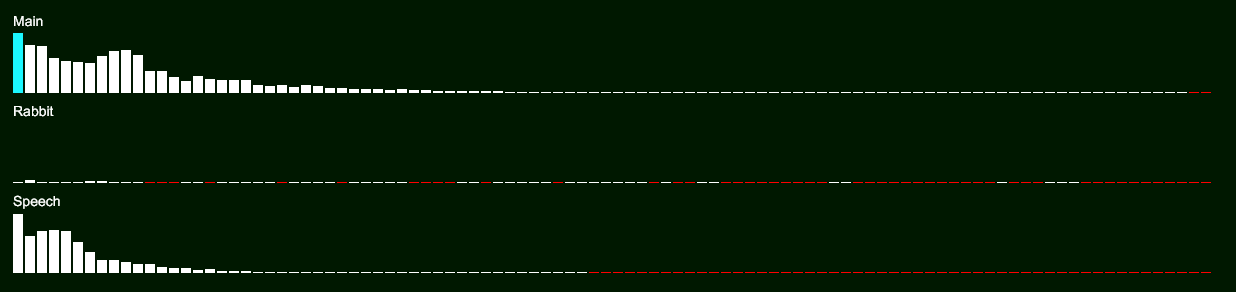
Grouped EAX
It's expensive to run many reverb effects in real time, so it's best to group emitters with similar reverb properties together.
Set MaximumGroupedEAXCountmaximumGroupedEAXCountvaWorldSetMaximumGroupedEAXCount() to the number of reverb effects your game has, and set AffectsGroupedEAXaffectsGroupedEAXvaEmitterSetAffectsGroupedEAX() to true on the emitters that should be grouped together. I recommend setting this to false on your listener emitter, and true on all other emitters.
var world = new World()
{
MaximumGroupedEAXCount = 4,
};
var emitter = new Emitter()
{
AffectsGroupedEAX = true,
};
world.AddEmitter(emitter);
const world = va.createWorld();
world.maximumGroupedEAXCount = 4;
const emitter = va.createEmitter();
emitter.affectsGroupedEAX = true;
world.addEmitter(emitter);
VAWorld* world = vaWorldCreate();
vaWorldSetMaximumGroupedEAXCount(world, 4);
VAEmitter* emitter = vaEmitterCreate();
vaWorldGetGroupedEAX(). Set to false for listener emitters<br />Returns:- VA_INVALID_POINTER if emitter is NULL
">vaEmitterSetAffectsGroupedEAX(emitter, true);
vaWorldAddEmitter(world, emitter);
Grouping Logic
All emitters with AffectsGroupedEAXaffectsGroupedEAXvaEmitterGetAffectsGroupedEAX() set to true will have their EAX objects iteratively combined together to produce N grouped EAX objects.
EAX objects are compared via their:
- Outside percent
- Returning percent
- EAX decay time
- EAX low-frequency gain
- EAX high-frequency gain
Accessing Grouped EAX
Grouped EAX objects can be accessed via World.GroupedEAXWorld.groupedEAXvaWorldGetGroupedEAX(). This list will be empty until raytracing has run at least once - I recommend accessing this list in the OnReverbUpdated callbackonReverbUpdated callbackcallback passed to vaWorldSetOnReverbUpdatedCallback():
List<ALReverbEffect> effects = [];
world.OnReverbUpdated = () =>
{
for (int i = 0; i < world.GroupedEAX.Count; i++)
{
var grouped = world.GroupedEAX[i];
// Copy properties to an OpenAL EAX reverb effect (or whichever reverb system your game uses)
effects[i].DecayTime = grouped.DecayTime;
effects[i].GainLF = grouped.GainLF;
// etc...
}
}
world.onReverbUpdated = () => {
for (let i = 0; i < world.groupedEAX.length; i++) {
const grouped = world.groupedEAX[i];
// Copy properties to an OpenAL EAX reverb effect (or whichever reverb system your game uses)
effects[i].decayTime = grouped.decayTime;
effects[i].gainLF = grouped.gainLF;
// etc...
}
};
void OnReverbUpdated()
{
int count = vaWorldGetGroupedEAXCount(world);
const VAEAXReverb** groupedEAX = vaWorldGetGroupedEAX(world);
for (int i = 0; i < count; i++)
{
const VAEAXReverb* grouped = groupedEAX[i];
// Copy properties to an OpenAL EAX reverb effect (or whichever reverb system your game uses)
effects[i].decayTime = grouped->decayTime;
effects[i].gainLF = grouped->gainLF;
// etc...
}
}
void Initialise()
{
vaWorldSetOnReverbUpdatedCallback(world, OnReverbUpdated);
}
When an emitter finishes raytracing, use its GroupedEAXIndexgroupedEAXIndexvaEmitterGetGroupedEAXIndex() to select the correct reverb effect to use for that emitter's sound playback:
emitter.OnRaytracedByAnotherEmitter = (Emitter other) =>
{
ALReverbEffect effect = effects[emitter.GroupedEAXIndex];
// OpenAL - apply the reverb effect to the source
AL.Source3i(sourceID, AL.AL_AUXILIARY_SEND_FILTER, effect.effectSlotID, 0, 0);
}
emitter.onRaytracedByAnotherEmitter = (other) => {
const effect = effects[emitter.groupedEAXIndex];
// WebAudio - apply the reverb effect to the source
// ...
};
void onRaytracedByAnotherEmitter(VAEmitter* source, VAEmitter* target)
{
int index = vaEmitterGetGroupedEAXIndex(target);
// Apply the reverb effect at index to the source
// ...
}
vaEmitterSetOnRaytracedByAnotherEmitterCallback(emitter, onRaytracedByAnotherEmitter);
Ensure you've set up a callback for World.OnReverbUpdatedWorld.onReverbUpdatedvaWorldSetOnReverbUpdatedCallback(), so that you can update your reverb effects before playing sounds in the Emitter.OnRaytracedByAnotherEmitter callbackEmitter.onRaytracedByAnotherEmitter callbackcallback passed to vaEmitterSetOnRaytracedByAnotherEmitterCallback
Volume and Direction
The volume and direction of an emitter's reverb is relative. For example, an emitter in the same room as your listener emitter should have clear reverb, but another emitter in another room should have quiet reverb.
To enable this, set Emitter.HasRelativeReverbEmitter.hasRelativeReverbvaEmitterSetHasRelativeReverb() to true on your listener emitter. The relative gain and relative direction of each grouped EAX will then be automatically calculated for your listener emitter.
Access the gain and direction like so:
var listener = new Emitter()
{
HasRelativeReverb = true,
};
world.OnReverbUpdated = () =>
{
for (int i = 0; i < world.GroupedEAX.Count; i++)
{
// Get the gain of this EAX slot relative to this listener
effects[i].EffectSlotGain = grouped.RelativeGains[listener];
// Get the direction of this EAX slot relative to this listener
Vector direction = grouped.RelativeDirections[listener];
effects[i].ReflectionsPan = direction;
effects[i].LateReverbPan = direction;
}
}
const listener = va.createEmitter();
listener.hasRelativeReverb = true;
world.onReverbUpdated = () => {
for (let i = 0; i < world.groupedEAX.length; i++) {
const grouped = world.groupedEAX[i];
// Get the gain of this EAX slot relative to this listener
effects[i].effectSlotGain = grouped.relativeGains(listener);
const direction = grouped.relativeDirections(listener);
effects[i].reflectionsPan = direction;
effects[i].lateReverbPan = direction;
}
};
void OnReverbUpdated()
{
int count = vaWorldGetGroupedEAXCount(world);
const VAEAXReverb** groupedEAX = vaWorldGetGroupedEAX(world);
for (int i = 0; i < count; i++)
{
const VAEAXReverb* grouped = groupedEAX[i];
// Get the gain of this EAX slot relative to this listener
float* gain = vaEAXReverGetRelativeGain(grouped, listener);
VAVector* direction = vaEAXReverGetRelativeDirection(grouped, listener);
// ERROR: gain/direction is not calculated for this emitter
if (gain == NULL || direction == NULL)
continue;
effects[i].effectSlotGain = *gain;
effects[i].reflectionsPan = *direction;
effects[i].lateReverbPan = *direction;
}
}
void Initialise()
{
VAWorld* world = vaWorldCreate();
vaWorldSetOnReverbUpdatedCallback(world, OnReverbUpdated);
VAEmitter* listener = vaEmitterCreate();
vaEmitterSetHasRelativeReverb(listener, true);
}
This gain is in the range 0.0 to 1.0, and should control the final output volume of that EAX reverb effect, (e.g. the effectSlotGain in OpenAL/EAX).
Do not apply a low pass filter between the audio source and the reverb effect in your game - the reverb effect should process raw audio data. Instead, the volume of the reverb effect's output should be controlled by the gain relative to your listener emitter. This allows reverb to be muffled on the other side of a wall.
The direction vector is not normalised - its magnitude indicates how strong the reverb directionality is. For example if the direction is (0, 0, 0), you'll hear reverb all around you, and if the pan vector is (0, 0, 1), you'll only hear reverb in that direction.
It's rare that the direction of all reverb rays will average to a pan vector of (0, 0, 0) (fully diffuse), so you can customise the minimum threshold that's required for reverb to be fully diffuse:
Emitter listener;
void Initialise()
{
listener = new Emitter()
{
HasRelativeReverb = true,
RelativeReverbInnerThreshold = 0.5f,
RelativeReverbOuterThreshold = 0.8f,
};
world.AddEmitter(listener);
}
const listener = va.Emitter_Create();
listener.hasRelativeReverb = true;
listener.relativeReverbInnerThreshold = 0.5;
listener.relativeReverbOuterThreshold = 0.8;
world.addEmitter(listener);
VAEmitter* listener = vaEmitterCreate();
vaEmitterSetHasRelativeReverb(listener, true);
vaEmitterSetRelativeReverbInnerThreshold(listener, 0.5f);
vaEmitterSetRelativeReverbOuterThreshold(listener, 0.8f);
vaWorldAddEmitter(ctx, listener);
In the example above, pan will blend from fully directional at 0.8f magnitude, to fully diffuse at 0.5f magnitude. This means you don't need to be fully enclosed in a room to hear the reverb all around you.
Reverb Energy Cap
It's difficult to compute the maximum amount of reverb energy that can return to a player's ears ahead-of-time, since every environment is different. Previously the volume of reverb was controlled by the energy in all reverb rays that return to the emitter, and dividing it by emitter.ReverbRayCount * emitter.ReverbBounceCount.
However not all energy should have to return to the emitter in order for reverb to be at max volume. Especially with higher ReverbBounceCount values, rays will naturally travel further away from the emitter. But this means less energy can return to the emitter, and therefore the volume of reverb drops.
This is inaccurate - rather than comparing the returning energy against the total possible returning energy - we should compare it against a user-defined threshold. This gives you control over how much energy needs to return to the emitter for reverb to be at max volume.
In the code below, only 20% of energy is required for reverb to be at max volume. If reverb is too loud, you can increase this energy cap.
var listener = new Emitter()
{
ReverbRayCount = 128,
ReverbBounceCount = 64,
ReverbEnergyCap = 0.2f, // 20%
}
const emitter = va.Emitter_Create();
emitter.reverbRayCount = 128;
emitter.reverbBounceCount = 64;
emitter.reverbEnergyCap = 0.2; // 20%
VAEmitter* emitter = vaEmitterCreate();
vaEmitterSetReverbRayCount(emitter, 128);
vaEmitterSetReverbBounceCount(emitter, 64);
vaEmitterSetReverbEnergyCap(emitter, 0.2f); // 20%